Let's face it, we've all seen guides on router settings and things of that nature.Many are actually useful; sure, there are always things to optimize in nearly every network, and if something gets past you, you might be actively bottlenecking your own connection.But the truth is that a lot of the time, those Wi-Fi "life hacks" are sensationalist and made up.
So, I went out of my way to test some of the weirder ones, and to my surprise, a good chunk of them actually worked.Making my router look like a confused spider actually helped Apparently, antenna angles matter more than I thought Close I have to admit that until not too long ago, I've never given my router antennas much thought.They were there and I didn't disturb them in any way, or at least I tried not to, but it's never crossed my mind to somehow try and optimize them.
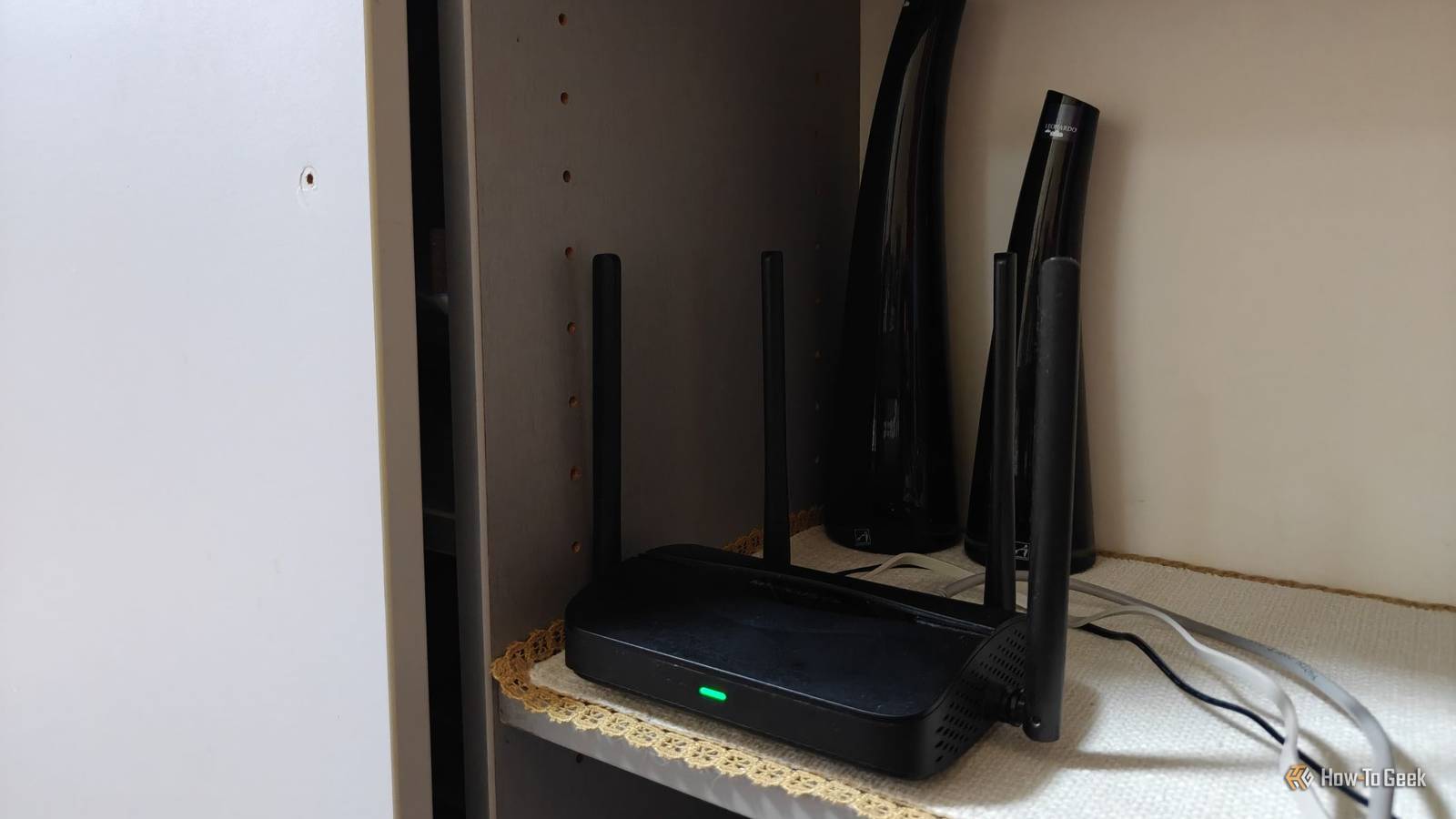
Turns out I was wrong.Instead of keeping all the antennas pointing straight up, try angling some of them outward.It might look like your router is desperately trying to crawl away from whatever antenna torture you've put it through, but there's some actual science behind this trick.
Wi-Fi antennas don't radiate their signal equally in every direction, so their orientation affects where the signal is strongest.TP-Link actually recommends keeping antennas vertical for coverage across a single floor, but angling them by around 30 degrees if you're trying to reach other floors.In other words, if dead zones are bugging you, try to adjust your router a bit.
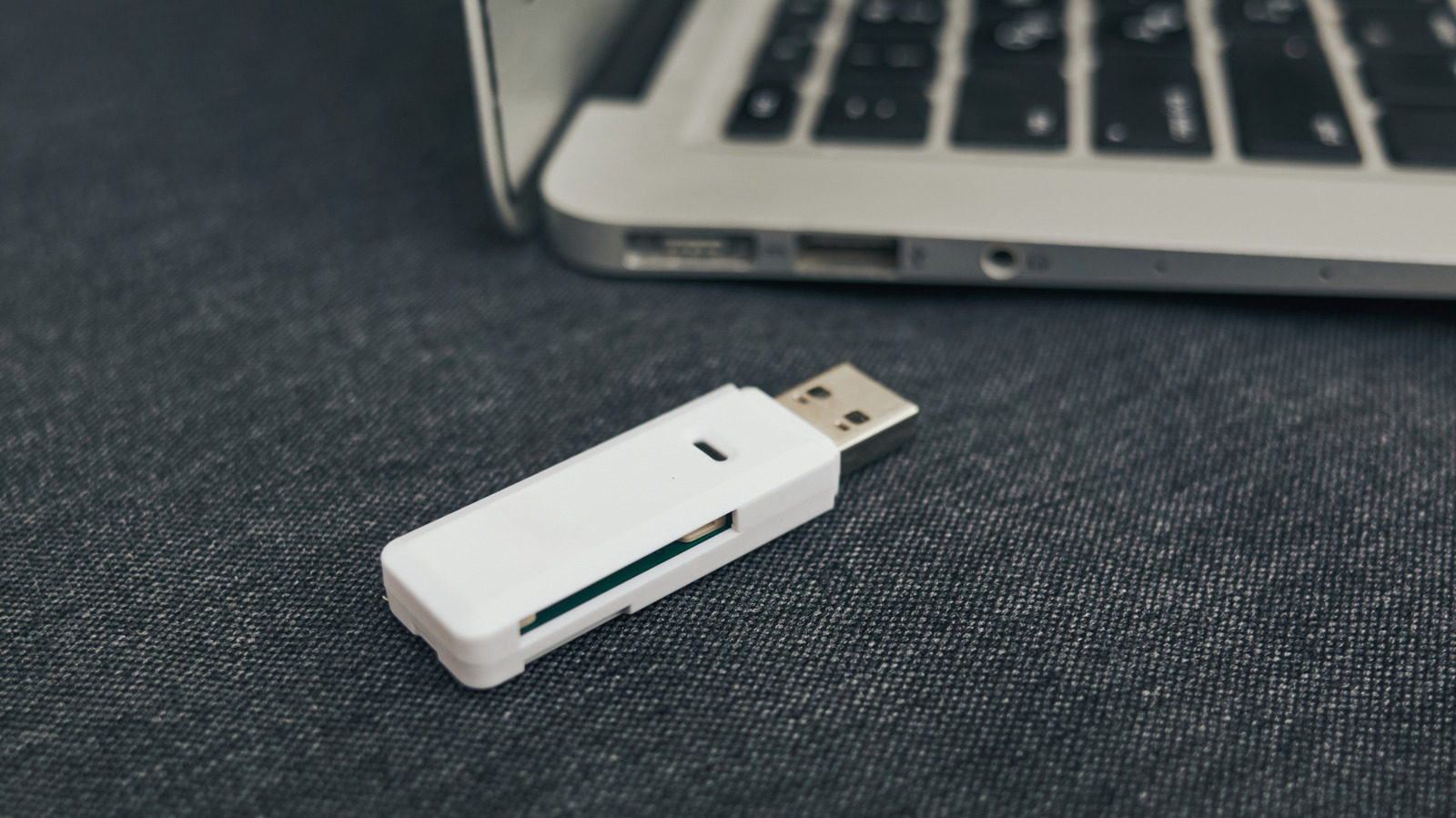
It might work.Moving a USB 3.0 device fixed a wireless problem My storage was interfering with my Wi-Fi Here's another interesting one: If you use USB 3.0 devices and have them plugged in either close to your router or to your target device, you might be ruining your Wi-Fi.Yes, really, and yes, it is unfortunate.
As it turns out, USB 3.0 devices and their cables can emit electromagnetic interference that overlaps with the 2.4GHz Wi-Fi band.This is especially noticeable with poorly shielded USB cables, hubs, and external drives.The closer you keep those things to your wireless antenna, the worse it can get.
Even Bluetooth devices can suffer from this delightful annoyance.So, how do you fix this? I'm afraid the solution won't floor you.Just unplug that stuff if you can, and if not, at least try to move it away.
That's it, you're all done.My microwave was messing with my Wi-Fi Turns out lunch and 2.4GHz don't always mix The solution for the USB problem was easy enough, but what will you do if the culprit behind your Wi-Fi issues turns out to be your microwave? It can happen.The explanation is simple and not too unexpected.
Microwave ovens operate at around 2.45GHz, which happens to fall within the same frequency range used by 2.4GHz Wi-Fi.Although microwaves are shielded to keep radiation contained, some interference can slip through the defenses anyway.This can lead to slower speeds or latency spikes.
PingPlotter actually tested this phenomenon and found latency spikes exceeding 800ms on a 2.4GHz connection with a microwave operating nearby.The fix is easy, too, although I guess it'll be your router that gets the boot and not your microwave.Simply separate the two devices or switch your gadgets to the 5GHz band, although the 2.4GHz band is useful, too.
Moving my router just a few inches made a difference Sometimes an absurdly small change is enough If you've already had to move your router away from microwaves and USB gadgets, this one will be a breeze.I found that moving my router just a few inches could have a meaningful impact on my connection, and trial and error is the play here.The reason comes down to something called multipath propagation.
Wi-Fi signals bounce off walls, furniture, and other surfaces before reaching your devices, and those reflected signals can either reinforce or partially cancel each other out.This means that even a tiny change in position can be surprisingly good (or bad).This is a legit strategy with very little that could go wrong.
Even Google recommends experimenting with small placement adjustments when troubleshooting a wireless device.Getting an aquarium out of the way helped more than expected Your fish might be innocent, but their water isn't So, is this one the weirdest on the list? I think so.I'll have to clarify that I don't personally have an aquarium, but I have a friend who does, so I forced my way in to test this one out.
And yes, it's true, your aquarium might genuinely be making your Wi-Fi somewhat worse.To clarify, I'm not saying that your fish are secretly disabling your internet so you pay them more attention.I'd wager that a lot of them don't really mind.
But the water those fish live in isn't doing you any favors, as large amounts of water can absorb radio waves.This is especially problematic if you've got a big aquarium sitting directly between your router and the devices you're trying to connect.The fix won't surprise you ...
As with the other issues, just move your router and see if it helps.I'm not going to tell you to get rid of fish.May they live long and prosper.
The strangest Wi-Fi fixes aren't necessarily nonsense It's kind of surprising how many weird things can interfere with your Wi-Fi.This is why I largely prefer Ethernet, even though my whole-home network wiring plan fell through.The bottom line here is that you can often fix things just by moving or unplugging certain things, so if your Wi-Fi is awful, try that first.
Related I stopped rebooting my router to fix Wi-Fi, and these 7 tricks worked instead Rebooting your router won't fix your Wi-Fi: 7 tricks that actually work Posts 2 By Monica J.White
Read More