Muscle memory is hard to shake.If you've spent years in Photoshop, you're not going to have a good time switching to GIMP.It took me three tries to switch over, and even then, tools like PhotoGIMP were incredibly helpful.
You're unlearning years of shortcuts and what feels ingrained, which is hard to commit to for a tool you've never used before.If you're on the fence about switching to an alternative, then this tool is exactly what you need.Setting up the patch is mostly just moving files You need to drop the files into the right folder Close To get PhotoGIMP, you need to make sure you're running GIMP 3.0 or newer.
Unfortunately, the patch won't work with older 2.x versions.Before touching anything, open GIMP once and then close it.This lets the program create its settings folders on its own, which the patch will need to modify later.
If you've already been using GIMP, it's also worth backing up your existing GIMP settings before you do anything, just in case.The patch works by replacing default files, so as long as everything goes to the right place, your actual GIMP installation won't be harmed.On Windows and macOS, the process is more straightforward.
On Windows, press the Windows key and R at the same time, type %APPDATA%\GIMP into the box that appears, and hit Enter.That opens GIMP's settings folder.From there, copy the version folder out of the PhotoGIMP archive and paste it in, choosing to replace the existing files when prompted.
On a Mac, open Finder, press Command+Shift+G, and type ~/Library/Application Support/GIMP.Paste the extracted patch folder in there and choose "Replace" or "Merge" when the system asks.If Finder seems to skip over files that already exist, you can use the terminal instead.
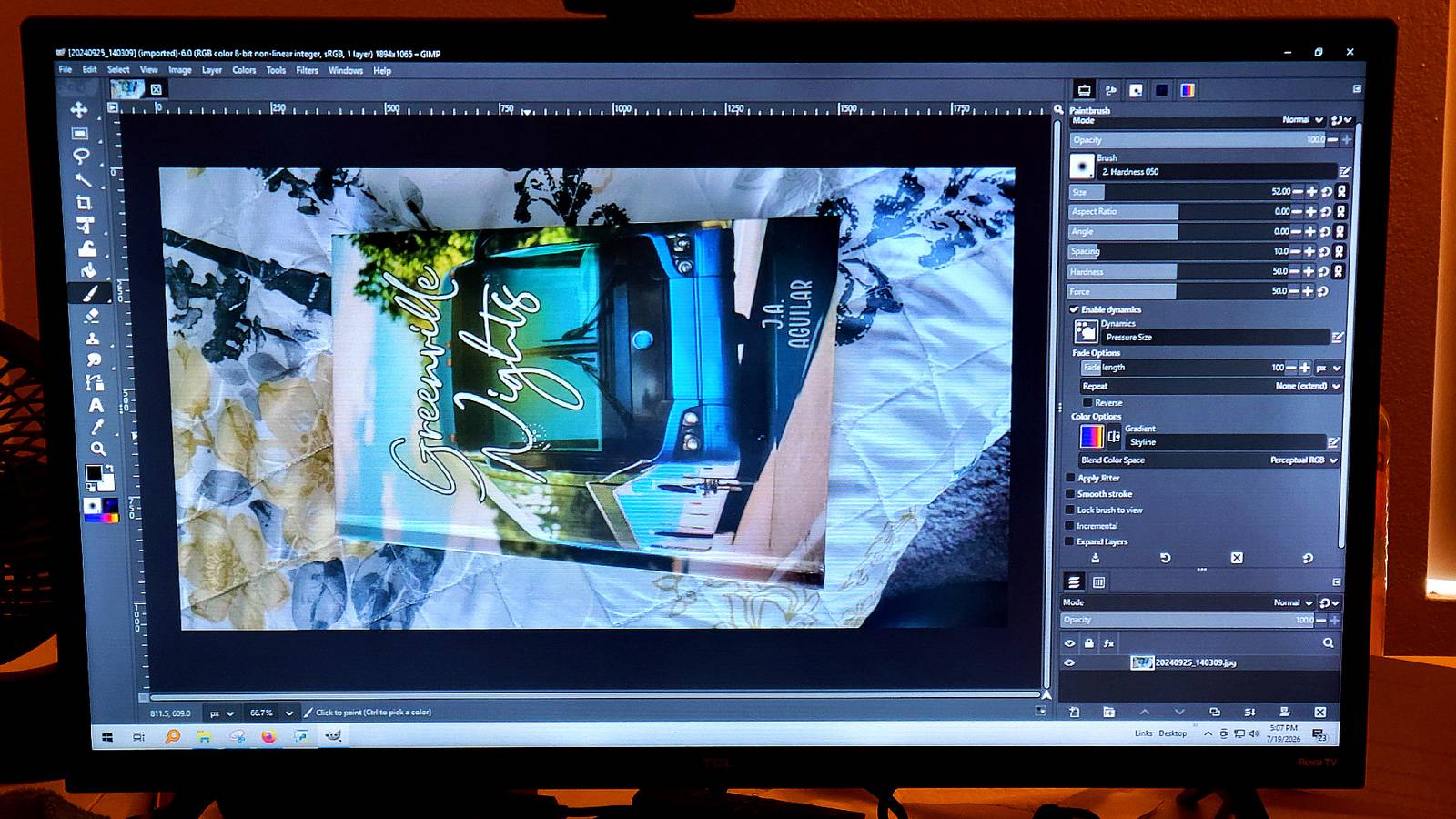
Running rsync will force everything to merge correctly.Once the files are in the right spot on any of these systems, GIMP will load up with Photoshop-style shortcuts, layout, and themes.The new layout looks and feels just like Photoshop Your usual keyboard shortcuts will work right away The best part is that GIMP's default layout gets replaced with a clean single-window setup that any Photoshop user will recognize within seconds.
I have never been a fan of GIMP's layout, even with 3.2, but I do not like using Photoshop, so this is the only way I can handle something like GIMP.PhotoGIMP strips the toolbox down and moves it to a narrow vertical strip along the left edge of the screen, which is exactly where Photoshop puts it.To make that work without things feeling cramped, the Tool Options panel gets shifted over to the right side, where it lives alongside the Layers, Channels, and Paths panels.
Everything runs the full height of the window, and nothing gets in the way of your canvas.The tools themselves are reorganized, too.PhotoGIMP rewrites the toolrc file so that tool groupings match the order and logic Photoshop users already know.
Brushes, selection tools, and layer controls will all be where you'd expect them to be.My favorite part is that GIMP also gets a dark, low-contrast theme with simple single-color icons.I love dark mode, and I think Photoshop is the best at cosmetics, so I'm always happy to see it.
The best part is the keyboard shortcuts.PhotoGIMP remaps the shortcutsrc file to bring in Adobe's standard hotkeys.So you have Ctrl+T to transform, Ctrl+D to deselect, and so on.
You just work, without stopping to think about what button does what.This is probably the best bridge that exists to get people from Photoshop to GIMP.Switching saves you money, but updates can break your setup A software update will wipe out the patch if you don't watch out You really should leave Photoshop if you're still on the fence, especially with a tool like PhotoGIMP.
You're cutting out subscription costs entirely when you go to GIMP.Adobe Photoshop runs $23 a month, by itself, which is a lot for any one tool.Some people might feel like you're taking a shortcut, since using this means you're avoiding learning how GIMP actually works.
While I would love it if this were the default, if GIMP were to change to mimic Photoshop, it would lock GIMP into chasing a commercial product forever.You could argue that users who never bother learning how GIMP actually works are missing out on what makes it good.If you stick with the learning curve, you'll come out the other side actually knowing how to use the program.
While that makes sense, I think that it is not reasonable to ask someone to throw away years of muscle memory just to learn to use open-source software.It should be open and ready for anyone to come in and use, and if it is easier to use with certain tools, then you should feel fine using it.So if you're on the fence about this, I say use PhotoGIMP; it's your computer and your software.
Just remember that PhotoGIMP isn't an official part of GIMP.It's a community patch, which means it doesn't automatically keep up when GIMP updates.That is an issue because of how GIMP stores settings.
Every minor version gets its own configuration folder, so when you go from GIMP 3.0 to 3.2, the software starts reading from a completely new directory and ignores the old one.Since PhotoGIMP's files are packaged for the 3.0 folder, an update can break everything, so it may be a good idea to stick to a version and upgrade both at the same time.This is perfect for Photoshop refugees PhotoGIMP isn't perfect, but if you've been paying for Photoshop and putting off the switch because GIMP feels foreign, this patch makes the transition a lot easier.
The interface you already know is mostly there, and it costs you nothing but a few minutes of file copying.I think it's very much worth the attempt.GIMP OS Windows Individual pricing Free GIMP is an open source Photoshop alternative that is free and gives you many of the same features.
See at GIMP Expand Collapse
Read More