Summary Windows 11's frequent feature updates keep breaking things; set TargetReleaseVersion to stay on a stable build.Microsoft forces online Microsoft accounts; local installs need ISO hacks and BitLocker keys link to your MS account.Copilot and agentic AI are everywhere on Windows; uninstalls revert; removal needs registry edits or risky scripts.
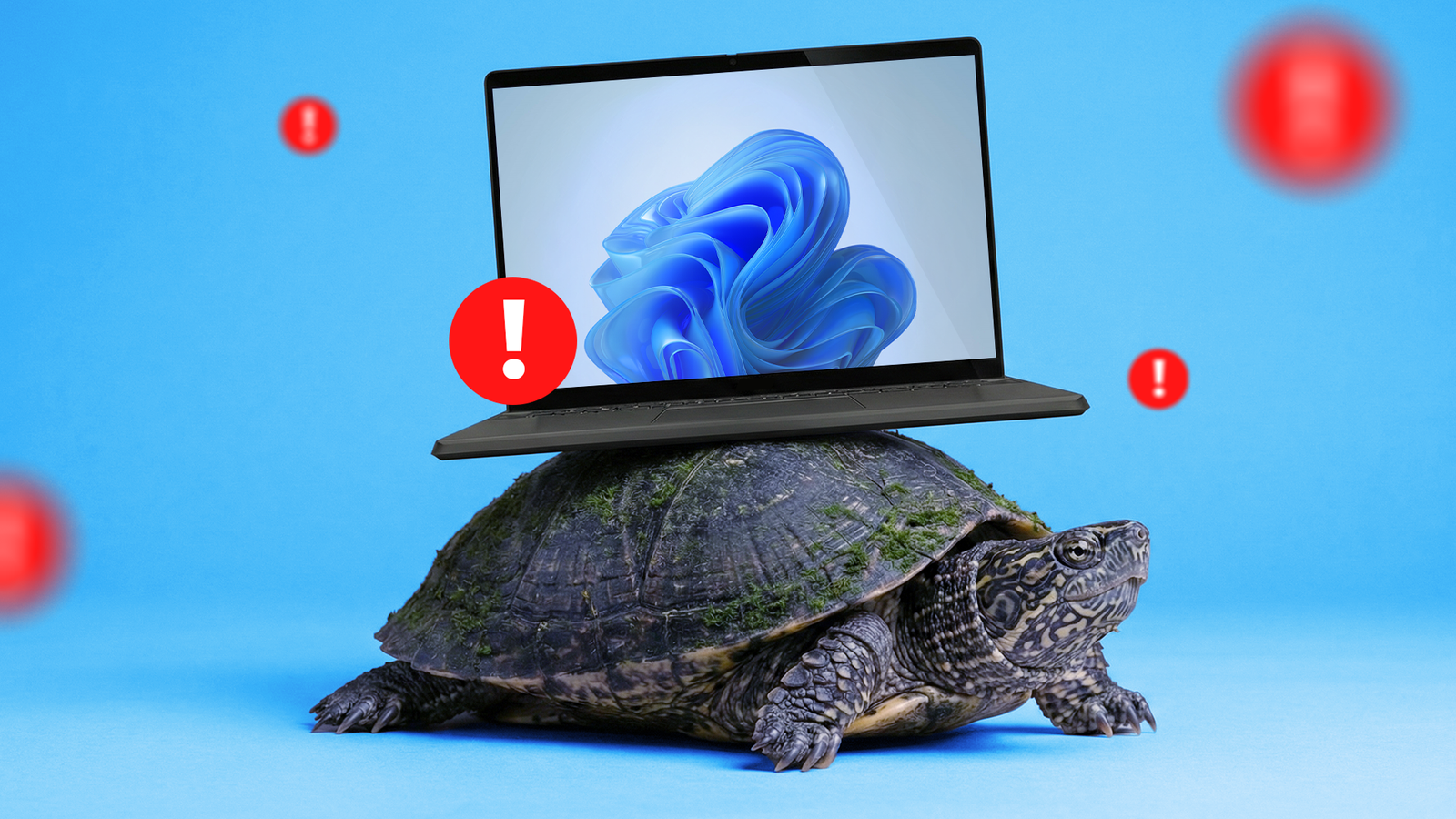
Windows 11 has been progressively getting worse with every feature update since last year.Here's how I've been doing some damage control to keep it usable.Windows 11 updates keep breaking the system In recent years, Microsoft has started releasing feature updates and enhancements for Windows more frequently than ever.
Instead of yearly releases that are thoroughly tested, new updates are rolled out almost every month.Unsurprisingly, this new model also introduces a bigger volume of bugs.Since last year, a lot of people have reported that their basic Windows UI keeps glitching after the 24H2 update.
A taskbar that disappears here, a Start menu that fails to launch there.Windows Explorer has been crashing often and repeatedly, leaving the user with a blank screen and a cursor.Even the Task Manager has been glitching and failing to do its job—killing misbehaving apps and services.
Gaming performance also took a hit with a cumulative update titled KB5066835, which led to frame drops and stability issues in video games.NVIDIA had to release a hotfix for their GPUs as a workaround for this bug.There were also some bugs where Windows stopped registering keyboard and mouse input in the Windows Recovery menu, so people with broken Windows couldn't even reset their computers.
You don't need these feature updates every month, so if they keep breaking your OS, it's a good idea to disable them.You'll still be receiving the necessary security patches.Also, you can always enable the latest cumulative updates later, if you change your mind.
You'll need to edit the Windows Registry to disable those feature updates.Open the Registry Editor by looking it up in Windows search.Alternatively, you can press the Windows+R keys, type in "regedit" to launch the Registry Editor.
Navigate to the following directory.You can do that manually, or you can paste in this address and jump to the relevant key directly.HKEY_LOCAL_MACHINE\SOFTWARE\Policies\Microsoft\Windows\WindowsUpdate Right-click on the "WindowsUpdate" key and select "New > D-WORD 32-Bit Value." It'll create a new untitled value.
Rename it to "TargetReleaseVersion." Then right-click on "TargetReleaseVersion" and type in the version you want to stick with.For example, I typically use 23H2.Related How to Optimize Windows 11 for Older PCs Do this before upgrading the hardware.
Posts 12 By Mahesh Makvana Forced online accounts Microsoft has been slowly phasing out "local" accounts, which allow you to install and use Windows without connecting to the internet or your Microsoft account.It started with pushing for online Microsoft accounts to install and log into Windows.At the same time, Microsoft started hiding the local account button or only showing it when you weren't connected to the internet.
After a while, the installer would refuse to continue unless you had an active internet connection.To get around those restrictions, people started pulling up the command-line terminal within the installer to access the hidden local user interface.Microsoft is aggressively patching these workarounds too now, making it almost impossible to use Windows without an active Microsoft account.
The only practical way for bypassing the restriction is to modify the Windows installer ISO using a tool like Rufus.When you run a modified ISO, it won't even ask for an online account.If you're using a local account, however, make sure you manually back up your BitLocker keys.
Windows now activates BitLocker by default and connects it to your Microsoft account.If you replace Windows with a different operating system, you won't be able to access your storage drives without the BitLocker recovery key.Copilot everywhere Windows 11 has the Copilot button scattered throughout the interface.
There's the pre-installed Copilot app on the taskbar.There's a Copilot shortcut on the Start menu, which opens the Copilot chat in Microsoft Edge.Microsoft Edge itself has two shortcuts, one on the toolbar and one on the sidebar.
Notepad, Paint, and Photos have a Copilot button too.If you have a Microsoft 365 subscription, you'll see Copilot in Word, Excel, PowerPoint, Outlook, and OneNote too.You can uninstall the Copilot app and change Microsoft Edge settings to remove it from the browser too.
However, Windows will reinstall the Copilot app with the next update.So you can either disable the feature updates or go into the Windows Registry and block Copilot permanently.Subscribe for practical Windows 11 fixes and workarounds Keep Windows 11 stable and usable—subscribe to the newsletter for tested workarounds, Registry guides, safe uninstall tips and hands-on advice to manage features like Copilot and unwanted updates, with straight coverage of Windows 11 fixes.
Subscribe By subscribing, you agree to receive newsletter and marketing emails, and accept Valnet’s Terms of Use and Privacy Policy.You can unsubscribe anytime.There's no way to remove these integrations from the system apps, at least not natively.
The only way to rip out Copilot from the interface and the system apps is to run a shell script.Running unofficial shell scripts is a serious security risk, so make sure you know exactly what the script does before you run it.Use your best judgement because a shady script can harm your system.
Related I Customize These 7 Settings Right After Installing Windows 11 Windows 11 works best with these configurations.Posts 3 By Aman Kumar Promised pivot towards agentic AI Microsoft has also announced that more AI features will show up in Windows 11 to make it a more "agentic" OS.The term "agentic," in this context, means that Microsoft's AI can do more than just chat with it.
It can also interact with files and settings on command.You can expect AI in the Windows interface, in File Explorer, and more features like Recall.Some of these features are already active in the Explorer context menu.
In addition to the Ask Copilot button, the latest versions of Windows also have an "AI Actions" button that lets you edit images with AI.Since these features will be baked into Windows, I doubt there will be an opt-out button.There are unofficial shell scripts that claim to remove these AI components, but it's a "try at your own risk" option.
Microsoft doesn't seem to be slowing down with the same feature updates which have been regularly breaking Windows 11.However, at least for now, there are some workarounds that make it more or less usable.
Read More