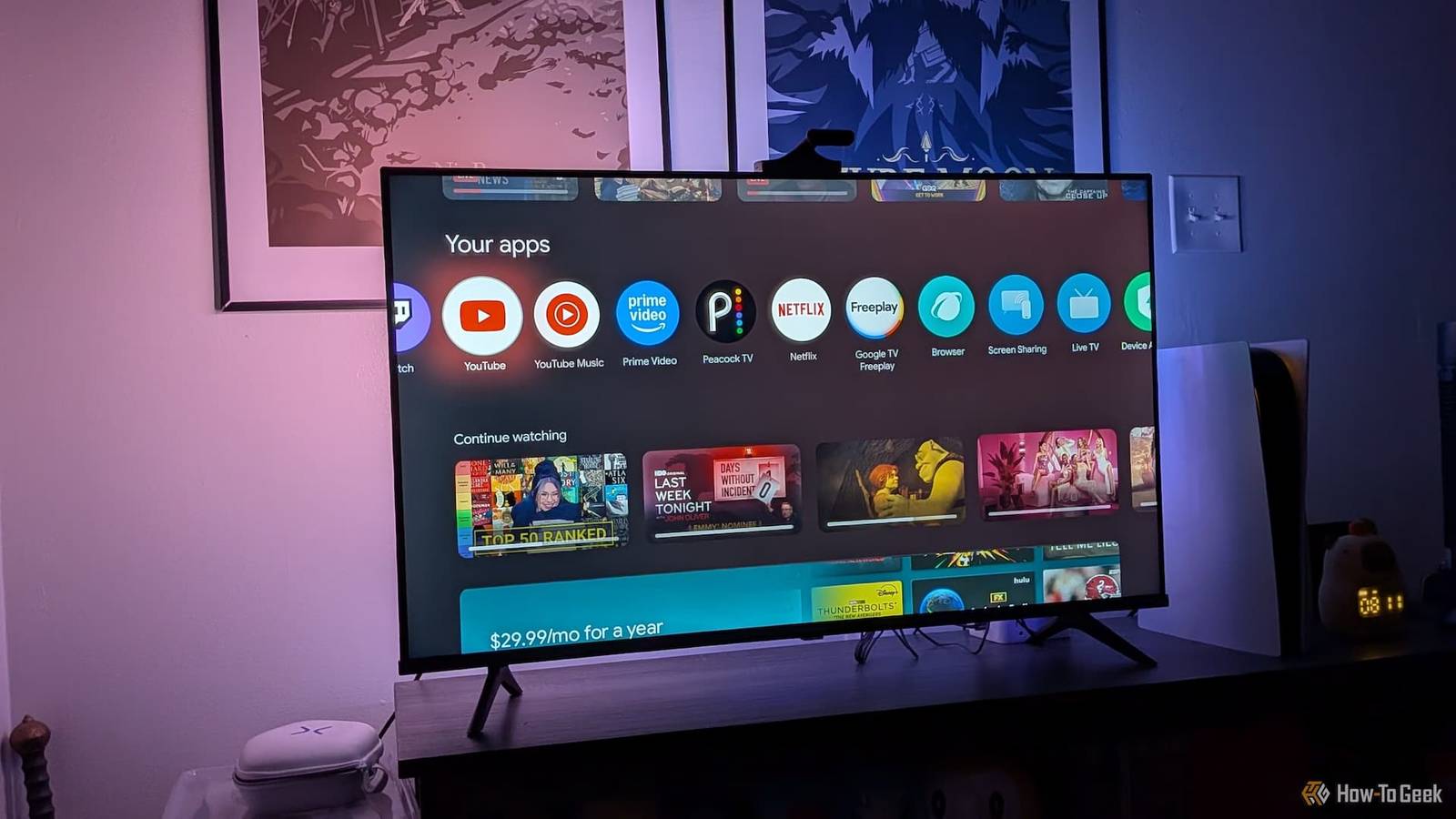
Owning an Android or Google TV gives you a lot of freedom, but navigating its interface with a standard remote can sometimes be frustrating.You likely already use your smartphone as a remote to control your TV wirelessly — for tasks like typing long search queries or as a backup remote.While there are plenty of Android and iOS options to control your Google TV, controlling it through Windows 11 is often a less explored territory.
So I did a little research to arrive at these two easy solutions—a lightweight custom remote app and leveraging the power of Chromecast — to control your Google TV seamlessly with your Windows 11 PC.Leveraging Chrome or Edge Browser Control active TV playback from your browser toolbar The fact that Google TVs come with Google Cast (formerly Chromecast) is a huge advantage when it comes to wireless connectivity.It lets you control your TV wirelessly with any supporting client.
With Chromium-based browsers like Google Chrome and Microsoft Edge already running on your Windows 11 PC, you can instantly leverage them to control your TV.All you need to do is make sure your Google TV and PC are connected to the same Wi-Fi network.If this condition is met, the Chrome or Edge browser will do its magic.
Once the media starts playing on your TV, you can spot a music icon popping up on the browser's toolbar, located in the top right corner of the screen.Clicking that will offer you media control over the content being played and let you play, pause, or skip the track with just a few clicks.This seamless Google Cast integration into my everyday browser has made my life much easier, especially when I want to leave my favorite music videos playing on my Google TV while working on my laptop simultaneously.
If your browser cannot find your Google TV, ensure that both devices are on the exact same Wi-Fi band (e.g., both on 5GHz).Additionally, disable any active VPNs on your Windows PC, as they isolate your computer from the local network and will block Google Cast discovery.Cast your desktop or web media directly to the TV Google TV lacks Miracast support natively, leading to the usual Win + K method of casting your PC to TV not working.
The alternative is Google Cast, but it's not built-in to Windows.The workaround is to leverage Google Chrome or Microsoft Edge browsers' native Google Cast support, like we did before for media playback.To initiate casting, click the three-dot menu in the top right corner of your browser and find the cast option.
On Google Chrome, the cast option will be directly listed under the three-dot menu, while you may need to go to More Tools on the Edge browser to find the Cast media to device option.Once you enter the cast option, you can find your Google TV name listed if both the PC and TV are connected to the same Wi-Fi.Click your TV name, and under Sources, you can choose whether you just want to cast tab or cast screen.
This lets you cast your screen immediately without any need for an external tool or software.Related I found out my Google TV was tracking me, here's how I stopped it I always feel like somebody's watching me.Posts 1 By Sydney Butler Compiling a custom remote app A quick DIY solution for controlling your Google TV via desktop Close While casting and controlling media is fine for casual use, nothing beats the convenience of using your PC keyboard to perform an action on your Google TV.
There are plenty of remote control apps on Android and iOS, but on Windows it's just the opposite.You hardly find any reliable free options.My research eventually led me to an open-source GitHub repository called Google TV Remote for Windows.
The developer has coded a lightweight remote control app for controlling your Google TV with advanced features like keyboard hotkeys, automatic device discovery, custom app launchers, and direct text input.This is a public repository, and you can easily clone it on their machine and build the executable of the remote yourself.I tried it myself, and it worked fine on my Sony Bravia TV.
The step-by-step guide on the repository is pretty straightforward, and anyone can easily follow the instructions.Before doing so, you'll need a code editor like VS Code and a dedicated project folder created on your disk.Once you clone the repository following the terminal instructions mentioned in the repo and run the python main.py command in your terminal, the app's interface will open.
In my testing, the app automatically detected my Google TV model with the help of the Wi-Fi network, and I just had to hit the Pair option to get a unique code on my TV to pair with it.Once pairing is done, you'll not be needing to pair again.All controls worked seamlessly except the "TV Apps" menu, which lists popular TV apps to launch directly from the app, just like hotkeys on your remote.
I tried troubleshooting for a workaround, but nothing seemed to work.It looks like Sony might be blocking this feature at the OS level.If the Windows remote app fails to power on when your TV has been asleep for a few hours, your TV's power-saving mode is likely shutting off its Wi-Fi card.
To fix this, navigate to your Google TV's network settings, locate the Remote start option, and set it to On (Powered on by apps).This ensures your TV is always listening for a wake command from your PC remote.You can refer to the table below for keyboard shortcuts to control your Google TV seamlessly.
Remote Button Keyboard Shortcut Event Power P Toggle TV power state Mute M Mute/unmute TV audio Home H Go to TV Home screen Back Backspace Go back OK / Select Enter Select active element D-Pad Up/Down/Left/Right Arrow Keys Move navigation cursor Play / Pause Space Toggle media playback Rewind J Rewind media Fast Forward L Fast-forward media Volume Up / Down ] / [ Adjust TV volume Channel Up / Down PageUp / PageDown Switch channels Once you confirm the script runs smoothly, you can use to compile it into a dedicated .exe file so you can launch the Google TV remote app instantly from your Windows desktop without touching the terminal again.Closing the gap between your Windows 11 PC and Google TV While smartphones are the go-to choice for controlling Google TV, these tips prove that you can reap the benefits on your Windows machine too.Try it yourself and enjoy a seamless cross-device experience between your Google TV and Windows 11 PC.
Read More