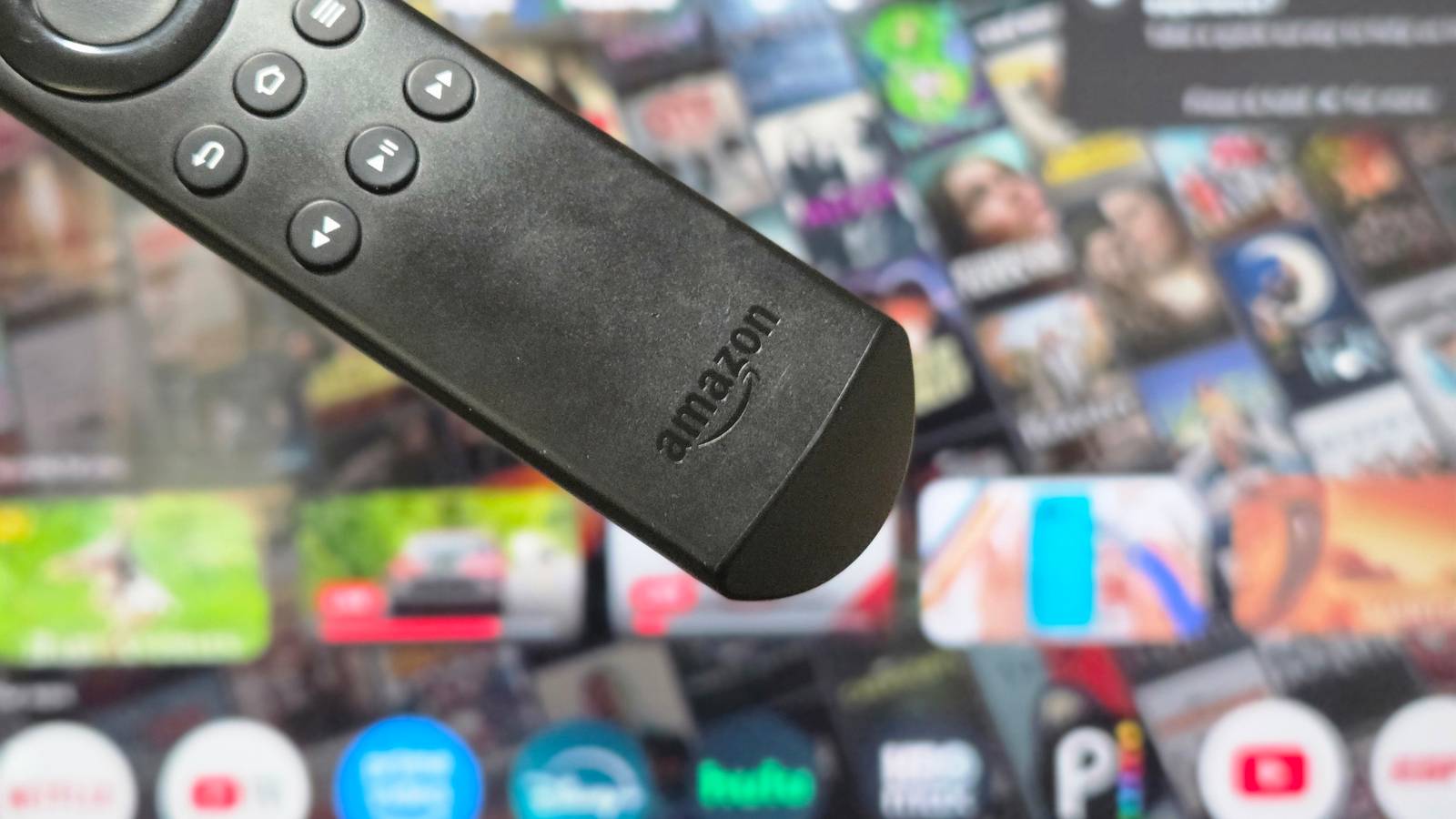
Your Fire TV can get slow and start to stall over time, which is one of the most annoying things.These devices start fast out of the box, but they quickly turn into a headache as you install more apps.The problem is usually just limited hardware struggling with hidden background tracking and files that take up too much space, and I don't mean your router.
You just need to adjust your settings, kill those background tasks, and clear out space to make it fast again.Fire TVs tend to feel slow over time It won't be brand new forever Fire TV devices are pretty constrained.Everything feels fast, but after a few months of regular use, streaming apps quietly pile up cached data until the whole thing starts to drag.
Even with accessories, eventually it will slow down.Apps like Netflix are especially aggressive about piling up your cache.They cache offline titles, high-res image assets, and local databases, sometimes over two gigabytes worth, writing all of it directly to the device's internal storage.
That storage uses the older eMMC 5.1 architecture, which has its own issues.The thing is, eMMC 5.1 only moves data in one direction at a time, so every write operation forces any ongoing reads to pause and wait.As you run out of space, the storage controller has a hard time finding clean blocks for new data.
This kicks off garbage collection and makes your TV lag.Memory is the other half of the problem.Background processes and automatic updates constantly chip away at the already-limited RAM, leaving little headroom for the apps you actually want to use.
Your Fire TV is running a lot in the background.You've got telemetry, analytics, voice assistant audio buffering, and Automatic Content Recognition, which quietly captures audio fingerprints every few seconds to track what you're watching.These services burn through CPU cycles continuously, and if they lose their connection to Amazon's servers, they can get stuck in retry loops that generate error logs and make the storage situation even worse.
On top of all that, apps that load full-resolution images without scaling them down can blow past the device's memory limits, causing crashes.To cope, the OS compresses inactive memory into a virtual swap space called ZRAM.However, under enough pressure from bloated caches and background updates, even ZRAM fills up.
It feels like your TV is designed to slow down over time if you don't do anything about it.There are some settings you can change You don't have to buy a new device to get your speed background To get your Fire TV's speed back, you'll need to do some manual maintenance.You don't need a screwdriver; you just need to clear storage, free up memory, and stop putting so much strain on the system.
The quickest win is uninstalling apps you no longer use.Getting rid of extra apps frees up space on the internal storage, which matters more than you'd think on these devices.I used to keep a bunch of apps around just in case I might use them in the future, but that's a fool's game.
You need to delete them to kill off any background processes quietly eating through your bandwidth.This gives the whole system a little more room to breathe.Streaming apps like Netflix, Prime Video, and Disney+ accumulate temporary files, image caches, and database junk over time, sometimes eating up gigabytes of space.
To fix it, go to settings, then applications, and open "Manage Installed Apps," and clear the cache for each of the big ones.Don't worry because clearing the cache only removes temporary files.It won't touch your login info, saved settings, or anything personal.
It's something you can do regularly, and you won't lose anything.You also need to deal with apps running in the background.Backing out of a streaming app and returning to the home screen doesn't actually close it; it just pauses it.
If those idle apps have background services running or memory leaks, they'll keep chewing through CPU cycles and RAM.The fix is to go in and manually "Force Stop" the heavy hitters.This fully kills the process and clears out the memory it was sitting on.
While you're in the settings, it's worth turning off Amazon's background tracking features too.Head to Privacy Settings and disable things like "Collect App Usage Data," "Device Usage Data," and interest-based ads.Once you've done all that, finish with a restart.
It's always a good idea to restart your device after you change a bunch of settings.Autoplay eats your memory One quick setting change can help a lot Amazon's home screen makes things worse by constantly playing video in the background without you ever asking it to.Decoding video eats up a big chunk of your available memory, so by the time you actually open an app, the system is already struggling.
Subscribe to the newsletter for Fire TV maintenance tips and more Want more Fire TV know-how? Subscribe to the newsletter for practical maintenance insights, troubleshooting guidance, and clear privacy and performance advice that helps you preserve device responsiveness and avoid unnecessary replacements.Get Updates By subscribing, you agree to receive newsletter and marketing emails, and accept our Terms of Use and Privacy Policy.You can unsubscribe anytime.
The processor is juggling live video feeds while you navigate the menu, which fills up the memory and makes the CPU run hot.When it gets too hot, the device throttles itself to cool down.The fix is buried in the settings, but it's straightforward.
Go to Settings, then Preferences, then Featured Content.You'll see two options there: Allow Video Autoplay and Allow Audio Autoplay.Turn both of them off to stop the problem.
That's really all it takes.Once you do, the home screen swaps those background videos out for static images instead.Your RAM frees up, the processor stops working overtime on ads you weren't watching anyway, and the whole device runs cooler.
Apps like Netflix, Hulu, and YouTube open noticeably faster, and the general choppiness goes away.It's a small change that makes the device feel like a new machine.This will work for as long as you use it Clearing caches and stopping background processes by hand isn't a permanent fix.
Fire TV hardware is limited, so you will need to repeat this maintenance every few months to keep the system running fast.If you want a device that never needs adjusting, a higher-end streaming box is a better choice.However, if you'd rather save money instead of buying new hardware, taking ten minutes to change these settings really helps.
Fire TV Stick 4K Operating System FireOS Resolution 4K RAM/storage 8GB Connectivity Wi-Fi 6, Bluetooth 5.2 $50 at Amazon $50 at Best Buy Expand Collapse
Read More