In my home, Roku is the main streaming platform.I have several Roku televisions and a couple of streaming sticks.Needless to say, I spend a lot of time in the Roku interface.
One of the reasons I chose Roku was because it seemed easy to use.The remote is the same on every TV, and even the least tech-savvy people in my home have no problem using it.However, recent changes have started to make my Roku Home screen feel too busy.
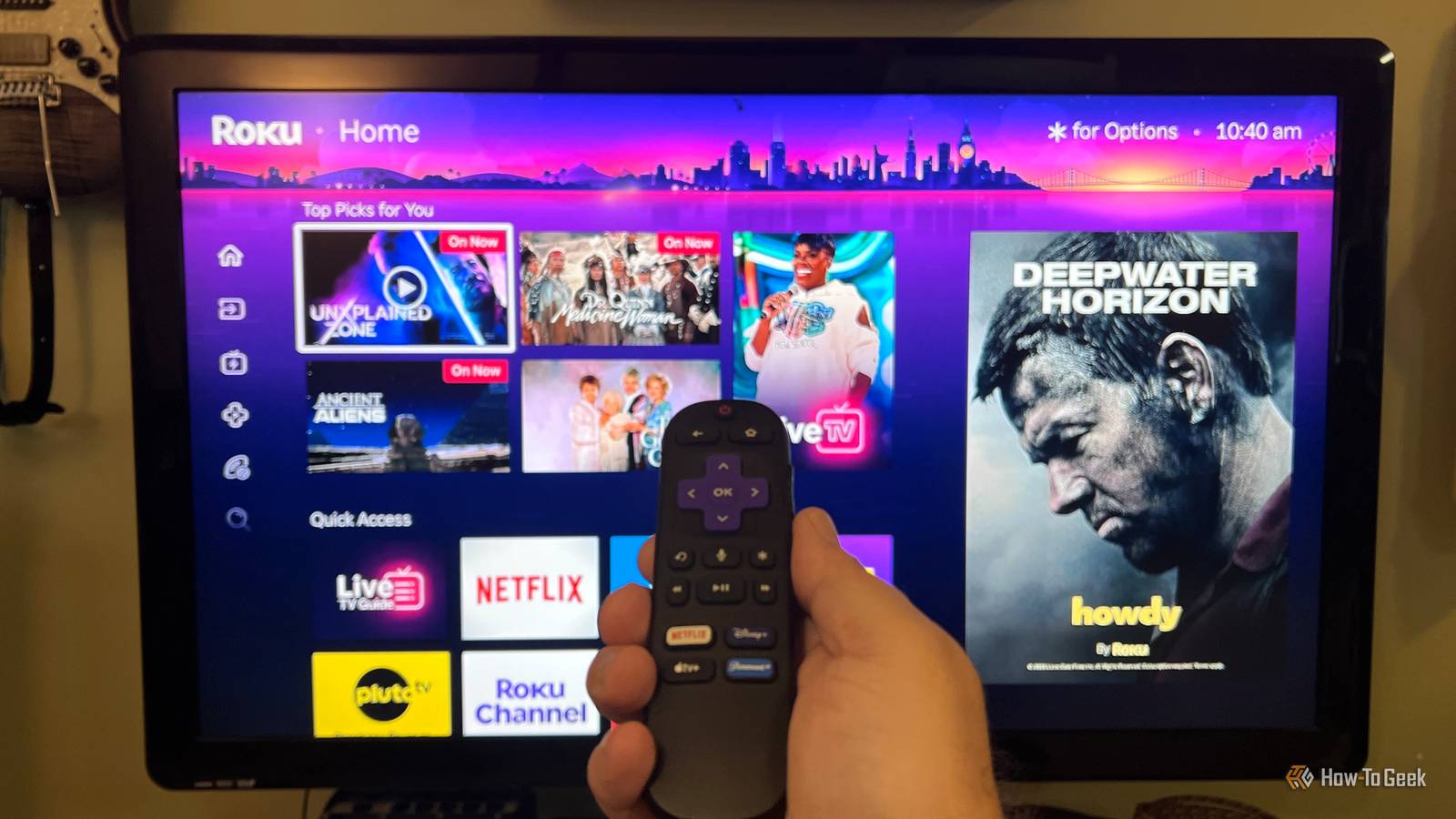
In May 2026, Roku rolled out a redesigned Home screen.This particular update has made my Home screen much more cluttered with recommendations, Quick Access rows, shortcuts, and more.More importantly, it pushed the apps I use every day even farther down the page.
While I’m sure there are people who engage with these recommendations and extra content, I don’t.I typically already have a platform destination in mind, and frankly, I don’t want Roku’s content suggestions.With all of this going on, I thought it was a good time to share the changes I make on each Roku device in my home.
Unfortunately, most of these tweaks don't sync across all your Roku TVs and streaming sticks, so you'll need to make them on each one.There are also some small differences depending on the Roku device you're using, but for the most part, these settings work across all of them.I turned off personalized recommendations Roku's recommendation rows were taking up space I wanted for apps To start with, Roku’s recommendation rows were taking up far too much space.
Specifically, that’s where my apps sat before the update.Now my favorite choices sit below a section I don’t engage with.Getting rid of the recommendations row pushed my streaming apps back up where they belonged.
All I really want here is an easy way to get to my favorite apps.To get rid of it, navigate to Settings > Home screen > Recommendation rows, then change the setting from Show to Hide.Roku removes that entire recommendation section from the Home screen immediately, so there's no restart or extra confirmation step.
Once it's gone, the app grid shifts higher on the page and gets back some of the space the recommendations were using.It's a small setting, but on my Roku devices, it makes the Home screen feel noticeably less crowded and gets me to the apps I actually use with less scrolling.I cut back on sponsored content Roku won't remove the big ad, but you still have a few options Close I'd love to say there’s a way to remove the large ad on the right, but there isn't on any of my Roku devices.
If you highlight the ad and press the Star button (*) on your remote, you can change the ad or open the Sensitive ad content settings where you can manage your ad preferences and limit ads in certain sensitive categories.You can also access this menu via Settings > Privacy > Advertising.Another easy change worth making is turning off Roku’s sponsored wallpapers.
Go to Settings > Theme > Sponsored wallpapers and toggle the setting to Off.This won’t make Roku ad-free, but it does stop Roku from replacing your normal background with sponsored artwork.It’s a small change, but combined with the other tweaks, it cuts down on some of the extra promotional clutter.
I hid menu items I never use Roku lets you trim some of the extras from the Home screen There are other things I like to trim away from the Home screen.Roku adds shortcuts and links that I don’t use.They seem to keep growing.
None of them is a big problem on its own, but together they make the Home screen more crowded than it needs to be.I just want my Home screen focused on the apps I click into daily without anything to get in the way.Related 5 free fixes that make every smart TV perform like a premium model I've made 5 free "upgrades" to every smart TV in my home, so stop accepting the default settings your TV manufacturer doesn't want you to change.
Posts 20 By Jorge A.Aguilar To clean this up, go to Settings > Home screen, then open Quick Access and change it from Show to Hide.If your Roku lists other Home screen items or shortcuts in that same menu, you can hide the ones you never use there as well.
The exact options can vary a little depending on your Roku model and software version, so your menu may not look exactly like mine.The changes take effect right away, and every section you remove gives your app grid a little more room.I moved my most-used apps to the top Keeping every Roku laid out the same saves me time This change is more of a personal preference or perhaps it’s a bit OCD, but I like having the same experience when my wife and I switch from the living room TV to the one in our bedroom, for example.
Keeping the same apps in the same order makes muscle memory kick in, so nobody has to hunt for the platform they want to watch.To move an app, highlight it on the Home screen and press the Star (*) button on the Roku remote.Choose Move app, then use the directional pad to place it where you want.
When it’s in place just press OK.I do this with the apps we use most until the first row or two are laid out the way I like.Then I repeat the same basic order on the other Roku TVs and streaming sticks in the house.
A few small changes make Roku easier to use None of these changes turns Roku into an ad-free utopia, but together they make the Home screen work a lot better for me.My apps are easier to find, there's less extra stuff competing for space, and each TV feels more consistent when I move from one room to another.The only downside is that most of these changes need to be made on each Roku TV or streaming stick separately.
It takes a few minutes per device, but once they're set up the way I like them, I rarely have to think about it again.
Read More