I've been using Raycast for Windows since shortly after the public beta launched last November, and I still think it's a good program.It gave Windows the kind of fast app launcher and command bar experience I'd been missing, especially when I wanted to open apps, jump into actions, or avoid digging through menus.For a while, it felt like one of those small utilities I'd automatically install on every Windows PC I used.
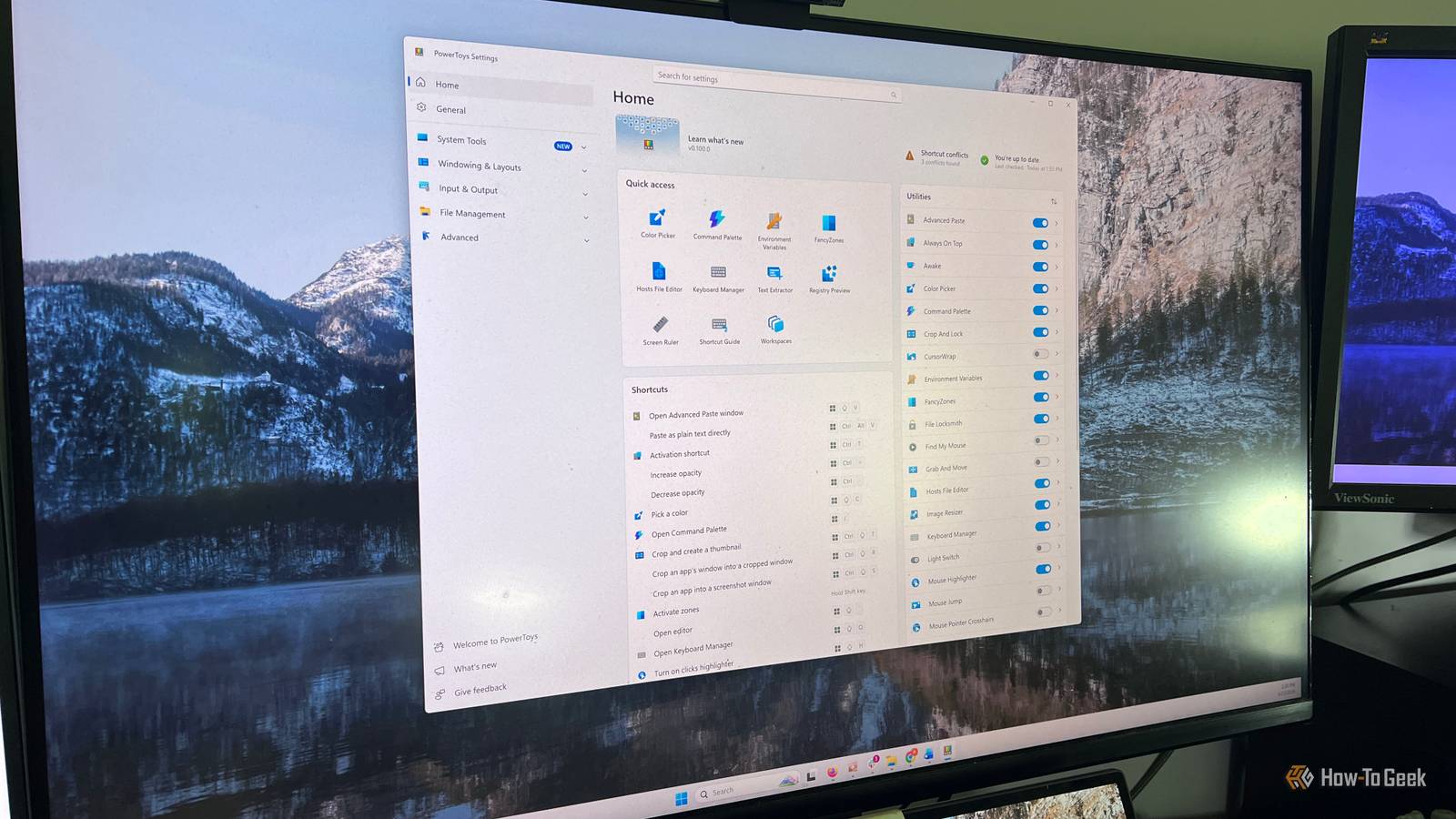
Then Microsoft updated PowerToys, and Command Palette caught my attention again.I'd used PowerToys before, but I thought of it as a collection of handy extras rather than something that could replace the third-party tools I'd built into my daily setup.Once Command Palette started feeling more useful, I spent more time poking around the rest of PowerToys.
That's when PowerToys started to click for me again.I wasn't looking for it to replace Windows or turn into some all-in-one productivity suite.I just wanted fewer little apps doing one-off jobs in the background.
Once I started using Command Palette, I went back through the rest of PowerToys and realized it already handled a few things I'd been installing separate tools for.Command Palette replaced Raycast for Windows for me It does the launcher job well enough that I didn't need another app Raycast for Windows is still in beta, but I’ve liked using it.It brings that fast, keyboard-first launcher feel to Windows, and it's good for the same reason tools like this are always good: I can hit a shortcut, start typing, and get where I'm going without digging through the Start menu or clicking around the taskbar.
For me, that mostly meant launching apps, jumping into quick actions, and keeping my hands on the keyboard.PowerToys Command Palette now covers enough of that same ground that Raycast stopped feeling like something I needed.Microsoft describes it as a quick launcher for apps, commands, and tools, and that's really the role it fills for me.
I can use it to open apps, run commands, search, and get to PowerToys-related tools from one place.It also fits neatly into the rest of PowerToys, which matters because I was already using other PowerToys features instead of separate utilities.I wouldn't say that Command Palette is a full Raycast replacement.
Raycast still feels like the bigger, more expandable launcher, especially if you rely on extensions, snippets, notes, clipboard tools, and deeper integrations.But I wasn't using all of that.I mostly wanted a fast way to open apps, run quick actions, and stay off the mouse.
For that, Command Palette does enough, and because it's already part of PowerToys, it's one less separate utility I need.FancyZones slowly replaced GlazeWM for me I wanted better window layouts, not a full tiling window manager GlazeWM is a good program, especially if you like the idea of bringing a Linux-style tiling window manager to Windows.It's inspired by i3, so the whole point is to make window management feel more structured and keyboard-driven instead of constantly dragging things around with the mouse.
For the right setup, it makes a lot of sense.But I eventually realized I wasn't using GlazeWM like a full tiling window manager.The thing that actually changed my habits was Windows 11 Snap Layouts.
I kept using the layout picker that appears when you hover over the maximize button, and that told me something about how I wanted to manage windows.I didn't need Windows to automatically tile everything for me.I just wanted a quick way to drop apps into a layout and get back to work.
That's where FancyZones made more sense.It takes that same basic idea, but gives me more control over the layouts.Instead of adapting my whole desktop around a tiling window manager, I could create a few zones that fit the way I actually use my monitor and snap windows into place when I needed them.
The downside is that it can feel less automatic, and some people won't like having to set up layouts or hold a modifier key while moving windows.But for me, that trade-off was fine.FancyZones gave me the part of tiling I actually used without making my whole desktop feel like a project.
Text Extractor replaced my quick OCR workaround I mainly use it to grab text from images Text Extractor is a little different from the other PowerToys features on this list because it didn't replace one specific app for me.I wasn't using a dedicated optical character recognition (OCR) tool every day.What it replaced was the little workaround I'd use when I needed to grab text from an image and Windows wouldn't let me select it.
Deals Save on Productivity Software and Utility Deals Explore discounts on productivity apps, subscription bundles, and utility tools that speed up Windows workflows.Browse deals on software, OCR tools, launchers, AI services, and workflow accessories to save while upgrading your setup.Deals Explore Software, AI & Subscriptions Deals That comes up more often than I expected.
Sometimes it's text in a screenshot, a product name in an image, a bit of copy in a graphic, or an error message that's easier to paste into a search box than retype by hand.With Text Extractor, I can press a shortcut, drag a box around the text, and paste the result somewhere else.It's not perfect, and I wouldn't use it for a long document or anything that needs careful formatting, but for quick image-to-text jobs, it keeps me from stopping what I'm doing just to solve a tiny copy-and-paste problem.
Windows 11 Home What's included? Device encryption, find my device, firewall and network protection, internet protection, and more Brand Microsoft $139 at Microsoft Expand Collapse PowerToys cuts down on the little stuff I used to fix myself PowerToys still isn’t something I’d call essential for every Windows user, and I don’t think it replaces every dedicated utility.But that’s also not what I need it to do.The reason it’s stuck around is that it handles a handful of everyday jobs well enough that I don’t have to keep installing separate tools for each one.
Command Palette, FancyZones, Text Extractor, and the other PowerToys features I use don’t completely change Windows, but they do make it feel a little more finished.That’s usually what I want from a utility app: fewer workarounds, fewer background tools, and a PC that cooperates with my workflow.
Read More