Photoshop is still the photo editor most people know, and there's a reason it has stuck around for so long.But paying for another monthly subscription is harder to justify when GIMP is free and already handles most of the editing work many people actually need.Adobe currently charges $22.99 per month for Photoshop on an annual plan billed monthly, which works out to about $276 a year before you've even added any other Adobe apps.
I dropped my Photoshop subscription and switched to GIMP a long time ago.The hardest part wasn't that GIMP couldn't do what I needed.It was learning where everything was and adjusting to a different way of working.
GIMP has improved quite a bit since then, and some free add-ons make switching from Photoshop even easier.PhotoGIMP makes GIMP feel familiar from the moment you open it It puts more of the interface where Photoshop users expect it Close PhotoGIMP made a difference to me right away.The patch rearranges parts of the interface, changes shortcuts, and tweaks the layout so more of it feels familiar to someone coming from Photoshop.
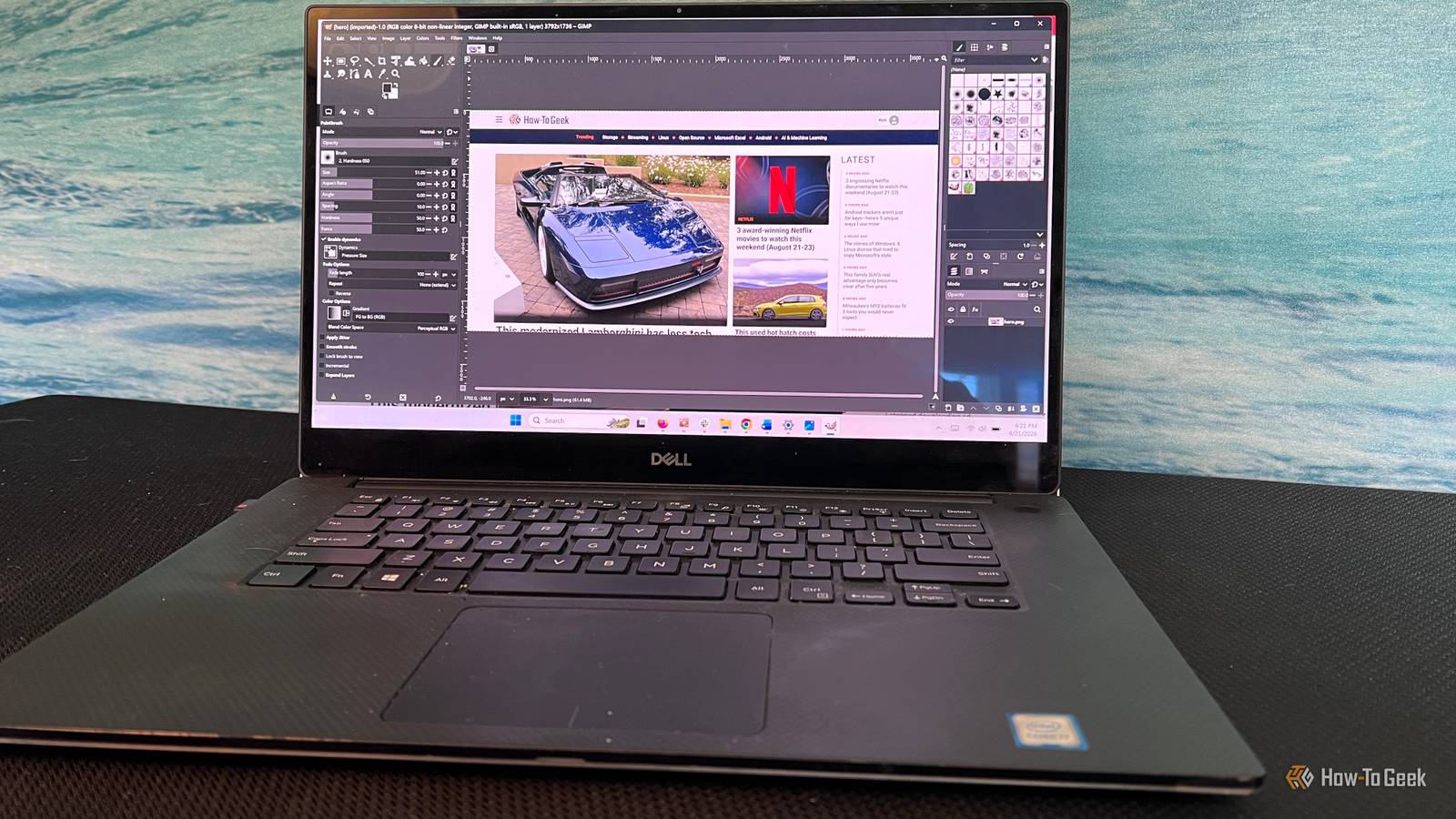
Instead of spending your first few hours hunting for tools and panels, a lot of the basics are much closer to where I expected them to be.The before-and-after difference is easy to see.The toolbox on the left feels more familiar, while the panels on the right are arranged in a way that makes the workspace easier to understand if you've spent years in Photoshop.
It does a great job of removing some of the friction that makes switching feel harder.Installing PhotoGIMP on Windows takes a few more steps than installing a normal plug-in, but it's still pretty straightforward.First, open GIMP once and close it so the program creates its configuration folders.
It's also worth backing up your current settings before continuing, since PhotoGIMP replaces some of those files.Press Windows + R, enter %APPDATA%\GIMP.Now copy the 3.2 folder somewhere safe, like your desktop.
Then download the Windows ZIP file for PhotoGIMP, extract it, and copy the data from within the folder called 3.0 and paste it into the folder located here: C:\Users\[Your username]\AppData\Roaming\GIMP\3.2 You must copy the contents of the 3.0 folder from the ZIP file into the 3.2 folder.Don’t replace the 3.2 folder name.Allow Windows to replace the existing files when prompted.
The next time you launch GIMP, the PhotoGIMP layout should be in place.Related 5 free, open-source apps that save me hundreds of dollars and hours of work Your wallet called.It wants you to read this.
Posts 11 By Dibakar Ghosh Resynthesizer replaces one of Photoshop's most useful editing tricks Heal Selection gives GIMP its own take on Content-Aware Fill Close Resynthesizer is one of those plug-ins that actually adds more editing horsepower to GIMP.Its best feature is Heal Selection, which works a lot like Photoshop's Content-Aware Fill.Select something you want gone, run Heal Selection, and Resynthesizer uses the surrounding pixels to rebuild that part of the image.
It works especially well on things like pavement, grass, walls, and other areas with enough surrounding detail to work from.That alone makes it useful, but Resynthesizer does more than remove unwanted objects.It also includes tools for healing transparent areas, extending an image beyond its original borders, and creating textures.The official Resynthesizer project provides the GIMP 3 source and scripts, but Windows users also need a compiled Resynthesizer executable.
I used an unofficial community build for that part.Installing Resynthesizer on GIMP 3 takes a few steps.Download the current Resynthesizer 3 release, then open GIMP and go to Edit > Preferences > Folders > Plug-ins to find your user plug-ins folder.
Close GIMP before copying anything over.Resynthesizer 3 installs its plug-ins inside that folder, with each plug-in placed in its own subfolder.Heal Selection also depends on the main Resynthesizer engine, so both need to be installed.
Once the files are in place, restart GIMP and look under Filters > Enhance > Heal Selection.If it appears there, the plug-in is ready to use.The Windows build is an unofficial third-party compile shared through the GIMP community, not an official binary from the Resynthesizer GitHub project.
GIMP gets a lot closer with the right add-ons GIMP isn't as polished as Photoshop, and I don't need it to be.What matters is whether it can handle the work I actually do without constantly reminding me what I'm missing.That's where add-ons like PhotoGIMP and Resynthesizer make the biggest difference.
One makes the interface easier to settle into, while the other adds a genuinely useful editing tool that would otherwise be a strong reason to keep Photoshop around.That doesn't mean every Adobe feature has a perfect free equivalent, and some third-party GIMP tools still take more effort to install than they should.But the gap is much smaller than it used to be.
And since GIMP is free, it doesn’t cost you anything to find out whether it works for you.If you’ve avoided it because it felt too unfamiliar or because you assumed it couldn’t handle the edits you rely on, it’s worth another look.Start with the parts of Photoshop you use most, see whether GIMP can cover them, and add what you need from there.
Read More