Summary KolibriOS packs a full graphical desktop into ≈1.3MB and boots almost instantly.Built in Assembly, it's incredibly small, snappy, and includes many apps and games, even Doom.Internet is limited: Ethernet works but browsers lack HTTPS, so modern web browsing is impractical.
KolibriOS is an open-source project that brings you an entire operating system in just over a megabyte.The operating system has a graphical interface and lots of neat utilities and games.Let's boot into it.
Booting into Kolibri OS Well, virtualizing it Kolibri OS comes in multiple versions and the smallest of those is a floppy disk image that only weighs 1.4MB.I downloaded the floppy disk image off the KolibriOS website, but I don't have a floppy disk or a floppy disk drive, so in order to run it, I had to run it inside a virtual machine.Virtual machine software lets you virtualize hardware like floppy disk drives, so you can run floppy disk images.
Kolibri OS boots directly off the floppy disk, so it doesn't require an installation.I plugged the KolibriOS .img file into the virtual floppy disk drive and KolibriOS booted almost instantly.I've never seen an operating system boot up faster than KolibriOS.
From the BIOS to the KolibriOS desktop, it took half a second.An entire desktop in 1.3MB Smaller than Super Mario 64 KolibriOS is programmed in Assembly.It's a low-level programming language that gives developers direct access to computer hardware, allowing them to manage resources more efficiently than any other language.
Assembly is difficult to learn and to code because the programmer needs to write actual, explicit instructions for the CPU.The upside is that assembly programs are incredibly performant.That's why KolibriOS boots so fast and why it takes up so little space.
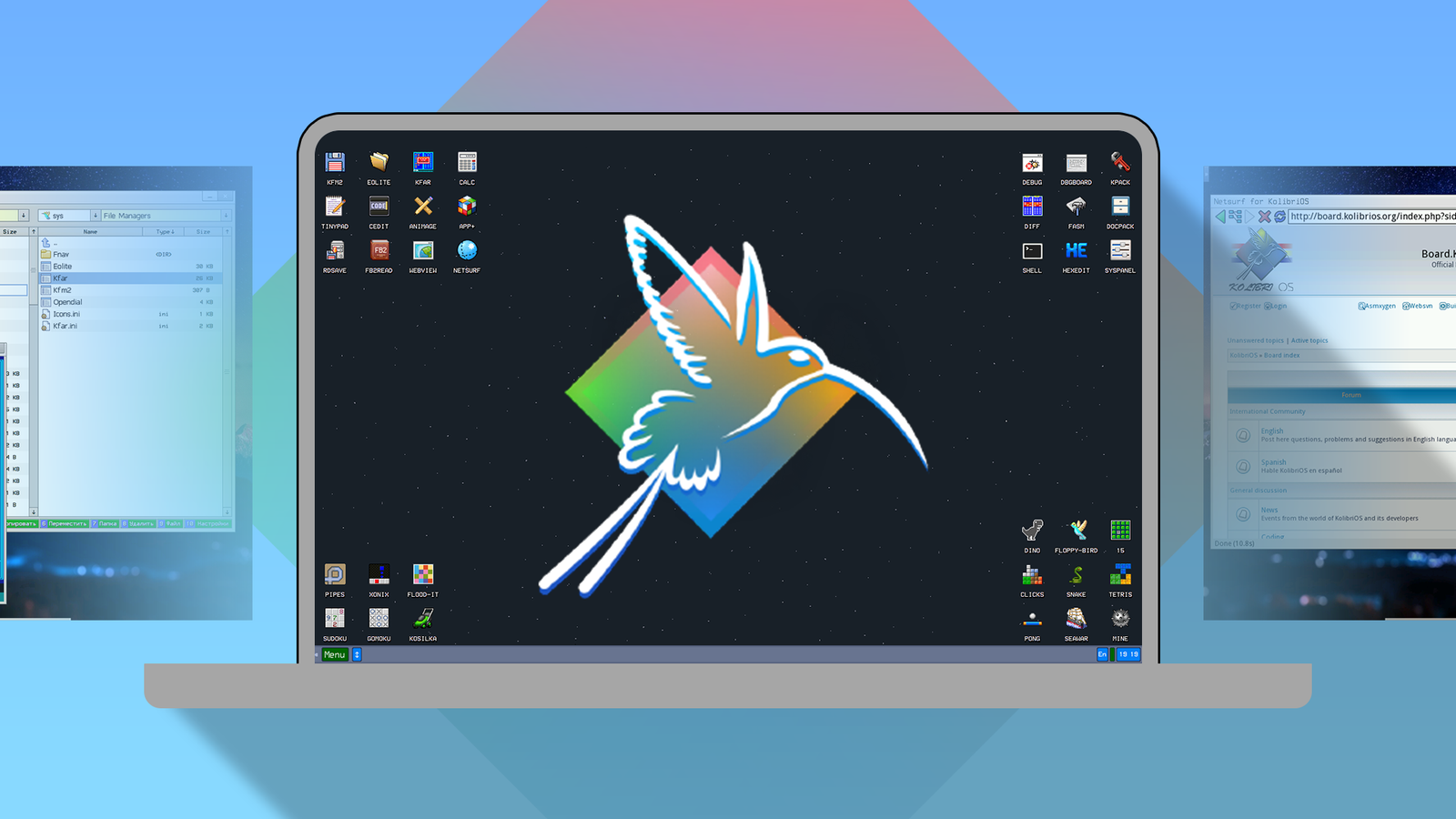
There is an entire desktop environment here that looks and feels a lot like traditional Windows.We get a start menu, a taskbar called Docky, and a bunch of desktop icons.I'm a huge fan of this wallpaper—the tiny planet with its single house, two trees, and boat feels just perfect for this OS.
I also love the default font.Right-clicking on the desktop, we get a context menu for launching the task manager, changing the background or theme, and adding new icons to the desktop.There's also a shortcut for launching the system panel, which is this desktop's equivalent of the control panel.
Close The control panel offers a surprising amount of customization.You can change how the windows look and feel.You can resize and edit the taskbar.
My favorite part is the many, many skins you can choose from.This Fallout-inspired theme is gorgeous.You can also change the wallpaper.
The entire interface feels just incredibly snappy and responsive.In fact, I've never used a faster operating system.So many neat built-in apps How'd they fit in all this stuff? What surprised me the most was just how many apps the developers have fit into such a tiny package.
There's an entire game center and yes, it can run Doom.There's Flappy Bird, Dino, Chess, Freecell, and a bunch of other games too.Close In addition to the Game Center, I also found an app center called App+.
Here, we get handy tools and utilities, like a PDF viewer, an icon editor that lets you create custom icons, a screenshot/screen recording tool, a notes app, a dictionary app, a Conway's life simulator, a voxel editor, and a metronome app.There's not one but two graphic editor apps (one of them is a Microsoft Paint clone).You can browse files with any of the preloaded file managers.
Close Scattered throughout the interface, I found a handful of 2D and 3D 'test' demos too.I think they're supposed to show what this system is capable of.For example, there's a demo called 'Raytracing.' There's even a toy piano app.
Close You can also play audio and video files with the built-in players.You can edit text with the code editor or the text editor apps.There is an archive tool for creating and extracting zip files.
The shell can run some basic commands.Close Since the whole operating system is running off a floppy disk, it doesn't save any changes you make to the OS or new files.Every time you boot into KolibriOS, you're booting into a fresh version.
To actually save the changes in the OS, you need to rewrite the KolibriOS image you're booting from.KolibriOS makes it easy to do that with a 'Save Ramdisk' shortcut.It creates a new .img file that you can back up and boot into again.
Can you browse the internet with it? It depends on your definition of "browse" KolibriOS has a few networking features too.It connects to the internet over an Ethernet connection (there's no Wi-Fi support) without any configuration.There's an app for downloading files directly from HTTP connections.
There's a utility for connecting to FTP servers.The OS technically has two web browsers, NetSurf and WebView.However, you can't really browse most sites using them.
NetSurf didn't work at all, but WebView could load the KolibriOS forums and a broken version of Google.According to the developer, WebView is supposed to just be a portal for accessing the documentation online and NetSurf is the actual browser, but it hasn't been ported over fully.Neither browser can open HTTPS links.
So while KolibriOS can technically connect to the internet, you can't really browse the internet on it (unless you count old sites which still use HTTP).What happened to optimization? Windows 11 has become so bloated that its installer alone is about 8GB.On the other hand, we have this entire graphical operating system originally developed by one person that fits into 1.3MB.
Despite the minuscule size, it has so many features, and it's ridiculously performant.
Read More