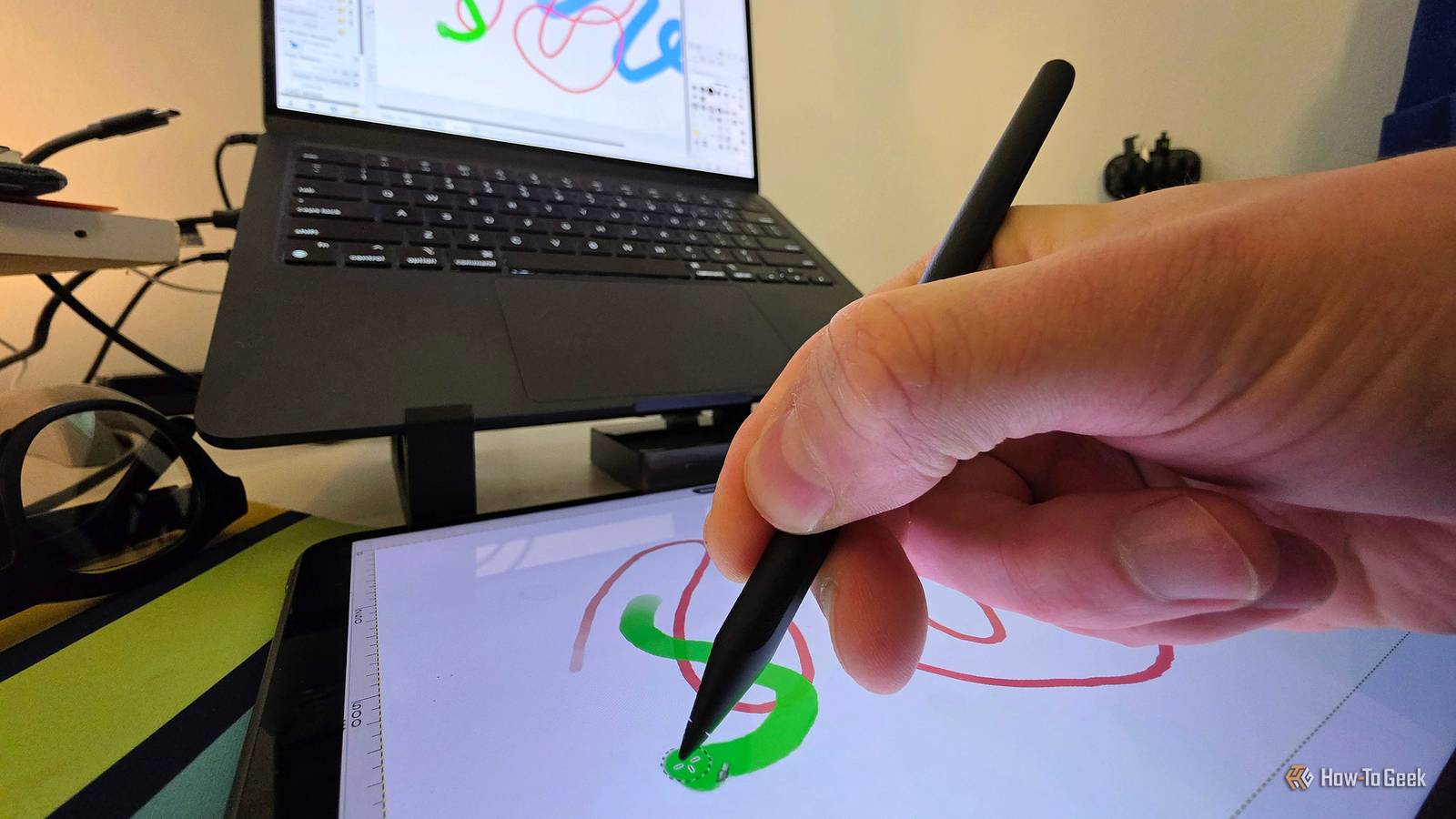
I'm a big believer in giving old devices a second life — especially if it means I can avoid buying something new.That's exactly what I was able to do with an Android tablet I hadn't touched in a couple of years.Now, it's a Wacom-like drawing pad for my computer, and it was incredibly easy to do.
At one time, I owned a real Wacom drawing tablet.I enjoyed using it, but I didn't often have a need for it.I eventually lost the stylus, and by that point, I couldn't buy a replacement.
Recently, I've been having the itch to draw on my computer again.That's when the idea to use an Android tablet as a drawing pad popped into my head.It's shockingly easy to do I was expecting a lot more work When I first had the thought to do this, I expected a complicated process.
I was pretty confident it would be possible, but I use a Mac, and Apple developers don't often cater to Android users.Even if an app did exist, I assumed it would take a decent amount of configuring.Boy, was I wrong.
Thanks to a pair of excellent apps from an independent software studio called Codonic, I was able to start drawing on my computer with my tablet in literally less than five minutes.It's not restricted to Mac and Android, either.Windows 11 with Intel, AMD, or ARM, as well as iPhone and iPad, is supported, too.
Now, this is not just simply mirroring a screen and mapping touch input from one screen to another.It supports pressure-sensitive input like a real drawing pad, which means you need a device with a digitizer and active stylus.I'm using a OnePlus Pad 2 with the Stylo 2 pen.
A Galaxy Tablet with an S Pen would be a great choice, too.It also works with iPads that support the Apple Pencil.Related 4 Apps To Get You Back Into Drawing If you’ve tried and failed to get back into drawing, try installing one of these apps on your phone or tablet.
If you have a stylus, that’ll be perfect, but you can even get started with finger painting.The point is to get something out on the canvas.We spend so much time on our phones, and if the phone is the canvas, we’ll eventually fall back into the habit.
Posts By Faisal Rasool Setup is a breeze.To get started, download the PadMac or PadWin (beta) host app on your Mac or Windows PC.You'll need to grant a few permissions, then restart the app.
Next, install PadDroid on your Android phone or tablet and open it.Assuming your computer and Android are on the same network, you should immediately see the computer's screen.That's it! Here's how it actually works for drawing A few simple tweaks and you're good to go There are a few different ways to use Pad.
First, you'll want to choose what to show on your Android device.It can share the full screen, a specific app, or a section of the screen.If you select a specific app, it will automatically force it into the aspect ratio of the connected device.
Pretty cool.Close Technically, you could share the full screen or full window of Photoshop, Affinity, Krita, etc, and do everything from the tablet.However, I was more interested in using my tablet like I would a drawing pad.
I still want to use my nice, big monitor and do the non-drawing stuff with my keyboard and mouse.So, I used the "Select Area" option to share the canvas from my image editing app.This way, the toolbars are only visible on my computer, while the drawing area is maximized on my tablet.
That being said, Pad puts some common shortcuts on the screen as well.Things like undo/redo, zoom in/out, copy/paste, and some keyboard shortcuts.Close So, I used the "Select Area" option to share the canvas from my image editing app.
This way, the toolbars are only visible on my computer, while the drawing area is maximized on my tablet.That being said, Pad puts some common shortcuts on the screen as well.Things like undo/redo, zoom in/out, copy/paste, and some keyboard shortcuts.
Make sure your editing app of choice supports pressure-sensitive input and has it enabled.For example, I use the GNU Image Manipulation Program, and I just had to toggle on "Enable dynamics." I'm obviously impressed by how easy Pad was to set up, but it also works really well.Latency is always a concern with a wireless setup like this — the app shows it in the corner of the screen.
I saw it as low as 6ms.That's barely noticeable for my needs.All in all, it's hard to find faults when something Just Works and does it for free.
I would happily pay for an app that makes an otherwise neglected Android tablet actually useful again.Related 7 ways to repurpose your old Android tablet Got an old Android tablet gathering dust in a drawer? Wondering if there’s anything genuinely useful you can do with it besides recycling it? Here are seven practical ways to give your old Android tablet a new life and a new purpose.Posts 8 By Dibakar Ghosh
Read More