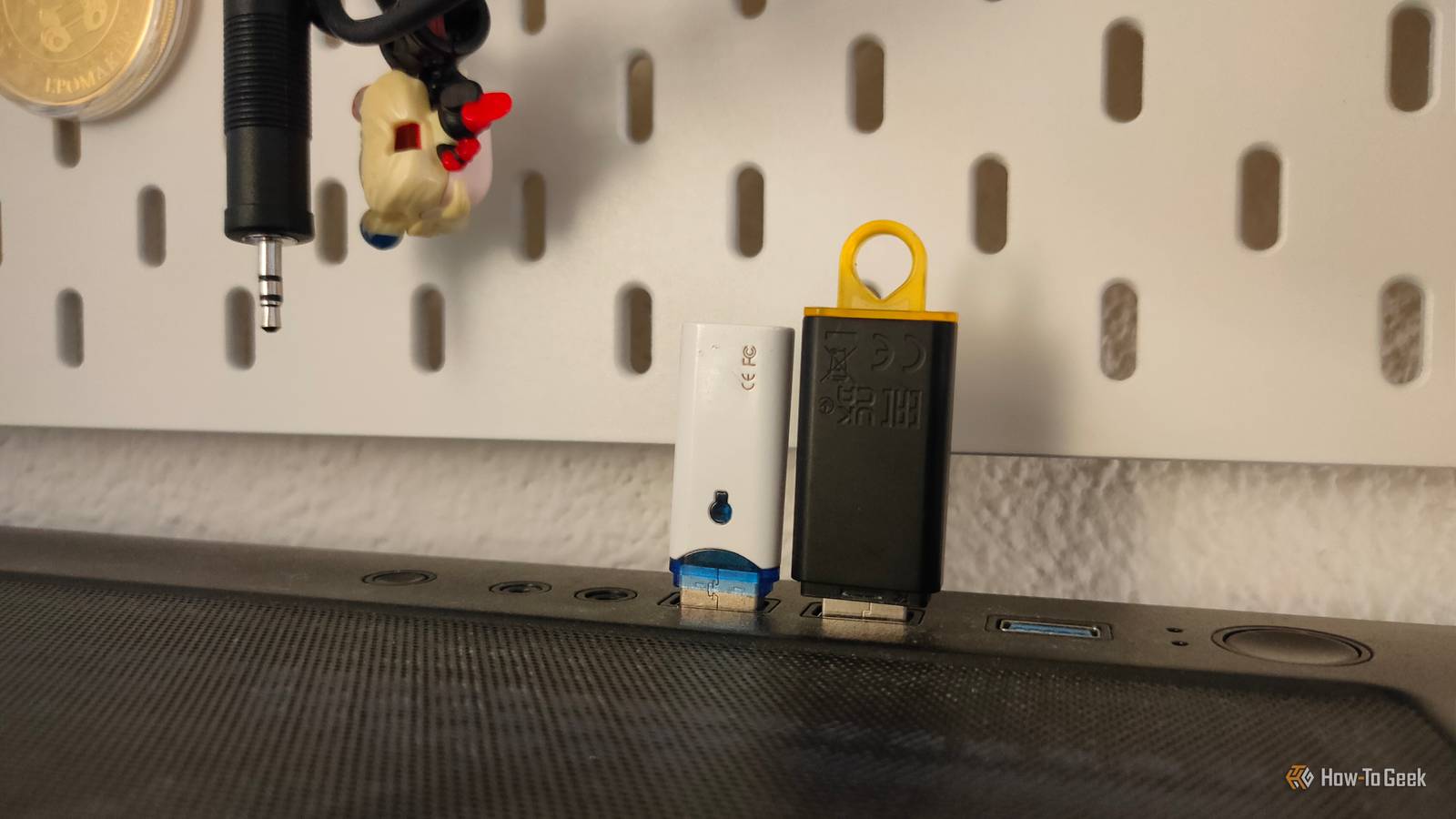
Don't you just love it when technology just won't cooperate? That sinking feeling when you realize you're going to need to reinstall the OS, and no amount of quick fixes is doing the trick, and everything's going to take forever to fix (if it even be fixed).Been there, done that.To avoid running into those problems, I keep a dedicated "rescue USB." This tiny flash drive is a restore kit on the go that boots on almost anything, gets you into the right recovery environment fast, and sorts out most problems ...
well, hopefully.Here's what you need to do to build yours.So what is a USB rescue drive, anyway? It pretty much does what it says on the box.
A USB "rescue drive" is a dedicated bootable stick that gives you a working recovery environment when your OS will not start, the drive will not show up, or you need to pull files out quickly.Instead of relying on whatever recovery options are available to you on the PC (and it may not be much, depending on its state), you have a USB that can help you solve most problems.It overlaps with a Windows recovery drive, but it's not limited to just that task.
The whole point is to cover the situations where the OS is broken, locked behind BitLocker, or missing drivers.It doesn't need to be limited to Windows, either.That's why everyone makes their own: you get to choose what you might need in a crisis, and load it up so that it's ready to go if it's ever needed.
Start by picking the right USB drive The cheapest option isn't always the best one.USB drives don't make for great backup destinations, not even as part of the 3-2-1 rule.But when you're trying to build a rescue kit, they'll do just fine—provided you pick the right sort of drive.
For a rescue USB, capacity matters more than most people expect.I would treat 64GB as a practical minimum, and 128GB as the sweet spot if you want multiple boot images, a drivers folder, and enough free space to temporarily copy important files.There's no harm in having more capacity, though, as USB drives are reasonably affordable these days.
When shopping for your dream USB drive, don't focus on the pricing too much.We're probably talking about a $5 to $20 difference between a good drive and one that's harder to trust; for this task, I'll always pick a brand I can rely on.I may not pay the Samsung tax on SSDs, but I'm more than willing to do it on my USB drives (if I'm using them for something important).
Next, figure out the interface.File transfers through hubs and adapters are always stunted, so it's best to pick between USB-A and USB-C.As far as USB-A standard goes, you might as well go for the best option available, as even if your ports can't negotiate the highest speed available, the drive will adapt to what works.
Dual USB-A and USB-C flash drives are a solid option.Before you call it done, test the drive properly.Boot it on at least two different PCs, and do a quick file copy to confirm it writes consistently and does not drop connections.
Lexar D40E Dual USB Flash Drive The Lexar D40E is a Dual USB 3.2 Gen 1 and USB Type-C flash drive.It comes in sizes ranging from 64GB to 256GB, and can be bought as a pack of two.$27 at Amazon Expand Collapse Make your new drive boot anywhere One USB drive, so many possibilities.
A rescue USB drive is only useful if you can be (sort of) sure that you can always boot from it.That means planning for modern UEFI systems, but also the occasional older machines (unless you never use those).The goal is to have one stick that gets you into a working environment, no matter the OS.
The easiest approach is a multiboot setup.Keep multiple ISO files so that you can always get into your PC and troubleshoot.There's nothing stopping you from keeping a current Windows 11 installer for repair access alongside at least one Linux-based rescue ISO.
Then, test for common failure points before you need it in a crisis.Try and see if everything works as intended before you truly dub your new USB drive your "rescue drive." Pack all the drivers and tools you might need The OS alone can only get you so far.Outside of ISO files for whichever OS you want to be able to repair (or, better yet, for multiple operating systems), you can turn your recovery drive into a proper rescue drive by filling it up with other useful tools.
Drivers are a good thing to keep on hand, but you'll need to keep them updated, and obviously, they won't be useful for every machine.GPU drivers, chipset drivers, network drivers—all of those can be helpful if you need to set up your system from scratch in a pinch.With that said, the PC will work without them, but you'll need to get them eventually, so why not keep them on this recovery drive? Subscribe to the newsletter for smart rescue USB tips Get the newsletter for practical, actionable rescue-USB guidance and curated troubleshooting resources to keep your recovery kit ready, plus broader PC-repair insights and tool recommendations that complement your troubleshooting skillset.
Subscribe By subscribing, you agree to receive newsletter and marketing emails, and accept our Terms of Use and Privacy Policy.You can unsubscribe anytime.I also like to have certain tools that I know I might need to use in the event of troubleshooting.
Stuff like HWiNFO, CrystalDiskInfo, or TestDisk can be useful when you know something is wrong, but you can't figure out what.Keep your USB drive updated And consider getting a second one.A rescue USB gets less useful if you just let it rot in a drawer and never touch it again until you're in full-on panic mode when something breaks down.
I try to keep my recovery USB updated with the latest driver packages (that I know will be useful to me), tool updates, and the latest version of Windows.This isn't the kind of upkeep you need to deal with all the time, but once every few months is a good idea.It also helps to keep a simple text file on the root of the drive that says when you last updated it and what is inside.
When you are troubleshooting under pressure, you do not want to wonder whether you are using a current Windows ISO or something from years ago.Lastly, USB drives are far from immortal.Just the same way an SSD can fail at 100% health, your USB might one day just die on you.
If you want to feel extra safe, keep a couple of USB rescue drives on hand instead of just one.Is it overkill? Yup.Will you be glad you did if it's ever necessary? Definitely.
Read More