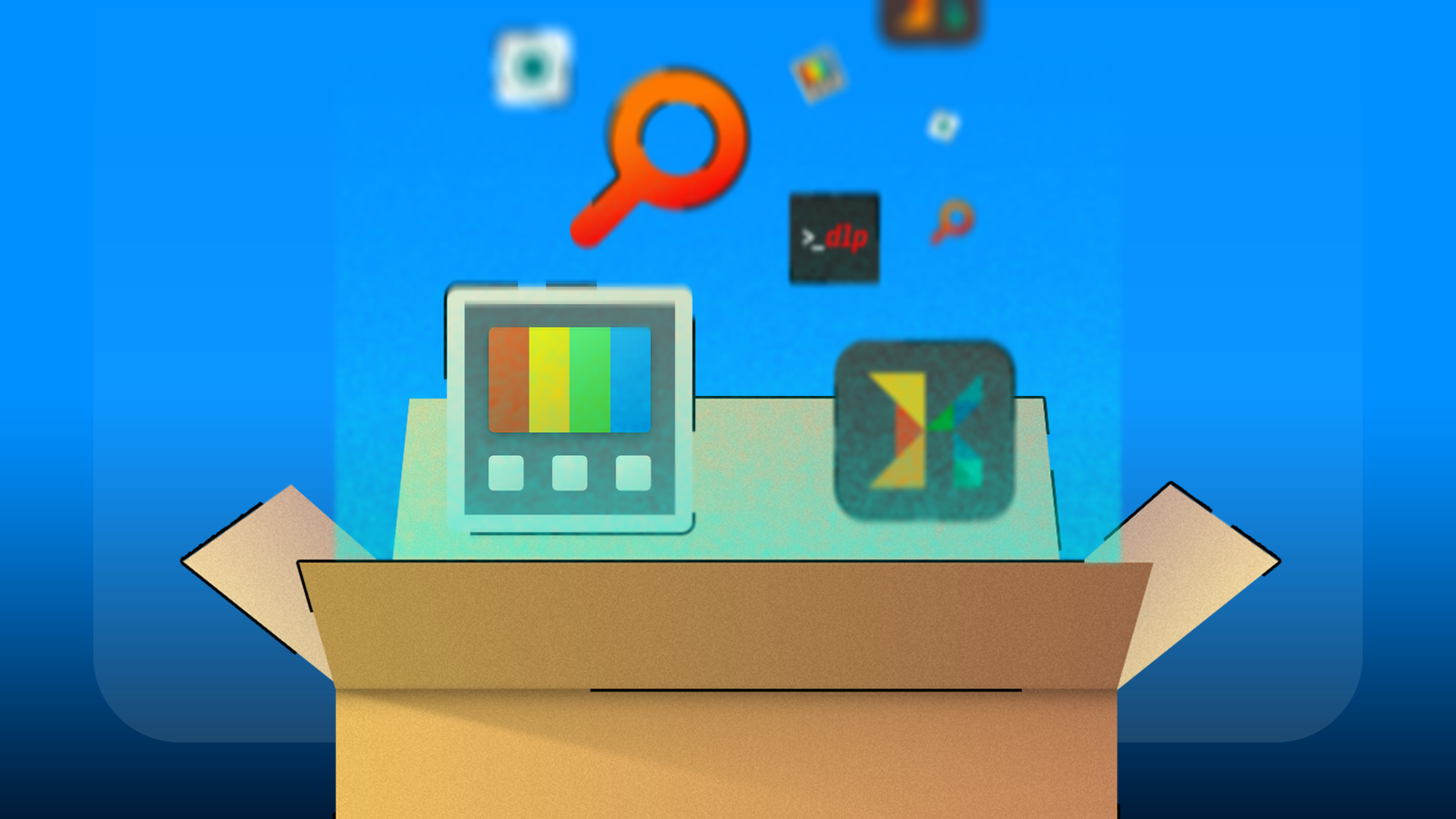
When we think of powerful apps, we normally think of massive, complex programs like Adobe Photoshop or Microsoft Office, but an app doesn’t have to be a heavyweight to pack a lot of power.These three open-source apps I always keep on my computers prove it.Use Yt-dlp to download (pretty much) any media file Not just YouTube videos When you want to download a video from YouTube (saving it as a video file to the disk, not the built-in download feature found in the YouTube app) or convert it to an audio file, your first instinct might be to find some website where you can plug in the video URL, and it gives you a download button.
These sites can be sketchy, at least in my experience, and riddled with ads.Sometimes, they don’t work and when they do, they’re either limited to content from one or two websites, don’t offer enough controls and features, or both.You can do it all with Yt-dlp and it's free.
You can download it from the official GitHub repo where releases for many different platforms are available.If you’re on Windows, for example, you can download and install the .exe package and access the Yt-dlp app through the terminal.Yt-dlp doesn’t even have a graphical interface, and it can be run entirely in the terminal (it is much simpler than downloading from a random website).
Once you’ve installed it, here’s how you download a YouTube video using Yt-dlp.Open the terminal emulator of your choice (search for ‘terminal’ if you’re on Windows) and type 'yt-dlp' followed by the video’s URL: yt-dlp https://www.anrdoezrs.net/links/3607085/type/dlg/sid/UUhtgUeUpU2027728/https://www.youtube.com/watch?v=dQw4w9WgXcQ Press Enter and you’re done! It’s that easy.YouTube isn’t the only website Yt-dlp supports; you can download media content from over 1700 websites, including Twitter, BlueSky, Steam, Facebook, and Instagram.
The file will be downloaded to whatever your current directory is, which you can find by entering the following command: pwd You can also specify the exact folder you want the file downloaded to, download entire playlists, download in various audio formats, batch download (by pasting URLs in a text file), download livestreams, limit the output file size, and select resolution or format for the downloaded files.There are plenty more features this tiny app supports, but they’re mostly meant for special cases.The GitHub page has a cheat sheet of commands that you can check out to learn more.
Microsoft PowerToys adds missing features And it's made by Microsoft, by the way Microsoft PowerToys is a pack of handy Windows utilities that let you add a bunch of neat features that aren’t available in the standard installation of Windows.With these utilities, you can do a lot of things—too many to describe here, but I'll cover several here.Starting with window enhancements, you can pin windows so they stay visible and accessible above all other apps and windows.
You can create custom window layouts, and trigger them with quick toggles using FancyZones.If your workday starts by manually arranging apps in a specific split layout on the screen, this tool is your friend.Using Light Switch, you can set Windows to automatically switch to dark or light themes based on ambient sunset and sunrise timings.
PowerToys Run provides a Spotlight-like search bar that you can toggle with a quick shortcut to search files, launch apps, open settings, load websites, and do calculations or conversions.You can mass rename files with Power Rename, quickly preview files in Explorer using the Peek feature, extract and copy text from images, PDFs, and videos, preview all kinds of files, not just images, and resize images with a single-click in the context menu.There’s even a tool that lets you find and end programs that are keeping a file open, preventing you from modifying or deleting it.
Also, you can set custom keyboard bindings to use globally across the Windows UI.Better screenshots with KSnip Capture your screen the smarter way I often write tech tutorials which require a lot of accompanying screenshots, so I absolutely need the right tool for capturing and editing them.KSnip is that tool for me, and it saves me hours of work every week.
It’s available on all desktop platforms, Linux, Windows, and macOS, which is a must when you’re writing how-to articles for different platforms.KSnip automatically launches on startup, so I can activate its shortcuts without interacting with the app interface.It works just like the normal snipping tool, except more powerful.
I’ve set hotkeys to make selections, quickly take screenshots, and even auto-rename the files with wildcard presets.By default, KSnip automatically places every screenshot on its own tab, which saves me a lot of work when annotating the images, because I don’t have to manually open and close each file.It’s kind of like Photoshop or Illustrator but for screenshots.
I can also drag and drop images from the internet directly into KSnip or paste images in their own tabs.Close Second, KSnip has helpful editing tools built right into it.I can annotate with arrows, shapes, stickers, or text.
I can blur or pixelate sensitive info in the screenshots.I can even set KSnip to automatically upload the saved screenshots to an FTP server or Imgur, so they’re accessible everywhere (handy when I’m taking screenshots on one platform and publishing on another).Open-source everything I think the best kind of software isn’t necessarily flashy or heavyweight; it just anticipates the user’s needs as deeply as possible and solves those needs.
Even with their lightweight footprint, these apps do that for me and many others.
Read More