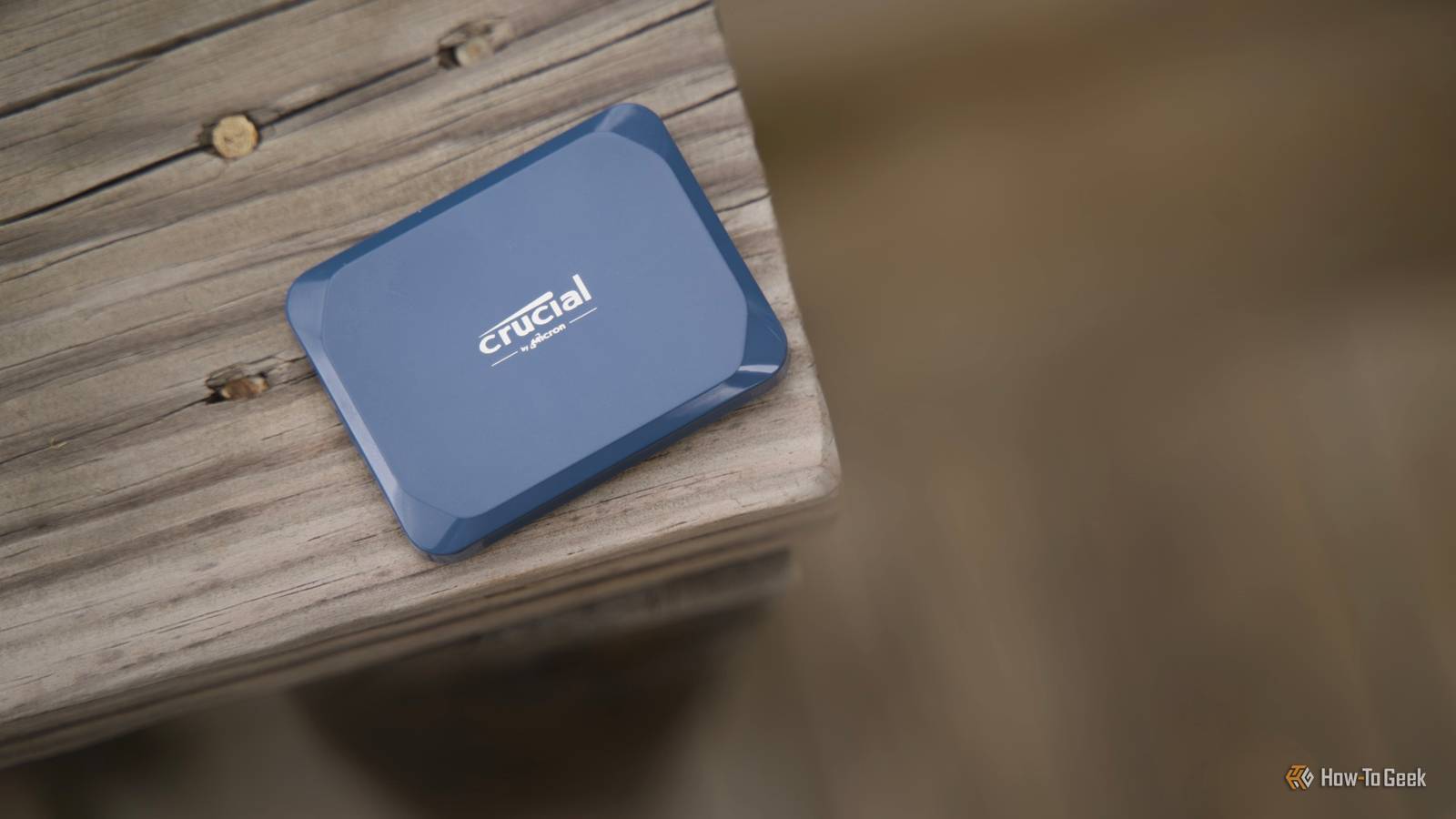
Having a backup on an SSD is great and all, but you're missing a key step—checking if said backup is actually good.I know it's annoying, but here's why you should be worried about not having actually tested your latest backup.Test restore every once in a while Why a backup you haven't restored isn't really a backup Close Copying files to an SSD and calling it a day is the most common backup mistake I see, and it's one I made myself for years.
The problem is that a backup only proves its worth at the moment you need to pull data back off it, and that's precisely the moment most people discover something has gone wrong.Drives can develop bad sectors, file systems can quietly corrupt, and backup software can fail partway through a job without throwing an obvious error.None of that becomes visible until you actually try to open a restored file.
A test restore doesn't need to be elaborate.Once every month or two, pick a handful of files from your backup, ideally ones you haven't touched recently, and copy them to a separate location.Open them, and check that documents aren't truncated, that photos render properly, and that archives extract without throwing checksum errors.
If you're backing up a full system image, occasionally boot it in a virtual machine or restore it to spare hardware to confirm the whole thing comes up cleanly, not just individual files.This habit also surfaces problems with your backup process itself, not just the storage medium.Software updates change file formats, sync tools sometimes skip files silently, and scheduled jobs fail without notifying you if you haven't set up alerts.
A regular test restore catches all of this early, while there's still time to fix it, rather than during an actual emergency when your original data is already gone.Treat the test restore as part of the backup job itself, not an optional extra step you'll get around to eventually.It's the only way to know, rather than assume, that your backup will work when it matters.
What happens if you don't? The real cost of finding out too late Skipping test restores doesn't cause problems immediately, which is exactly why the habit is so easy to neglect.Heck, chances are a lot of you are reading this and probably just realizing you've never actually checked that backup other than when it finished saving.The backup sits there, the drive shows the right amount of used space, and everything looks fine on the surface.
The trouble is that an SSD backup can fail silently in several ways, and none of them announce themselves until you're actively trying to recover something you've lost.And there's the other problem.NAND flash memory degrades over time, and cells that go unused for long stretches can lose data retention, especially on drives sitting unpowered in a drawer.
If your backup software encountered a write error mid-job, it may have logged nothing while still leaving you with a partial or corrupted file.Ransomware and accidental deletions can also propagate to backups if your sync process mirrors changes automatically, meaning the "backup" faithfully preserves the exact problem you were trying to protect against.The real cost shows up at the worst possible time: after your primary drive has already failed, after the files you needed are already gone from your main system.
That's when people discover their backup image won't mount, their archive is missing a chunk of data, or the drive itself won't respond after months of sitting idle.At that point, there's no fallback left, because the backup was the fallback.This is why professionals treat backup and restore as a single process rather than two separate tasks.
A backup that hasn't been verified is, functionally, an assumption.The whole point of backing up data is to remove uncertainty from your recovery plan, and skipping verification puts that uncertainty right back in, just deferred to the moment you can least afford it.Quiz 8 Questions · Test Your KnowledgeSSDs, NAND memory, and interfacesTrivia challengeFrom flash cells to PCIe lanes — see how much you really know about modern solid-state storage.NANDInterfacesHardwarePerformanceStandardsBegin 01 / 8NANDWhich type of NAND flash stores exactly one bit of data per cell?AMLCBTLCCSLCDQLCCorrect! SLC stands for Single-Level Cell, meaning each cell holds just one bit — either a 0 or a 1.
This makes SLC the fastest and most durable NAND type, but also the most expensive per gigabyte, so it's mainly found in enterprise and industrial storage.Not quite — the answer is SLC, which stands for Single-Level Cell.MLC stores 2 bits, TLC stores 3, and QLC stores 4 bits per cell.The more bits per cell, the cheaper but slower and less durable the NAND becomes.Continue 02 / 8InterfacesWhat does NVMe stand for in the context of SSDs?ANon-Volatile Memory ExpressBNetwork Virtual Memory ExtensionCNext-gen Volatile Memory EngineDNon-Volatile Module ExtenderCorrect! NVMe stands for Non-Volatile Memory Express, a communication protocol designed specifically for flash-based storage.
Unlike AHCI, which was built for spinning hard drives, NVMe takes full advantage of PCIe's parallel lanes to deliver dramatically lower latency and higher throughput.Not quite — NVMe stands for Non-Volatile Memory Express.It's a host controller interface protocol designed to replace the older AHCI standard, which was originally built with spinning hard disk drives in mind rather than fast flash storage.Continue 03 / 8HardwareWhich physical form factor is most commonly used for NVMe SSDs in modern laptops and desktops?A2.5-inch SATABmSATACM.2DU.2Correct! The M.2 form factor has become the dominant standard for NVMe SSDs in consumer devices.It's a compact, card-style connector that fits directly onto the motherboard, eliminating the need for data and power cables and saving space inside the chassis.The correct answer is M.2.
While 2.5-inch SATA and mSATA were common in older systems, M.2 has taken over as the go-to slot for NVMe drives.U.2 is also used for NVMe but is mostly found in enterprise servers rather than consumer hardware.Continue 04 / 8PerformanceApproximately how fast can a high-end PCIe 4.0 NVMe SSD read data sequentially?A550 MB/sB1,200 MB/sC7,000 MB/sD20,000 MB/sCorrect! Top-tier PCIe 4.0 NVMe SSDs can achieve sequential read speeds of around 7,000 MB/s.This is a massive leap over SATA SSDs, which are capped near 550 MB/s due to interface bandwidth limitations, and even outpaces many PCIe 3.0 drives significantly.Not quite — the answer is approximately 7,000 MB/s.
Around 550 MB/s is the ceiling for SATA-based SSDs, while 1,200 MB/s is typical for older PCIe 3.0 drives.20,000 MB/s exceeds even PCIe 5.0 NVMe drives available at time of writing.Continue 05 / 8NANDWhat does 3D NAND refer to in modern SSD manufacturing?ANAND chips shaped into a three-dimensional cube for faster accessBStacking memory cells vertically in multiple layersCUsing three separate dies wired together on one chipDA three-bit-per-cell design that improves enduranceCorrect! 3D NAND, sometimes called V-NAND by Samsung, stacks memory cells vertically in dozens or even hundreds of layers rather than spreading them flat across a wafer.This dramatically increases storage density without shrinking individual cell sizes, which also helps preserve endurance and reliability.The correct answer is that 3D NAND stacks memory cells vertically in multiple layers.
Planar (2D) NAND arranges cells flat on a single layer, but manufacturers hit physical scaling limits, so the industry moved to vertical stacking to keep increasing capacity without sacrificing cell quality.Continue 06 / 8StandardsWhich interface protocol were most SATA SSDs designed to use before NVMe became mainstream?ANVMeBAHCICSCSIDIDECorrect! AHCI (Advanced Host Controller Interface) is the protocol that SATA SSDs communicate over.It was originally designed for mechanical hard drives and supports a single command queue of 32 commands — a major bottleneck compared to NVMe, which supports 65,535 queues each holding 65,535 commands.The answer is AHCI, which stands for Advanced Host Controller Interface.SCSI and IDE are much older standards largely retired from consumer use, while NVMe is the newer protocol used by PCIe-based drives.
AHCI's single command queue made it a poor fit for the parallelism flash storage can deliver.Continue 07 / 8NANDWhich NAND type offers the highest storage density per chip but typically has the lowest endurance?ASLCBMLCCTLCDQLCCorrect! QLC, or Quad-Level Cell NAND, packs four bits into every cell, giving it the highest density of common consumer NAND types.The trade-off is significantly reduced endurance — QLC cells wear out faster because of the precision needed to distinguish between 16 different voltage states per cell.The answer is QLC (Quad-Level Cell).It stores 4 bits per cell, making it the densest and most affordable NAND type, but it also has the lowest P/E (program/erase) cycle endurance.
SLC sits at the opposite end — fewest bits per cell but the longest lifespan.Continue 08 / 8InterfacesWhich PCIe generation, first adopted widely in consumer SSDs around 2020, doubled the bandwidth of its predecessor?APCIe 2.0BPCIe 3.0CPCIe 4.0DPCIe 6.0Correct! PCIe 4.0 arrived in consumer platforms around 2020, starting with AMD's Ryzen 3000 series and X570 motherboards.It doubles the per-lane bandwidth compared to PCIe 3.0, pushing NVMe SSD sequential speeds from roughly 3,500 MB/s up to around 7,000 MB/s.The correct answer is PCIe 4.0, which first appeared broadly in consumer hardware around 2020 with AMD's Zen 2 platform.PCIe 3.0 was the previous mainstream standard, while PCIe 6.0 is a more recent enterprise-focused generation not yet common in everyday consumer motherboards.See My Score Challenge CompleteYour Score/ 8Thanks for playing!Try Again Other things to keep in mind A few habits that make SSD backups more reliable Beyond testing restores, a handful of other practices meaningfully improve how trustworthy your SSD backups actually are.
The first is redundancy: don't rely on a single SSD as your only backup copy.Drives fail, get lost, or get stolen, and pairing your SSD backup with a second copy elsewhere, whether that's another drive, a NAS, or cloud storage, protects you against losing both your original and your backup to the same event, like a fire or theft.Power cycling matters more than people realize.
SSDs left unpowered for extended periods can experience data retention issues, particularly with consumer-grade drives and lower-quality NAND.Plugging in your backup drive periodically, even just to let it run for an hour, helps the controller refresh data and catch early signs of failure before they become total ones.Encryption is worth enabling if your backup drive ever leaves the house or holds anything sensitive, but it adds one more point of failure worth testing: make sure you actually remember the passphrase and that the encrypted volume mounts correctly on a different machine, not just the one that created it.
Finally, keep your backup software and file formats in mind over the long term.A proprietary backup format from software you stopped using five years ago might not open cleanly today, even if the files themselves are intact.Where possible, favor open formats or software with a long track record of backward compatibility, and document what tool created the backup and how to restore it, so future-you, or someone else, isn't left guessing.
Related Your unpowered SSD is a ticking time bomb Long-term cold storage on an SSD could be a risky business.There are better options.Posts By Monica J.
White Backups only work if you've proven they do An SSD backup is only as good as its last successful restore.Testing regularly and understanding the risks of skipping it is very important—and if you haven't done so, maybe you should close this article and go check.
Read More