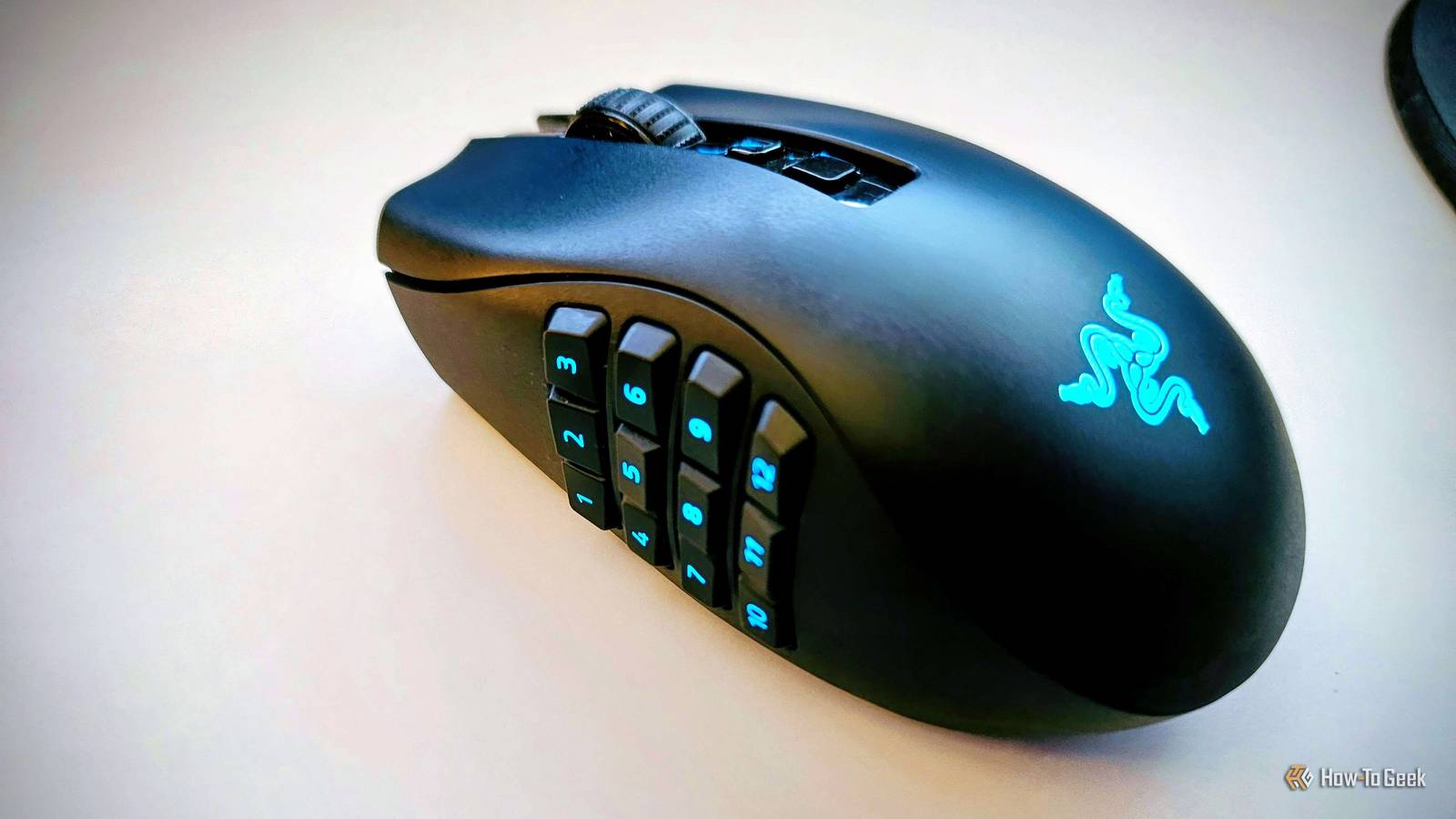
I used to majorly neglect my peripherals, but once I made the swap from a wired to a proper wireless mouse, I never went back.How could I? But this humongous gaming mouse that serves as both my MMO helper and my daily driver (yes, even for work) consumes battery like it's candy.Fortunately, I found a setting that helped me double its battery life.
Your mouse doesn't need to report 4,000 times per second At least not all the time Close I don't know about you, but I've had a lot of trouble picking the right mouse, to the point where I wasted over $1,000 on my PC peripherals before landing on something I liked.But this "something I liked" turned out to be a massive, heavy, battery-hungry Razer Naga V2 Pro mouse.I found myself needing to charge it a lot more often than I ever wanted to, and considering that it needs to be plugged in, I almost felt like I'd gone back to using a wired mouse.
That's no good.I had to investigate.The culprit quickly turned out to be polling rate, or how often the mouse reports its position back to the PC.
A 1,000Hz mouse sends 1,000 updates per second.Crank it up to 4,000MHz, and you can probably guess what happens: 4,000 updates per second.That's neat if you're gaming, especially in competitive titles, but it does mean four times the work for a wireless mouse that's running on battery.
Fair enough if you need that kind of polling rate in games; after all, there's a reason why you bought a gaming mouse.But I caught myself doing something silly (which you might be doing, too): I left that high polling rate enabled all the time, even though 95% of my day is spent working instead of gaming.And, as it turns out, working doesn't need a fancy high polling rate.
Scrolling through websites, answering emails, and the like really doesn't need anything special.Dropping the polling rate for everyday use immediately stretched out the time between charges without actually affecting any of the stuff I care about.Related 4 legendary USB accessories that don't exist anymore These USB gadgets were everywhere, and now you can't buy a single one Posts 1 By Monica J.
White I couldn't tell the difference anyway That's where the battery saving becomes almost free Doing this felt bad at first, because hey, I paid a whole lot for this mouse, and I was willingly limiting its capabilities.However, when I tried it, I realized I genuinely couldn't tell the difference.(I'm sure this is making some pro gamers groan and roll their eyes, and I am sorry.) Dropping from 4,000Hz to, say, 500Hz, sounds super drastic.
But 500Hz still means the mouse reports its position every 2 milliseconds, and at 1000Hz, that drops to 1ms.4,000Hz cuts it to 0.25ms.Those differences absolutely matter in competitive games and latency-sensitive titles, but when you're just reading your emails, they don't matter whatsoever.
This made the battery savings feel more like a hack than a compromise.I didn't have to put up with an obviously choppier cursor to squeeze out a few more hours between charges; I was just cutting back on performance I didn't really need at the time, and as a bonus, getting some extra battery life out of it.Per-app profiles gave me the best of both worlds Low polling for Windows, full speed in games There's a problem with this solution of mine, and it's that eventually, I obviously want my mouse to perform at the highest possible level it can provide.
That's where per-app profiles come in.Instead of running the mouse at one polling rate all day, I set my normal Windows profile much lower and let the software automatically switch to a faster profile when I launch a game.This lets the mouse keep on sipping battery while I work, and then immediately jump back to the highest polling rate (in my case, just 1,000Hz).
The exact setup depends on your mouse software, but apps like Razer Synapse, Logitech G Hub, and Corsair iCUE can link profiles to specific applications.Make sure that all your games get the best profile possible, and let everything else preserve your battery at no cost.Higher polling doesn't automatically mean better Not even in games In the world of PCs, there's a big "bigger number = better" kind of mindset.
I recently found out just how much this is true when I tested various ways to improve my Wi-Fi network.And I get it, because it's often true; for instance, DDR5-6000 RAM will be faster than DDR5-4200.But there are exceptions to every rule, and while it's tempting to assume that if 1,000Hz is good, then 8,000Hz is better, it's not always strictly true.
Technically, yes.Those rates do reduce the time between reports, but they also suffer from diminishing returns.The jump from 1,000Hz (1ms) and 8,000Hz (0.125ms) is definitely there, but at some point, our human eyes can't really perceive the difference anymore.
Even in games, that super high polling rate only makes sense if the rest of your setup can take advantage of it.You'll need a high refresh rate monitor, high fps, and a latency-sensitive game for any of this to even matter.Battery life will vary wildly from mouse to mouse But the principle is hard to argue with I can't exactly promise that dropping your polling rate will literally double your battery life, because there's too much to consider for that to be a reasonable blanket promise to make.
The mouse itself matters, as do RGB lighting, sleep settings, how much you actually move it, and how many hours you spend gaming at the higher polling rate.In the case of my mouse, turning off the little (fairly useless and small) RGB on top of the device actually helped a lot, too.Still, manufacturers themselves rate some wireless mice for way shorter runtimes at higher polling rates, so this is a legit strategy for just about every mouse.
Your mouse doesn't need to be at 100% all the time My gaming mouse doesn't have the highest polling rates, which is fine, because I don't play many latency-sensitive games.I benefit from the extra side plate on the Naga more than I do from the polling rates.But I have no problem lowering them even further if it helps me get more battery life out of it, because constantly charging it is a major nuisance, and this little trick helped me avoid it a lot more.
Related Logitech solved the "too many USB dongles" problem years ago—so why am I still using all these dongles? A timeline of Logitech receivers traces Unifying, Bolt, and LIGHTSPEED and reveals unexpected compatibility islands.Posts By Sydney Butler
Read More