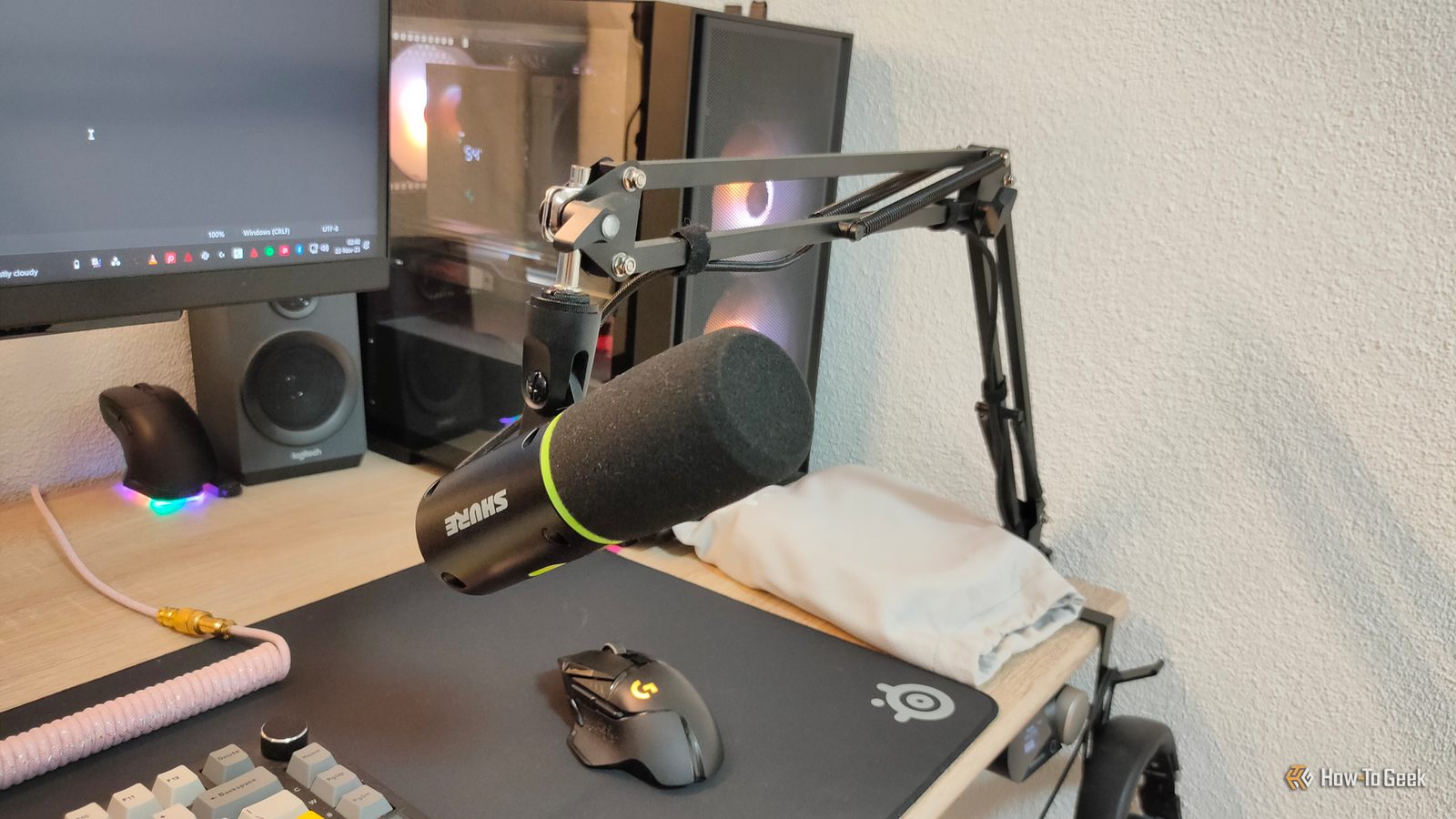
Recording decent audio at home almost always means fighting some kind of background noise.Most people assume fixing this means buying a better microphone or building a quiet room, and that's not wrong, but it also isn't the whole story.Audacity has a noise reduction tool built right into it, and you don't need an extra plugin for it.
Set up a quiet room before you hit record Block out the noise you can control There are plugins to help you remove the background noise, but nothing will be perfect.Being an older guy, I was around before those plug-ins existed.So while there is a method to remove it, that shouldn't be your only method to use.
Before you even pick up a microphone or try to make sounds, you've got to deal with the noise around you and how your room handles sound.Make sure to turn off anything making background noise, even if you don't think it will be heard.Turn off your heating and AC, switch off any fans or space heaters, and unplug whatever's buzzing or humming in the background.
Shut your windows all the way, and if you've got family or roommates around, give them a heads-up to keep it down while you're recording.It also helps a lot to pick a room that's naturally quiet to begin with.You want to go somewhere away from busy streets, noisy pipes, or rooms where people are constantly walking through, since all of that noise will end up bleeding into your mic.
Related 7 Common Home Theater Sound Problems and How to Fix Them Have you tried turning it off and on again? Posts 1 By Sam Smart Once you've found a quiet spot, the next thing to think about is how sound bounces around inside that room.Believe it or not, a regular closet works great for this, and it is my go-to.All those clothes hanging up actually soak up sound and stop it from echoing, making it a cheap and easy little recording booth.
You can take it even further by hanging thick blankets, comforters, or heavy rugs on the walls, and throwing a rug down on the floor too, which deadens the room even more.These work really well for cutting down on echo and getting a cleaner-sounding voice, but keep in mind it's really just dealing with the sound inside the room; it's not actually stopping noise from outside from getting in.If you want to go all out and get the best possible sound, it's worth putting some real money into proper acoustic treatment and actual soundproofing.
Foam panels or fiberglass studio foam on the walls will soak up those mid and high-range sounds, and bass traps in the corners stop low-end noise from building up and making everything sound muddy.You don't have to do this, but it always makes it easier to get rid of the extra background noise.Even if you use a plugin, you'll get better results if your room is ready.
Record a few seconds of dead silence Give the software a clean baseline to use Before you start adding in delay, echo, or reverb, you should get an accurate baseline to clean everything else against.The best way to handle this is to record a few seconds of pure silence before you start talking so you can capture what your room actually sounds like.I like waiting at least five to nine seconds both at the start and end of the session.
You need to have a recording of how the background sounds normally when nothing is happening.That's things like a fridge humming, air moving from one room to another, and basically whatever noise floor your space naturally has.This silent part needs to be completely clean, too.
No breathing, no mouth clicks, no clothes rustling.Even small noises like that can mess up the sample and throw off everything you do afterward.If you really want to be careful about it, you can temporarily boost the volume on that silent clip just to listen closely for anything weird hiding in there, then undo the boost once you've confirmed it's clean.
Once you've got a good, clean baseline, you can move on to actually using the software.You highlight that silent section, click 'Effect,' then 'Noise Removal and Repair.' then click noise reduction and hit 'Get Noise Profile."' That one click teaches Audacity exactly which frequencies belong to background noise, so it knows what to target later.This step matters because it's what lets the software tell the difference between what is just the room and what is your voice or intentional noise.
It cuts out everything that it knows was in the background noise sample.That's why it's so important to be quiet during the background noise part of the recording.Also, if there is too much going on in the background, it hurts the audio, and it sounds kind of screechy or muddy, depending on how much there is to remove.
It is very noticeable when someone did that part wrong, so don't think you can get away with it, even with a plugin.Related 5 free fixes that make every smart TV perform like a premium model I've made 5 free "upgrades" to every smart TV in my home, so stop accepting the default settings your TV manufacturer doesn't want you to change.Posts 20 By Jorge A.
Aguilar Software can't completely fix a bad room Pushing the settings too far ruins your audio Trying to get your noise floor down to dead silence is one of the easiest ways for a new editor to wreck their own audio.Audacity's built-in noise reduction tool is genuinely useful, but if you crank the settings too hard, it causes real problems that you can't undo later.You can get away with this naturally in a studio, but doing it in Audacity when you aren't sure what you're doing just makes everything sound weird.
Deals Save on creator gear: deals for better home audio Discover discounts and limited-time offers on maker & creator essentials—microphones, acoustic treatment, cables, stands, and audio interfaces.Shop deals to cut costs on the recording accessories and studio gear that improve home audio.Deals Explore Maker & Creator Deals Overusing these noise profiles messes with the natural sound of someone's voice.
The software basically works like a gate that filters by frequency, and if you set the sensitivity too high, it starts mistaking actual parts of someone's voice for background noise.Sounds like "s," "f," "sh," and "ch" are made up of messy, broadband frequency patterns, and that randomness looks a lot like hiss or hum to the algorithm, so it gets confused and treats your consonants like noise.Once you start stripping out those sounds, along with the natural room tone and the tail end of someone's voice trailing off, it sounds awful.
The voice ends up sounding robotic, warbly, or metallic.So you have to have a good, quiet space first.Still, a perfectly treated, isolated recording space just isn't realistic for most people, whether it's about money or just not having the space for it.
So losing a tiny bit of vocal texture is a fair trade for getting rid of annoying background noise.This will not replace a professional studio Noise reduction in Audacity isn't a fix for everything, and pushing it too far causes its own problems.Still, for anyone recording in a bedroom or a home office without soundproofing, this gets you most of the way to professional-sounding audio without spending a cent.
Just make sure you get a good silent recording first, and don't push the sliders too far.Audacity Developer Muse Group Operating Platforms Windows, Mac Audacity is a popular and free podcast recording software for Windows, Mac, and Linux.Get it here! Expand Collapse
Read More