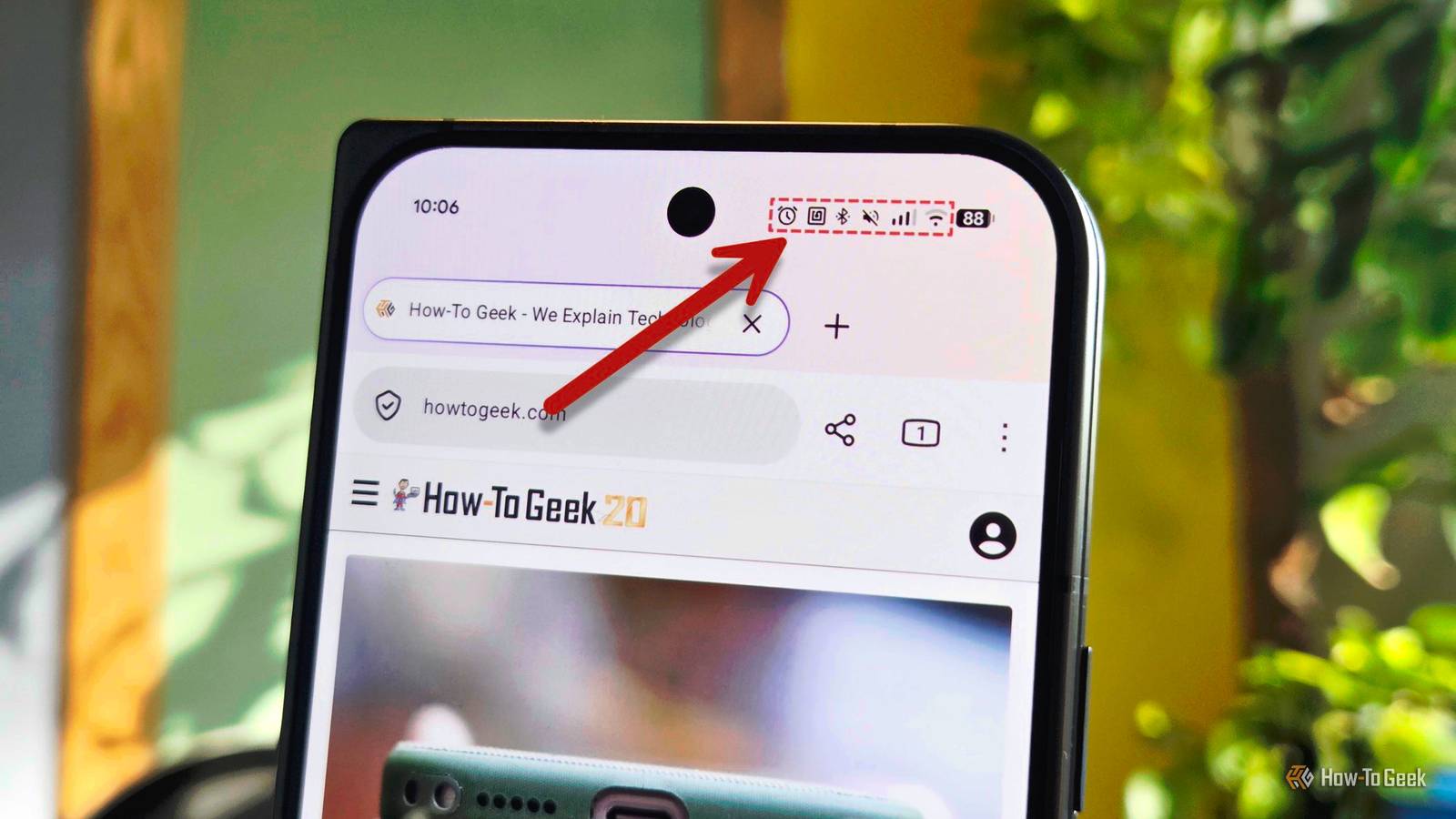
The Android status bar has been largely unchanged since the very beginning.Consistency is great, but so is adapting to modern needs.Some of the icons in the status bar have never been useful to me.
Let's clean things up.Add How-To Geek on Google Add as Preferred Source Follow on Google Discover Thankfully, some Android phones have gotten better about hiding unneeded status bar icons.Pixel phones don't show the NFC icon anymore, and Samsung hides some icons in the notification panel.
Still, there are icons that I've never found useful.I keep Bluetooth on all the time, so the icon is unnecessary.The alarm icon has also never really helped me with anything.
For years, I've been hiding these icons, and you can too.QuickStar makes it easy on Galaxy phones Another win for Good Lock We'll start with how to do it on Galaxy phones.If you've never used Samsung's official "Good Lock" app, now is as good a time as any to get started.
It's a collection of plugins that enable extra features and tweaks on the system level.Good Lock includes a plugin called "QuickStar" for customizing the Quick Settings panel and status bar.We can use it to hide nearly any status bar icon, and all it takes is a simple toggle switch.
There are some additional options for how icons appear as well.First, you'll need to install Good Lock from the Play Store and download the QuickStar module inside it.Open QuickStar and toggle it on, then select "Visibility of indicator icons." Here's where you'll find the full list of system icons.
Everything from the battery icon to VPN can be hidden.Close Note that some of these icons only appear when the notifications or Quick Settings panel are pulled down.Bluetooth, NFC, and alarms are a few examples.
Good Lock is by far the easiest way to do this, so count yourself lucky if you use a Samsung phone.It's not as easy on Pixel phones But entirely possible Unfortunately, Google doesn't offer a Good Lock equivalent for Pixel phones.That's a real bummer, because Pixel phones have many fewer stock features.
A suite of power user tools is more needed on Pixel phones than Galaxy phones, to be honest.Regardless, there are some solid third-party options — I'll share two different approaches.One is dead simple, the other is more complicated, but also a very powerful tool you may want to explore.
The first option is an app called "System UI Tuner," which is simply a shortcut to Android's hidden native tool of the same name.The System UI Tuner was first introduced in Android 6.0 Marshmallow.It could be accessed through the Developer Options menu, but Android 9 Pie removed that ability.
However, it's still baked into Android, and that's why the shortcut works.Install the app from the Play Store, then open it and select "Status bar." You'll see a list of all the system icons that can appear in the status bar.A couple of them include extra options, like showing the battery percentage only when charging.
Like Samsung, Google hides certain notifications on the expanded notifications and Quick Settings panel.Close The second option is the closest thing Pixel owners have to Good Lock.It's an app called "Essentials," and you'll need to sideload it from GitHub or the official website.
Since Essentials is not an official app like Good Lock, it requires some advanced permissions to modify system settings.The app does a good job of explaining how to set everything up.I recommend using an app called "ShizuWall" for the ADB commands.
In the Essentials app, go to Display > Statusbar icons.Toggle it on at the top of the screen (you'll be prompted to enable some permissions if you haven't already), and all the status bar icons will appear.Essentials gives you a lot more options than System UI Tuner.
For example, there's a "Smart WiFi" toggle that hides the mobile data bars when you're using Wi-Fi.Close This is one small sliver of what the Essentials app can do.I highly recommend taking some time to explore the app further.
Pixel phones are severely lacking in power user features, and this app provides them.A clean status bar is a happy status bar Personally, I can't stand it when the status bar on my phone is stuffed with icons.System icons are obviously only half of the problem (literally).
The other half of the screen is for notifications, and those are a bit easier to control.Keeping your screen tidy can help make your phone feel less stressful.Related A small key icon just appeared in your Android status bar.
Here's what it's trying to tell you That key icon isn't random.It's there for a reason.Posts 16 By Tyler Dupont
Read More