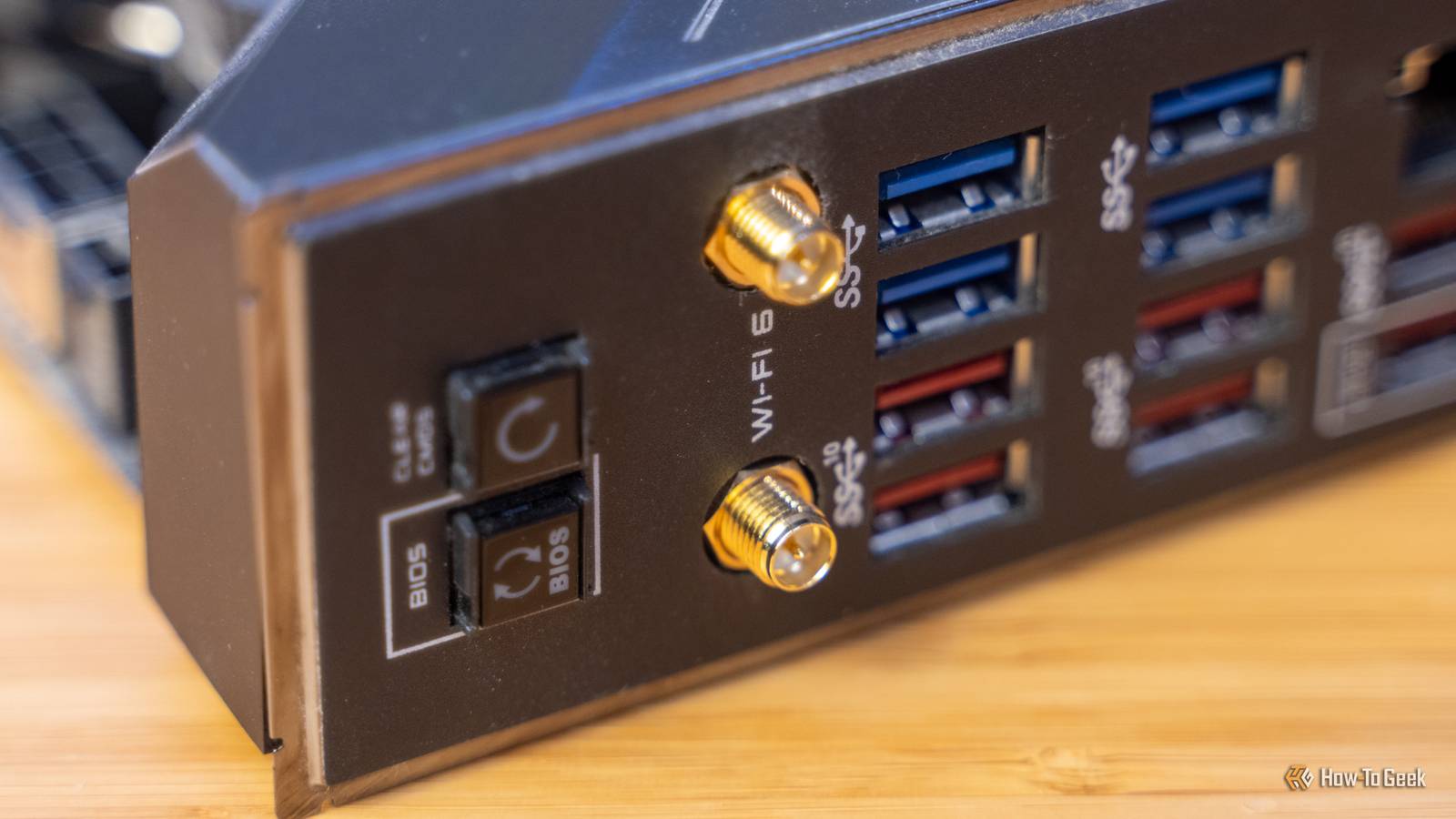
Most people don't spend their days staring at the back of their motherboard, and even if you're familiar with yours, I'd wager you don't go around pressing buttons willy-nilly.As you should.But there's one button that calls for a deeper investigation, and it can solve one of the most frustrating PC-building problems imaginable.
The hidden button that updates a motherboard that can't boot It doesn't need an OS or even the regular BIOS interface Close Okay, okay, I'll lift the veil of suspense.I'm talking about the Flash BIOS button.The Flash BIOS button is a small button built into the rear I/O of certain motherboards, often seen beside a specially marked USB port.
Depending on who made your mobo, this button might be labeled Flash BIOS, BIOS Flashback, Q-Flash Plus, or something along those lines.You may need to look closely to spot it, since it often sits among the USB ports and audio jacks.Not every motherboard has one, though.
It's more common on mid-range and high-end models, although some affordable boards include it, too.The easiest way to check whether yours has one or not is to simply take a peek at what's going on at the back of your PC.The button lets the motherboard install a BIOS update from a USB drive without loading Windows or opening the regular BIOS interface.
On many supported boards, this process actually works even if your PC is essentially just a motherboard.You might be able to do this without a CPU or RAM.You'll obviously need a PSU.
GIGABYTE B850M DS3H AMD AM5 mATX Motherboard Brand Gigabyte CPU Included No It's impossible to make a blanket recommendation for mobos - after all, I don't know your CPU.But I'll say that my last three motherboards have all been Gigabyte, and they've all been excellent.$140 at Amazon Expand Collapse It's most useful when your motherboard doesn't recognize your CPU A BIOS compatibility problem can leave a perfectly good PC in the lurch This unassuming little button is especially useful when your PC cannot boot because the motherboard's current BIOS doesn't support the CPU you just installed.
The problem usually arises when you pair a newer CPU with a motherboard that was manufactured before that processor even existed.The socket may be correct, and the chipset may be fine, but the PC may still refuse to POST.The motherboard simply doesn't know what to do with the processor until you feed it that BIOS update that tells it what's going on.
Without a Flash BIOS button, fixing this can get awkward.You may need to borrow an older compatible CPU just long enough to boot the system and install the update, ask a repair shop to do it, or pay the retailer to update the board before shipping it (some may do it for free).BIOS Flashback skips that entire detour by letting you install the required firmware from a USB drive before trying to force your new CPU into this whole situation.
Related My PC took 30 minutes to boot until I fixed this one SSD problem SSD problems can make your PC entirely unusable Posts 11 By Monica J.White The motherboard can flash itself because the feature runs independently You may only need the mobo and the PSU Pretty much anything you do on your PC requires, well, the PC.You need at the very least the CPU and the RAM for something to happen.
But Flash BIOS works because it doesn't rely on the PC's normal boot process—instead, the motherboard uses dedicated circuitry that can read the firmware file from a specific USB port and write it directly to the BIOS chip.The CPU doesn't need to execute anything, and the RAM doesn't need to initialize anything.You don't even need a display to follow along.
As mentioned, the motherboard still needs power.You'll usually connect the 24-pin mobo cable and the CPU power cable, switch your PSU on, insert the prepared USB drive, and press the Flash BIOS button.A small LED light should start blinking to show you that the magic is, indeed, happening.
You need a little bit of prep to use the Flash BIOS button Don't jump in headfirst If you're in a situation where this button comes in handy, don't just press it with no prep.You'll need the correct BIOS file for your exact motherboard model and revision first.Download it from the manufacturer's support page, extract the archive, and follow the instructions for renaming the file the correct way.
Some brands include a renaming tool, while others expect a specific file name such as MSI.ROM or GIGABYTE.bin.You'll also need to format a USB drive as FAT32 and place the BIOS file in the root directory, not tucked inside a folder.Once you're all set, make sure you're plugging that USB drive into the USB port specifically marked for BIOS Flashback.
I've covered all the rest above, but the TL;DR is to just plug everything in and follow the timing instructions in your motherboard manual (which you can probably find online if you threw yours out).Most Flash BIOS failures have surprisingly simple causes The motherboard is super picky about the USB drive If nothing happens when you press the button, don't immediately assume that your mobo is toast.Most failures come down to simple setup mistakes, such as the BIOS file belonging to a slightly different motherboard, the archive not being extracted, the file not being renamed correctly, or the USB drive being plugged into an ordinary port.
This feature can also be surprisingly picky about USB drives, which is so great, considering both USB-A and USB-C can be mighty confusing.If it refuses to recognize yours and everything else is in order, try using a basic USB 2.0 drive formatted as FAT32, with nothing on it except that BIOS file.The Flash BIOS button is worth looking for on your next motherboard Chances are that if you're building a PC now or will in the future, that Flash BIOS button will be there.
I recommend trying it out when you get the chance.It can really save you in a pinch, so it's good to know the process.SoundOriginal PC Motherboard internal speaker $6 $7 Save $1 This tiny gadget lets your BIOS speak to you the way it used to when motherboards still had speakers by default.
$6 at Amazon Expand Collapse
Read More