Microsoft's (or rather, Mark Russinovich's) Sysinternals suite packs more than 70 utilities, each designed for a specific purpose and useful in different situations.While I used a number of them back in the day when I regularly fixed issues on other people's PCs, I rarely have a use for most of the tools on my own machine these days.That said, there are a few Sysinternals utilities that I consider indispensable for every Windows user, myself included.
Process Explorer Much more powerful than Task Manager Close Process Explorer is Task Manager on steroids, and one of my favorite tools on my PC.It gives me an astounding amount of information about every app and process running on my PC and is super handy to have when something feels out of place.That said, Process Explorer is valuable even when everything's working as it should, because it can show me details Task Manager never will.
The Properties window, which you can open by double-clicking a process, is like a mini Process Explorer covering just that single process.There, you can see the resources the process uses, including memory, CPU, network connections, and much more.It's one of the best ways to learn everything about a particular process and figure out why it's behaving the way it is if something goes wrong.
Process Explorer also includes handy performance graphs, similar to those found in Task Manager, where you can monitor system resource usage (memory, CPU, storage, and GPU).There, you can also see the exact processes using CPU time and I/O bandwidth, which is especially useful when something's wrong because it lets you identify exactly what's hogging resources just by hovering over the CPU and I/O usage graphs.Another very handy feature is the ability to submit files to VirusTotal and even add a VirusTotal column, allowing you to immediately see whether a file has been flagged as malicious or not.
I also like the feature that lets me drag a crosshair over any open app window to instantly locate its process in Process Explorer; it's so cool to use.When I just want to glance at what's happening on my PC, Task Manager is often enough.But when I want to dig deeper, usually for troubleshooting, Process Explorer is indispensable.
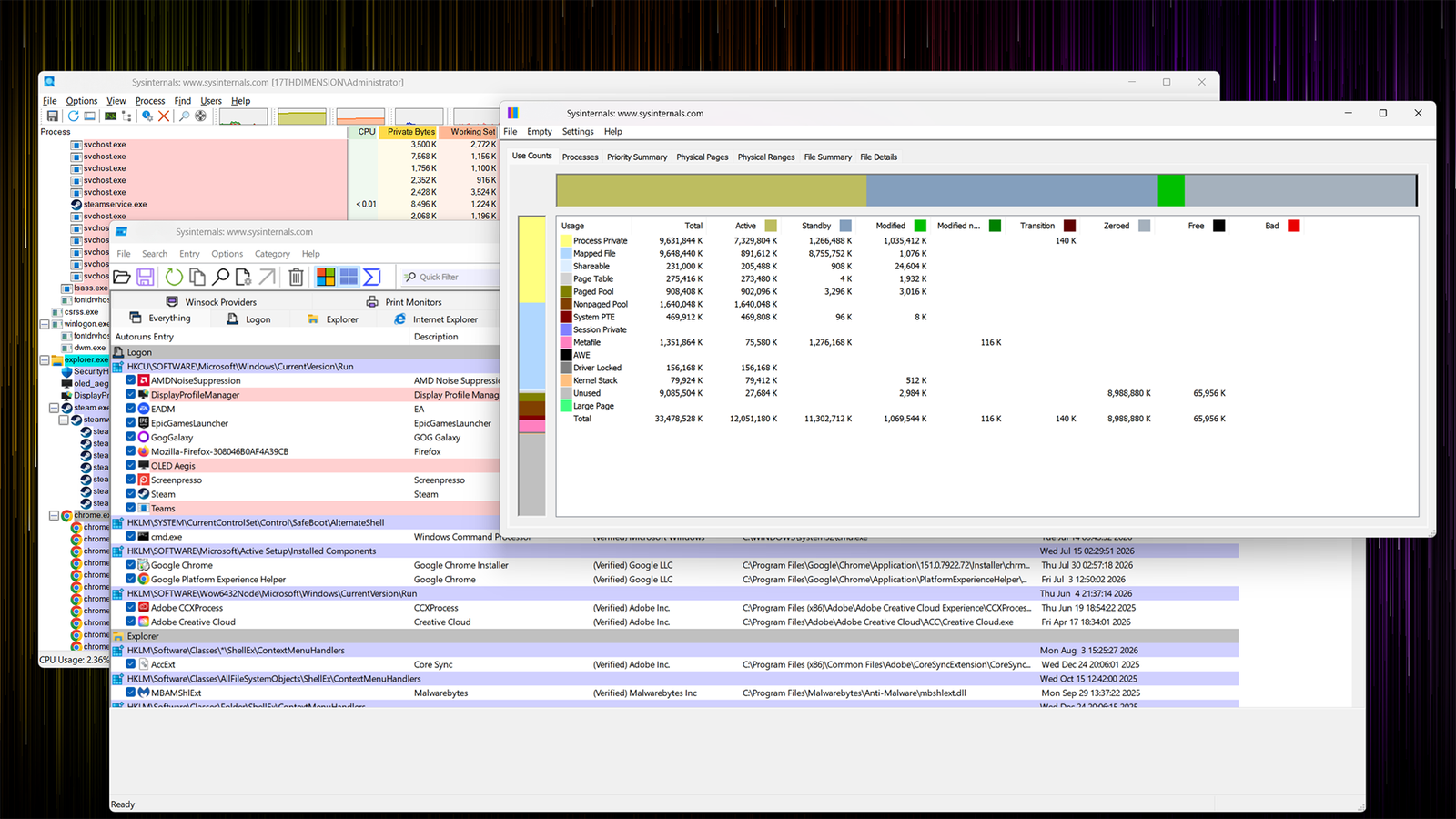
Related 8 Task Manager Tips Every Windows User Should Know Simplify task management! Posts 4 By Shan Abdul Autoruns Stop unnecessary startup processes in their tracks Close I always try to keep the number of startup apps to a minimum, but the fact of the matter is that even if Task Manager lists only a handful of startup apps, chances are the number of startup entries that run when Windows starts is actually much higher.This is where Autoruns comes in handy.The tool not only lists apps that start with Windows, but also background services, codecs, drivers, scheduled tasks, and other entries that launch alongside Windows.
With it, I can see and, if needed, stop certain services from running.These usually include nagging game launcher services, which start even when you've explicitly disabled those launchers from starting with Windows, as well as services related to other, non-gaming apps you already disabled in Windows Settings.As someone who goes through a fairly large number of apps and utilities on my Windows PC—both because I write about Windows and because I just like trying different software—Autoruns is useful to have and run now and then, even if my machine works like clockwork.
Not only because some apps I've prevented from starting with Windows have related services that, surprise, surprise, still launch with Windows anyway, but also because certain apps I uninstall leave behind startup entries that no longer serve any purpose.I prefer to remove those even though they're harmless and, in most cases, don't consume any resources.RAMMap An indispensable tool for analyzing Windows memory management Close Similar to Process Explorer, RAMMap supercharges one of the features found in Task Manager.
While Task Manager can show you the memory usage of each active process on your PC, RAMMap goes above and beyond by providing detailed memory statistics that can be very helpful when troubleshooting your PC or when you simply want a more in-depth look at your system's memory usage.With RAMMap, I can see specific files and their memory usage, diagnose memory leaks, better understand Windows' memory management, and find out why certain processes take up more memory than usual, among many other things.RAMMap is especially useful when your PC suddenly starts running slowly or when you notice suspiciously high RAM usage by certain apps or services.
RAMMap is even more useful when paired with Process Explorer.Together, the two utilities can show me exactly what's going on with my PC and point me in the right direction when it's time to troubleshoot.I used to rely on many more Sysinternals tools back in the day, but those days are behind me More than a decade ago, back in my college days, I was the designated PC troubleshooting person, so I usually carried a number of Sysinternals tools with me on a flash drive, including DiskMon, TCPView, several PSTools utilities, Process Monitor, and the three I mentioned above.
Nowadays, though, I usually troubleshoot only my own and my partner's PCs, so I no longer use most of the tools in the Sysinternals suite.That said, the ones listed above are handy to have even when your system runs without a hitch, because they let you see almost everything that's happening on your PC, prevent unnecessary tasks from launching at startup (there are always a few that slip through the cracks), and get a detailed breakdown of what's eating up your PC's RAM.
Read More