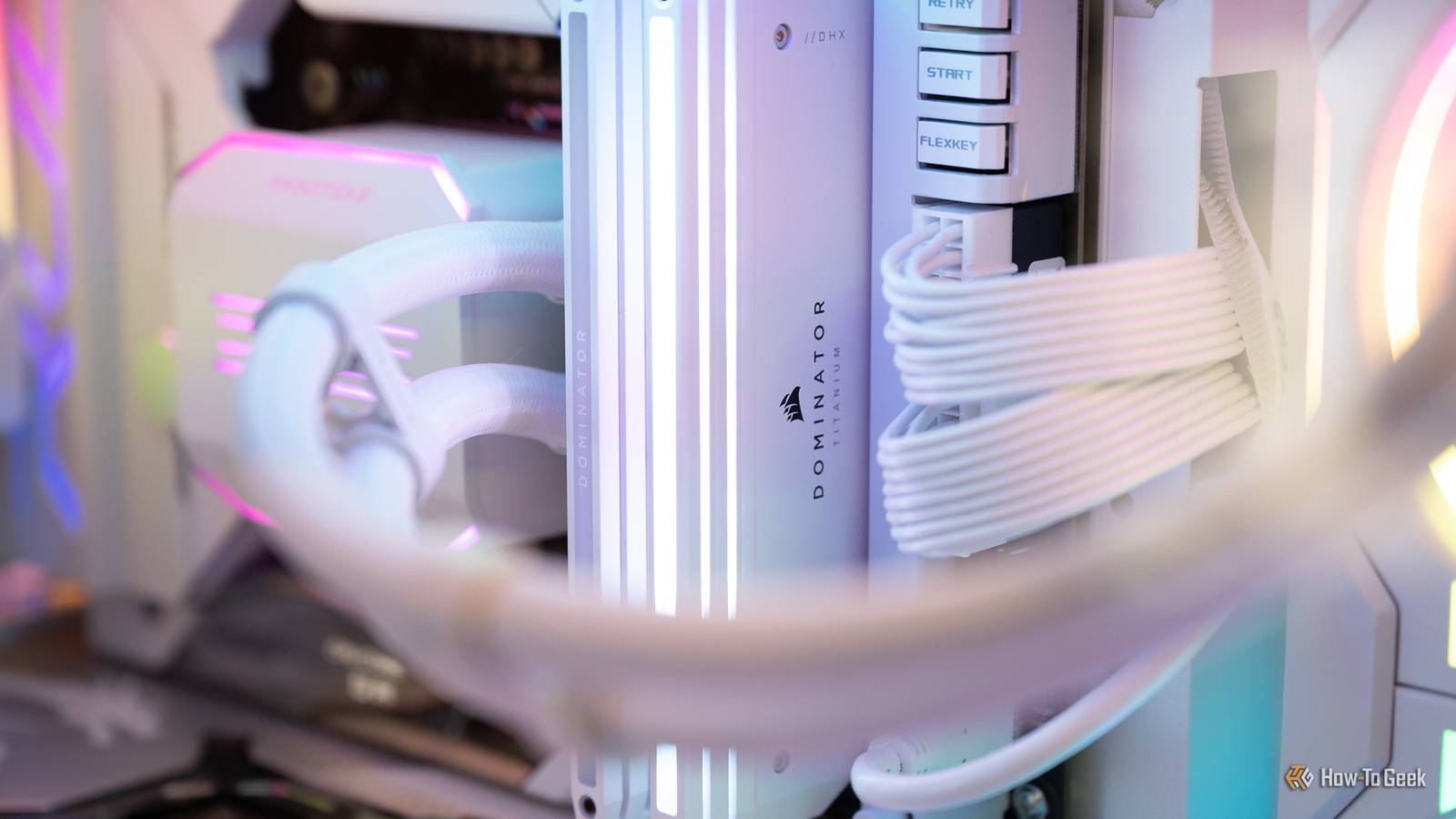
It's 2026.Who on earth is buying RAM right now? Well, you might be tempted to buy some if yours is underperforming, but I'm here to tell you to hold on to those RAM kits a little longer.Not only is RAM massively overpriced right now, but more importantly, you can probably fix yours with one simple BIOS setting.
Your RAM may not be running at the speed on the box XMP and EXPO are the missing piece Close Slow RAM can almost feel like a CPU bottleneck sometimes.It sure isn't the easiest thing to diagnose, and most people will blame their SSD or their CPU before they even consider that the RAM might be the culprit.But just because your RAM isn't delivering on its promises—as in, providing you with the frequencies you've seen on the box—doesn't mean it's broken.
Based on my experience, it's probably just fine, and you just forgot to overclock it.It's weird, right? You buy yourself a, let's say, DDR5-6000 kit.Pretty reasonable to assume it'll run at 6,000MT/s out of the box.
But a lot of the time, it won't.Many (or most?) enthusiast RAM kits include both standard JEDEC settings and a faster, overclocked memory profile.Guess what ends up on the box? The fastest possible speed, of course.
Duh.But those speeds are totally achievable (well, mostly) with the right XMP and/or EXPO profile.Intel XMP and AMD EXPO store predefined settings that tell compatible hardware how to run the memory at the advertised profile.
Without enabling XMP or EXPO, chances are your RAM is running at the default speed, which is often a third of its maximum.Your motherboard is just sticking to what's described as safe, and the overclocking is optional, but because of the way RAM is advertised and used, the overclocked state is the default that we've all come to expect.Anything lower than that means you're leaving some performance on the table.
Related 5 networking upgrades under $30 to try before replacing your router Routers are expensive, but these upgrades are not Posts By Monica J.White The profile changes more than just RAM frequency Speed, timings, and voltage come as a package When you enable the correct XMP or EXPO profile, you essentially tell the RAM to get a move on and kick things up a notch to the frequency you paid for (and you paid a lot if it was in the last year, too).That's the headline benefit, but there's more to it.
The profile is, in fact, more like a bundle deal, that includes the data rate, primary timings, and DRAM voltage.When you enable something like a DDR5-6000 CL30 profile, the motherboard will adjust more than just running the full 6,000MT/s.It'll also apply the timings and whatever else is needed to make the RAM kit work properly at its best available level.
That's also part of why you shouldn't bother with manually adjusting frequencies in the BIOS.Not only is it arguably harder and more time-consuming, but you're also not achieving the same end result as you do by simply enabling the correct profile for your RAM.Sure, you can tune all those settings by yourself, but honestly, I never bother.
It's fun, I guess, if you enjoy manual overclocking or want to try to squeeze out every last bit of performance, but it does get riskier if you try to push harder than the manufacturer intended.Check your memory speed before touching the BIOS Maybe you don't need this after all I'm no stranger to various PC optimizations, both due to my 20-year experience in building the darn things, and also due to the fact that now's not the time to be buying new hardware, so we have to resort to the same tricks we've had to use when we were broke college kids.Still, even I will tell you that there's no need to fix stuff that's doing just fine without your help, so before you start digging through the BIOS, check and make sure your RAM actually does need to be overclocked.
Checking is easy: just open the Task Manager on Windows, head to Performance, then Memory, and look at the reported speed.If it's running well below the advertised speed, then yup, BIOS time it is.You can also check the current memory speed from the BIOS itself, and tools like HWiNFO or CPU-Z can give you more detail if you like.
Enabling XMP or EXPO is usually a walk in the park You shouldn't need any manual tuning Manufacturers made these XMP/EXPO profiles specifically so that they're easy to toggle and don't require any knowledge of overclocking whatsoever.Once you're certain that your RAM needs to be adjusted, reboot into the BIOS/UEFI, and look for the memory profile setting.Then, select the appropriate XMP or EXPO profile, save your changes, and restart.
As is always the case with BIOS settings, the exact location of everything will vary based on your motherboard brand, but these RAM settings are almost never hard to find.Don't be afraid to explore; as long as you don't change any other settings, there's no harm in just having a little look around.All set? Boot up your PC and check memory speed again.
If the profile actually took, you're all set, and can start testing your PC.Run a lot of memory-heavy tasks simultaneously, such as a lot of browser tabs as well as a game and some other apps, and see how it all performs.More importantly, monitor PC stability.
The advertised speed still isn't guaranteed You're technically overclocking your RAM The thing about RAM overclocking is that it's not guaranteed that you'll have those exact speeds from the box at all times.Even with the right profile enabled, your CPU's memory controller, motherboard, BIOS version, number of DIMMs, and the RAM kit itself all play their own little role in the ultimate performance.And as doing this counts as overclocking, keep an eye out for crashes or memory errors, as they might mean you need to try a lower profile.
You paid for faster RAM, so check whether you're making the most of it I'm a big believer in making the most of what you already own.Even older DDR4 RAM can be plenty good enough for just about everyone, but if you're letting it run at half speed, that's bound to feel underwhelming.Check out your XMP/EXPO profiles and see if it helps.
Read More