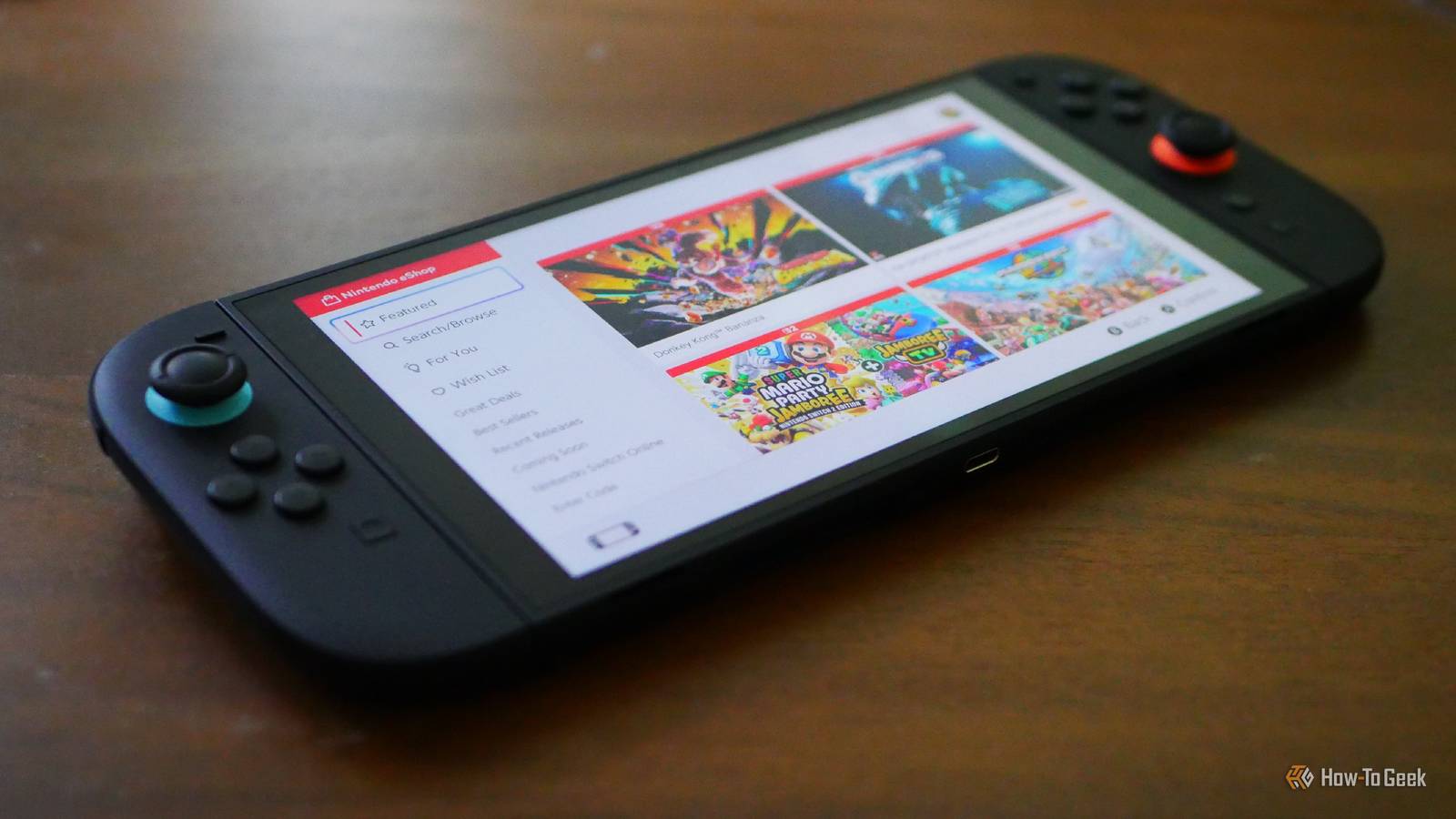
I've had a Switch for a long time, and when we got a Switch 2, it made sense to set up the old one for the kids to use.With the Switch in one of the kids' rooms, however, I wanted to be able to keep an eye on how much they were using it and ensure that they weren't staying up all night playing Animal Crossing.Home Assistant offered an effective solution.
Setting up the Nintendo Switch Parental Controls integration Getting the token is the trickiest part Home Assistant offers an integration called Nintendo Switch Parental Controls.As the name suggests, it allows you to connect Home Assistant to the Nintendo Switch Parental Controls app that you can use to manage your Switch.The integration uses Nintendo's cloud service, and setting it up can be a little awkward.
When you install the integration, you'll be asked for an access token.Clicking the provided link will open a new tab where you need to sign in to your Nintendo account.Once signed in, you should see a Select this person button.
Instead of clicking this button, you need to right-click it and copy the link address.If you click the button, the setup won't work.You then need to paste the link into the Access Token field in the integration configuration.
Once you click Submit, the integration should connect to your Nintendo account.If you're having problems authorizing, you may need to update Home Assistant; the integration has some issues if you're running older versions.Nintendo Switch 2 4K Capability Yes, docked 4K Capabilities HDR The Nintendo Switch 2 is the company's latest hybrid home console, with more powerful graphics and processing, a larger 7.9” LCD touch screen with support for HDR, and more online features.
$450 at Nintendo $450 at Gamestop $450 at Best Buy $450 at Target Expand Collapse What you get from using this integration Sensors, switches, and time limits Once you've got the integration set up, you'll find useful entities and actions that you can use to manage your kids' gaming time.These include sensors such as used screen time and screen time remaining, based on the value you set for maximum screen time each day.You can set different time limits for each day in the Nintendo Switch Parental Controls app on your phone, and these are reflected in Home Assistant.
For example, you can set longer screen time for weekends and less for weekdays.You can choose to override these values in Home Assistant, and the app will update accordingly.There's also a toggle switch to enable or disable the suspend software feature.
When disabled, an alert will appear on the Switch when the time limit is reached, but you'll still be able to keep playing.With the suspend software feature enabled, when the time limit is reached, the Switch is locked down, and you can no longer use it.An automation that's worth building A literal kill switch is worth the effort alone Once you have the Nintendo Switch Parental Controls integration set up, there are plenty of useful automations you can build.
For example, you can set up an automation to send you a summary of the Switch play time for the day each evening, so you can see at a glance how much they've been playing.You can use the "screen time remaining" value to trigger spoken announcements through smart speakers, alerting your kids that they have 15 minutes of play time remaining, or that there are only five minutes to go before the Switch shuts down.It saves you from the meltdowns that occur when they claim that they didn't know their time was nearly up.
Perhaps the most useful thing you can set up is a kill switch.You can create an automation that sets the maximum screen time to zero and ensures that suspend software is on.You can then trigger this automation from a dashboard button or with a voice command, and instantly freeze access to the Switch if your kids are messing around.
Related 12 Settings to Change on Your Nintendo Switch Nintendon't miss out.Posts By Tim Brookes It's not a perfect solution You can't change restrictions in Home Assistant While using the Nintendo Switch Parental Controls integration is useful, it's not perfect.It relies on cloud access to your Nintendo account; there's no way to use the integration locally, even though the Switch is probably on the same local network as your Home Assistant server.
There are also some features of the Nintendo Switch Parental Controls app that aren't found in the integration.For example, using the app, you can set the restriction levels for software age ratings, online communication, posting screenshots to social media, and VR mode.None of these features is accessible through the Home Assistant integration; you can only edit them through the official app.
The integration page states that further updates are intended to add more of the functionality of the official app.It may be the case that access to some of the features will be available via Home Assistant in the future.Keep track of your kids’ gaming more easily The Nintendo Switch Parental Controls integration can't do anything that the official app can't do.
However, by setting it up, you can set up useful automations that can make it easier to monitor and limit your kids' gaming time.
Read More