There’s a certain thrill in opening a brand-new phone.You peel off the plastic, transfer your photos, sign in to your Google account, and start taking your first picture.But in all that excitement, we often forget to check a few important settings that can make our phone better.
Before I started using my current phone—a Samsung Galaxy Z Fold 6—I went through a handful of settings that I decided to turn off immediately to improve battery life, protect my privacy, and avoid unnecessary interruptions.If you’ve just bought a new Android phone, these are the five settings I recommend toggling off before you use it as your daily driver.Related Your Samsung phone is draining battery to collect data—these two settings stop it It only takes 30 seconds.
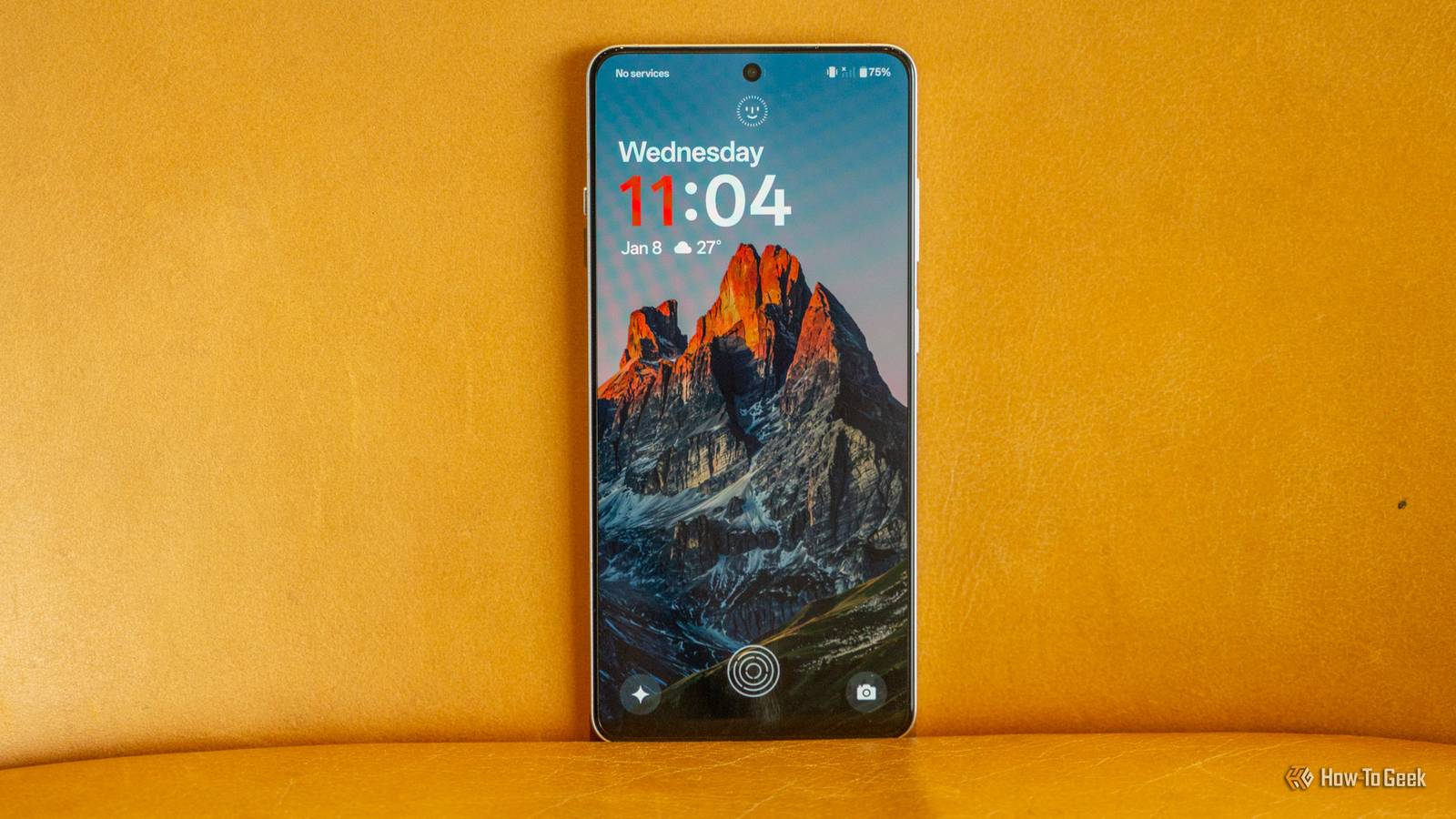
Posts 2 By Cory Gunther Turn off lock screen notification previews Stop revealing too much I’m a person who likes to keep some things private.I actually hate it when someone peeps at my screen in a crowded room, whether I’m away from my phone or sitting right in front of them.So, one of the first things I change on every new Android phone is to stop notifications from revealing their contents on my lock screen.
It could be a message from your mom, a bank one-time passcode, or a work email.You might think, “It’s just a notification,” but it only takes one glance for something private to become public.To hide the preview of your notifications, go to Settings > Notifications > Hide content while locked, and then select Hide when locked.
You’ll still see the notifications on your lock screen, but nobody will see their contents until you unlock your phone.And honestly, that's exactly how I want it.The steps may vary depending on your phone model and Android version.
To locate this feature, go to Settings and search for “Lock screen notifications.” Restrict unnecessary location access Don’t let every app know where you are Not every app on my phone needs to know my location.If I open Google Maps or a food-delivery app, of course, it needs my location.But why should a shopping app, casual game, or random app I barely use have access to my precise location? In that case, I’d rather choose Ask every time or allow location only while I’m using that particular app.
My location is personal information, and I’m not saying every app is tracking me, but I don't see a reason to give an app access to my location when it doesn’t need it.Android lets you decide which app should access your location and when.Dive straight to Settings > Location > App permissions to review all listed apps and select your preference.
It takes only a few minutes, but it gives me much more control over my personal data, which I don't share that easily.Turn off adaptive brightness I prefer to control my screen manually Adaptive brightness is supposed to make things easier, but it doesn’t always work the way I want.This feature is enabled by default on many Android phones.
I immediately turn it off because I prefer to choose my brightness level manually.Sometimes I walk from a bright room into a darker one, and the screen suddenly dims before I’ve even had a chance to adjust.On a sunny afternoon, the display may not feel bright enough, so I end up adjusting the brightness myself.
If you feel the same way, you can turn it off and take control of yourself.Go to Settings > Display > Adaptive brightness and turn it off.The exact location may vary depending on your phone and software versions.
Now you have to manually lower the brightness level when moving to a darker room and increase it in a brighter environment.It’s an extra step, but this small trade-off is worth it.I’d rather have a screen that gives me freedom to control my brightness level.
Stop ad personalization Take back some control over ad personalization Close I must say, ads are incredibly annoying, especially when they appear just as you’re about to win a game or while you’re reading an article on your mobile browser.They get even creepier when they seem too tailored to your interests.Imagine looking up a diamond ring once, and suddenly, everywhere you go, you see jewelry ads.
Of course, personalized ads can help you discover products you might like, but they rely on your data, which can feel like a privacy invasion.Without giving up on any apps or functionality, you can significantly reduce the amount of information your phone reveals about you.Android devices use an advertising ID, which lets apps and advertisers build a profile of you.
To opt out of this kind of ad tracking, go to Settings > Security & Privacy > More privacy settings > Ads > Ads privacy.Under this tab, toggle off Ad topics and App-suggested ads.Once you turn these options off, your phone will stop snooping around your activity on any app.
This doesn’t particularly mean you’ll stop seeing ads altogether, but it’ll become more generic.Disable Wi-Fi & Bluetooth scanning And give your phone the battery life it deserves Nobody would’ve ever thought that one of the culprits of battery drain could be Wi-Fi and Bluetooth scanning happening in the background all the time.Your phone can scan for nearby devices even when the Wi-Fi and Bluetooth are turned off.
Android uses these scans to help apps estimate your location more accurately.I’m always out and on my phone, so battery life is important to me.If you want to save your battery, go to Settings > Location > Location services and disable Wi-Fi scanning and Bluetooth scanning.
You won’t see a massive difference in battery life, but disabling unnecessary background scanning can eliminate a small source of activity.There’s no harm in disabling this feature unless you rely heavily on location services.Start with these five settings You don’t need to change dozens of settings to make your Android phone feel better.
These small tweaks can make a big difference if you are concerned about your privacy, battery life and unnecessary interruptions.The best part is that you can always switch back to the default settings if they don't work for you.
Read More