You probably know Microsoft 365 saves your work automatically.What many people miss is that when your files are stored in OneDrive or SharePoint, AutoSave and Version History work together to create a powerful safety net—even after you've saved, closed the file, and moved on.Microsoft 365 quietly solved the "I just lost my work" problem Your files already have a recovery timeline For years, the standard rule of computing was drilled into our brains: save early and often.
We all remember the anxiety of working on a critical Word, Excel, or PowerPoint file, constantly pressing Ctrl+S because a sudden software crash or power outage could erase hours of progress.Older versions of Office included AutoRecover, which could sometimes restore unsaved work after a crash, but it was mainly designed for emergency recovery rather than continuously preserving your work and edits in the background.Microsoft 365 eventually made one of Office's biggest frustrations—losing work after a mistake, crash, or accidental edit—far less common, but many people still don't realize just how much protection they actually have.
AutoSave and Version History have existed for years, but their true power emerges when they work together behind the scenes.Instead of forcing you to manage manual backups, Microsoft 365 stores and tracks changes to your files in OneDrive and SharePoint.The bigger benefit isn't simply that your current progress is protected—it's that Microsoft 365 quietly keeps a record of previous versions, making it much easier to recover content you've deleted, overwritten, or changed by mistake.
Version History is your secret weapon against accidental edits The undo button stops working, but Version History doesn't Every office worker knows the limitations of the traditional undo command: if you make a mistake, pressing Ctrl+Z works beautifully—until you close the document.The moment that window shuts, your editing history disappears.Imagine deleting a crucial paragraph, saving the file, closing Word, and returning the next day only to realize you desperately need that information back.
Under the old system, that content was often gone for good.Version History bridges this gap.Think of it as a timeline that preserves previous versions of your document across completely separate sessions.
If you spend hours fine-tuning a layout or writing a detailed summary, only to accidentally delete it before rushing out of the office, Ctrl+Z can't help you tomorrow morning.But Version History can.Microsoft 365 Personal OS Windows, macOS, iPhone, iPad, Android Free trial 1 month Microsoft 365 includes access to Office apps like Word, Excel, and PowerPoint on up to five devices, 1 TB of OneDrive storage, and more.
$100 at Microsoft Expand Collapse This safety net becomes even more valuable when you're collaborating with other people.Sharing a document with coworkers or clients is incredibly convenient until someone accidentally overhauls your formatting, deletes important content, or breaks formulas in a shared spreadsheet.Consider the nightmare of a colleague accidentally wiping out a critical financial table in Excel or overwriting an entire PowerPoint template.
Version History lets you roll back those mistakes by restoring a previous version from before the changes were made.The same principle applies to your own mistakes.Maybe you accidentally save a new project over an old template, delete the wrong worksheet from a workbook, or remove a section of text that later turns out to be important.
Because Microsoft 365 keeps a history of saved versions in OneDrive and SharePoint, recovering from mistakes like these is often surprisingly easy.Version History works best when your files are stored in the cloud Your document timeline needs a home To get the full benefits of Version History, your documents can't live exclusively on a local hard drive.The feature relies on OneDrive or SharePoint to maintain a timeline of previous versions.
That's also what makes it feel less like a traditional backup tool and more like a built-in safety net.Save a file to Microsoft's cloud storage, leave AutoSave enabled, and the system quietly preserves earlier versions in the background while you work.These steps will help you confirm that your file is actively syncing to the cloud: Open the Word, Excel, or PowerPoint file you want to protect.
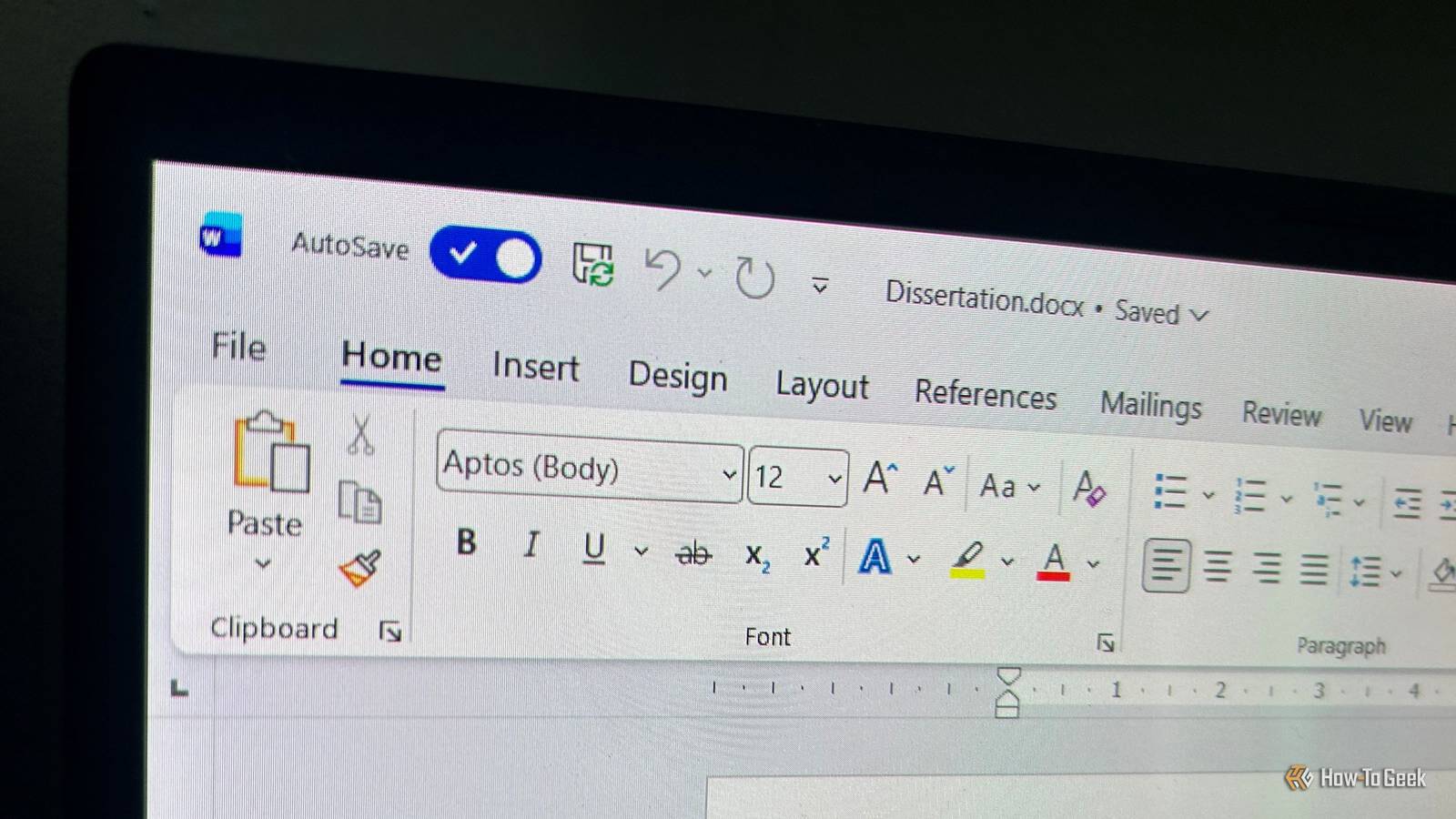
If you don't see the AutoSave switch in the upper-left corner, click File > Options > Save and check AutoSave files stored in the Cloud by default.In some setups, the switch only appears once the file is stored in OneDrive or SharePoint.If AutoSave is turned off, toggle it to On in the upper-left corner of the window.
In most cases, it will already be enabled automatically once the file is saved to OneDrive.If prompted, select your OneDrive or SharePoint location to store the file in the cloud.Confirm the file is syncing by checking the status indicator next to the file name (you should see a cloud icon or Saving/Saved status).
Restoring an older copy takes just a few clicks Preview and recover previous drafts The beauty of the system is how easily you can move through previous versions without immediately committing to a restore.Microsoft 365 maintains a time-stamped history of earlier versions, making it easier to verify you're choosing the correct one before making any changes.Before restoring anything, you can review older versions to confirm they contain the content you're looking for.
This is especially useful when you're trying to recover a deleted paragraph, compare revisions, or identify exactly when an unwanted change was introduced.If the version you're viewing isn't the one you need, simply close it and continue browsing the timeline.Your current document remains untouched until you decide to restore an earlier version.
To access Version History: Click the file name at the top of the application window.Select Version History from the menu.Browse the available versions, which are organized by date, time, and author.
Open a previous version to review it.Click Restore to make that version your current document.The process takes only a few clicks, but it can save hours of frustration when an important piece of work suddenly disappears.
Beyond the built-in time machine AutoSave helps prevent lost work, but Version History is what turns Microsoft 365 into a genuine safety net.When a mistake slips through, you can often recover content long after the undo button has stopped helping.And if a file disappears entirely or won't open at all, Version History isn't your only option.
Exploring broader ways to recover lost work can help you take the next step when Microsoft's built-in recovery tools aren't enough.
Read More