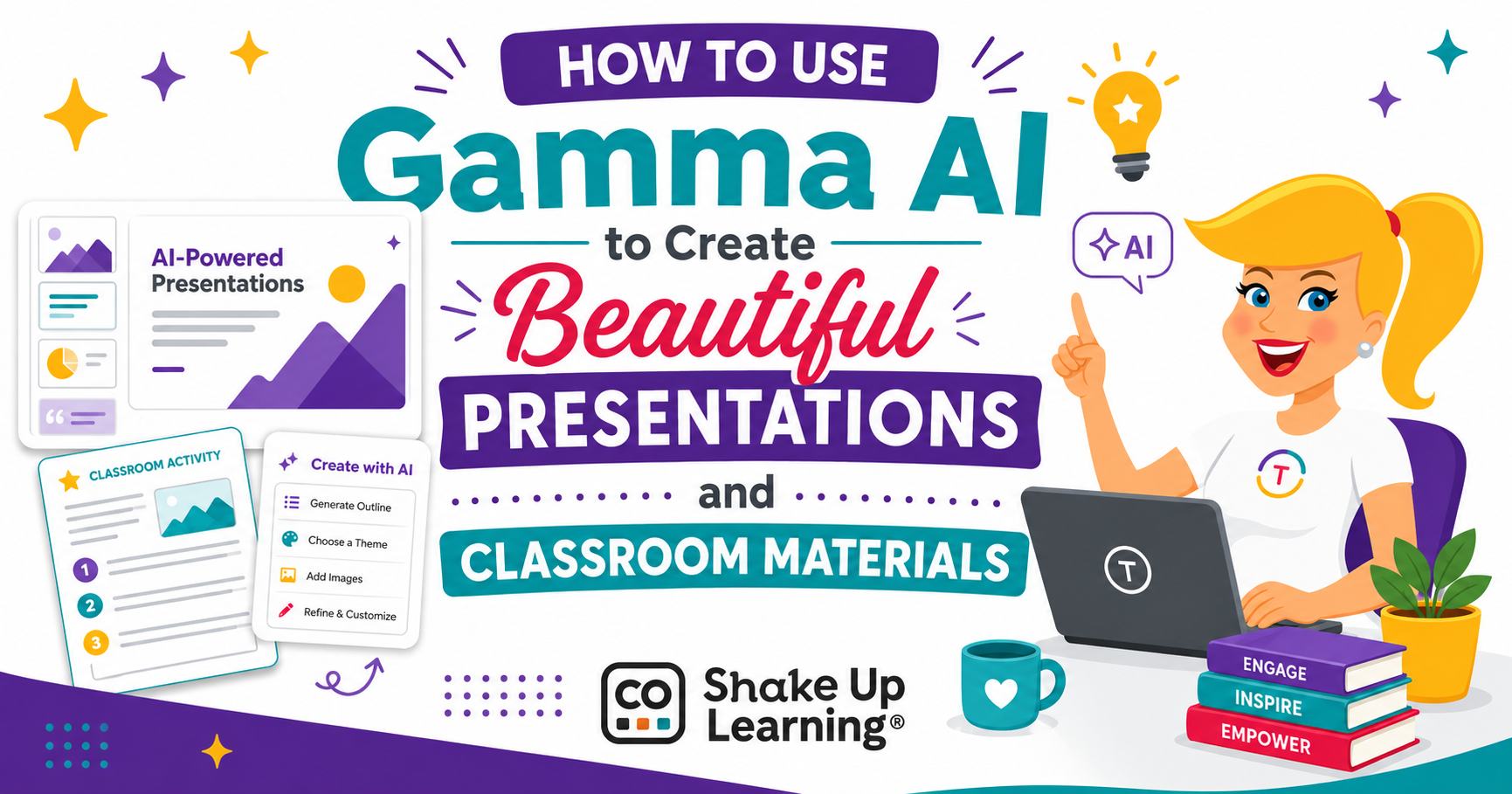
If you’ve been looking for an AI presentation tool for teachers that actually saves time and produces stunning results, Gamma AI for teachers is exactly what you need to know about.Gamma is an AI-powered tool that builds beautiful presentations, documents, and even web pages from a simple text prompt — no design skills, no blank-canvas panic, no hours lost to formatting.You tell it what you want, and it handles the layout, content, and visuals for you.
Listen to this podcast episode: How to Use Gamma AI to Create Beautiful Presentations and Classroom Materials I’ve been spending a lot of time testing AI tools for educators lately, and every now and then one comes along that genuinely changes the game.This is one of them.So let’s walk through exactly how it works.
What Makes Gamma Different from Google Slides or PowerPoint? Most presentation tools hand you a blank canvas, maybe a design template, and say, “good luck.” Gamma does the opposite.You prompt it, and it builds the whole thing — layout, content, images, and design — in real time, right in front of you.It’s also not just a slideshow maker.
Gamma can create lesson handouts, reference guides, newsletters, syllabi, unit overviews, and even shareable web pages.If you create any kind of content as a teacher — and I know you do — this tool is for you.You can try it for free at shakeuplearning.com/gamma.
The #1 Rule for Getting Great Results: Write a Specific Prompt Before we walk through the steps, you need to know the single most important thing about using Gamma: your results are only as good as your prompt.Here’s the difference: Vague: Make a presentation about the water cycle.→ Generic output.
Maybe usable.Probably forgettable.Specific: Create a 10-slide presentation for 5th grade students on the water cycle.
Include key vocabulary on each slide, one real-world connection per slide, and a review question on the final slide.→ Something you can actually use in class tomorrow.And I would even add much more to this prompt! Get specific about your student’s skill level, enrichment, reteaching ideas, and more.
(Keep in mind 10 slides is the limit on the free Gamma accounts.Think about every detail you’d include in a lesson plan — grade level, subject, audience, purpose, tone — and put all of that into your prompt.The more specific you are upfront, the less editing you’ll do on the back end.
One heads-up: Gamma is not built specifically for educators, so terms like “exit ticket” may not land the way you expect.I tested it and received a suggested exit ticket for a 20-minute activity.Define your terms — “add a 5-minute exit ticket at the end” — and you’ll get much better results.
Here’s the presentation I created live during the podcast Bottom line: specific instructions are magic.Write your prompt like you’re writing a lesson plan.*Related: AI-Generated Slide Decks for Teachers: The Good, The Bad, and The Ugly How to Use Gamma AI for Teachers: Step-by-Step You can start for free at shakeuplearning.com/gamma.
The free plan gives you 400 credits per month — more than enough to explore and create real content.Step 1: Click “New” and Choose Your Creation Method Once you’re logged in, hit New.You’ll see four options: Generate from a prompt — describe what you want and Gamma builds it Paste in text — drop in notes, an outline, or existing content Create from a template — start with a pre-built structure Import a file or URL — upload a Google Slide, doc, or webpage That last one is a game-changer.
Already have a lesson plan written? Paste it in.Old presentation you want to refresh? Import it.Step 2: Configure Your Settings Before generating, set a few options at the top of the screen: Number of cards (Gamma’s word for slides) — up to 10 on the free plan Style — Classic (free) or Studio (paid) Card size — Fluid, 16:9, or 4:3 Output type — Presentation, document, web page, social graphic, and more For most classroom use, Presentation + Fluid is your go-to.
Step 3: Review the Outline Before You Build Here’s a feature I love: before Gamma spends your credits generating the full design, it shows you an outline first.Review the title and card-by-card structure.Adjust your prompt if needed, then scroll down to finalize your settings.
Step 4: Choose Your Customization Options Text density — minimal, concise, detailed, or extensive (match this to your purpose) Theme — dark on light or light on dark for best readability Image source — AI-generated, stock photos, or GIFs via Giphy Hit Generate and watch it build in real time.We’re talking 10 slides in under two minutes.*Related: Build Your Own AI Agents with Google Workspace Studio Editing Your Gamma Presentation Gamma gives you a solid starting point — here’s how to make it yours.
Edit individual elements by clicking directly on any text box or image, just like in Google Slides.Swap, edit, or regenerate specific elements in seconds.Edit globally with Agents.
The Agents panel at the top of the screen lets you issue commands across the entire deck at once — shorten it, improve the writing, simplify language, translate it.One instruction, every card updated.Swap your theme anytime from the top menu.
(Free plan has fewer options, but there’s still variety.) More Ways to Use Gamma in Your Classroom This is where Gamma AI for teachers really stands out — it’s not just for lesson presentations.Use it to create: Student handouts and reference guides Course syllabi and unit overviews Parent newsletters Professional development presentations Student-facing course guides published as shareable web pages You can also embed YouTube videos, TikToks, GIFs, Spotify playlists, and quizzes (Google Forms, Kahoot, Microsoft Forms, Lookit) directly inside your Gamma presentation.And because you can publish as a website or share via link, it drops straight into Google Classroom, Canvas, or Schoology with no downloads required.
Real-time collaboration is built in, too — great for co-planning with your team.*Related: Presentation Tips for Trainers, Coaches, and Teachers Gamma Free vs.Paid: What to Know Free plan: 400 credits/month, up to 10 cards per deck, Classic themes, watermark on some exports.
Totally usable for real classroom content.Paid plan: More credits, no watermark, Studio design mode, and the ability to save decks as templates — perfect for reusable lesson structures.Start free, see if you love it, upgrade if you’re using it constantly.
Time saved is money saved.Quick Tips for Getting the Most Out of Gamma Be specific in your prompt — grade level, subject, audience, number of slides, format, purpose Check the outline before generating — don’t spend credits going the wrong direction Iterate — first drafts are starting points, not final products Paste in what you already have — lesson plans, outlines, notes all work Watch your credits — regenerating costs credits; get the prompt right first Embed in your LMS — share the link directly in Google Classroom or Canvas Ready to Start Creating Classroom Presentations with AI? Go to shakeuplearning.com/gamma, sign up for free, and paste in something you’ve already written.I think you’re going to be genuinely impressed with what this tool can do.
When you try it, come find me on social and tell me what you created first — I want to know! This post contains affiliate links.If you choose to make a purchase through one of these links, I may earn a small commission at no additional cost to you.Your support helps me continue creating free resources for this site.
Shake Up Learning 2025.Unauthorized use and/or duplication of this material without express and written permission from this blog’s author and/or owner is strictly prohibited.Excerpts and links may be used, provided that full and clear credit is given to Kasey Bell and Shake Up Learning with appropriate and specific direction to the original content on ShakeUpLearning.com.
See: Copyright Policy.
Read More