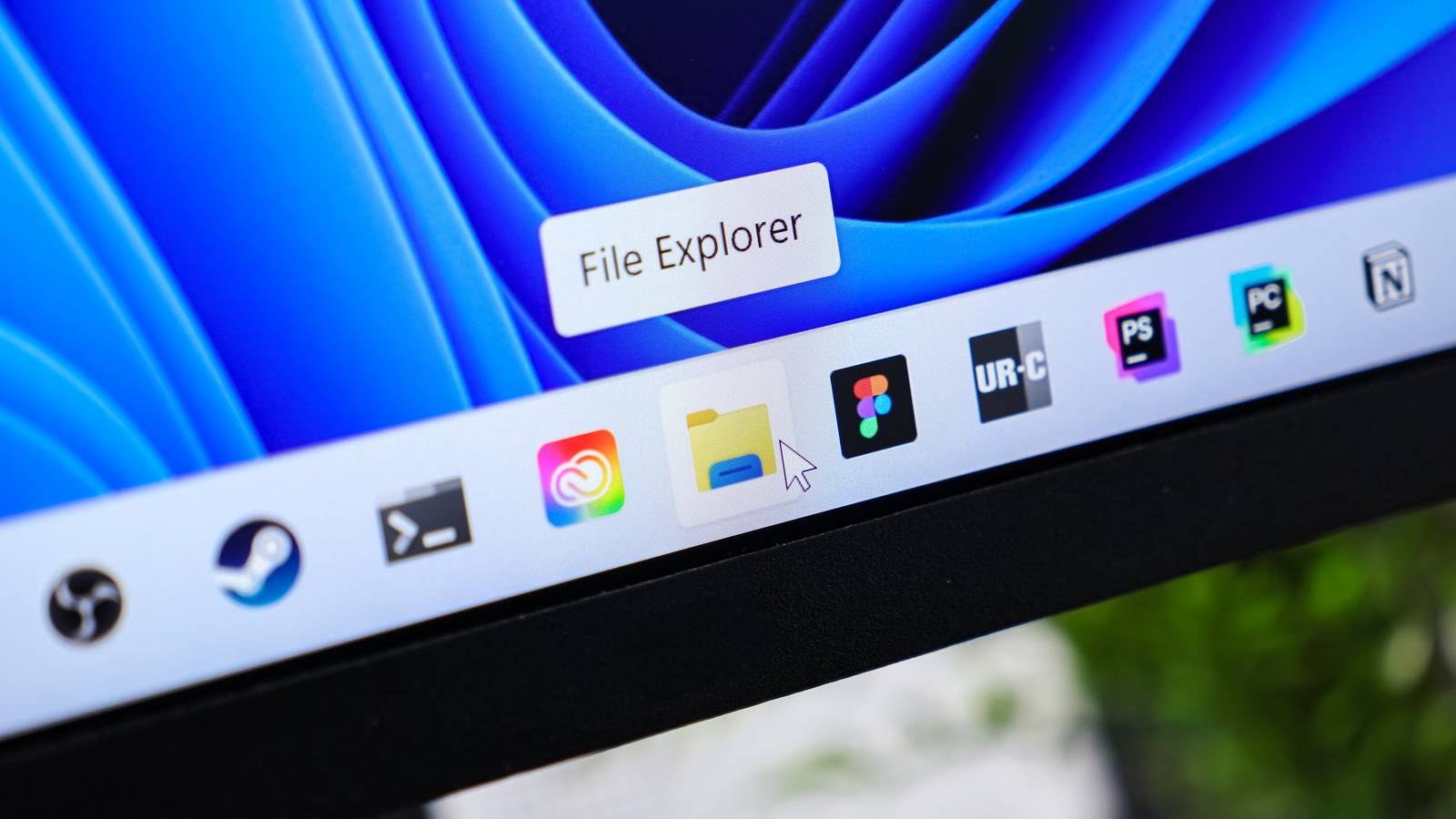
I like to give Windows a lot of grief when it deserves it, but when it comes to File Explorer, even with some questionable changes to it, it's still a powerful application.Even though I'm mainly a macOS user these days, File Explorer is the better app compared to Apple's Finder if you ask me.But, despite File Explorer being an app that Windows users interact with all the time, you're probably not using it as efficiently as you could.
Now, I'm a major proponent of using keyboard shortcuts on Windows as a whole, but if you're going to learn them anywhere, File Explorer is a good place to start.Ctrl + Shift + N creates a new folder instantly Saved you a click! One of the things we tend to ignore is how saving a little bit of time in a small but frequent action you take can add up quickly.The usual method to create a new folder in Windows File Explorer is to right-click an open space and choose New > Folder from the context menu.
That's easy enough, and it's fine if you're just creating one, but if you're creating 10, 20, or more, it starts getting old fast.I have to hunt for the right menu entry every time.Not to mention, the more folders there are where you want to create a new one, the trickier it is to find an open space to click.
This also really only works well in the icon view, but if you like using the list view mode instead, it's even more of a chore.So, use Ctrl + Shift + N and a new folder will pop up inside the current folder.Even better, since your hands are already on your keyboard, you can just name it immediately.
Alt + up arrow moves to the parent folder Moving on up! If you're browsing your collection of [INSERT MEDIA TYPE] and have it saved in a complex set of multi-level folders, then browsing it can be pretty tedious.I mean, it's not like the Windows search function is worth anything these days, so it might still be faster to just manually browse.Jumping between folder levels is usually done using the left-hand pane of File Explorer, with the file system tree, but you can just press Alt + up arrow to jump to the level above.
Sadly, using the down arrow doesn't take you back to the lower level you just were, but this next shortcut can help with that.Alt + left arrow and Alt + right arrow navigate backward and forward if only life made it this easy to go back in time In case you've never noticed, File Explorer is pretty much a web browser for your local (and cloud) file system.It has lots of similarities, such as the address bar and search box being in the same spots as a browser, and working in pretty much the same way.
So it should be no surprise that you can also go back and forth between folders you've visited using the Alt key and either the left or right arrow keys.This explains why there's no Alt + down arrow shortcut, because the "back" shortcut does pretty much the same thing.Using these three shortcuts together, you can rapidly move between a set of folders, which is great for copy-and-paste operations too.
Ctrl + L selects the address bar This time the "L" is a win Speaking of the address bar, it's way more useful than you think.Of course, you can type in a path and go straight there, but I think it's fair to say most people don't have full file paths memorized.The best trick here, in my opinion, is that you can run commands from the bar.
You can even create a new file at your current location, by typing the name of the executable and the name of the new file, as in this example.Then immediately start working on that file.The sky's the limit here if I'm being honest, and if you have any workflows that rely on File Explorer, you might be able to make them more efficient by just running some common command directly in the address bar instead of clicking through a bunch of menus every time.
This is just the beginning There are far more than just these few shortcuts.They just happen to be particularly useful.Of course, not everyone will find the same set of shortcuts in File Explorer equally useful, so you may want to check out my colleague Nick Lewis' set of daily-driver File Explorer shortcuts.
Once you're comfortable using File Explorer with a keyboard, you can expand that wizardry by learning essential shortcuts for Windows.If you're less dependent on your mouse, you'll not only work faster and more efficiently, you can also keep going when it stops working.Believe me, I once had to go a whole year without a mouse in the '90s.
Read More