Home Assistant is such powerful smart home software that it's easy to miss some of its most useful features.If you're not using scripts in Home Assistant, then it's time to start.Related 4 Home Assistant blueprints that saved me hours of effort You don't need to reinvent the wheel.
Posts By Adam Davidson What Home Assistant scripts actually are Reusable tools for your automations Scripts are sequences of Home Assistant actions that are executed in order.You create your set of actions, save the script, and then when you run the script, it performs all the actions it contains.They're building blocks that let you define and save sets of actions that you can run, instead of having to perform each individual action in turn.
Scripts are much like automations, but without the triggers.You can run scripts manually in Developer tools, create a dashboard button that will run a script, use voice commands to run scripts, or you can call a script using an action within an automation.You can even call other scripts from within a script if you want to.
You can add fields to scripts that you can use to add specific information.For example, if you have a script that sends a spoken announcement to a speaker, you can have a field that specifies which media player you want the announcement to play on.Fields can be optional, but you can also make them required fields, so that the script won't run until you've provided the necessary information.
Scripts have four modes, much like automations, which determine what happens if a script is called again before it has finished running.Single will ignore any new run attempts until the original run completes.Restart will stop the current run and start a new one, Queued will start a new run once the current run has finished, and Parallel will continue the current run, but start another independent run in parallel.
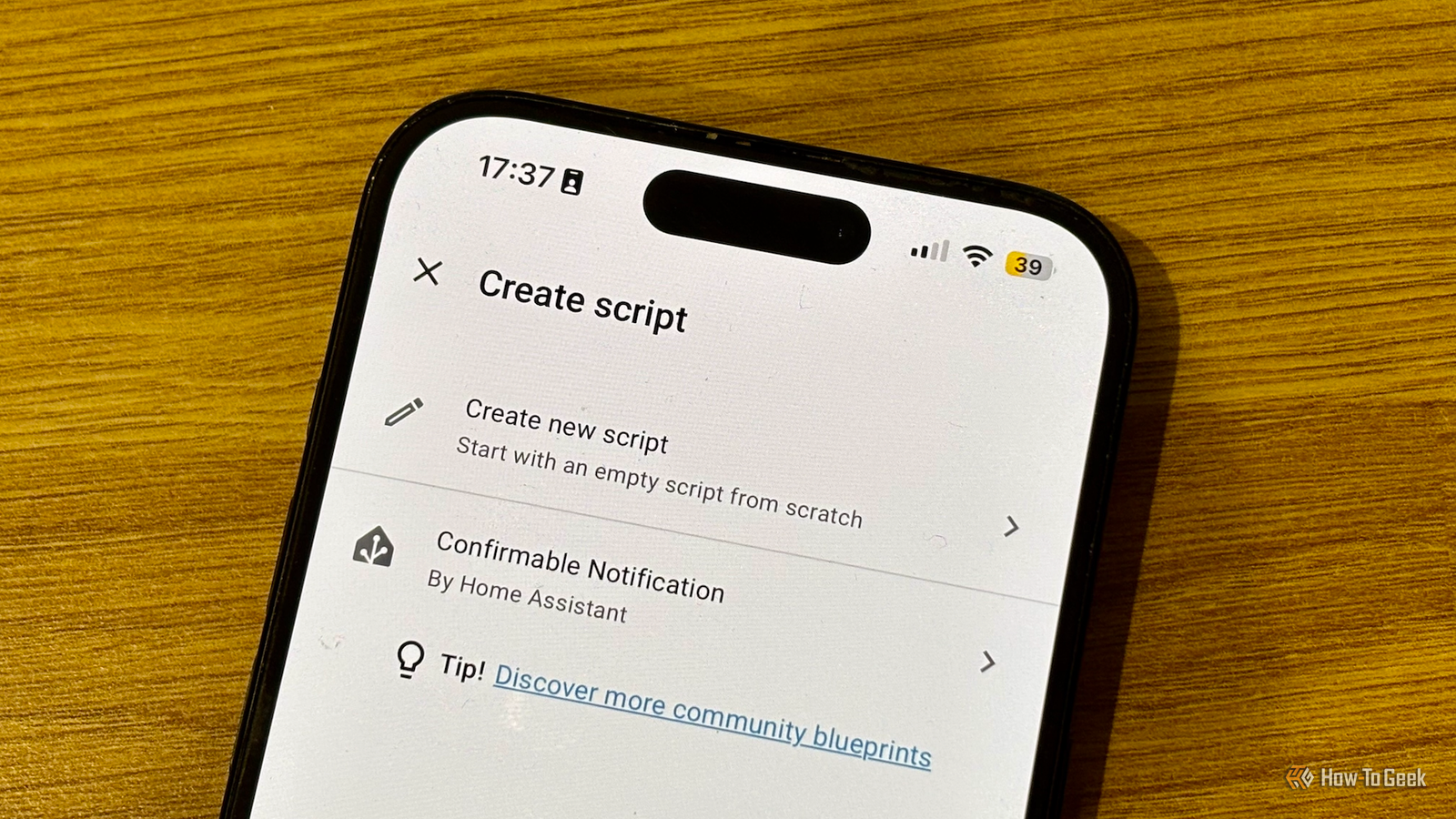
To create a script, go to Settings > Automations & scenes, and click the Scripts tab at the top of the screen.Click the Create script button, and select Create new script.You can add actions as you would with an automation.
To add fields, click the three-dot menu icon and select Add fields.The real power of scripts in Home Assistant Reusability can save you a lot of effort The beauty of using scripts in Home Assistant is that they allow you to run the same set of actions whenever you need them.Instead of manually calling each action each time, you just run the script and all the actions are performed in order.
It's this reusability that makes them so powerful; if there are sets of actions that you perform a lot, a script can save you a lot of time in the long run.For example, if you use announcements over smart speakers to provide information to your household, such as letting them know it's time to eat, you could run an action directly from Home Assistant.However, each time, you'd need to specify which smart speakers you wanted to play the announcement.
With a script, you can designate the speakers that you want to use once within the script, and repeatedly use that script to make announcements to the entire house.You can even include fields for speakers that you want to exclude, allowing you to change which speakers are used each time you call the script.Use automations and scripts in combination Scripts are the perfect companion for automations Where scripts can really shine is when you use them in combination with automations.
Instead of having to add the same sets of actions to multiple automations, you can add those actions to a script.You can then call that script in any automation you want.For example, you might have a lot of automations that send the same notification to your phone, to your partner's phone, to your smart speakers, and to your smart TV.
Instead of having to add those four notification actions to each and every automation, you can put them into a script and just call your "notify everyone" script in any automation that requires it.This allows you to separate the "when" from the "what." Your automation is in charge of when the actions take place, based on the trigger conditions.The scripts are in charge of what actually happens.
How I use scripts in Home Assistant Change one script instead of seven automations The example above is something I use in my own automations.I was tired of adding multiple notification actions to my automations, and creating a script meant that I could save myself a lot of work.Subscribe to the newsletter for Home Assistant script tips Subscribing to the newsletter gives focused coverage of Home Assistant scripts: clear examples, reusable patterns, and step-by-step tips to simplify automations and keep configurations tidy.
Perfect if you want practical script guidance you can apply imme Get Updates By subscribing, you agree to receive newsletter and marketing emails, and accept our Terms of Use and Privacy Policy.You can unsubscribe anytime.Another major benefit is that if I decide I no longer want to send notifications to my smart TV, or if I change my phone, I only need to edit the script, and every automation that uses that script will notify the correct devices.
Without a script, I would need to go in and change every single automation that notifies those devices, which would be a lot of work.I also use scripts to keep my automations cleaner.For example, sometimes my TV doesn't always power off correctly.
I have a script that turns off the TV, waits a few seconds, then checks if the TV is still on.If it is, it repeats the process until the TV is definitely off.Adding all of this into an automation would make it a bit of a mess, but by using a script, the only action I need is to call the "Turn TV Off" script.
For complex automations, using scripts in this way can make them much easier to follow.When I first started using Home Assistant, I slept on scripts for quite some time as I was too busy trying to automate all the things.I wish I'd learned about them sooner, as I could have saved myself a lot of effort.
Read More