People use all kinds of unconventional workarounds to share files between Android phones and Windows PCs, such as emailing themselves or shuffling files through cloud storage.I used to do the same thing before I knew any better.I'd upload photos for an article to Google Drive, then download them to my PC for editing and uploading.
But there's a much easier way: Google's official Quick Share app for Windows, which works with the feature that's already built into your Android phone.Quick Share makes sending files between Android and Windows surprisingly fast and easy Sharing files shouldn't have to be a hassle Close Transferring a screenshot, photo, video, PDF, or any number of other files from Android to Windows is a regular part of most people's daily workflow, so it's incredibly important that the process is as seamless as possible.Some people like to bring up AirDrop as a key selling point of Apple devices, pointing to it as a fast and reliable first-party solution for sending files between a Mac and an iPhone.
But the funny thing is that Google has had its equivalent, Quick Share, available on Windows for years, too, and it works just as well.Quick Share originally launched as a Samsung-exclusive feature in 2021, but Google and Samsung merged it into a single, universal Android file-sharing system in 2024.With that merger came the Windows desktop app as well, which is the focus today.
The app has been out for a couple of years, but from what I've heard from friends and colleagues who use Android, very few people actually knew it existed.I only stumbled across it a couple of months ago myself, so it's safe to say that Google hasn't done a great job of marketing it.As expected, the Windows app looks and works pretty much the same as Quick Share on Android.
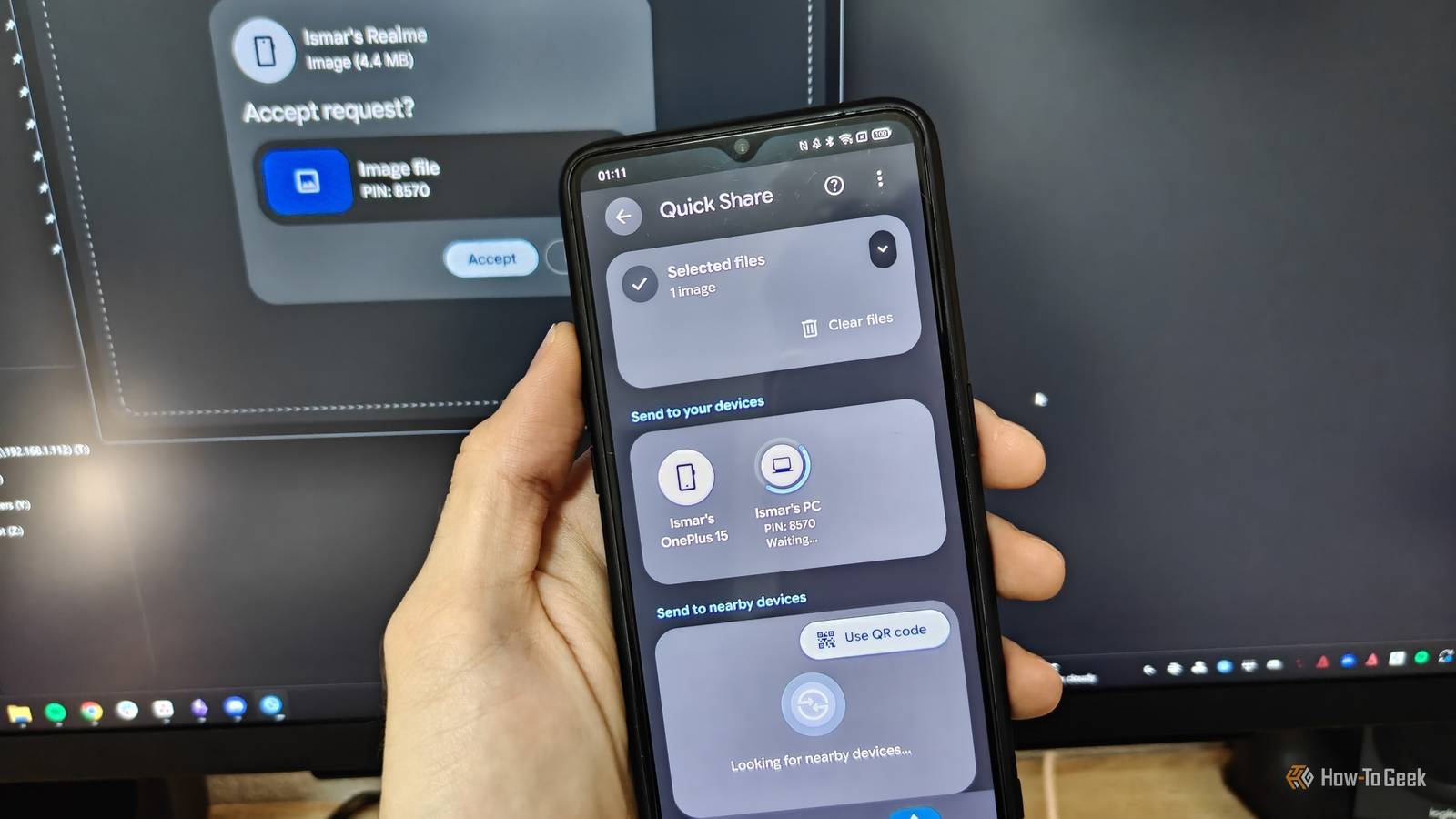
All you have to do is open a file, select Share, choose the Quick Share option, and select your PC.Alternatively, you can swipe down on your screen and open the Quick Share tile from the Quick Settings panel and select the file you wish to send from there.Within a few seconds, the file downloads automatically to your machine and is ready to be opened.
When you want to send a file from your PC to your phone, you simply do the opposite.It doesn't work just for your own devices, either.There's a drop-down menu that lets you configure who can see your PC (you can set it to no one, just your devices, your contacts, or everyone), and you can send almost anything: photos, videos, audio, documents, archives, installers, folders, and so on.
In fact, you can even send text and web links, effectively eliminating the need to message yourself on a separate app like Messenger or Slack just to send a link or copy a large piece of text.Another major benefit of Quick Share is speed.Since it uses Wi-Fi, transfer rates can be pretty high.
Actual speeds depend on factors such as file type and Wi-Fi band, but you can expect anywhere from 30MB/s to over 100MB/s, meaning several photos can transfer in just a couple of seconds.Setting up Quick Share on Windows only takes a few minutes You'll be sharing files in no time Quick Share only takes a few minutes to set up on your PC.Once it's installed, you can set it to launch automatically when Windows starts, so it's always ready for file transfers.
First, download Quick Share from Android's official website.Run the installer and follow the setup steps, then open the app and sign in to your Google account.Make sure Wi-Fi and Bluetooth are enabled on both devices, and adjust the visibility settings so they can find each other.
You also need to set your network profile to Private in Windows by right-clicking the network icon in the taskbar → Network & internet settings → Properties → Network profile type → Private network.Once both devices can see each other, they should be ready to share files.Try sending a photo from your phone to your PC to confirm everything works.
If your desktop PC lacks Bluetooth, don't worry.Although Google's official instructions list Bluetooth as a requirement, I found that Quick Share works without it on my desktop, as long as both devices are connected to the same network.On laptops, Quick Share works even without the internet as long as you have Bluetooth and Wi-Fi enabled.
Quick Share establishes a fast, temporary direct P2P (peer-to-peer) wireless bridge when the devices are within 16 feet (5m), which bypasses the need for a shared LAN.The Windows app doesn't have that many settings to configure, but at least you can change where received files are saved.By default, they go into a Quick Share subfolder inside your Downloads folder, but you can choose a different location in Settings.
One important caveat is that Google's Quick Share app may not work on Samsung PCs.Instead, you'll need Samsung's version, which comes preinstalled on Galaxy Book2 and newer Galaxy Book models.If it isn't installed on yours, you can download it from the Microsoft Store.
Quick Share isn't the only way to transfer files between Android and Windows Other apps have unique advantages, but Quick Share keeps the setup simple I like Quick Share because it works, and I don't have to install a separate app on my phone.I just need the desktop app, while Android's native integration takes care of the rest.Interestingly, the same argument could be made for Windows Phone Link, which comes preinstalled on most Windows 11 PCs but requires the Link to Windows app on Android, although it's preinstalled on some phones.
However, Phone Link is much more than a simple file-sharing service.You can view your phone's notifications, make and receive calls, respond to text messages, and do much more.I never liked how much access it required to my phone, which is why I never used it.
A couple of other alternatives for seamless file sharing worth considering are LocalSend and KDE Connect.LocalSend is a free, open-source app that also works on Linux, iOS, and macOS, all without an internet connection, making it a great option for sharing files across different devices.KDE Connect, on the other hand, is more of an open-source alternative to Phone Link.
It works great for file transfers and clipboard sharing, but it does a lot more than just that.Sometimes, the simplest solution is the best one Transferring files and text between your phone and PC doesn't have to be fancy.It just has to work reliably and be reasonably fast.
Quick Share does exactly that, and I'm glad I finally found an easy-to-use, first-party solution that doesn't require me to install a separate app on my phone.Related How to Set Up Quick Share on Windows for Painless File Transfers Sharing files has never been faster or more effortless! Posts 14 By Aman Kumar
Read More