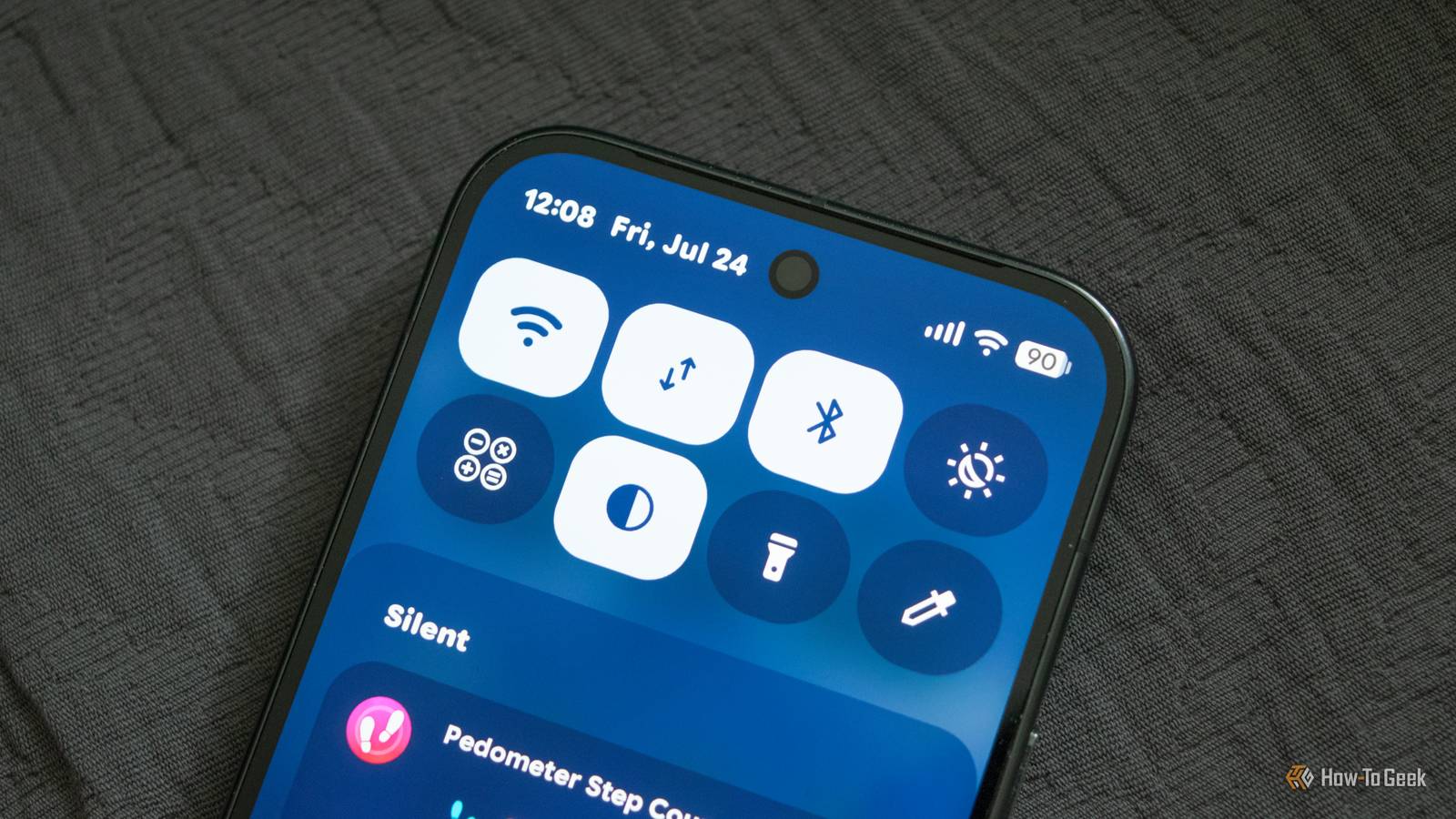
For years, Pixel phone owners had to put up with a unified "Internet" Quick Settings tile that combined the Wi-Fi and mobile data toggles.If you wanted to toggle your Wi-Fi or mobile data radio, you couldn't simply tap the appropriate tile like you could for more than a decade.Nope, you had to tap it once to open the Internet panel and then tap again to disable or enable Wi-Fi or mobile data.
Rumors that Google would finally separate the Wi-Fi and mobile data toggles had been swirling for some time before we finally got official confirmation in late March 2026, when Google added separate Wi-Fi and mobile data toggles to Android Canary Build 2603.The official Android 17 update kept the separate toggles, and that was the end of it, right? Well, Google somehow made the separate Quick Settings toggles a worse option than the old unified Internet toggle.Google finally separated the Wi-Fi and mobile data toggles in Android 17.But it somehow made them worse Okay, so the Android 17 update, which rolled out to eligible Pixel phones in waves throughout June 2026, finally brought back separate Wi-Fi and mobile data toggles.
After the update installed on my Pixel 10 Pro, one of the first things I did was add the two toggles to my Quick Settings panel.And all was good for a short while.I could turn Wi-Fi and mobile data on or off with a single tap, just like I could on almost every Android phone I'd owned before the Pixel 10 Pro.
I had thought the only annoyance was my phone informing me that enabling mobile data "may incur charges based on your mobile service plan" every single time I wanted to turn it on.Unfortunately, I was wrong.I always turn off both Wi-Fi and mobile data, enable Bedtime mode, and plug my phone into the charger before going to bed.
I did the same the night after installing the Android 17 update.But when I woke up, I noticed that Wi-Fi was on and that I was connected to my home network, which I quickly brushed off as a bug related to the update.I rebooted the phone and moved on with my day.
But the next morning, I again noticed that my phone was connected to my home Wi-Fi even though I had turned it off the night before.Or had I? After a quick Google search, I realized that while Google did separate the two Internet toggles, tapping the Wi-Fi tile doesn't actually disable the Wi-Fi radio.Instead, it only disconnects you from the Wi-Fi network you're currently connected to, while the Wi-Fi radio keeps running in the background.
Worse still, at least in my case, my phone almost always reconnects to the Wi-Fi network I was connected to mere seconds after I tap the tile and disconnect from it.This looks like a bug that could (and should) be fixed in a future update, or at least I hope so.So not only does tapping the Wi-Fi toggle not actually disable the Wi-Fi radio, but the new functionality doesn't really work either because the phone reconnects almost immediately after you disconnect from the network.
Just look at the two photos below: the first one shows the Wi-Fi toggle after I tap it, and the second shows the icon after I actually disable the Wi-Fi radio.As you can see, the first is simply dark, meaning Wi-Fi is still enabled but isn't connected to any network, while the second features a crossed-out Wi-Fi icon, indicating that Wi-Fi is actually turned off.Close To disable the Wi-Fi radio, you have to tap and hold the Wi-Fi tile, after which you're greeted with the same Internet panel found on the previous merged Internet tile we had before Android 17.
You can also open the Internet panel without holding the Wi-Fi tile, but only if you add a 1×2 Quick Settings Wi-Fi tile, which takes up unnecessary space.Once you do, you can tap the right half of the Wi-Fi tile to open the Internet panel.But you still can't disable the Wi-Fi radio with a single tap.
At the end of the day, all Google did was replace the old solution with a new one that's actually inferior to the old one.We now do have separate tiles, but you have to tap and hold the Wi-Fi tile to actually disable the Wi-Fi radio.And while a single tap disables the mobile data radio, you have to confirm that you want to enable mobile data every single time you turn it back on.
In other words, the new tiles are worse than the old unified Internet toggle: disabling Wi-Fi takes longer, and re-enabling mobile data now takes two steps instead of one.Thanks, Google! Fortunately, you can add a Wi-Fi toggle that actually disables the Wi-Fi radio when tapped The app needs Shizuku to work, but it's more than worth the hassle As you might expect, I'm not a fan of the new separate Wi-Fi and mobile data tiles, so I started looking for an app that would let me toggle both radios with a single tap, just like I could ever since Android 4.2 first introduced native Quick Settings tiles.Luckily, I quickly found a solution in the form of an app called Better Internet Tiles.
All the app does is let you add separate Wi-Fi and mobile data tiles that, , actually disable and enable the Wi-Fi and mobile data radios with a single tap.You don't have to tap and hold the Wi-Fi tile anymore; simply tapping it turns off Wi-Fi instead of just disconnecting you from the current network.You can also enable mobile data with a single tap, without being greeted by the mobile data charges notification.
The app does need Shizuku to work, which is a free and open-source tool that gives other apps (in this case, Better Internet Tiles) system-level access via Android's wireless debugging feature.To set up Shizuku, first enable Developer Options, then download and install Shizuku (you'll also need to have sideloading enabled).Close Now open Shizuku, find the Start via Wireless Debugging tab, tap the Pairing button, and the app will open the Developer Options menu.
Next, locate Wireless debugging, tap the left side of the toggle, and then tap Pair device with pairing code.You can now enter the pairing code into Shizuku, tap Send, and start the Shizuku service.Finally, open Better Internet Tiles and grant it the necessary permissions.
You can now finally add the Wi-Fi and mobile data tiles and disable both radios with a single tap, which somehow is impossible with Android 17's native Wi-Fi and mobile data toggles.All Google had to do was separate the Wi-Fi and mobile data tiles and not touch anything else When I tap the Wi-Fi tile in the Quick Settings panel, I want it to turn off the wireless radio.I don't want to disconnect my phone from the Wi-Fi network it's connected to, only for it to reconnect to the same network a few moments later.
Similarly, I want to disable and enable mobile data with a single tap.I don't want to deal with annoying (and unneeded) warnings and notifications every time I do so.Google had a very simple task: just separate the two tiles and make them work as they had for more than a decade.
But somehow, it fumbled the job and made the new tiles worse in every way.I can't for the life of me understand how Google messed this up, but it did.That led me to reach for a third-party app just so I could disable Wi-Fi and mobile data with a single tap, something that should have been the default behavior from the get-go.
For some reason, though, these simple actions are now more complicated than they ever had any reason to be, just because Google thinks it knows better than everyone else.Go figure.Google Pixel 10 Pro $749 $999 Save $250 Brand Google The Pixel 10 Pro offers an upgrade over the base model with the powerful Google Tensor G5 chip, more RAM, and more storage (if you need it).
$749 at Amazon $999 at Best Buy $999 at Google Store $999 at AT&T Expand Collapse
Read More