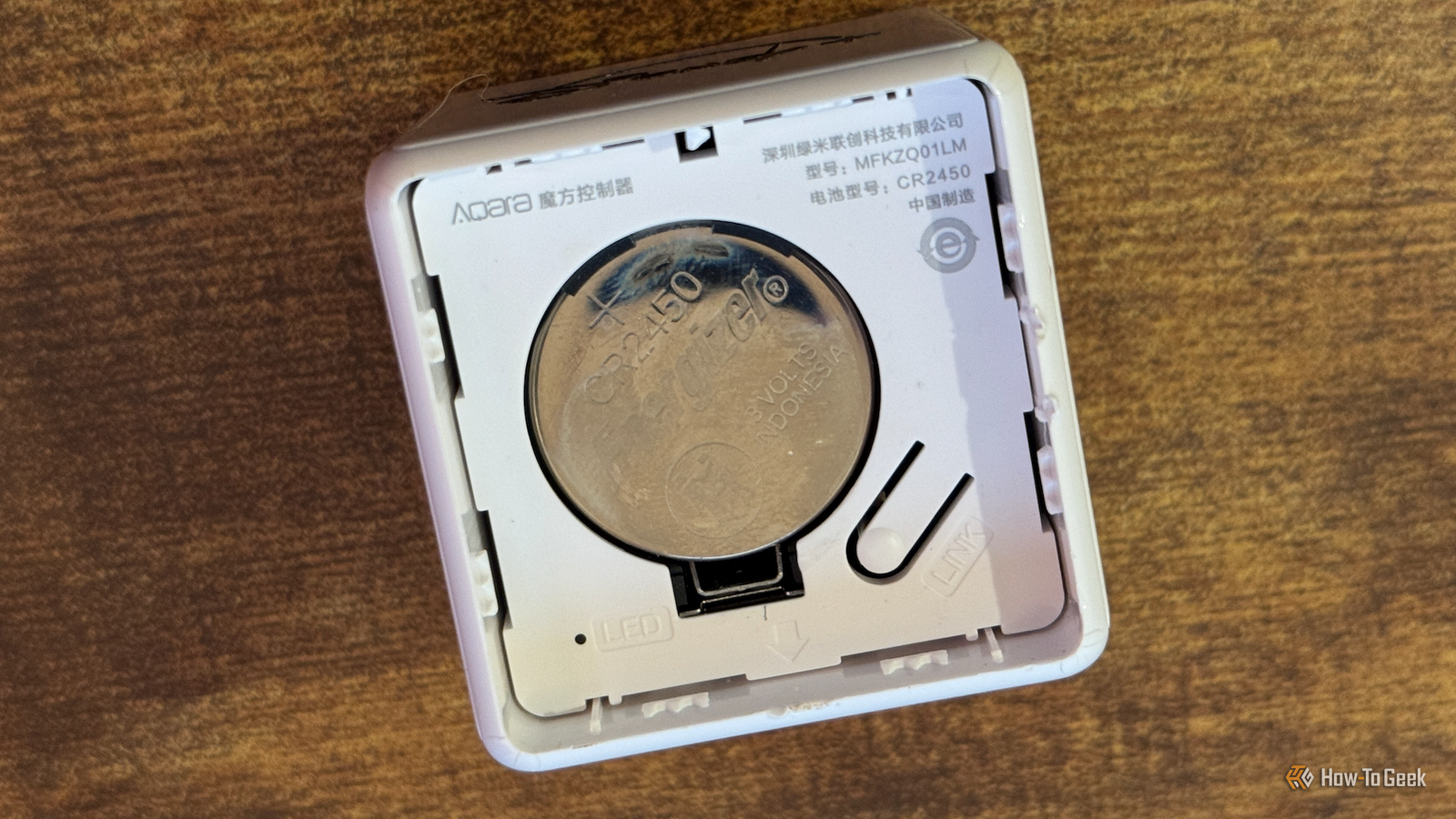
One of the biggest benefits of Zigbee devices is that many of them are battery-powered, allowing you to place them almost anywhere.The downside is that when the batteries die, so do your sensors, so it's important to keep track of battery levels.Here's how I manage it as a Home Assistant veteran with more devices than I can count.
Related 5 ways to use a Raspberry Pi with Home Assistant (aside from running your server) It's time to repurpose your old Home Assistant server.Posts 2 By Adam Davidson Build a source of truth with Battery Notes Know what type of batteries to replace Keeping on top of all your batteries can feel like a full-time job.Thankfully, you're not the only person who has had this problem, and as is always the way with Home Assistant, someone else has come up with an excellent solution.
Battery Notes is a HACS custom component that can add useful entities to your battery-powered devices.While many devices will expose battery levels, they don't usually tell you what type of batteries are being used or how many of them are required.That's exactly what Battery Notes does; using its growing library of devices, the integration can automatically add information about the type and number of batteries that your device uses.
Sometimes the battery levels exposed by your devices aren't particularly useful.They may show as 100% for a long time, and then suddenly plummet down to almost nothing.If this is the case, and your device exposes the relevant information, you can use a template to derive a more accurate battery percentage from something like the current voltage.
Battery Notes also adds a simple button you can press to log when you change the batteries.Another entity shows the date that this button was last pressed, so you can immediately see how long it's been since the batteries were last replaced.Set up a battery dashboard you'll actually check See battery levels at a glance Having all of this information is of little use if you never look at it.
To keep on top of your batteries, you need an effective way to keep an eye on them all.Creating a dashboard is a simple solution; you can see at a glance which devices are running low so that you can be forewarned before they die.There are numerous ways to display the status of your batteries on a dashboard.
If you're using Battery Notes, you can display the battery type and number of batteries in your cards, so you know exactly which batteries you'll need when a device is running low.A useful trick is to use the auto-entities card, a custom dashboard element.This allows you to build dynamic cards that automatically update based on your defined rules.
For example, you can use auto-entities cards to display all devices that expose battery information.That way, you don't need to keep editing your dashboard when you add new devices to your smart home; the new devices should automatically appear.If you have a lot of battery-powered devices, you can even set up these cards to only display devices that have battery levels below 20%, for example.
Any devices that have higher battery levels won't appear, so you can see exactly which devices will soon need attention.Turn battery levels into alerts Get notified before your devices die A dashboard can provide a useful way to quickly check the state of your batteries, but it's only useful if you remember to check your dashboard.A more effective option is to set up automations to send you an alert when batteries are getting low.
You can create your own automations to do this, but once again, the hard work has been done for you.There are several community-created blueprints you can install that will generate low battery notifications, but if you're using Battery Notes, it has some blueprints of its own.There's a blueprint that will notify when a battery drops below a certain threshold, a blueprint that can automatically update the battery replaced entity, a blueprint to let you know when the battery stops reporting, and more.
You can use these blueprints to quickly set up automations to keep you updated on what's going on with your batteries.Use Zigbee2MQTT to monitor your devices Know when devices are unavailable and when they were last seen If you're using Zigbee2MQTT, there are a couple of settings that you can change that can help you to keep on top of dead sensors and devices.These are disabled by default, so you'll need to turn them on if you want to use them.
If you use ZHA, there are similar options, although I've not tried these myself.Z2M has an "availability" feature that can tell you if a device is currently available on the network.Plug-in devices are checked every 10 minutes, and to maintain battery life, battery-powered devices are checked every 25 hours by default, although you can change this value if necessary.
There's also a "last seen" entity that you can expose, which logs when the device was last visible on the network.You can use the two entities to create automations to alert you when a device is no longer reachable.To enable these settings, open Zigbee2MQTT, click the Settings icon in the left-hand pane, and choose the Settings tab.
Select Availability, and check the Enable availability checks checkbox.Select the Advanced tab and click the last_seen dropdown.Select ISO_8601_local to display last seen times that match your local time zone.
Home Assistant Green Dimensions (exterior) 4.41"L x 4.41"W x 1.26"H Weight 12 Ounces Home Assistant Green is a pre-built hub directly from the Home Assistant team.It's a plug-and-play solution that comes with everything you need to set up Home Assistant in your home without needing to install the software yourself. $159 at Amazon Expand Collapse Keep on top of your batteries Look after your sensors, and your sensors will look after you.The last thing you want is for a leak to go undetected because the batteries in your water leak sensor died.
The tricks above can help you keep on top of your batteries and ensure they're changed when they need to be.
Read More