Google Maps is one of those apps I use almost every time I leave the house, yet I keep finding things I didn't know it could do.After years of using it for directions, I've become much more interested in the little features that make navigating and planning a trip less frustrating.Here are the five I've found most useful.
The screenshots in this list show Google Maps on iPhone, but all five features are also available on Android.The wording and menu paths may vary.See your next turns before they happen Preview what's coming up I used to trust Maps to tell me where to go one turn at a time.
That was fine until I was approaching a complicated junction and wanted to know what lay ahead.While you're navigating, swipe on the directions banner to move through the upcoming turns.As you do, Maps moves the map to show you where each turn will happen, giving you a quick preview of what's coming rather than making you wait until you're almost on top of it.
Once you've finished looking ahead, tap the Re-center button to return the map to your current position.Use this feature before you set off, when you're a passenger, or after you've safely pulled over.Don't interact with your phone while driving.
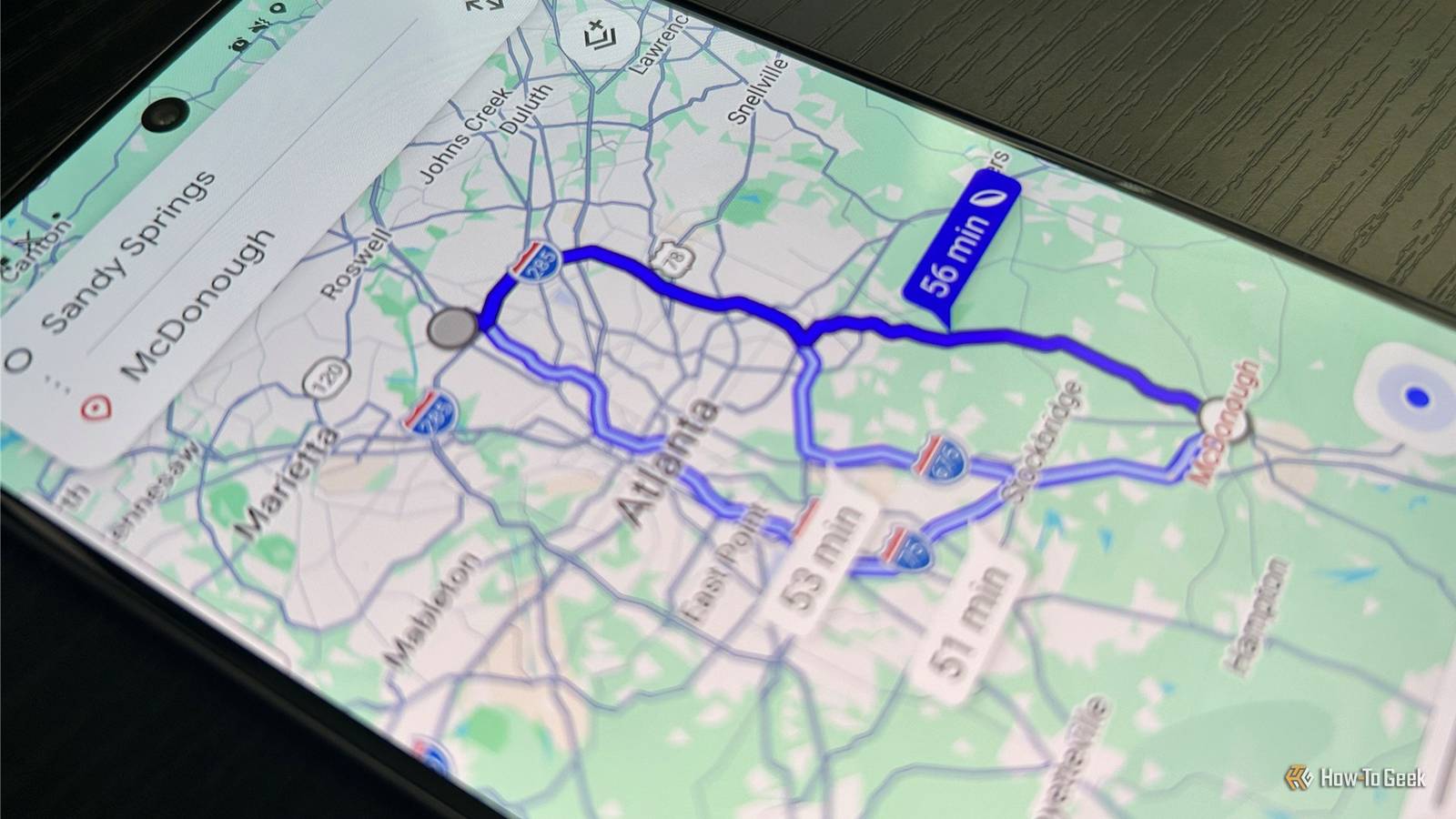
Stop Google Maps from prioritizing fuel efficiency Save a few minutes on regular journeys Close Maps is generally very good at choosing the best route for me.But when two routes have almost identical ETAs, it sometimes chooses the slightly slower option when fuel efficiency is part of the routing preference.On a single journey, the difference might be only a minute or two, but for journeys I make regularly, those small differences can add up.
If you'd rather prioritize speed, you can change the routing preference.Open Maps, tap your profile picture, choose Settings, then Navigation, and look under Route options.Turn off Prefer fuel-efficient routes.
With that disabled, Maps can prioritize the fastest route instead.It won't necessarily choose the exact road you'd have picked yourself, but it gives you more control when saving a few minutes matters.Turn Google Maps into a trip-planning tool Keep your places, notes, and plans together with Lists Close I've used Maps for years to get from one place to another, but I hadn't really thought of it as somewhere to organize a whole trip.
Then I started using its Lists feature, and it became much more useful for planning vacations and days out.You can create a list for a particular trip or purpose and save restaurants, hotels, attractions, shops, or anything else you find.Lists can also include notes, which means you can record something useful about a place without needing a separate notes app.
You can reorder saved places too, which makes a list useful for roughly planning the order of a day.To create a list, tap You at the bottom of Maps, select New list, give it a name, and tap Create.When you find a place you want to add, tap Save and select your list.
You can then open the list from the You tab to add notes, reorder places, or see everything on the map.The biggest advantage is the map itself.Because these are already places in Maps, you can see how everything relates geographically rather than working from a list of addresses.
Lists aren't a replacement for a full itinerary planner, and you can't create proper subfolders within them.But for keeping places organized and seeing where they are, I've found them surprisingly useful.Check traffic before you leave Find out what's waiting for you Close I used to enter a destination, look at the estimated journey time, and immediately start driving.
That works most of the time, but I've found it pays to spend a few seconds looking at what's happening along the route first.Maps' Traffic layer gives you a better sense of what's happening along your usual route.You can see where congestion is building and whether nearby roads are moving more freely.
This is particularly useful when you're driving somewhere familiar.You might know several ways to reach the destination, so you don't necessarily need Maps to choose the route for you.But if your usual road is showing heavy traffic while an alternative looks clear, you can make that decision before setting off.
To see it, tap the Layers button in Maps and select Traffic.For journeys you need to make at a particular time, you can also use Set depart or arrive time to see how Maps expects traffic to affect the journey later.Take control of Google Maps notifications Keep the useful alerts and ditch the rest Close Maps can be annoyingly chatty.
Some notifications are genuinely useful, particularly when they relate to journeys or places I'm visiting, while others are the sort of thing I'd rather never see.The obvious solution is to turn Maps notifications off altogether, but that would block important alerts.Fortunately, Maps lets you control its notification categories individually.
Tap your profile picture, choose Settings, and tap Notifications.From there, you can see the different types of alerts Maps can send and switch off the ones you don't need.That means you can keep useful notifications while silencing recommendations, contribution prompts, and other interruptions you don't need.
I was barely scratching the surface All it took was a bit of digging around in Maps' menus and settings, and before I knew it, I realized how little of the app I was actually using.When you pair these with other useful Google Maps tricks—such as saving your parking spot so you don't lose your car, sharing your live trip progress with friends and family, and downloading maps for trips to remote places without an internet connection—Maps starts to feel like much more than a navigation app.
Read More