As much as I love my Samsung Galaxy Watch, I’d be lying if I said it always runs smoothly.Recently, I was having some annoying syncing issues between my watch and phone.No amount of reboots fixed it, but wiping the system cache did.
I shouldn’t have been surprised when it worked.For ages, people have been booting their Android phones into recovery mode and wiping the system cache to solve common issues.The same thing works for the Galaxy Watch, too.
What does wiping the system cache do? Take out the trash Android apps—whether they’re on your phone or a smartwatch—create files to do what they need to do.Data files contain important information, like login details and your personal settings.If you delete data files, you have to set up the app from scratch again.
The other type of file is a cache file, and these aren’t as important.Cache files are temporary.They help make things load quicker, like playing a song without buffering.
You can delete an app’s cache files without resetting it.Now, Android apps are technically designed to handle cache files on their own.They should get rid of cache files when they’re no longer needed.
However, that very often doesn’t happen, and these files build up.Temporary files can become corrupted or conflict with newer files, which causes problems.Think of it like you’re preparing dinner.
Cache files are the pre-chopped onions, spices measured out into ramekins, and knives at the ready.At first, having all of this handy makes you faster, but if the onions are still out when it’s time to make dessert, they just get in the way.Related After two years with a Pixel Watch, I realized Samsung's smartwatch approach is still unbeatable Android owners have two main smartwatch brands to choose from: Samsung Galaxy Watch or Google Pixel Watch.
I’ve spent extensive time with both, but I just recently switched back to a Galaxy Watch after wearing a Pixel Watch for the last couple of years.I’ll explain why.Here’s my credentials.
I’ve used every Galaxy Watch since the first Watch Active, except the most recent Galaxy Watch 8 (not a fan of the squircle).I’ve also been lucky enough to use every Pixel Watch model.Before the Pixel Watch 3, I was firmly in the Galaxy Watch camp, but it was finally good enough to earn some extended time on my wrist.
I’ve been wearing the Pixel Watch 3 and Pixel Watch 4 ever since.Now, I’m back to the Galaxy Watch 7, and it feels good.Posts 11 By Joe Fedewa Wipe the cache on a Galaxy Watch It solves a lot of problems So, the particular problems I was having involved the watch and phone communicating with each other.
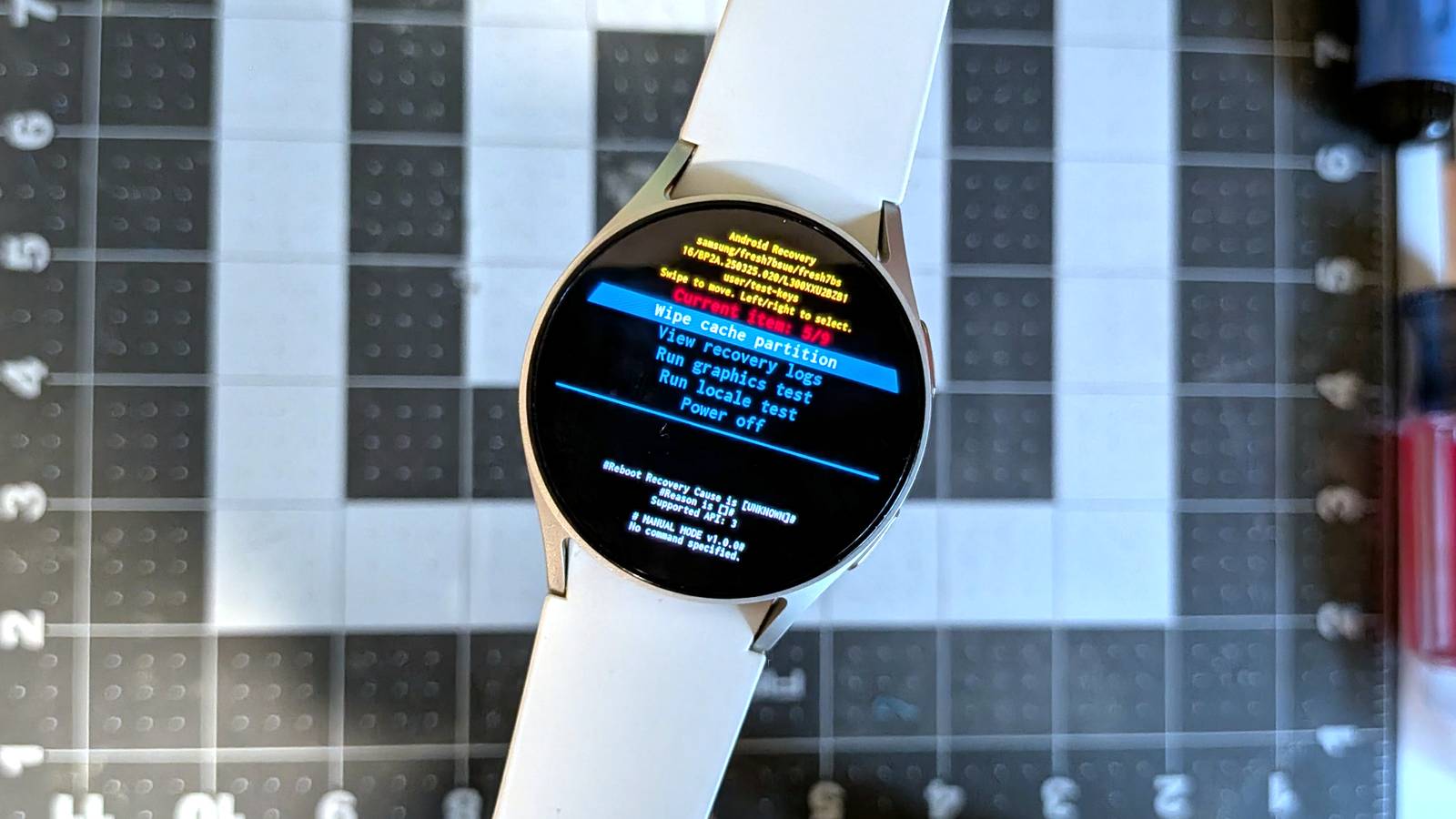
My alarms and Samsung Health weren’t syncing, among other things.I decided to wipe the system cache, and it helped a lot.Here’s how to do it—read the instructions carefully.
Hold both side buttons simultaneously until the watch turns off and you see a black screen with a Samsung logo that says “Rebooting.” Immediately release the buttons and press the top button repeatedly until you see the “Select Reboot Mode” menu.Use the top button to move the selection until it highlights "Recovery"— the top button to select it.You’ll see a Samsung boot screen, followed by the Recovery menu.
Use the bottom button to move the selection to "Wipe cache partition" and click the top button to confirm.Select the "Yes" option with the bottom button and click the top button to confirm.Once complete (it happens fast), "Reboot system now" will be selected.
Press the top button to confirm, and your watch will start back up.That’s all there is to it! The Reboot Mode and Recovery menus can look a little scary if you’ve never seen them before, but there’s nothing to worry about if you stick to the instructions.The worst-case scenario is that you factory-reset the watch and have to set it up from scratch again.
Thankfully, that’s not nearly as annoying to do with a smartwatch as it is with a phone.Quiz Challenge yourself with this quiz about the article Your Top Score -- Attempts -- Start Quiz 0 0 Report Error Found an error? Send it [email protected] so it can be corrected.Samsung Galaxy Watch 8 Brand Samsung Operating System Wear OS CPU Exynos W1000 (5 Core , 3nm) RAM 2GB Storage 32GB Dimensions 43.7 x 46.0 x 8.6t Now thinner and more comfortable, the Galaxy Watch 8 adds new health-tracking features like sleep apnea detection and antioxidant readings.
$289 at Samsung Expand Collapse Samsung Galaxy Watch 7 Heart Rate Monitor Yes Operating System One UI 6 Watch, Wear OS 5 Onboard GPS Yes Display Size 1.3/1.5 inches Case Material Aluminum Display Super AMOLED, Sapphire crystal The Samsung Galaxy Watch 7 is Samsung's entry-level smartwatch for 2024.It resembles the Galaxy Watch 6 but features an enhanced Exynos W1000 chipset, promising significantly improved battery life and performance.$300 at Samsung See at Verizon Buy on Amazon See at Best Buy Expand Collapse
Read More