My phone plays many roles.It's a source of entertainment, a useful tool for work, a way to communicate with people, and more.These different uses don't always play nicely together.
When I'm working, I don't want to be distracted by unnecessary calls, messages, and notifications, so I built a one-tap system to stop my phone from stealing my attention.Do Not Disturb has always seemed too absolute Silencing everything has made me miss important calls and messages Before the comments fill up with people who haven't read beyond the first section and say, "Just use DND," that's exactly what I am doing.However, the default Do Not Disturb mode has never really worked for me.
The problem was that I used DND as the nuclear option, silencing all calls and messages so I could work completely undisturbed.While this definitely made my phone less distracting, it also meant I often missed important calls or messages because they were silenced.I'd end up turning DND off again, just in case someone was trying to get hold of me or send me an important message.
The default settings for DND vary from phone to phone, but without configuration, your phone has no idea what you would consider an important call.This means most calls and messages are treated the same way.Related 7 Ways I Managed to Take Back Control of My iPhone Notifications My iPhone notifications were getting out of hand, so I fought back.
Posts By Adam Davidson Adding exceptions lets important calls and messages through Repeated calls also don't get missed Close You don't have to stick with the default settings, of course.DND gives you a lot of customization options to solve this exact problem.You can grant exceptions for specific contacts, so that even in Do Not Disturb mode, calls and messages from these contacts still come through.
The exact settings vary depending on your phone, but the key is to mark contacts as starred or favorites.You will often see a star icon on a person's contact page, which you can tap to favorite that contact.Once you've done so, you can configure the Do Not Disturb settings to allow both calls and messages through from your starred or favorite contacts.
On my phone, SMS messages from my favorite contacts are allowed through, but third-party messaging apps such as WhatsApp, Signal, or Telegram may behave differently.You can also let repeated calls through.If someone calls once, the call will be silenced, but if they call again within a set time period, the call will be allowed through, since it may be urgent.
Look for the Repeat callers option or similar in the DND settings.Muting notifications was never enough Those badges and notification icons are far too tempting I tried using DND with these exceptions, and it worked exactly as it should.Calls and messages from most people were silenced, but if my wife or another family member tried to reach me, the call or message came straight through.
The problem was that even though most calls and messages were silenced, my phone still distracted me.DND was muting all my notifications so that my phone wasn't constantly vibrating, but every time I picked up my phone, all those shiny notifications were there on the screen, clamoring for my attention.Even with my phone in Do Not Disturb mode, it still disturbed me whenever I picked it up to do something work-related.
It took a long time to realize that this was what was stopping DND from working effectively for me.The solution was incredibly simple.DND also allows you to configure how silenced notifications are displayed.
Depending on your phone, you can hide lock screen notifications, app icon badges, notification list entries, and more.This was the setting that finally made DND useful for me.I turned off every notification option I could in the DND settings, and my phone immediately stopped being such a distraction whenever I picked it up.
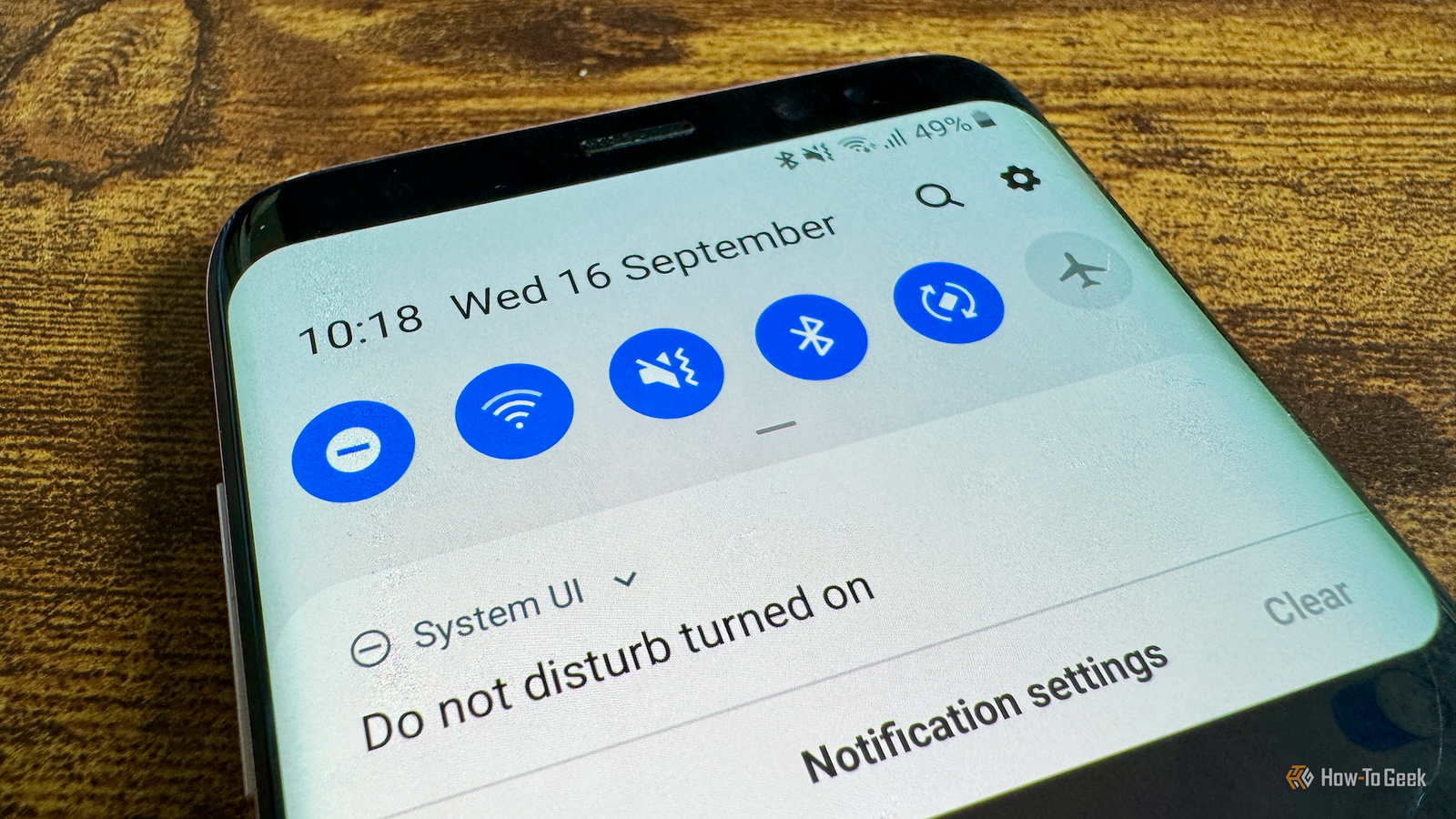
It was the notifications, far more than the calls and messages, that were the disturbance I'd really needed to curb.I can block distractions with a swipe and a tap Quick Settings makes accessing DND easy The final thing that made DND genuinely useful was how easy it was to turn on and off.When I was taking a break from work, or finished for the day, I wanted to see my notifications and receive calls and messages without wading through menus.
The solution was to move the Do Not Disturb control to within easy reach in the Quick Settings.The DND tile wasn't one of the first controls, so accessing it meant I had to do three swipes and a tap just to turn it on or off.By moving the control to one of the top spots, all I need to do now is swipe down and tap the icon to toggle DND.
DND settings aren't anything new The core DND settings have been around for years, and many Android phones offer more advanced options, although these aren't universal.I've tried using DND in the past, but I was focused on the wrong things.It wasn't calls or messages that were my biggest distraction; it was notifications.
I should have tamed those long ago, but now that I have, DND is an invaluable part of my setup.
Read More