The latest generation of Wi-Fi 7 routers has finally dropped to prices that make them a realistic upgrade for anyone buying a new router.If you’ve bought one recently only to find that your internet doesn’t feel noticeably faster, it’s worth going over a few things to check whether the router is actually delivering the performance you’ve paid for.First, check whether your devices can actually use Wi-Fi 7 The router is only half of the equation The first and most important thing you need to know about Wi-Fi standards is that, although they’re backward compatible, both your device and router need to support Wi-Fi 7 before you can take advantage of it.
Since Wi-Fi 7 only became available in 2023 and saw wider adoption in devices a bit later, there’s a very good chance that not all devices in your home support Wi-Fi 7—even if they’re relatively new.For instance, while the Samsung Galaxy S24 Ultra supported Wi-Fi 7, the base Galaxy S24 and S24+ released in early 2024 were limited to Wi-Fi 6E, meaning standard models didn't get Wi-Fi 7 until the Galaxy S25 There are a few ways to check for Wi-Fi 7 support, but the easiest is simply looking up your device’s detailed specifications on the manufacturer’s website.Under the “connectivity” or “communications” section, check whether it lists Wi-Fi 7 or “802.11be,” which is its official IEEE name.
In my house, the only device that can actually take full advantage of my Wi-Fi 7 router is my OnePlus 15, while my wife’s phone and laptop are limited to Wi-Fi 6E.While those older devices can still make full use of their available wireless capabilities, advanced Wi-Fi 7 features like MLO and 4K-QAM are exclusive to my phone.Unless you’ve upgraded all your phones, tablets, handhelds, and wireless adapters in the past year or two, chances are you’ll find yourself in a similar situation.
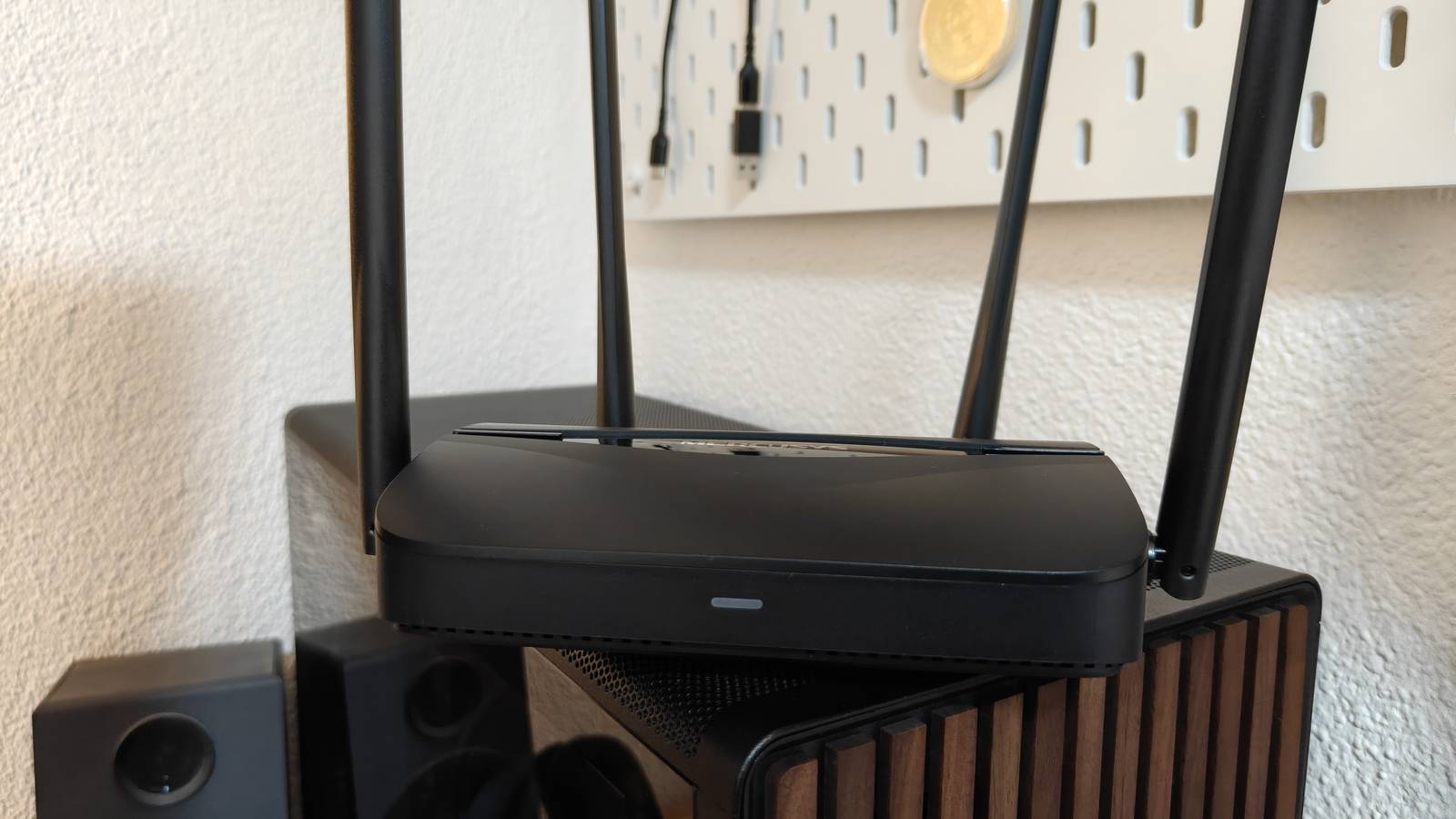
Keep that in mind as we go forward.TP-Link Dual-Band BE3600 Wi-Fi 7 Archer BE230 Brand TP-Link Wi-Fi Bands 2.4GHz, 5GHz The TP-Link BE3600 gives you next-gen Wi-Fi 7 performance at a budget price, delivering fast, reliable coverage with multi-gig ports and a powerful quad-core CPU.With strong antennas, EasyMesh support, and modern features like MLO and HomeShield, it’s an easy future-proof upgrade for any home.
$120 at Amazon Expand Collapse Make sure you're taking advantage of Wi-Fi 7's biggest upgrades Features can't help if they're disabled or unsupported When it comes to Wi-Fi 7 routers, buying the right device is only part of the story.Before you can take full advantage of Wi-Fi 7, you’ll need to dig into your router’s settings to make sure the features relevant to the latest wireless standard are actually enabled and configured correctly.Check your router's instruction manual for details on how to access its web interface.
On most routers, you simply open a web browser on your computer or phone, type "192.168.1.1" or "192.168.0.1" into the address bar, and then sign in using the default credentials, which are often blank, "admin" for both username and password, or a similar combination.Once you’ve accessed your router’s settings, head over to the advanced settings section.Some of the features you may want to enable to unlock the full potential of your Wi-Fi 7 router include the following: MLO (Multi-Link Operation): One of the most important parts of the new standard, MLO allows a device to connect via multiple bands simultaneously for higher theoretical throughput, lower latency, and improved stability.
Note that on consumer routers available today, it's not nearly as impactful as it’s marketed to be.320 MHz channel width and 6GHz: The ultra-fast 6GHz band and 320MHz channel width are only available on tri-band Wi-Fi 7 routers.If your router supports it, you should enable it and ensure the 6GHz band is configured to use the widest supported channel width.
You may also want to set the 6 GHz band up as a separate SSID for Wi-Fi 7 devices, giving them a faster connection when you’re close to the router.OFDMA and MU-MIMO: Although these aren’t new to Wi-Fi 7, the standard refines both.OFDMA now supports Multi-Resource Units (MRU), allowing a single device to be assigned multiple resource units, while MU-MIMO scales up to 16×16 spatial streams, improving performance in congested, high-demand environments.
Preamble puncturing: This allows the router to avoid interference on part of a channel while continuing to use the rest.It’s typically enabled by default.Other Wi-Fi 7 enhancements, such as 4K-QAM, are usually handled automatically by compatible devices and don’t require manual configuration.
Look beyond the Wi-Fi icon and inspect your connection details and router settings Link speeds, bands, and channel widths tell the real story Once you've configured your router and got a Wi-Fi 7 compatible device in your hands, it's time to dig into the new connection to see if you're getting the marketed improvements.Unfortunately, we can't just open a speed test and check because your Wi-Fi 7 router's maximum speeds likely far exceed your internet connection.Even transfers within your own LAN aren't the best indicator because they're limited by other factors beyond your router, like your storage drive speeds, Ethernet cables, and so on.
What you can do instead is verify that you're indeed connected using Wi-Fi 7.There are a few ways to check.For instance, most Android phones will display a "7" next to the Wi-Fi icon (and if not, it can be enabled in the phone's settings).
There's also some additional information, like the current band and throughput.Close On Windows laptops, you can check by opening the Command Prompt and typing the following: netsh wlan show interfaces If it lists 802.11be, you've got a Wi-Fi 7 connection.On top of the basic check, you can get a surprising amount of information just by looking at the list of connected clients in your router's web interface.
For instance, if your phone is connected via MLO, many routers will display an icon or indicator next to the device.They may also show the theoretical maximum Tx (transmit rate) and Rx (receive rate), which represent the maximum upload and download speeds between your Wi-Fi 7 device and the router.Ideally, you're looking for numbers that are relatively close to the maximum rates advertised in your router's specifications.
These checks will only get you so far, though.For an in-depth overview of your connection, you might want to resort to third-party apps that can provide detailed information on your current link speed, channel width, PHY rate, signal strength, and more, all of which will help you verify that you're getting close to the router's advertised speeds.Subscribe to our newsletter for Wi‑Fi 7 setup guides Level up your home network: subscribe to the newsletter for clear, actionable Wi‑Fi 7 guidance — step-by-step setup, feature configuration (MLO, 6 GHz/320 MHz), device compatibility checks, and practical link diagnostics to help your router reach its pote Get Updates By subscribing, you agree to receive newsletter and marketing emails, and accept our Terms of Use and Privacy Policy.
You can unsubscribe anytime.There are a few apps you can use for this, but I like WiFiman.It's free and available on just about every major platform, including Android, iOS, Windows, macOS, and Linux.
Once you have the app installed, you'll want to look for a channel width of 320 MHz on 6 GHz or 160 MHz on 5 GHz, 2×2 MIMO (which is what most phones support, though some support more), PHY speed, latency to the router, latency to the internet, and other useful connection metrics.A good next step is to keep the app open and try "spiking" your network usage by transferring a large file between devices on your local network, such as from your PC to a NAS.If your Wi-Fi 7 router is doing a good job of managing network traffic, you shouldn't see a dramatic drop in bandwidth or a major increase in latency—that's all those router features working behind the scenes to keep your connection smooth and responsive.
Close Even without Wi-Fi 7 devices, your new router isn't necessarily a bad investment Stronger hardware can improve your network in ways that specs don't show If this article only helped you realize that you don't have any Wi-Fi 7-compatible devices at home yet, that's not necessarily bad news.Your new router is still likely an upgrade thanks to faster hardware, stronger antennas, improved firmware, and greater overall network capacity.And when the time eventually comes to replace your phones, laptops, and other wireless devices, you'll already have the infrastructure in place to take full advantage of Wi-Fi 7.
Sometimes, future-proofing really is as simple as buying the router first.Related I finally upgraded to a Wi-Fi 6 router and realized I was bottlenecking my own internet Please stop using your old Wi-Fi 5 router when Wi-Fi 6 is this cheap Posts 2 By Ismar Hrnjicevic
Read More