I'm a firm believer that the perfect smart home should work almost completely automatically, without any need for pushing buttons, tapping dashboards, or giving voice commands.Sometimes, however, even the best automations can fire when you don't want them to, so I gave Home Assistant a snooze button to solve the problem.Add How-To Geek on Google Add as Preferred Source Follow on Google Discover My smart home doesn't always know when to leave me alone Sometimes I don't want every automation to run There are plenty of automations in my home that run without any input other than my normal daily interactions.
For example, when I enter my home office, the light will automatically turn on as long as it's dark in the room, and when I sit in my office chair, an automation starts that will nag me to get up and take a break once I've been sitting for half an hour, as measured by an mmWave presence sensor.I don't do anything to make these automations run other than walk into my home office and sit down, exactly as I would if the automations didn't exist.Most of the time, these automations are doing exactly what I want.
However, if I have a video call for work, I don't want my smart speaker to suddenly start shouting at me, telling me I've been sitting down for too long and that I need to get up from my desk.For this circumstance, I have something built into the automation that stops it from running when my laptop's video camera is in use.That way, I don't get interrupted in the middle of work calls.
I didn't want to have to add these kinds of exceptions to every single automation I have, so I decided to set up a snooze button.Related I decided that my smart home should ask me more questions (here's why and how to set it up) Finding a balance between full automation and manual control.Posts By Tim Brookes One toggle lets me pause selected automations A simple helper can disable multiple automations at once My initial idea for creating my snooze button was to use the automation.turn_off action combined with a snoozable label that I could apply to the automations I wanted to snooze.
I could then use a script to disable all the automations with that label.When the snooze was over, the automation.turn_on action would enable the automations again.However, it occurred to me that if I ever manually disabled an automation that had the snoozable label for any reason, the snooze script would turn it back on with all the other snoozed automations, even if I didn't want that to happen.
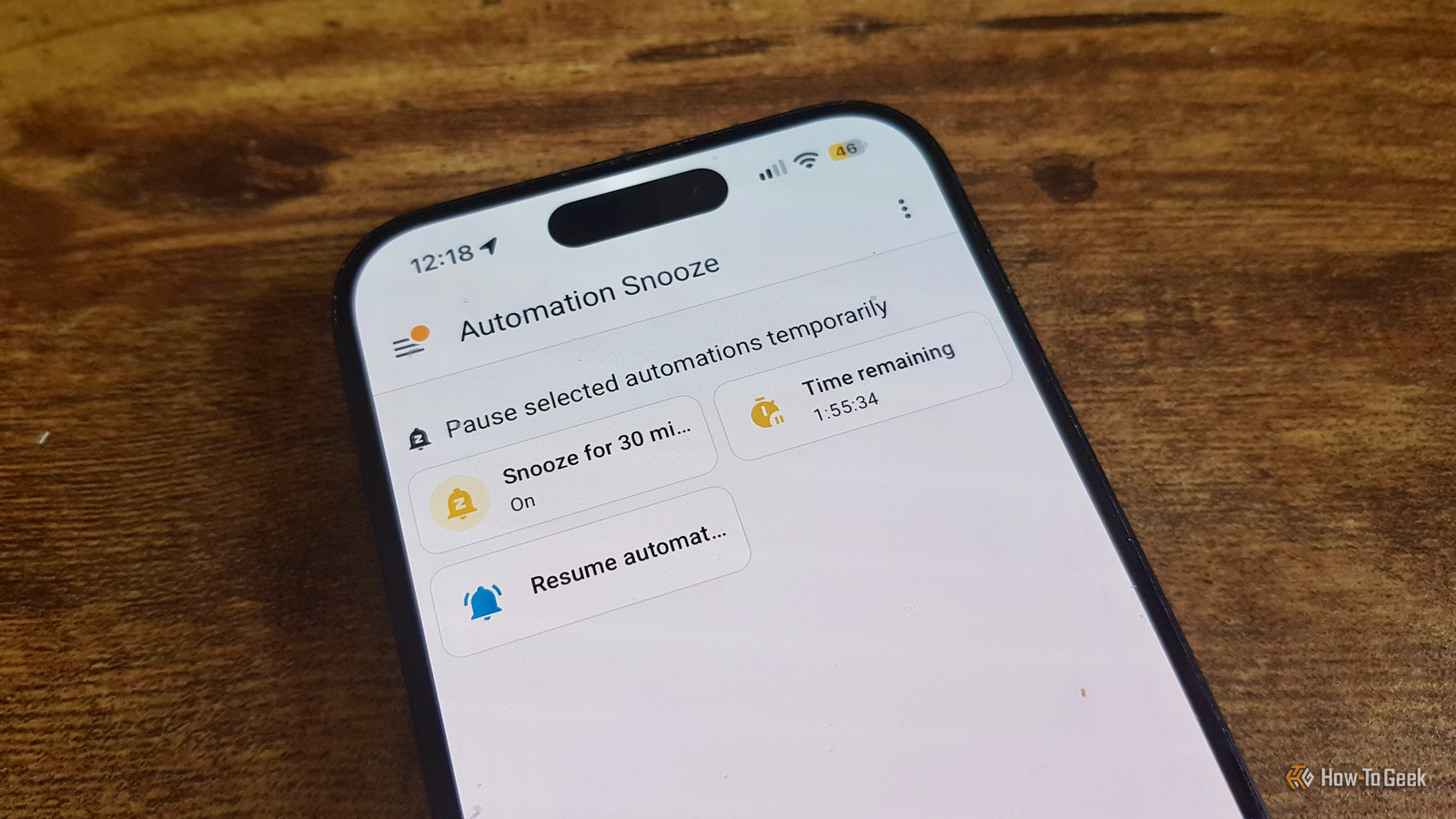
I decided I needed a different approach.In the end, I opted to use an Input Boolean called Automation Snooze.This is a simple toggle that I can turn on and off.
I then added a condition to each automation that I wanted to snooze so that the automation only runs if Automation Snooze is off.Now, when I turn Automation Snooze on, the relevant automations will check the state of that toggle, see that it's on, and stop before any of the actions are run.A timer ensures that I don't forget to enable them again Actionable notifications let me extend the snooze if needed Close Having a toggle that I can use to snooze specific automations is great, but a snooze button isn't the same as an off button.
For it to be a true snooze button, it needs to automatically enable the automations again after a set period of time or give the option to extend the snooze for longer.When the Automation Snooze toggle is activated, it starts a Timer helper set for half an hour.When the Timer helper expires, the Automation Snooze toggle is automatically turned off.
However, five minutes before the timer expires, an actionable notification is sent to my phone, warning me that the snooze is about to turn off.In the actionable notification, I have options to enable the automations again immediately, or to extend the snooze for different periods of time from 15 minutes up to 2 hours.The same process then repeats until I select the option to enable the automations again, or I let the current timer elapse.
Sometimes even automations need a little manual control I'm no longer battling against my own smart home My snooze button is really useful.I can activate it through a Home Assistant dashboard, with a dedicated control in the Control Center on my iPhone, or by asking Assist.The automations are then automatically snoozed, and I can enable them again with another tap or spoken command.
After 25 minutes, I get an alert warning me that the snoozed automations are about to be enabled again, and I can choose to extend the time, or let the timer elapse and have the automations enabled once again.It's a simple but effective way to stop specific automations from running when I don't want them to.My smart home is better now that I can make it stop The vast majority of the time, my automations do what I want them to when I want them to.
Occasionally, however, there are times when I just don't want them to run.My snooze button makes it simple to pause those automations until I need them again.
Read More