I've lost count of how many times someone has sent me an Excel spreadsheet that technically contains everything I need, but makes me work far too hard to find it.Maybe the data is crammed into the wrong columns, duplicate records are lurking everywhere, or the formulas look like they were designed to confuse the next person who opens the file.Over the years, I've settled on a handful of Excel tools that help me turn someone else's mess into something I can actually work with.
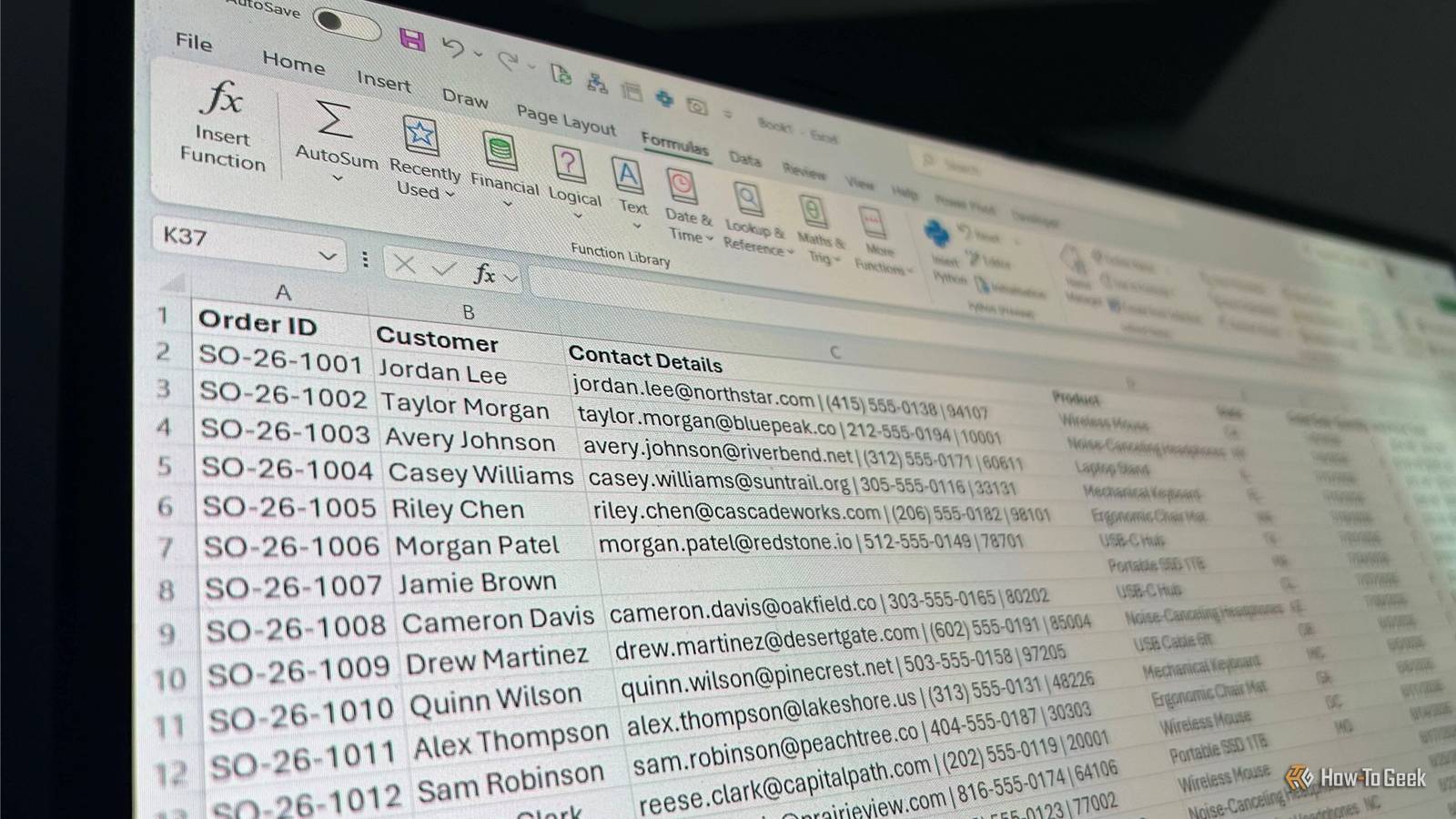
Take the spreadsheet below.At first glance, everything seems fine.But when I look closer, I start spotting missing entries, duplicate order IDs, inconsistent naming, contact details crammed into single cells, and formulas doing more work than they should.
This is exactly the kind of spreadsheet where I reach for a few Excel tools to figure out what needs fixing and make the necessary changes.Go To Special Find the gaps before they cause problems Close When I inherit a messy spreadsheet, it's tempting to start changing things right away.But first, I need to know what I'm actually looking at.
Go To Special is a useful Excel tool that lets you select cells based on what they contain, such as blanks, formulas, constants, or errors.I use it here to quickly find the gaps in a spreadsheet before I start making changes.Once the tool has helped me identify blank cells, I highlight those cells in yellow, fill in the missing information, then remove the highlighting when I'm done.
If you want to mark the gaps instead of highlighting them, type something like BLANK into the first selected cell and press Ctrl+Enter to fill all the selected cells at once.Go To Special can find plenty of other things, too, but blanks are a useful starting point.I want to see the gaps before I decide how to fix them.
Conditional Formatting Spot duplicates without deleting anything Close Conditional formatting applies formatting to cells based on rules you define, making it useful for drawing attention to values that need investigating.I use it here to highlight duplicate records and help me find inconsistent entries.For example, the Order ID column contains some IDs that appear more than once.
When I use conditional formatting to identify duplicates in that column, it immediately highlights the repeated entries.After checking the corresponding rows, I can see they're complete duplicates, so I delete the repeated records and clear the temporary formatting rule.I also use conditional formatting to investigate inconsistent Product entries.
The duplicate-value rules don't distinguish between uppercase and lowercase, though, so I first normalize the Product values to the same case using UPPER, then use the unique rule to surface entries worth investigating.I then manually clean that new column, remembering that a product appearing only once isn't necessarily a problem.For State, a simple length-based rule using LEN highlights full state names that haven't been abbreviated.
I standardize those manually and clear the formatting rule when I'm finished.I like this approach because conditional formatting shows me what needs attention without changing the underlying data.TEXTSPLIT Separate information that's been crammed together Close TEXTSPLIT is a text function that separates the contents of a cell into multiple cells based on a delimiter, such as a comma or a space.
It's particularly handy when someone has crammed several pieces of information into a single column, as is the case in the Contact Details column in my inherited dataset: each cell contains an email address, phone number, and ZIP code, separated by the pipe (|) symbol.TEXTSPLIT lets me split those three pieces into separate columns in one go.I can then check the results, paste them as values, and remove the original Contact Details column.
I like being able to check the results before replacing the original data.Once they're separated, those fields are much easier to filter, sort, or use in another formula.Excel tables Give the cleaned data some structure Once I've finished cleaning the range, I'll turn it into an Excel table, which gives the data built-in filtering, automatic expansion, and calculated columns.
I deliberately do this I've tidied up the data, because I don't want to add table structure while I'm still deleting duplicates and dealing with inconsistencies.I also like to convert existing formulas in calculated columns to structured references at this point.Excel doesn't automatically convert ordinary cell references when I turn a range into a table, so I make that change manually in formulas on the first row.
Then, when I press Enter, Excel automatically carries the formula down the relevant column.The result is a calculation that's much easier to read because it refers to the table's column names instead of worksheet coordinates.Named ranges and helper columns Make the calculation easier to understand and maintain Close Helper columns let me break complicated calculations into smaller, visible steps, while named ranges give important constants meaningful names instead of burying them inside formulas.
I use both here to make a calculation that's difficult to maintain much easier to understand and change.I create names for the values that stay constant—the sales tax rate and the two discount thresholds and rates—using Excel's Create from Selection tool.I then add a Discount column to the table so that the discount applied to each row is visible.
Finally, the Total formula can use that Discount column alongside the named sales tax rate.Now, if I need to change the tax rate or one of the discount rules, I don't have to dig through a long formula to find the right number.A little structure goes a long way When I set up a spreadsheet, I follow a few basic structural principles: use columns for fields and rows for records, keep a single data point in each cell, avoid blank columns and rows (and, where possible, blank cells), and use a single row for column headers.
These rules of thumb mean you—and anyone you send the spreadsheet to—won't have to fix the structure later.Of course, sometimes the damage is done before you even set your eyes on the workbook.In those cases, the tools above can make cleaning up someone else's data much easier and save you plenty of headaches in the long run.
Read More