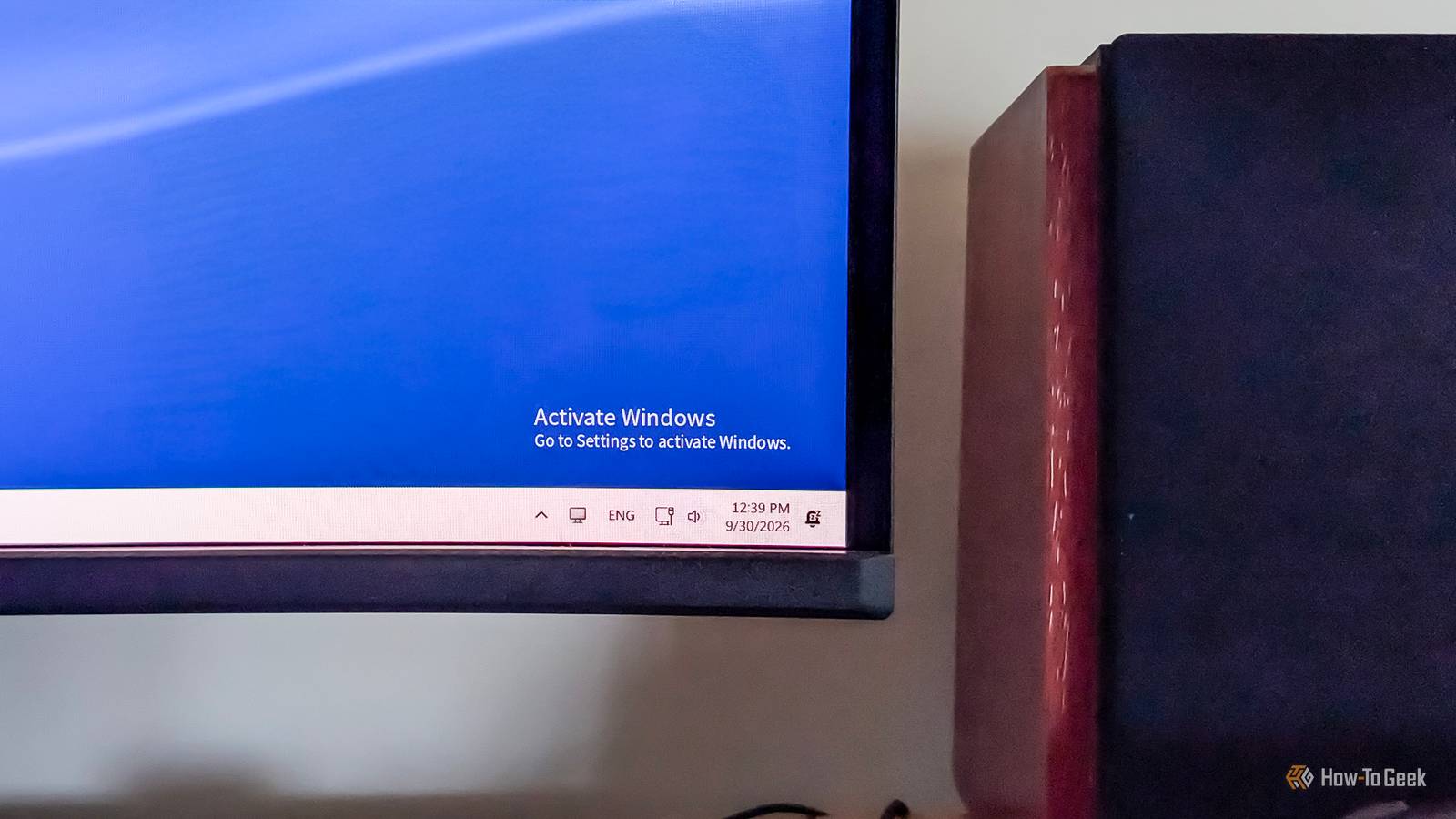
If you install Windows 11 on your machine and don't activate it, you'll be locked out of surprisingly few features.While most of the regular stuff will keep working indefinitely, you will miss out on a handful of customization options.Aside from missing features, you'll also get a few bonus "features," such as the permanent "Activate Windows" watermark in the corner of the desktop.
Dark mode You can't make the Windows UI easier on the eyes, at least not in Windows Settings Close Not being able to use dark mode is probably the harshest limitation when using an unactivated copy of Windows 11.The toggle is locked, like most other personalization options, and you're forced to use the default light mode, which isn't as comfortable to look at as dark mode.That said, there are two ways to circumvent this limitation and switch to dark mode without activating Windows.
The simpler one is to open File Explorer, go to C: > Windows > Resources > Themes, and double-click the dark.theme file.Alternatively, open the Registry Editor (just type Registry Editor in Windows Search or the Start menu search box), and go to HKEY_CURRENT_USER > Software > Microsoft > Windows > CurrentVersion > Themes > Personalize.Once there, locate the AppsUseLightTheme and SystemUsesLightTheme entries and change their values from 1 to 0.
Wallpaper and accent color You can still change the wallpaper, though Most of the Personalization menu is locked on an unactivated copy of Windows, which means you can't change the wallpaper or accent color.But while you're locked out of the wallpaper option in Settings, there are still a number of ways to change your wallpaper on an unactivated Windows 11 PC.You can right-click an image in File Explorer and select Set as desktop background, do the same in the Photos app, or use one of a few other workarounds.
You can also change your Windows theme, and your wallpaper and accent color with it, by opening File Explorer, going to C: > Windows > Resources > Themes, and double-clicking any theme file found there.Lastly, you can use a third-party wallpaper app, such as Wallpaper Engine, to get around this limitation.Lock screen customization There's a workaround that lets you switch the lock screen image, though Just as you can't change the wallpaper in Windows Settings, you can't change the default lock screen image there either.
However, there's a workaround that relies on the Photos app, which should be preinstalled on every Windows PC.When you find an image you want to use as your lock screen background, right-click it, select Open with, and open the image in the Photos app.Once it's open in Photos, right-click the image, select Set as, and click the Lock screen option.
Official Microsoft support If you stumble on an issue, you may be on your own Even unactivated copies of Windows receive important updates, including security updates.On the flip side, you might run into trouble if you decide to contact Microsoft technical support, since agents may ask for proof of activation before helping you.In other words, if you use an unactivated copy of Windows 11 and have to troubleshoot an issue, you may be on your own.
At least you can find a solution to virtually every Windows issue online, so that's something.Windows 11 Pro $29.99 $199 Save $169.01 Operating system Windows 11 Pro Get Windows 11 Pro and elevate your PC experience while it's available at a huge 88% discount. $29.99 at StackSocial Expand Collapse The one feature you do get: a permanent watermark A constant reminder that your Windows copy isn't activated, which you cannot remove While unactivated Windows comes with a few missing features, it also packs an extra one: a permanent watermark reminding you that your copy of Windows isn't activated.It follows you everywhere and can't be removed until you finally activate Windows, of course.
You might see it even when gaming (it's visible in full-screen windowed mode, but it should be gone if you switch to an exclusive full-screen mode), and changing your wallpaper won't hide it, so if you don't plan to activate Windows, be ready to live with it.On top of that, you'll see banners in Windows Settings notifying you that your copy of Windows isn't activated and that you ought to activate it if you want to use personalization features.Like the watermark, these notifications won't go away until you activate Windows.
The Settings notifications aren't that annoying, but the watermark definitely can be.Related 6 Settings to Make Your Windows 11 Desktop More Minimalist Keep your desktop tidy! Posts 13 By Shan Abdul Activation gates the cosmetics; your Windows edition gates the actual features What's interesting here is that Microsoft doesn't lock edition-specific features on unactivated copies of Windows.For instance, if you install Windows 11 Pro and don't activate it, you'll still be able to use Pro-exclusive features such as Remote Desktop hosting, the Group Policy Editor, the full suite of BitLocker features, and Windows Sandbox.
So, at the end of the day, not activating your copy of Windows will plaster the permanent watermark on your desktop and limit a few customization options, but Windows will remain perfectly usable.You'll even have access to Windows 11 Pro-exclusive features, which is good to know if you need them but can't activate the OS right away.
Read More