Summary I replaced Spotify with Lidify to stream my local music collection via Docker.Docker makes self-hosting Lidify easy: run the container, point to /music, and open localhost:3030.Lidify feels like Spotify, has no ads, PWA mobile support, and boosts artists via local files.
I've been on a little bit of a self-hosting kick since last year.It started with a simple self-hosted replacement for Trello, but ever since, I've been trying to replace my everyday apps with self-hosted alternatives.It recently hit me that I'm paying for Spotify Premium, but I rarely ever open the app because I don't like the recommendations Spotify serves me.
Most of the time, I just listen to the music I have saved on my phone.So I spent the last few days looking for an app to stream my small music collection.It took some trial and error, but I found one that I'm pleased with.
Here's how I self-hosted a Spotify-like app for my music library.We'll use Docker to self-host the music streaming app Lidify If you're new to self-hosting, it basically means that you're running a platform or app on your own hardware.That way, you have total control over your data, and it saves you on subscription fees too.
It's also easier than you might think.Hosting a music streaming service on your machine sounds like a daunting task, but it's actually dead simple thanks to Docker.You might have heard about 'virtualization,' or how people run entire operating systems inside virtual machines on their computers.
Docker is kind of like that, except it's designed for apps and services instead of entire operating systems.You provide Docker with a 'recipe' in the form of a prebuilt image, and it spins up a virtual container, inside which the app runs using your machine's resources.If it's an app with a web interface, you can access that interface anywhere within your local network.
You could, for example, open a browser on your phone, type in the target URL, and access the app and its data there too.It'll work even when the internet is down because the app is being hosted locally on your machine.For our purposes, we'll be using Docker to spin up a container for an app called 'Lidify.' The developer of Lidify has kindly provided a Docker image on the public GitHub repo, which we can use to run Lidify on our machine.
I'll point Lidify to the directory where my music collection is saved and run it.Then I can access Lidify on any device connected to my local network and stream my music.There's a way to access the self-hosted service anywhere in the world like any normal website, but it gets a little complicated because it requires setting up VPN tunnels.
For my purposes, Lidify on a local network works just fine.My music collection stays on the server machine and I don't have to bother moving files between my phone and computer.Installing Docker and setting up an instance of Lidify Start by installing Docker on your machine.
On Windows, you can install the Docker Desktop app from the official website.You might have to reboot the computer after installing Docker.Docker is also available on macOS.
Launch the Docker app once to start the Docker engine which runs in the background.Now we're ready to spin up a Lidify container.Open the Terminal app.
We'll be using this code to start the Lidify service.The "C:\Users\UsaRas\dumped" path points to the folder where I've kept all my music files.You're supposed to replace it with a path to your own music folder.
Leave the rest as it is, including the ":/music" part at the end.This command has the backtick '`' characters because PowerShell requires it, but you can run the code without them if you're on Linux or macOS.docker run -d `--name lidify `-p 3030:3030 `-v "C:\Users\UsaRas\dumped:/music" `-v lidify_data:/data `chevron7locked/lidify:latest If all goes well, a container should be created for Lidify.
You can double-check the Docker Desktop app too.To access Lidify, you just need to paste this URL in the browser window of the same machine.http://localhost:3030/ If you want to access your self-hosted app on other devices, you'll need to dig up the IP address of the host machine (the one running the Docker container.) You can do so by opening the Terminal again and running the following command: ipconfig Look for the IPv4 address listed in the output.
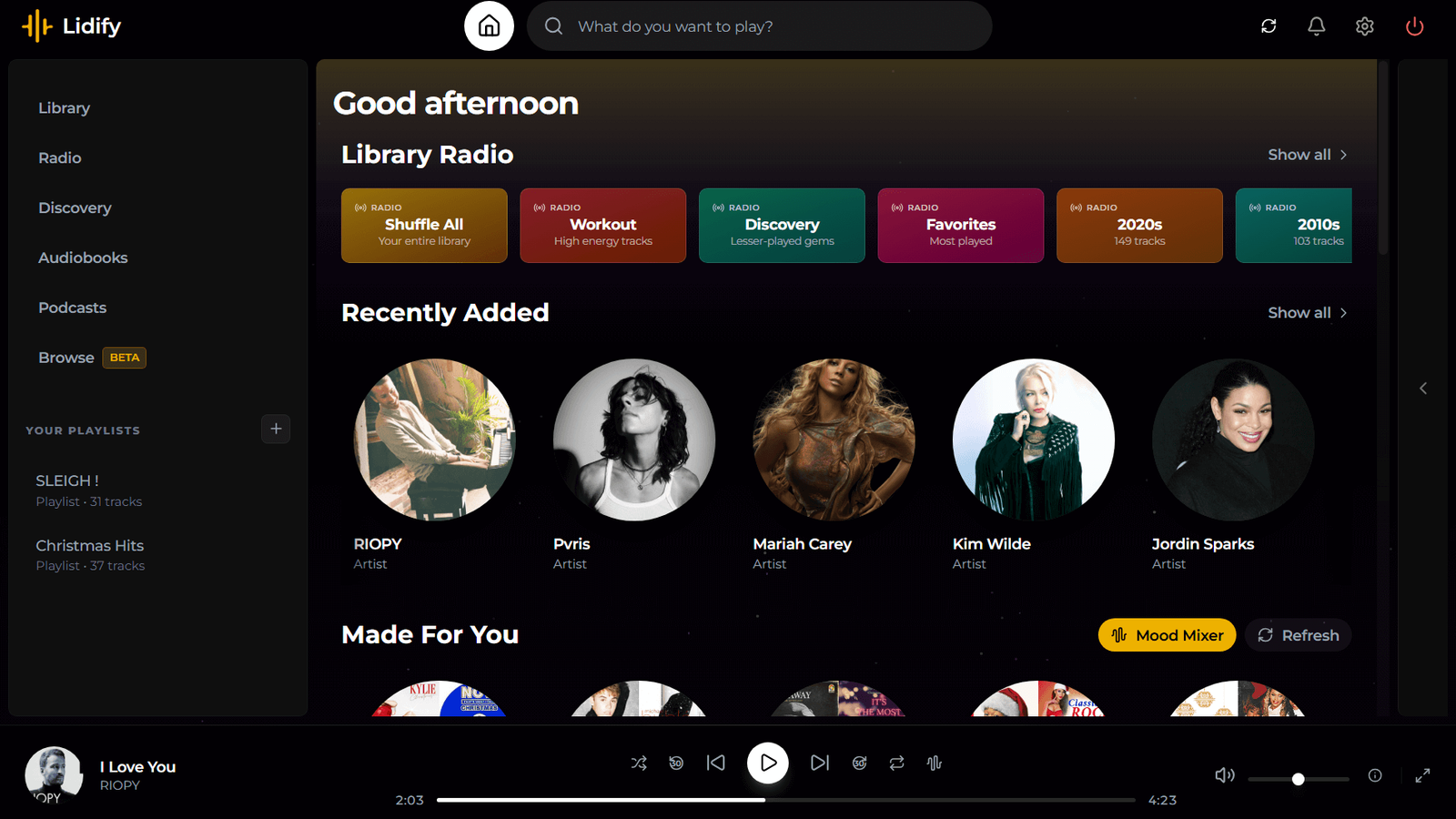
Now if I enter that same IP address, followed by the port number ':3030', on my phone, it launches the Lidify app on my phone.Streaming music with Lidify When you load Lidify for the first time, it'll ask you to create a username and password, so you can access your profile on other devices too.There are no ads anywhere in this app.
If you're used to Spotify, you'll feel right at home with Lidify.It has a similar interface that shows recently played tracks, albums, and artists.You'll also see 'Made for You' playlists, just like on Spotify.
These auto-generated playlists are based on mood and 'vibe analysis' of your music files.The player is pretty responsive, and you can control it with keyboard shortcuts.You'll see a 'Browse' tab with curated playlists based on mood, genre, and artists, just like on Spotify.
You can flip through them and listen to 30-second previews.There's also a Podcasts tab where you can listen to full-length podcasts online and for free.Subscribe to the newsletter for hands-on self-hosting guides Level up your DIY server work—subscribe to the newsletter for practical self-hosting tutorials, Docker examples, app recommendations, and configuration tips for projects like running Lidify and other personal services.
Learn what tools to try next.Subscribe By subscribing, you agree to receive newsletter and marketing emails, and accept Valnet’s Terms of Use and Privacy Policy.You can unsubscribe anytime.
The mobile version is PWA, which works surprisingly well.My music collection is pretty small right now, but I plan on growing it.A bigger library should provide a much richer experience with this app.
Plus, it's better for artists because buying music from places like Bandcamp brings them a bigger share of profits compared to streaming services like Spotify.
Read More