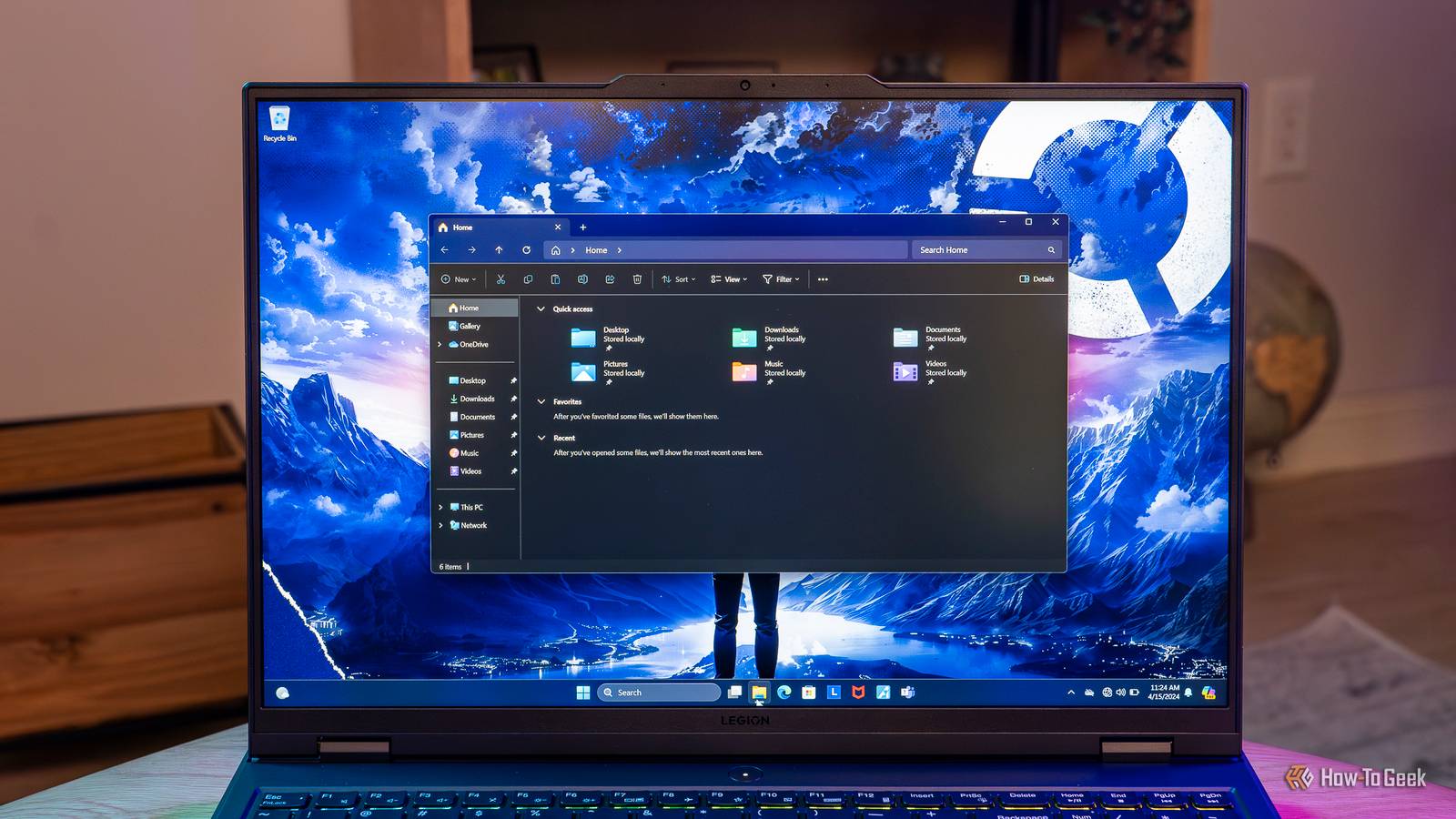
Although its reputation has taken a hit in recent years, File Explorer is still a decent file manager, especially if you use it as an auxiliary option alongside your main one.In my case, Total Commander has been my Windows file manager of choice for more than two decades, but I’ve been using File Explorer more and more lately since it’s generally better suited for working with images, and I juggle tons of them every day.While Microsoft has managed to squash many annoying bugs and make File Explorer launch faster by keeping it running in the background, the app still comes with a number of default settings that hamper its usability, especially if you’re a power user.
This is why I change the following five settings on every PC right after installing Windows and essential software, such as drivers.The sixth one I change only on ASUS handheld PCs, since ASUS enables it by default for some reason.I let File Explorer show hidden files and folders I understand why Microsoft disables this by default, but it's still the first setting I change Close Using File Explorer without seeing hidden files and folders is like buying a fully loaded car and only ever using the basic features.
A bunch of folders in Windows are hidden, including several—such as AppData—you’ll likely visit when troubleshooting, looking for save games and app-related files, or trying to find out why your free storage keeps shrinking.This is why the first thing I do when I open File Explorer on a fresh Windows install is make it show hidden files and folders.To be honest, keeping them hidden makes sense for a good chunk of people, since it stops them from accidentally deleting or messing with important files.
But if you’re anything close to a Windows power user, showing hidden files is an essential feature you really should have enabled.To enable it, open File Explorer, click the three-dot button and then click Options.Now click the View tab, locate the Hidden files and folders section, select Show hidden files, folders, and drives and hit Apply.
Alternatively, open File Explorer, click View, select Show and then click Hidden items.You can also open Windows Settings, go to System > Advanced > File Explorer and turn on the Show hidden and system files toggle.Related Windows 11 was barely usable until I changed these 6 default settings Let's make Windows more private and performant with just a few clicks! Posts 9 By Faisal Rasool Next, I disable the option that hides protected operating system files I want to see the files when I dig through Windows folders This is the only setting on this list I recommend leaving alone if you’re worried you might break something, so change it at your own discretion.
Now, it’s obvious why Microsoft hides these files by default, since messing with critical Windows files can end in disaster.But after decades of using Windows, I’m confident I won’t break anything by accident, so I want to see file on my PC, including protected OS files.To show protected OS files, open File Explorer, click the three-dot button and then click Options.
Now go to the View tab, uncheck Hide protected operating system files (Recommended), click Yes in the warning that pops up and hit Apply.I also make sure File Explorer shows file extensions Having file extensions hidden is a genuine security risk Close While hiding protected OS files makes sense, I really don’t get why file extensions aren’t shown in File Explorer by default.Sure, you can see file types in the Type column, but this doesn’t paint the whole picture.
Besides, the Type column is only shown in the Details view.Not having file extensions enabled can also be a security risk because you might download a file named, for example, Document.txt.exe, which is actually an executable and most likely malware.But since its real extension is hidden by default, File Explorer will show it as Document.txt, so you might open it and infect your PC.
Yes, the Type column might show that it’s an Application, but if you don’t pay attention to the column, or if you can’t see it because you aren’t using Details view or the File Explorer window is too narrow, you’re going to have a bad time.On the flip side, if you have file extensions enabled, you’ll immediately see that the full name of the file is actually Document.txt.exe, and you’ll know something’s fishy.I strongly recommend having this option enabled, which you can do by opening File Explorer, clicking View, selecting Show and then clicking File name extensions.
You can also open Settings, go to System > Advanced > File Explorer and turn on the Show file extensions toggle.I disable File Explorer notifications I really don’t need Microsoft 365 and OneDrive ads showing up in my file manager With this option enabled, you’ll get various notifications right inside File Explorer.Some of these can be useful if you use OneDrive, like sync status updates, but Microsoft also uses them to nag you with Microsoft 365 and OneDrive ads, peddling its subscriptions right at the top of the window.
I really recommend disabling this option, because ads have no place in Windows’ built-in file manager.To do that, open File Explorer, click the three-dot button and then click Options.Once again, go to the View tab, uncheck Show sync provider notifications and hit Apply.
If you're using OneDrive, don’t worry, since it will still sync your files and show its sync status as usual.I uncheck almost every Privacy checkbox They just add clutter, and I don't use cloud integration anyway All the settings in the Privacy section of File Explorer’s General tab are enabled by default, which isn’t that great if you care about privacy, because File Explorer will keep track of the files and folders you open to show them on its Home page.The account-based insights option also pulls in files from your Microsoft account, so your cloud files show up alongside your local ones.
Personally, I don’t need most of these integrations, not only because I don’t want Windows snooping on me more than necessary, but also because leaving these settings enabled adds unnecessary clutter I’m not a fan of.I only leave the Show frequently used folders option enabled because I find it really helpful when working on projects, since it allows me to jump to the project folder right after I open File Explorer.If you want quick access to the files you’ve used recently, you can leave Show recently used files enabled as well, but I recommend disabling the other two settings unless you have a genuine need for them.
To find these options, open File Explorer, click the three-dot button and then click Options.You should land on the General tab by default, so all you’ve got to do is locate the Privacy section and uncheck all the options you don’t need.While you’re there, you might also click the Clear button next to 'Clear File Explorer history' if you don’t want Windows knowing more about you than it needs to.
On ASUS handheld PCs, I switch to double-click to open items The single-click to open an item option is, for some reason, enabled by default on ASUS handheld PCs This last File Explorer default is, as far as I can tell, only enabled on ASUS handheld PCs.ASUS states that the single-click to open an item option is enabled because of the touch-screen, but from my experience, it makes both touch-screen and thumbstick navigation way messier because you’re going to open files and folders by accident non-stop.This is especially annoying when you’re trying to select multiple files by ticking their checkboxes (Windows enables checkboxes on touch-screen devices like handhelds by default, which improve navigation), since a slightly missed tap opens the file or folder instead, and you have to start over.
And believe me, you're going to constantly miss taps.To switch to double-click, open File Explorer, click the three-dot button and then click Options.Now, locate the Click items as follows section in the General tab, select Double-click to open an item (single-click to select) and hit Apply.
The good news is that changing these settings only takes a minute The bad news is that with the default settings, File Explorer can be fairly limited, especially if you’re a power user.But you can change the defaults listed in this guide in about a minute or so.After you do it, using File Explorer will become much more pleasant since you’ll be able to see hidden items and file extensions, and you won’t be served literal ads.
Read More