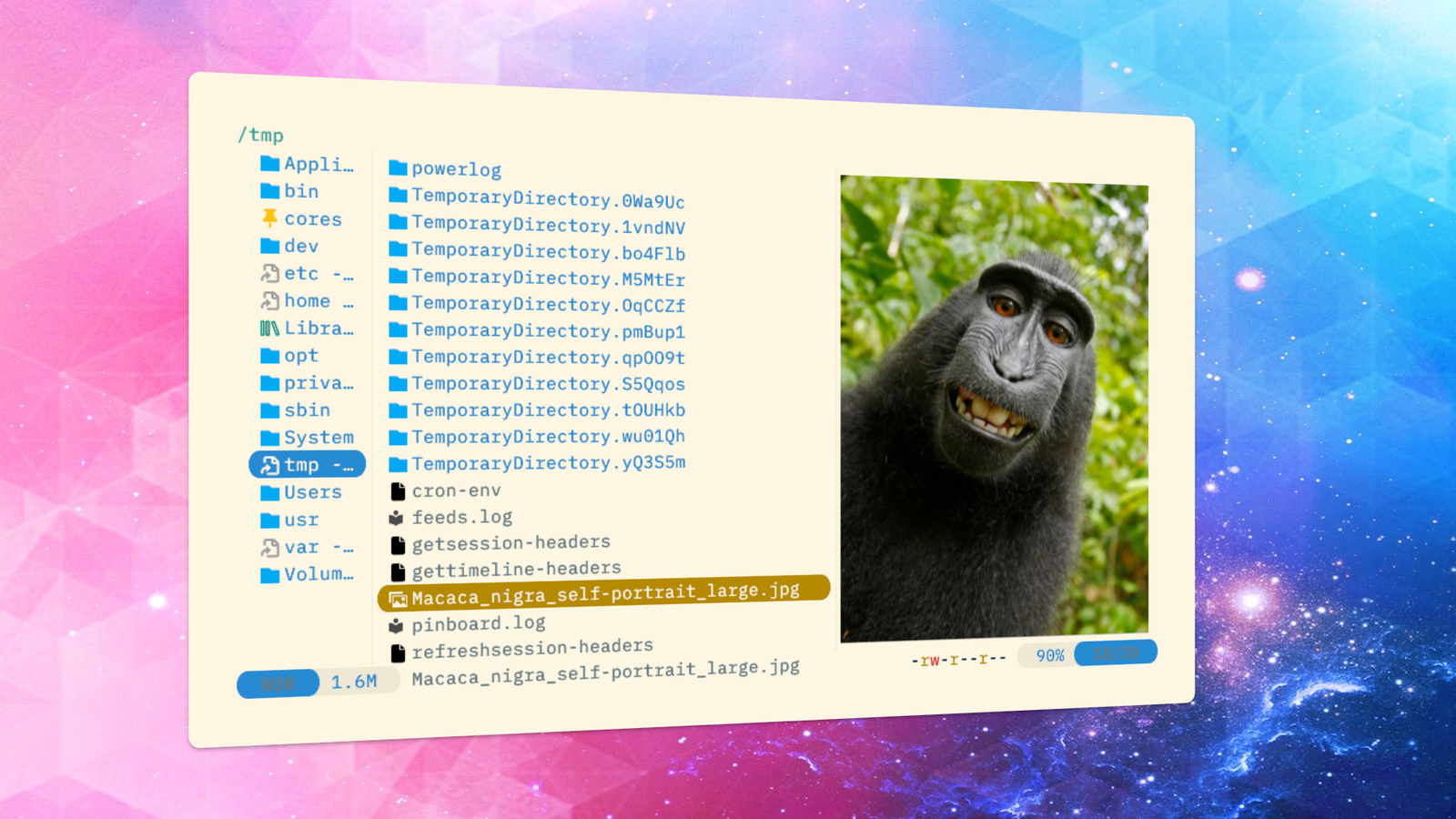
The more I use—and learn about—the command line, the more I want to do in it.Whether it’s playing music, working with a git repository, or browsing the web, if there’s a way it can be done in the terminal, I want to try it.But many tasks feel inherently better suited to a GUI app; previewing a file, for example.
So I took a TUI file previewer through its paces to see just how well it can do the job.Yazi is a TUI file manager with a previewer built in Browse, search, and organize your files with a comprehensive preview panel OK, so Yazi is much more than a file previewer: it’s essentially a replacement for your operating system’s GUI file manager app, like Windows File Explorer or macOS Finder.In general, TUI file managers are not as commonly used as their GUI equivalents, since the command line already does so much of what they do.
But one thing that GUI file managers tend to do much better is file preview.Select a file in Windows 11, and you can view a thumbnail or similar preview of it in the preview pane.On macOS, you get a similar preview pane in Finder, but you can also use the OS’s built-in Quick Look feature to get a larger, often interactive preview.
Yazi offers the promise of a preview—alongside many other features—straight in your terminal.It may sound impossible, but many modern terminal emulators—like Kitty or iTerm2—support native graphics.You can install Yazi using most package managers.
For example, using Homebrew, it’s a simple case of running: brew install yazi You may want to install additional optional dependencies, like the 7zip package to view the contents of archive files.Yazi can preview lots of different file types From Markdown to movies and many more Once you’ve installed Yazi, you can run it from any directory with the yazi command.You can pass a directory to open it immediately or a file to open its parent directory and select that file.
You can even pass multiple arguments to open each in a separate numbered tab.Yazi’s preview pane works just like its GUI equivalents: select a file, and you’ll see a representation of its contents.With many file types, this will be a syntax-highlighted version of its text.
For example, a JSON file will display with clearly marked property keys and values: But Yazi’s preview also supports PDFs and images.It will show you the contents of a gzip file and a frame from an MPEG movie.Using plugins, you can expand the set of supported file types even further.
Close With configuration and plugins, Yazi’s preview is even more powerful Layout, size, and handling for additional file types can all be tweaked One of the nicest out-of-the-box features that you might not immediately notice is mouse support.Yazi handles the mouse for simple tasks like clicking a file to select it, but it also supports mouse scrolling for the preview.If you’re previewing a text file, just scroll down, and you can view the entire thing.
Yazi’s configuration supports a few preview-specific settings.One of the most useful is wrap, which you can set to yes to have the preview pane wrap long lines, which will otherwise be clipped.Another useful setting is max_width, which controls the size of images and PDFs when previewed.
Make sure you set this to a larger value if you want to see more detail and you have the screen space.You can change the image_quality setting to a value between 50 and 90 and a few other preview-related settings, which you can read about in Yazi’s documentation.The default for max_width is typically 600 or 1,000.
Try a value of 200 or 2,000, then resize your terminal window to see the effect.Yazi also has a plugin system that provides many additional themes and features.One such plugin—piper—lets you use any shell command as a previewer, which is a very powerful and Unix-friendly way of extending the supported file types.
For example, you can use the syntax highlighter, bat, to preview CSV files with the following configuration: [[plugin.prepend_previewers]] url = "*.csv" run = 'piper -- bat -p --color=always "$1"' Terminal-based preview is convenient, but it’s not quite perfect—yet Yazi is one of those tools that can make you feel like the terminal is a modern tool, and seeing images rendered in it still feels quite magical.But unless you find the right set of plugins, it’s not quite as fully featured and interactive as macOS’s Quick Look.Still, Yazi is a very useful app in its own right.
The preview is a welcome bonus, especially if you run Yazi full-time, as an alternative to your GUI file browser.
Read More