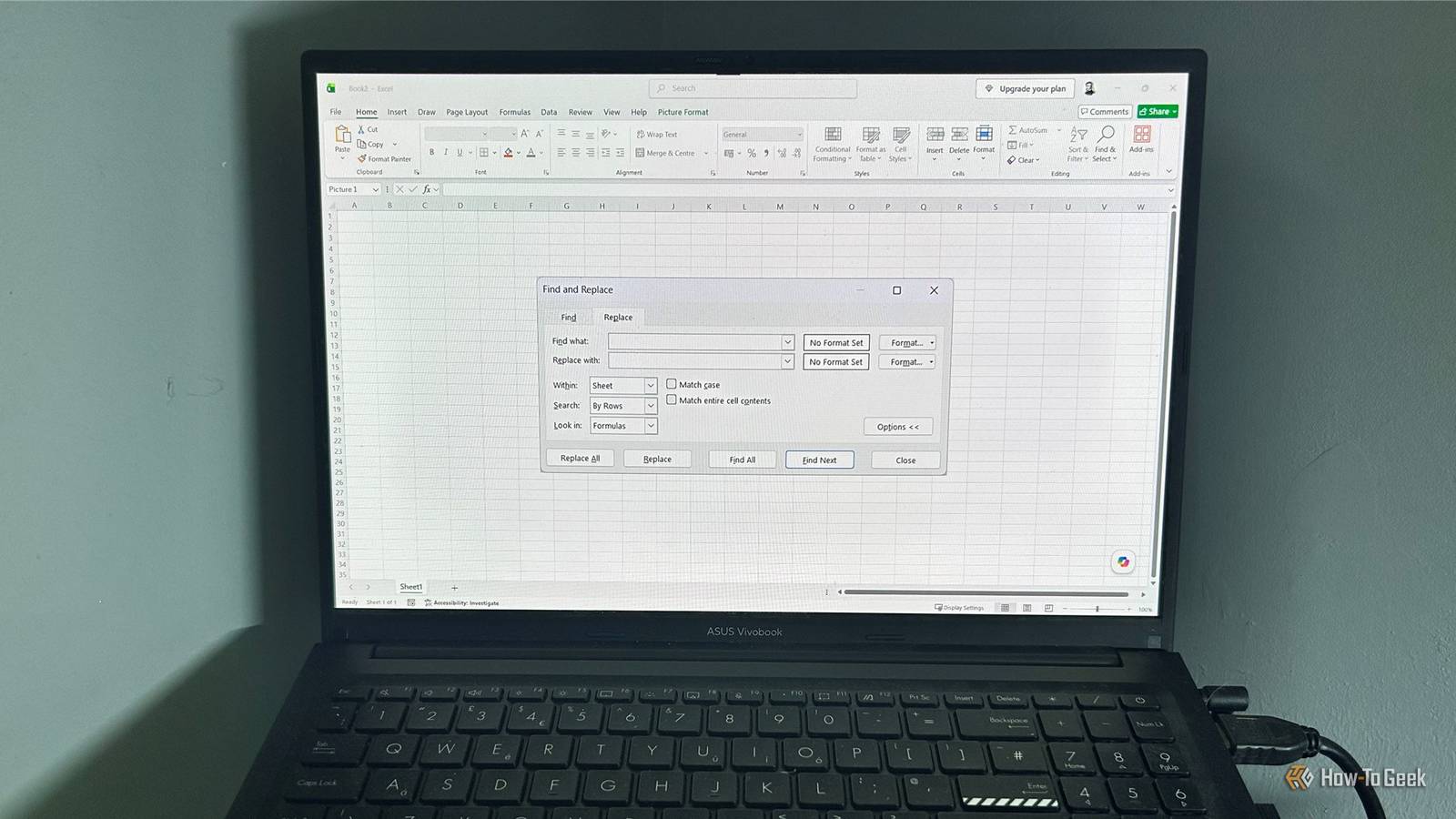
Most Excel users know Ctrl+F as a quick way to find specific text or values in a spreadsheet.You might also know Ctrl+H, but probably think of it as little more than a way to replace one value with another.For years, I overlooked how much more it could do.
From cleaning up messy imports to fixing formatting issues, Find and Replace is one of Excel's most underrated cleanup tools.Replace anything across an entire workbook in seconds Ctrl+H's obvious feature is still one of its most useful Ctrl+H, Excel's Find and Replace shortcut, is great for swapping out a word, number, or phrase on the active sheet, but it can also act as a workbook-wide editing tool.Whether you're changing someone's name across multiple sheets or updating a project code that appears throughout a reporting workbook, repeating the process manually is an unnecessary waste of time.
Instead, get Find and Replace to handle multi-tab edits in a single action: Select any cell in the workbook, then press Ctrl+H to open the Find and Replace dialog.Enter the value you want to change in the Find what box, then enter the updated value in Replace with.Click Options to reveal the advanced settings panel.
Change the Within drop-down menu from Sheet to Workbook.Click Find All first and scan through the results before committing to a large replacement.Once you're happy, click Replace All to update every matching cell across the workbook.
Close In my case, all instances of "Samuel Jackson" have been updated to "Samuel L Jackson" across every worksheet in the workbook without me having to check each sheet individually.Close Microsoft 365 Personal OS Windows, macOS, iPhone, iPad, Android Free trial 1 month Microsoft 365 includes access to Office apps like Word, Excel, and PowerPoint on up to five devices, 1 TB of OneDrive storage, and more.$100 at Microsoft Expand Collapse Clean messy imports without writing formulas Wildcards make Ctrl+H a surprisingly powerful cleanup tool Data rarely arrives exactly how you want it.
Whether you've copied a list from a website, downloaded a CSV, or exported information from another app, you often end up with extra codes, labels, or text you don't need.For larger cleanup jobs, I'd normally use Power Query.But when I just need to strip repeated text patterns or tidy up a small import before moving on, Ctrl+H is usually much faster.
With wildcards, it feels a little like using a formula without writing one: you tell Excel what pattern to find, and it handles the repetitive work for you.Excel supports two primary wildcards in Find and Replace: The asterisk (*) represents any sequence of characters.The question mark (?) represents any single character.
For instance, imagine you've imported a list of names where each name has an ID code attached, such as "Emma Davis(ID-48392)." You can remove those extra codes across the entire range at once by entering (ID*) in the Find what box.This tells Excel to look for the opening parenthesis, the ID label, and everything that follows.Leaving Replace with blank removes the entire ID code while keeping the name intact.
Because wildcards can be broad, always check the results before replacing large amounts of data.If the same pattern appears elsewhere in your worksheet that you don't want to change, select the specific range first before opening Find and Replace.Close The question mark wildcard is more precise because it only matches one character.
However, the key here is deciding whether to enable Match entire cell contents in the Find and Replace options.With this option checked, searching for Cable-? finds "Cable-1," "Cable-2," "Cable-3," and "Cable-4," but ignores "Cable-10," "Cable-20," and "Cable-Pro." Without it, Excel can also replace matching characters inside longer entries, leading to potentially unintended changes.Close Change formatting without changing your values Find and Replace can update number formats in seconds Find and Replace doesn't just look at the values inside your cells—it can search for formatting too.
That includes colors, fonts, borders, and, surprisingly, number formats.I find number formatting especially useful because reports often contain the same format scattered across different tables or worksheets, making manual updates surprisingly time-consuming.In this example, I have several tables where large figures are displayed in thousands (K) using a custom number format to save space.
However, as the numbers have grown, I want to switch them to a cleaner millions (M) format without changing the underlying values.I also want to add a dollar sign to make the report easier to interpret.To do that, I can use Find and Replace to swap one custom number format for another: Next to Find what in the Find and Replace dialog, click Format.
In the Number tab of the Find Format dialog, select Custom and enter 0.0,"K" to find cells using this thousands format.Next to Replace with, click Format.In the Number tab, select Custom and enter $0.0,,"M" to apply this millions format with a dollar sign.
Click Find All to confirm Excel has selected the correct cells, then click Replace All once you're happy.Close In other workbooks, you can use the same approach to replace any custom number format, such as changing currencies, decimal places, percentages, or date displays without touching the underlying values.When you've finished, open the drop-down arrows next to the Format buttons and choose Clear Find Format and Clear Replace Format.
Excel remembers those settings even after you close the dialog, which can make future Find and Replace searches seem broken if you accidentally leave formatting rules active.Remove invisible characters from imported data Ctrl+J finds line breaks Excel normally hides This is probably my favorite Ctrl+H trick because Excel gives almost no clue that it exists.I regularly run into this when I paste data from web forms, emails, or PDF exports, which often introduces hidden line breaks inside individual cells.
These hidden characters force text onto multiple lines inside the same cell, mess up row heights, and interfere with text formulas.Because these line breaks are invisible characters, typing a normal space into the Find what box won't find them.The trick is inserting Excel's hidden line-feed character into the search field: Select the column containing the awkward multi-line text.
In the Find and Replace window, click inside the Find what box and press Ctrl+J (the box will look empty or display a small flickering dot).Type the separator you want into the Replace with box, such as a space, comma, colon, or other punctuation, depending on how you want the cleaned text to appear.Click Replace All to flatten the vertical text into clean, single-line entries.
Close If your next search behaves strangely, check the Find what box first—Excel can remember previous Find and Replace settings until you clear them.Small shortcuts can transform the way you work in Excel Ctrl+H is one of those Excel features that seems basic until you start exploring the options hidden behind it.Once I started using it properly, it became one of the first shortcuts I reach for whenever a workbook needs cleaning up.
It's a good reminder that some of Excel's most useful features are the ones hiding behind simple keyboard shortcuts.
Read More