Android Auto can be a temperamental system.It might work fine during your morning commute, then inexplicably force close the next day.When technology works well, it's great.
But when it fails, it can be distracting on the road.This was my issue, until I realized there is a simple fix I found through troubleshooting that more people should talk about.There are a few reasons this happens, but one stands out Sometimes we forget that a car isn't just a bunch of gears Whenever my Android Auto disconnected, I usually wasted time unplugging and plugging my USB cables or restarting my phone.
I also sometimes cycled my car's ignition at a red light, hoping a hard reboot would restore my maps, just to see nothing changed.My main issue was that I wasn't understanding the real issue.Unlike a basic Bluetooth setup that just streams audio, Android Auto needs a complex, high-bandwidth communication chain.
Data is moving constantly, checking the device, and managing power all the time.If one link in this fragile chain breaks down, the entire system starts to fail.There are, of course, outside issues that could be the cause.
You can do plenty with wired setups, but the mystery can come down to how well the signal holds up.While drivers instinctively blame their phone's software or the car's screen, the connection failure can be caused by microscopic wear and tear inside the USB cable itself.Even if a cable can charge your device, Android Auto needs sustained, high-speed data rates of up to 480 Mbps that cheap or internally damaged cables can't consistently handle.
If you use a wireless connection, then the issue could be something else.Those connections don't need a physical cable, but they add many other invisible radio frequency problems.Wireless Android Auto needs a perfectly synchronized dual-radio link, and it uses Bluetooth for the initial handshake and 5GHz Wi-Fi, which moves a lot of data.
This setup makes your dashboard very open to environmental interference, like your phone holding onto your house Wi-Fi signal as you reverse out of your driveway, or signal congestion from nearby dashcams and passing vehicles.If you're using a good cable and everything else is working well, then you may have forgotten that your car has a lot of computer parts inside.Sometimes, computers can get out of date, and that causes so many more issues than you would realize if you're more focused on the connection.
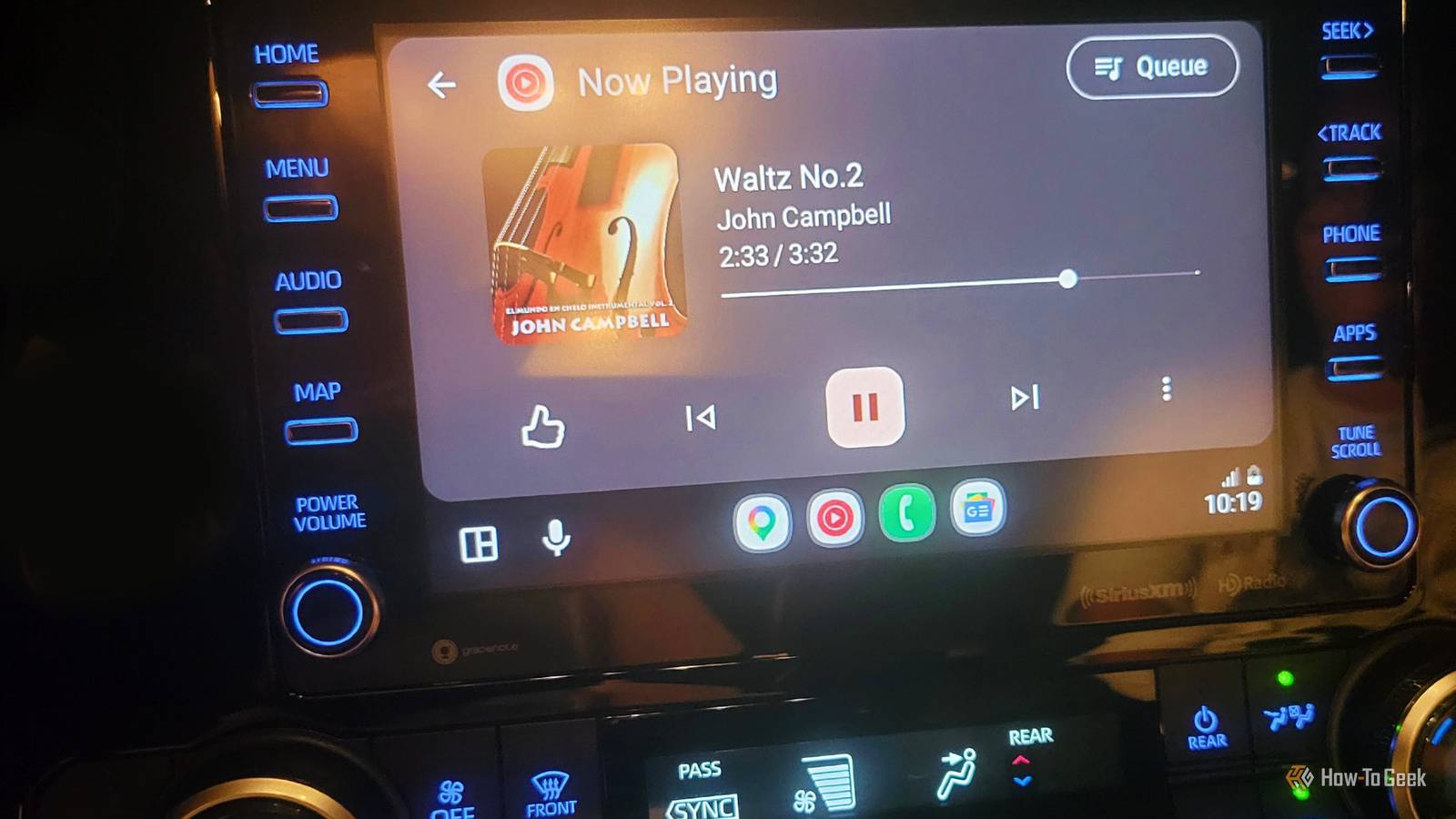
All you need to do is let it update Having a pending update can cause problems When you get constant stuttering, black screens, or sudden connection drops, it is not uncommon to instinctively blame your smartphone or swap out your cables.However, there is a computer built directly into your dashboard.It's easy to forget that Android Auto is mostly a projection tool.
The stability of that projection is mostly controlled by the car's infotainment firmware.Every so often, Google makes big changes to Android Auto's communication protocols.That means if your car isn't updated, it might take too long to respond to security handshakes.
This leads to your phone cutting the connection for safety.Old firmware can also cause annoying display scaling issues.A wrong Display Power Interface setting makes navigation cues look too big and wastes screen space.
Luckily, the fix is usually as simple as letting your car update its software.For newer cars, this fix happens through Over-The-Air (OTA) updates.To start an OTA update, you usually just need to connect your car to a secure home Wi-Fi network or use its built-in cellular data connection.
You can go through your infotainment screen to the system settings and pick "Software Update." If your car doesn't have constant cellular connections or an OTA rollout fails, you'll need to do a manual firmware flash using a USB drive.Just get a USB flash drive formatted specifically to FAT32.An 8GB should be fine, because older head units can't read modern file systems.
Go to your manufacturer's official owner portal, like Ford Support or the Toyota update site, and put your 17-digit Vehicle Identification Number (VIN) in to download the exact firmware files made for your make and model.After you put these files directly onto the main directory of your USB drive, plug it into your car's data port you'd use for Android Auto.Make sure to avoid any ports with a lightning bolt symbol, which are just for charging.
Once the car recognizes the drive, the screen will tell you to start the installation.Regardless of which you choose, the process can take anywhere from fifteen to forty minutes.During this manual flash, it's very important to keep the engine idling in a well-ventilated area.
This way, the system doesn't lose power and brick the unit.There could be other issues you're missing Sometimes, the problem can be fixed with a little time and care While updates can be the hidden issue that causes your problems, there are daily issues that can happen if you're not careful.The USB cable you use isn't just a power cord; it's a high-speed line that's prone to signal issues and electromagnetic interference in a car's noisy environment.
Using a short, good-quality cable is a great way to stop disconnects that happen with cables that have poor shielding.You should look for a USB-IF certified cable that comes with a twisted-pair design.This naturally helps cancel out outside electromagnetic noise and stops data packet loss.
Also, length is very important for signal quality.Cables longer than three to six feet can weaken the signal a lot, which degrades the digital data bits needed for screen mirroring.If you dedicate a short, certified data-transfer cable only for your car, you're another step closer to cleaning up your issues.
Make sure to clean the USB ports on both your phone and the head unit with compressed air or a wooden toothpick to remove dust and lint; you'll get rid of a lot of interference.If you use a wireless connection, you'll have other issues.Since this process happens entirely in the background, your phone needs permission to manage these radios.
If your wireless connection drops often or doesn't start up, check that all needed permissions, like Location, Contacts, Microphone, Phone, SMS, and Notifications, are allowed.Besides permissions, aggressive battery optimization settings can get in the way.You need to go into your phone's app settings and change Android Auto's battery usage to 'Unrestricted' or 'Don't optimize' to stop the phone from killing the connection to save power.
If you have all that done, but you still have issues, you should just clear the Android Auto app cache.Corrupted temporary files can really mess up your connection.Just go to your storage settings, clear the cache, and you'll notice how much faster your phone is overall.
Always update your computers It is easy to forget that cars have changed to become more like computers every day.While there is an argument about how much you can now work on your car, it does make a lot of things more convenient.Unfortunately, that means that expected fixes and maintenance rarely include things like checking your firmware.
This is something I do at least twice a year just to be sure.It doesn't take long, and you can find it in your settings.That way, you won't have to wonder if it is a physical issue or a software issue.
UGREEN 240W USB C Cable Gen2 10Gbps USB 3.2 Brand UGREEN Cable Type USB-C Length 3.3FT Data Transfer Rate 10Gbps $20 at Amazon Expand Collapse
Read More