Android Auto does a decent job out of the box, but some of its default settings are clearly designed for the average case instead of your specific situation.That kind of thing is okay at first, but it gets really annoying when the novelty of the apps wears off.None of these are terrible on their own, but together they add up to something more annoying than it needs to be.
Luckily, they’re easy to change.Android Auto starts playing music the second you plug in Turn off autoplay to stop getting blasted with loud sound Close Android Auto has a setting that automatically starts your music the moment you plug in your phone, which sounds great in theory.I have hated this feature from day one because it usually means getting blasted with whatever was playing last, at full volume.
Getting a wall of sound from heavy metal with your kids in the car is never fun.You can turn the autoplay feature off entirely in the Android Auto settings on your phone.However, a lot of people still want their music to start on its own, just not at full tilt with no warning.
If you want, you can also set this up on MacroDroid.So you can set a specific volume or playlist instead.However, the downside is that it would take time to change, and you will still have to switch up the audio if you’re tired of that playlist.
MacroDroid is a third-party automation app that lets you set things up yourself instead of hoping the car’s last volume was reasonable.To turn off the automatic play feature, open the Settings app on your phone and search for Android Auto.Once you find it, scroll down to the General section and look for the “Start music automatically” toggle and just switch it off.
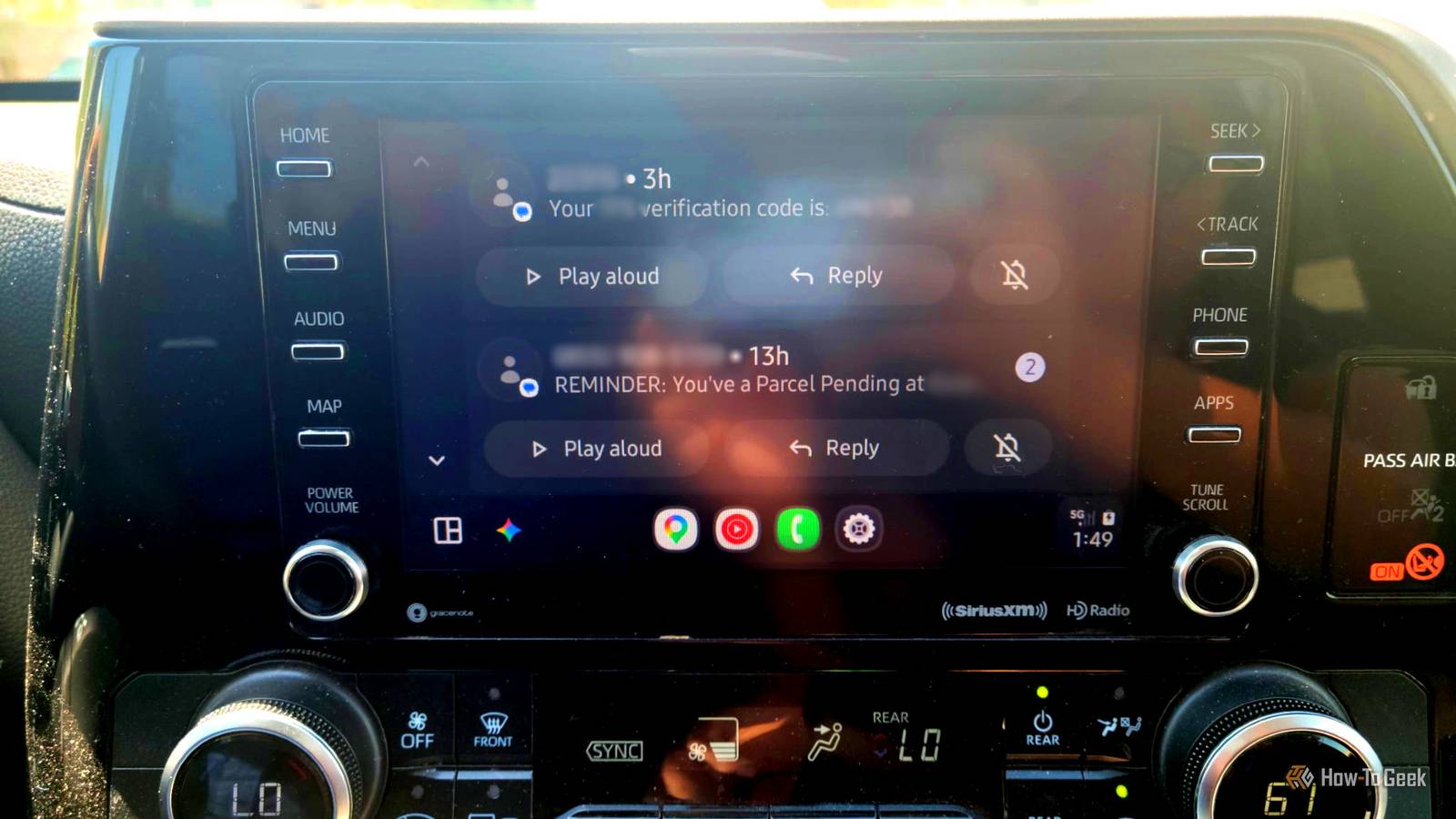
After that, your car won’t automatically start playing music whenever you plug your phone in or connect wirelessly.Incoming texts show up on the dashboard for everyone Change your notification settings to keep messages private Android Auto is great for staying connected on the road, but its default settings don’t do much for your privacy.Right out of the box, it’s set up to display your incoming text messages on your car’s infotainment screen.
So anyone can see the sender’s name and a preview of the message.It’s easy to get a lot of information from those few lines.When you’re driving alone, that’s probably fine.
But the second you’ve got a coworker, a family member, or really anyone else in the passenger seat, it becomes a problem.Nobody wants a personal or embarrassing text suddenly splashed across the dashboard for the whole car to read.You can change the notification settings, so Android Auto only tells you a message came in, without showing who it’s from or what it says.
Your display will still ping you, but it’ll just be a generic alert.You don’t get any names or content.To make the change, grab your phone and open your phone’s Settings app.
Go to “Connected devices” or “Connection preferences,” and tap Android Auto.Scroll down to the “Messaging” section, where you’ll find a toggle called “Show first line of messages,” and turn that off.That’s the main one.
While you’re there, you might also want to disable “Play AI message summaries,” so the assistant doesn’t read your texts out loud to everyone in the car.Automatic switching can leave you with a dark screen Lock your map to day mode so it stays readable Android Auto is supposed to automatically switch your navigation display between day and night modes, either by reading your car’s headlight signal or by tracking local sunrise and sunset times.The idea is that it dims everything after dark to reduce eye strain.
In practice, though, this automatic switching is buggy.I ran into this problem twice, in two completely different cars.Both times, the system got stuck in night mode so dark that the navigation map was basically unreadable while I was driving on the highway.
Instead of a usable map, I was looking at a muddy, near-black screen where the roads and turn directions were almost impossible to make out.To fix it, I decided to just lock the display to day mode permanently.You can do this by opening the Android Auto app on your phone, going to the Maps section, and switching “Day/Night mode for maps” from Automatic to Day.
I don’t really think of this as a cosmetic preference because I felt really unsafe driving with it stuck in a mode that was too dark.So I think this is necessary for safety.A map that goes dark and unreadable while you’re driving at night forces you to stare at your dashboard trying to make sense of it, which means your eyes are off the road.
Locking it to day mode means your navigation stays bright and clear, no matter what time it is or what your car’s sensors are doing.The assistant reads your messages too slow Turn up the speech rate to save time The worst part of Android Auto is that Google’s Text-to-Speech engine is set to a pretty slow speaking rate by default.That’s always been my biggest complaint with any speaking AI.
They’re so slow, but it’s become a bigger deal now that Google Gemini is replacing the classic Google Assistant in Android Auto.Unlike the old Assistant, which kept things short, Gemini is built for real conversation, so its responses run longer and sound a lot more natural.That’s fine in theory, but when those long responses get read out at the slow default pace, you’re stuck waiting to hear the part you actually needed.
All you have to do is bump up the TTS playback speed.The only tricky part is finding where the setting lives.Open your phone’s Settings app, head to Accessibility, then tap “Text-to-speech output.” You’ll see a Speech rate slider, and dragging it to the right speeds things up.
You can test it right there in the menu before you ever get back in the car.It’s up to you whether to turn these off None of these changes are dramatic, and a few of them take less than a minute to make.Just keep in mind that the defaults Android Auto ships with aren’t wrong for everyone.
However, if any of these situations sound familiar, the settings to fix them have been there the whole time.I know I like Android Auto a lot more without these settings on.
Read More