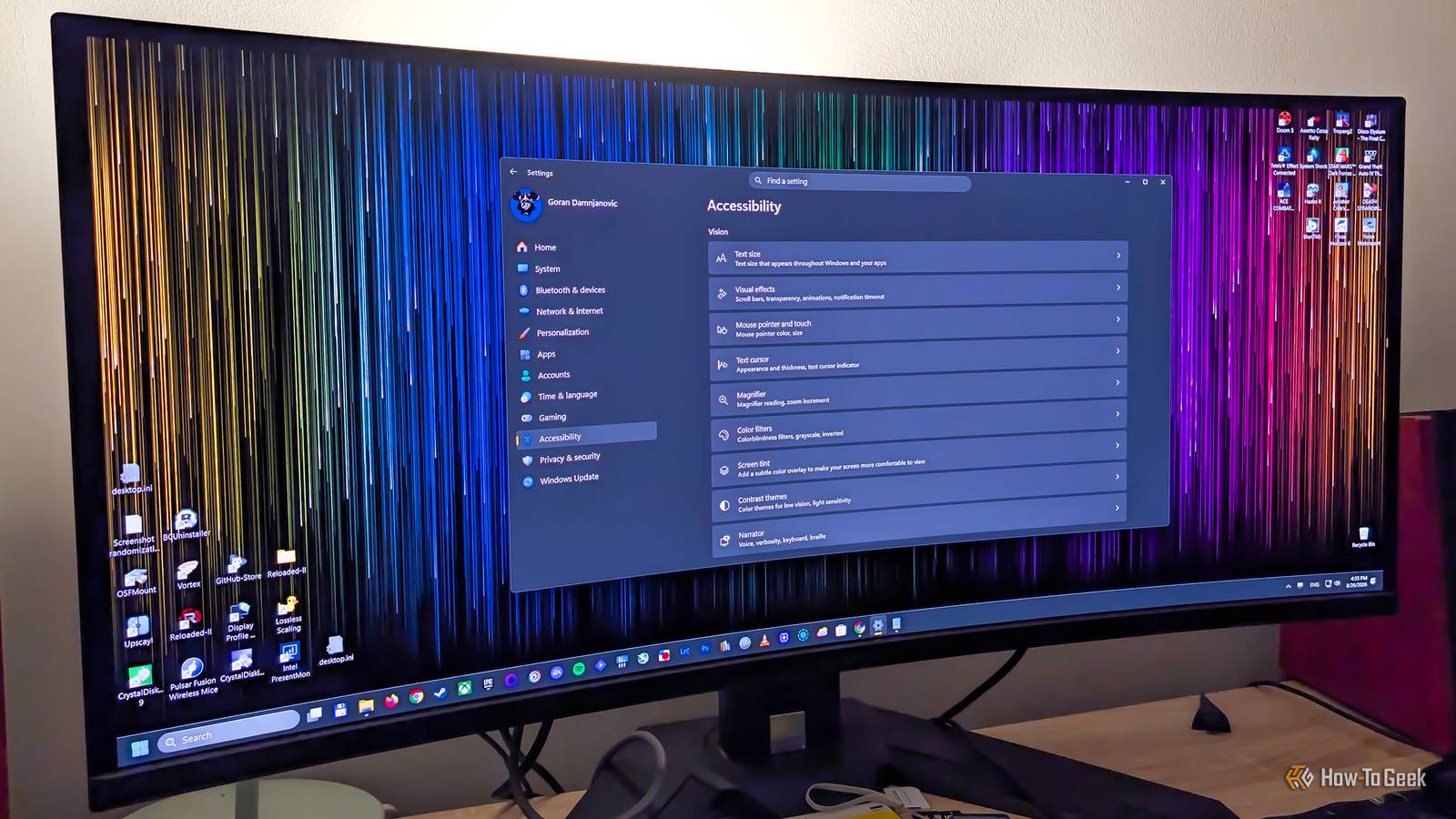
I'm not going to lie; I was a massive fan of Windows Aero when it debuted with Windows Vista, and I continued to rave about the famous translucent glass UI in Windows 7, which is my favorite version of Windows to this day.Microsoft went with much more subdued transparency effects in Windows 10 and kept the same general design language in Windows 11.But after getting jaded by the Liquid Glass interface in macOS, which I toned down as much as I could, I recently decided to disable transparency effects on my Windows PC as well.
So far, I'm happy with the change and don't plan to go back anytime soon.I prefer Windows 11 without transparency effects And you may, too Close The fact of the matter is that transparency effects are quite subdued in Windows 11, so much so that you probably hardly notice them in your daily Windows routine.That was the case with my Windows experience, but it wasn't on my Mac mini after upgrading to macOS Tahoe.
Apple's "new" Liquid Glass UI, which debuted with macOS Tahoe, made me realize the blur was too strong and a readability nightmare, so I reduced it as much as possible mere months after installing the update.While not perfect, it's much better compared to the default look, which is way too "glassy" for my taste.Then I upgraded to an OLED monitor this spring, and one of the first things I noticed was just how better the dark theme looks now, both on Windows and macOS.
Thanks to OLED's practically infinite contrast and fantastic colors, I love dark mode on my Windows PC more than ever.But something was amiss, and I found out what a few weeks ago.So I was tweaking some stuff in Windows Settings for an article I was writing, and at one point I disabled transparency effects.
While the change was subtle, I realized I preferred how the Windows UI looks without that subtle glassy look, so I decided to keep transparency effects disabled.Fast-forward to today, and I can say that the UI now looks cleaner and slicker than ever before.What I also did to bring back that hint of color that transparency effects provided by letting my Chroma Drencher live wallpaper (you can find it in Wallpaper Engine) subtly seep through open windows was change the accent color from the drab dark gray I'd used for years to a playful golden yellow.
This combo gives me a hint of colorfulness in Windows menus that keeps things clean without making them dull.If reading this has you deciding to try using Windows 11 without transparency effects as well, you can disable them either by going to Settings > Personalization > Colors and turning off the Transparency effects toggle, or by visiting Settings > Accessibility > Visual effects, where you can disable the same toggle.Close If you own an older or underperforming Windows PC, disabling transparency effects doesn't only make the Windows 11 UI look cleaner; it can also improve performance.
Not by much, mind you, and the difference is unlikely to be noticeable on a modern machine, but if Windows 11 crawls on your PC, it may chug along a little faster without transparency effects.Disable animations to make Windows 11 run even better Every single one, or just those that bother you Close If you struggle with Windows 11's performance on your machine, you should disable animations on top of turning off transparency effects.Disabling animations has a twofold effect: it can free up some resources, potentially improving performance, and it can make Windows 11 feel genuinely snappier because there are no animations that delay every action you perform on your PC ever so slightly.
Those tiny delays can add up when you're performing hundreds of actions on your Windows PC every day.Subscribe to the newsletter for practical Windows tips and more Refine your setup: subscribe to the newsletter for practical Windows customization, OLED-friendly UI suggestions, and performance tweaks to try.The newsletter offers hands-on guidance so you can make Windows look and behave the way you prefer.
Get Updates By subscribing, you agree to receive newsletter and marketing emails, and accept our Terms of Use and Privacy Policy.You can unsubscribe anytime.Personally, I don't like the animation-free experience, and since I can't speed up animations in Windows like I can on my Android phone and can only flat-out disable them, I keep them on.
That said, this is all subjective, so perhaps you'll prefer how Windows 11 feels when you banish animations to the shadow realm.At the end of the day, it doesn't hurt to try it.As for me, I've tried it multiple times and found that I'm someone who likes my Windows experience with a hearty dose of animations.
To disable animations, go to Settings > Accessibility > Visual effects.There you'll find the Animation effects toggle, which you can turn off.If you want to keep some animations while disabling others, you can also search for Advanced System Settings in Windows Search and click the appropriate result—Windows being Windows, there are now two Advanced System Settings menus—then open Performance settings and deactivate only the animations you want in the Visual Effects tab.
I find the OLED monitor life better without transparency effects For years, I didn't care much about glassy effects in my Windows 11 UI.But after getting overwhelmed by macOS Tahoe's overbearing Liquid Glass UI and then upgrading to an OLED monitor, I realized that I like my Windows 11 transparency-free.I'm now convinced that I prefer the opaque look of Windows 11 and don't plan to revert to the default look anytime soon.
Read More