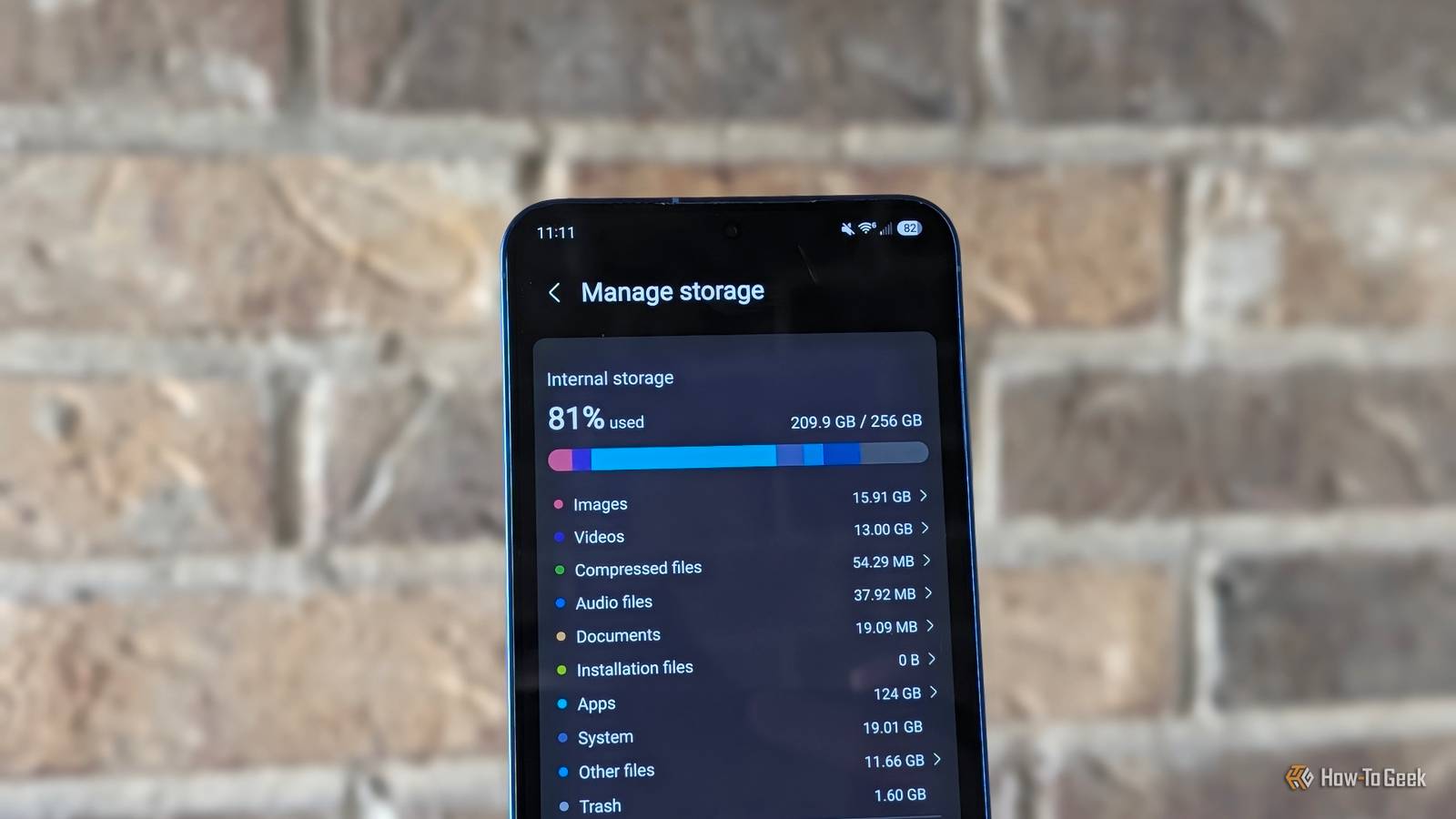
Having a phone with enough storage space is essential, and even though base models now come with more than ever, running out of space is still a common problem.Thanks to powerful cameras for photos and video, large modern apps, and more, your storage will slowly disappear.Even worse, part of the problem isn't your fault.
Whether it's the pre-installed apps and bloatware on our phones, some of which randomly appear after a software update, or the various built-in features, your Samsung Galaxy's system and apps can quickly consume dozens of gigabytes of precious storage space.Here are four features that are eating your storage, along with how to free it up.Pre-edit photo backups are draining your storage Your Galaxy is storing many of the same photos twice I've been on a quest recently to free up space on my Samsung phone, and I found a hidden feature in the settings that was taking up 19 GB.
Better yet, you can clear up all that storage in under a minute.Did you know that every time you edit a photo or video in your Galaxy phone's gallery, it saves both the edited version and the original? It's called a "pre-edit backup," and your Galaxy saves it just in case you want to "revert to the original" if you don't like the results.I edit, crop, or resize every photo, so I had hundreds of duplicate photos and videos wasting space.
To find and remove these backups, head to the settings menu, scroll down to Device Care, tap Storage, then scrollpast all the storage sections until you see the (pre-edit) versions section.Close Or you can find it in Settings > Device Care > Storage > Show More > Other Files.From here, you can delete all backups at once or manually select which files to delete.
And again, this only deletes the original backups, and not the finished edited photo or video you want.System apps and bloatware Remove pre-installed apps you'll never need I frequently go through my app tray and uninstall apps I've downloaded and no longer use, but that's only part of the problem.See, Samsung phones come with a slew of pre-installed apps, bloatware, carrier-partnered games, and other junk.
All of that wastes valuable storage space.Pre-installed apps from Samsung and Google can waste a ton of space.I'm talking about things like Shop Samsung, Samsung Language Core, all the bundled Microsoft apps, Samsung TV Plus, Samsung Global goals, random games, and so much more.
Related The 5 apps I uninstall on every Samsung Galaxy phone Save space and clean up that app tray.Posts 16 By Cory Gunther Samsung Language Core takes up over 3GB, and Google's AICore is using nearly 7GB on my phone.And while some of these help the keyboard or select AI features, you can certainly do without them.
Head into Settings > Apps and remove things you know you won't use.And if you can't uninstall it, hit disable, and it'll at least disappear from your app tray.Samsung RAM Plus isn't as good as it sounds A feature that takes away storage Samsung Galaxy phones are among the best on the market and are packed with excellent features.
However, there are several One UI features we disable on every Galaxy phone.Have you ever heard of RAM Plus? If not, let me enlighten you.RAM Plus takes away storage space on your phone and turns it into virtual memory.
Virtual memory works like RAM, allowing more apps and processes to run in the background.I don't know about you, but my phone already has 12GB of RAM, and that's more than enough.I don't need the software stealing my storage to give it even more.
Depending on your Galaxy phone model, RAM Plus could use anywhere from 2GB to 12GB of internal storage.It's enabled by default, too, so that 128GB is actually 120, or less, and that's without considering the operating system, apps, and other features that also take up space.Go ahead and disable this feature to free up storage space for apps, photos, or music.
Head to Settings > Device care > Memory > RAM Plus and then restart your phone.Data collection and system logs Another easy way to reclaim your storage Last but not least, I want to mention a few hidden data collection processes and system logs that could be draining several gigabytes of data from your Galaxy.For starters, follow this guide to disable Samsung's customization service, which can free up space and improve battery life.
That feature collects information about you to better target ads, recommendations, and other junk.You don't need it.Additionally, most Android phones log all sorts of stuff in the background, like diagnostics, app crashes and other crash reports, system events, debugging data, and more.
You'll only ever need these logs if your phone breaks or has a serious issue and a Samsung repair technician pulls them.Most repairs involve a cracked screen, so you might as well delete those system logs, which can often be over 3 GB in size.Samsung doesn't make it easy, unfortunately.
Start by going to Settings > Security and privacy > Auto Blocker, and temporarily switch it off.This safety tool prevents the code from dumping your logs.So, temporarily disable the Auto Blocker, then open your phone app and dial *#9900# into the keypad.
You won't need to hit the call button, as the hidden SysDump menu will pop up instead.From here, simply tap Delete dumpstate/logcat near the top of the menu.You'll confirm the action by hitting OK, then you'll see a "Delete success" message.
Now, exit the menu and restart your phone to finish clearing the cache and free up that precious space.More storage for the things you really care about Keep in mind that you don't necessarily need to do any of this if you have plenty of storage space on your phone.However, if you're like me and are running out of space for the first time, these tricks can easily get you a ton of space back.
Between all of these suggestions and clearing the videos in Google Messages, I reclaimed nearly 40GB of storage on my Galaxy S25 Plus.Give it a try yourself, you'll be glad you did.Related Samsung still sells great phones with a MicroSD slot—here are your best options Don't expect a flagship phone.
Posts 12 By Cory Gunther
Read More