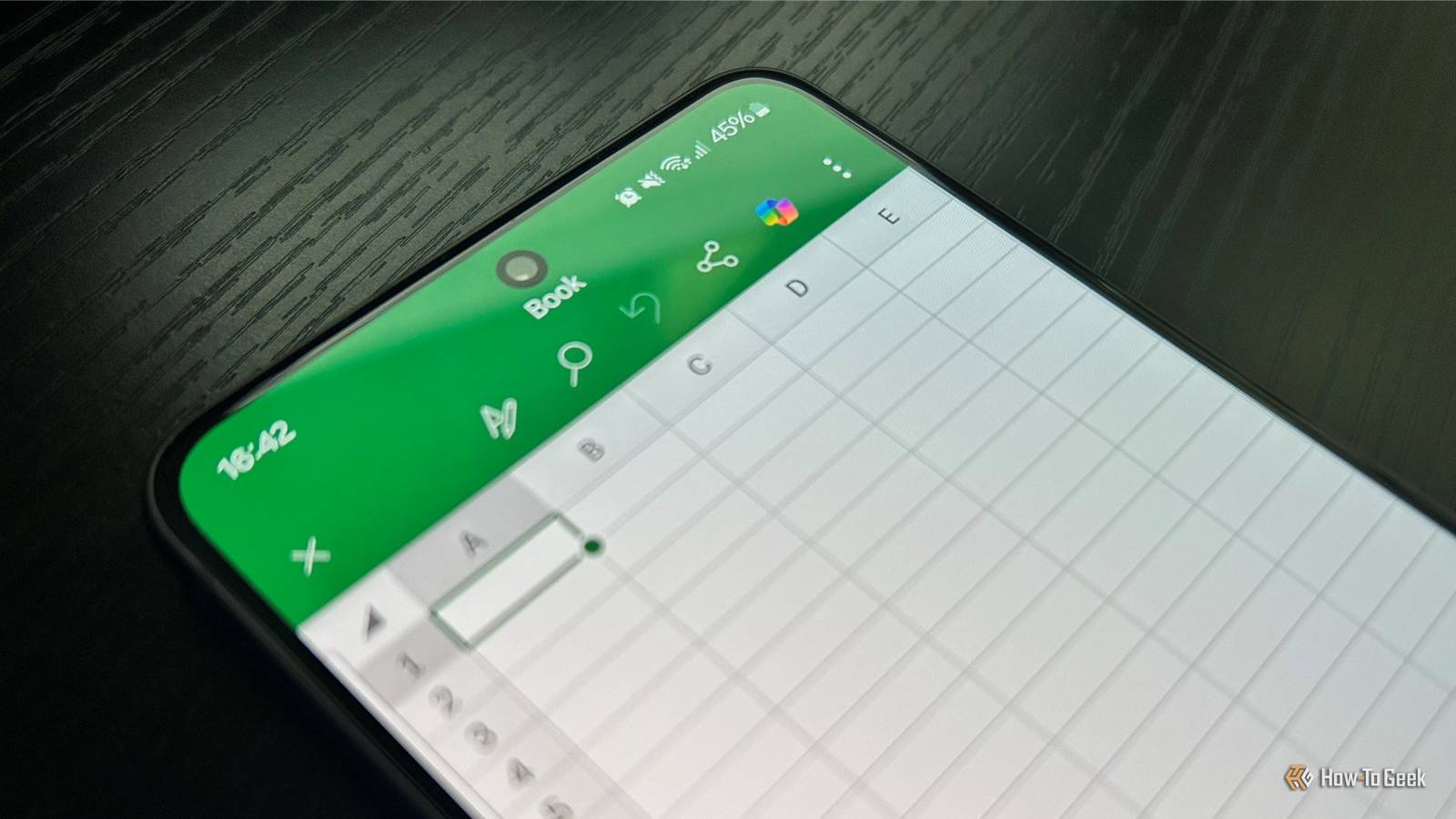
Excel is well-known for being a versatile and powerful desktop app, but I always found the mobile app (iOS and Android) frustrating to use.As it turns out, I was looking at my spreadsheets the wrong way.A little-known feature called Cards View replaces cramped grids with a touch-friendly layout.
This guide uses Excel for iOS in the screenshots.Some touch gestures may differ slightly between iOS and Android—but the same principles apply to both.Mobile spreadsheets are traditionally frustrating to navigate Traditional grid layouts don't map well to phone screens I used to avoid opening Excel on my phone because spreadsheets are fundamentally designed for widescreen desktop monitors.
They rely on wide rows, multiple columns, and precise cursor control.Shrinking that experience down to a smartphone screen creates obvious usability problems.In my experience, zooming out turns the data into unreadable specks, while zooming in requires a constant cycle of horizontal and vertical scrolling.
It's incredibly easy to lose track of column headers and row context—even if you freeze panes—which increases the chances of entering data into the wrong cell or breaking a formula because it was hidden outside your active viewport.This is where Cards View comes in.Instead of forcing you to work inside a compressed desktop-style grid, Excel reformats each row into a simple card layout designed for touchscreens.
It keeps the same underlying data, but presents it in a way that is far easier to browse and edit on a phone.Before you begin: Make sure your data is well structured Cards View works best with clean, contiguous datasets Cards View can usually detect data blocks automatically, but ensuring your spreadsheet has a clean structure makes navigation more reliable and reduces unexpected behavior.For the best results: Use a single continuous data block with no blank rows or columns.
Place clear column headers in the first row.Ensure each column represents a single type of data, and each row represents a record.For the most consistent experience, convert your dataset into an Excel table (Insert > Table).
This helps Excel clearly define your data range and improves how features like Cards View interpret your spreadsheet.Microsoft 365 Personal OS Windows, macOS, iPhone, iPad, Android Free trial 1 month Microsoft 365 includes access to Office apps like Word, Excel, and PowerPoint on up to five devices, 1 TB of OneDrive storage, and more.$100 at Microsoft Expand Collapse How to activate your optimized mobile layout The touchscreen interface is only a couple of taps away Once your data is structured as an Excel table, launching the card interface takes only a moment: Tap any data point within your formatted table.
In the bottom toolbar, tap the Cards View icon, which looks like a small vertical stack of rectangular index cards.The traditional grid is replaced with a list of individual summary cards, starting at the row you selected in step 1.Making the most of Cards View on your device Viewing and updating your dataset suddenly becomes straightforward Once you tap a card to view or edit the full details of a record, Excel adjusts your interaction options based on the cell type.
Columns using data validation drop-down lists display a small arrow next to the field that you can tap to switch your input value.For standard text or number fields, you can select the row directly to open your keyboard and type your updates.Columns containing formulas are labeled with a distinct fx tag, meaning they calculate automatically and can't be manually overridden within the Cards View interface.
Cards View also includes navigation and record management tools, so you hardly ever need to return to the main spreadsheet grid.The features below outline everything you can achieve from this dedicated view after you expand a card: Quickly navigate: Tap Next or Previous at the bottom of the screen to smoothly jump to the entry directly before or after the active one.Insert new records: Tap the three dots in the corner of your active card and choose Insert Above or Insert Below to add a new blank record into your sheet.
Manage the row: This same menu also lets you tap Duplicate Card to copy the current card's data, or Delete to wipe the entire row from your spreadsheet.Share your card: Finally, tap Share Card to send the card's data directly to your team as an image.Excel on your phone doesn't have to be frustrating Instead of wrestling with endless horizontal scrolling, Cards View presents spreadsheet data in a format that actually feels natural on a phone.
It changed how I use Excel on mobile, and I now find myself reaching for Cards View whenever I need to view or update a spreadsheet away from my computer.This is just one way to improve your workflow in the Excel mobile app.For example, inserting data via your camera, using the numeric keyboard, and switching between landscape and portrait views at the right times are all simple changes that can make Excel on your phone feel less like a compromise and more like a genuinely useful productivity tool.
Related 5 ways your phone's Excel app is secretly better than the desktop version Despite its reputation, Excel mobile speeds up data entry, captures tables through the camera, and streamlines touch-based editing.Posts By Tony Phillips
Read More