My Gmail inbox had become a dumping ground for promotional emails, shopping notifications, old conversations, and outdated hotel reservations I no longer needed.With the holidays approaching, I wanted to clear out the clutter before it got any worse.Add How-To Geek on Google Add as Preferred Source Follow on Google Discover So, I decided to give my Gmail inbox a proper cleanup.
I used Gemini and three other tools that helped me get rid of unnecessary emails, organize the ones I wanted to keep, and make my inbox easier to manage.Personally, Gemini did wonders for my inbox.I let Gemini clean up my Gmail inbox Gemini can organize emails with a simple prompt I usually spend more time than I’d like sorting through promotional emails and messages I no longer need.
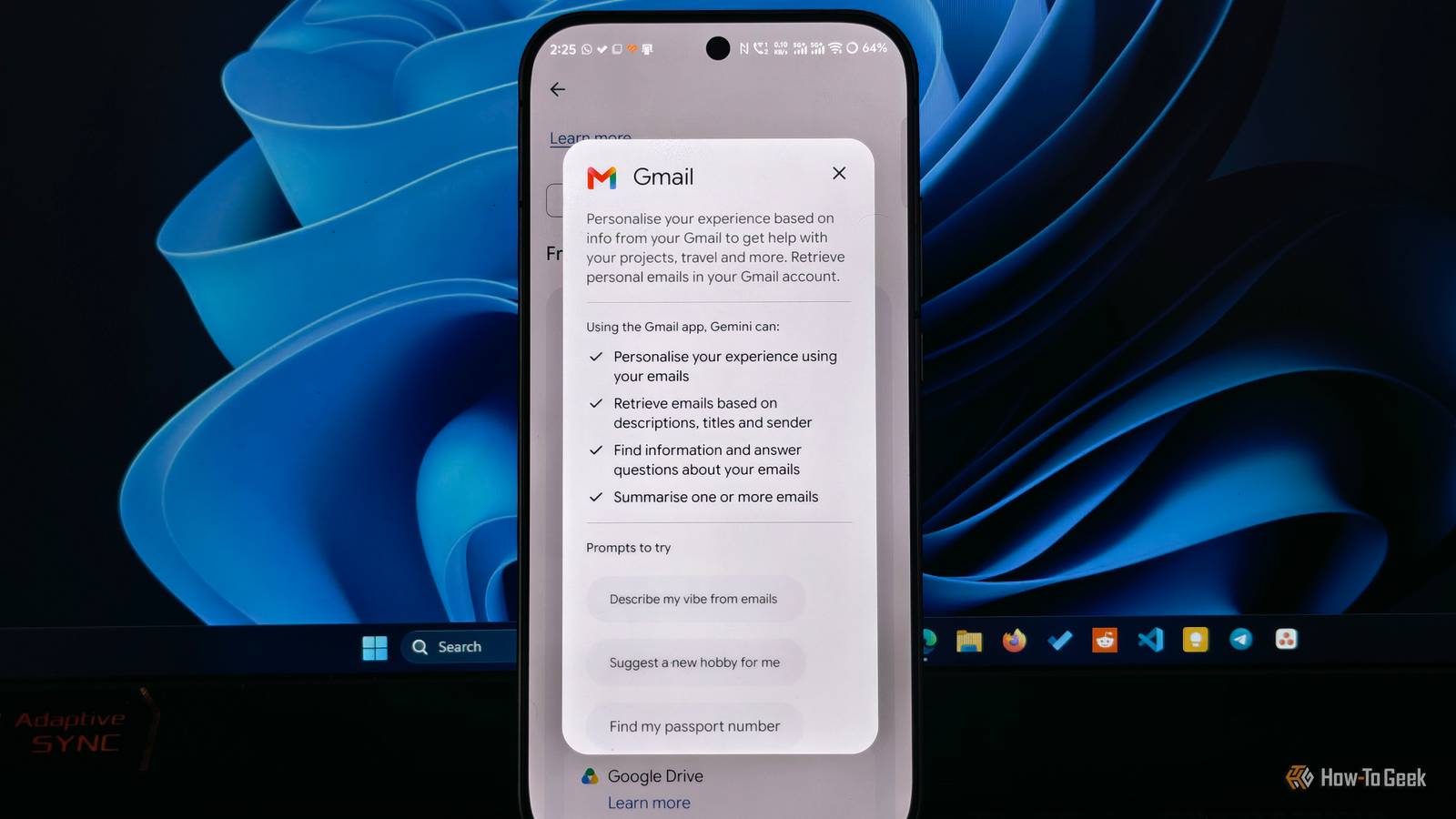
This time, I wanted to see if Gemini could handle some of that work.I opened Gmail, clicked Ask Gemini, and entered this prompt: “Find promotional emails I haven’t opened in the last three months and show me which ones I can delete.” Gemini searched my inbox and showed me the matching emails so I could review them.I could review the matching emails before asking Gemini to delete them.
It can also archive messages, apply existing labels, mark emails as read or unread, and star messages.I didn’t have to select each email manually or go through my inbox one message at a time.Gemini showed me a confirmation card before making any changes, so I could check that it hadn’t selected something important by mistake.
If I confirm an action accidentally, Gmail also gives me 60 seconds to undo it.I unsubscribed from emails I had never read Gmail makes it easier to find unwanted subscriptions Close I get a lot of promotional emails from shopping websites, newsletters, and services I signed up for over the years.I rarely open most of them, but they keep showing up in my inbox and pushing important emails further down.
Instead of deleting these messages every few days, I decided to unsubscribe from companies I no longer wanted to hear from.Gmail’s new Manage subscriptions feature made this quick because now I could see the senders I frequently received emails from and decide which ones were worth keeping.To find it, I opened Gmail, selected Manage subscriptions from the left sidebar, and reviewed the list of senders.
Gmail also shows how frequently they email me, so I could spot the ones filling up my inbox.I selected the small email icon on the right side of each sender and unsubscribed.This won’t stop every unwanted email immediately, but it should reduce the promotional clutter over time.
I stopped deleting emails one at a time Search operators helped me clear out old messages faster When I started this cleaning process, I didn’t realize how many unnecessary emails I had accumulated.There were old bank OTP emails, old shopping offers, delivery updates for orders I had received months ago, and my brother’s funny emails.Deleting them individually would have taken forever, so I used Gmail’s search operators to find groups of emails I could remove together.
For example, I searched for to find promotional emails and to locate messages older than a year.I went through the search results, selected the emails I no longer needed, and deleted them in bulk.I also searched for emails larger than 10MB using to find messages taking up storage space.
This saved me from opening hundreds of emails one by one.I set up Gmail filters to organize incoming emails Keep low-priority emails out of my inbox I didn’t want my inbox to become cluttered again a few weeks after cleaning it up, so I started using Gmail filters to handle recurring emails automatically.For example, I regularly receive emails with subject lines such as “Your weekly newsletter” and “Your account activity summary.” I don’t need to read these messages as soon as they arrive, but I still want to keep them.
Instead of manually moving them every time, I created filters using these subject lines and asked Gmail to apply a label and skip the inbox.To set this up, I opened a message, clicked the three-dot menu, and selected Filter messages like these.I entered the relevant criteria, selected Create filter, and chose Skip the Inbox and Apply the label.
Now, these emails go straight to their respective labels instead of filling up my inbox.Related Gemini in Android Auto is finally good for more than just giving directions Meet my new copilot.Posts By Sanya Shah A cleaner Gmail inbox makes the holidays less hectic With the holidays approaching, I’m already juggling family plans, shopping, work deadlines, and things I need to get done before the year ends.
The last thing I want is to spend my time searching through a messy inbox when I’m trying to find an important email.After making these changes, my days feel a little more sorted, and Gmail is one less thing I have to worry about.I’d rather spend that extra time shopping for my next trip or playing with my daughter.
Related I regretted updating my iPhone to iOS 27, but these 5 changes fixed it I got my iPhone back.Posts 3 By Sanya Shah
Read More