Android Auto is easily the coolest feature your car can have if you're an Android user.It turns your car's head unit into an extension of your smartphone, and when it works correctly, it's perfect for displaying your maps, music, and messages all on a large screen that doesn't distract you during driving.However, that magic quickly fades when the system starts acting up.
Whether you're dealing with random crashes, annoying signal dropouts, or just the generally poorly thought-out design of certain elements, the list of annoying problems can feel endless.Fortunately, most of these issues are easily solvable with a few targeted tweaks.Stabilize your wireless connection through tweaks Stop the random disconnects Let’s set the scene: you’re driving in a new town for the first time, traffic is heavy, and you’re using Google Maps running on Android Auto to get to some secluded location.
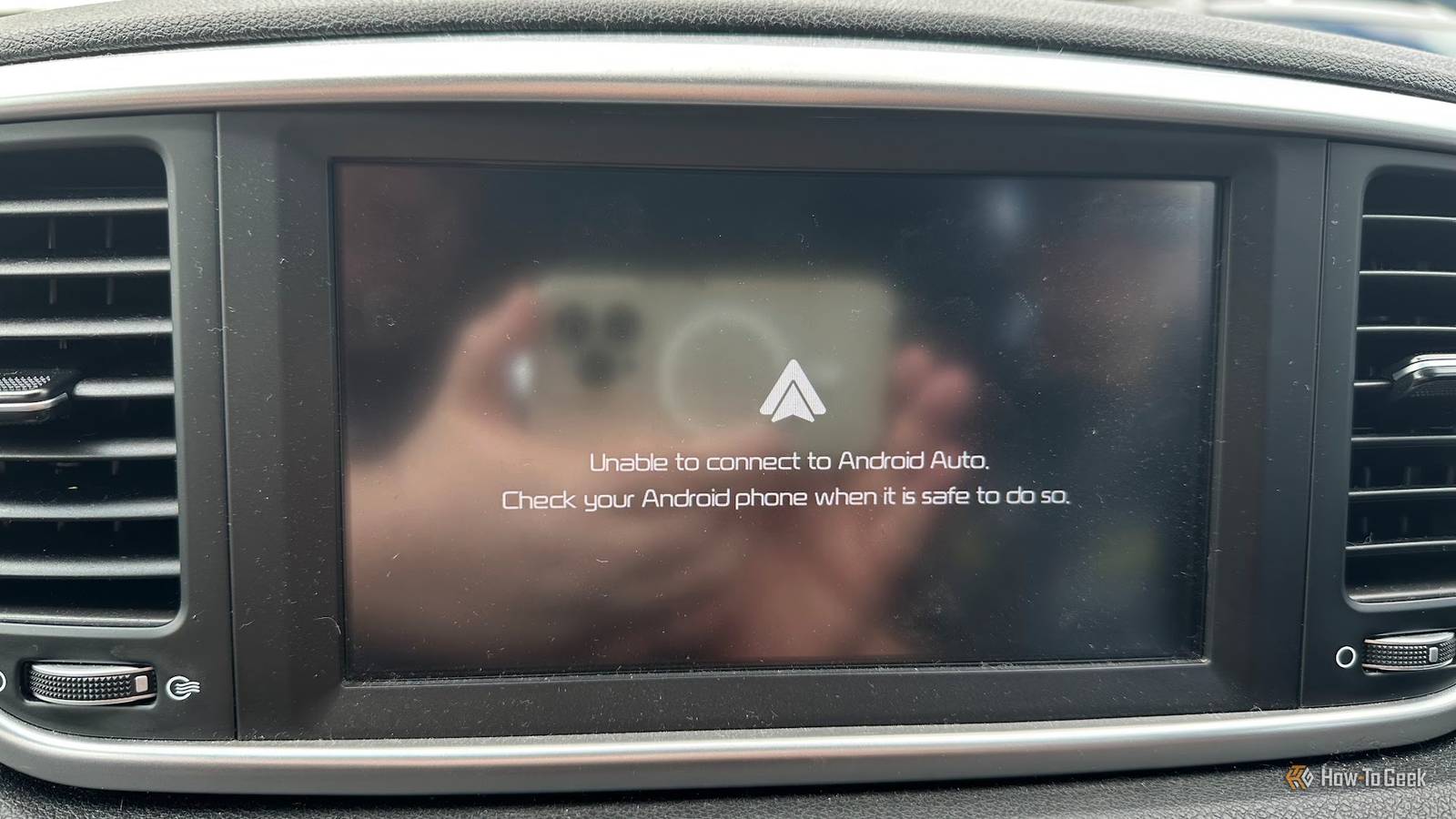
As you’re driving, your head unit randomly starts freezing before eventually crashing, leaving you with no music and no directions to your destination.That happened to me not too long ago, and it was very annoying.Other times, your phone won’t connect to your car’s head unit in the first place.
Several factors can affect wireless signal stability, but there are a few ways to optimize this.Head over to your Wi-Fi settings and disable any adaptive Wi-Fi or auto-connecting options that might cause your phone to switch to a known nearby local Wi-Fi instead of your car.Another thing you should do is remove battery optimization restrictions on your Android Auto app, as well as Google Play Services and any apps you use while you drive, like Google Maps and Spotify.
If it still keeps dropping, try removing your car from Android Auto and Bluetooth and re-pairing to give it a clean slate.Unfortunately, part of this behavior is inherent to wireless connections—when you’re driving on an empty road, it’s easy for your phone to connect to your car wirelessly.However, if you’re in a busy street, other people using their head units wirelessly, the people on sidewalks using wireless earbuds, and just the general interference in some parts of a city create a wireless signal jam—there’s a particularly busy area in my city where my signal drops almost every single time.
Ultimately, if you want a near-100% reliable signal, the best solution is to connect your phone to your car via a USB cable.Related I tried a wireless Android Auto adapter—here's 5 reasons I want back to wired Convenience comes with compromises — and they add up fast.Posts 7 By Tyler Dupont A high-quality wired connection is more stable, but it's not Not all USB cables are created equal Even though a wired connection is infinitely better and more stable than wireless, it’s not perfect.
The same battery optimizations that cause wireless signals to drop are responsible for stopping the apps from working in the first place, so make sure to disable them.If you never got your wired signal working in your car in the first place, there’s a good chance that you’re using a USB cable that’s only designed for charging.Or maybe your cable just isn’t good enough—Android Auto is surprisingly resource-heavy, so if your car has a USB 3.0 port or better, strongly consider upgrading to a better cable if you're still using USB 2.0.
Also, the cable should have a 56KΩ pull-up resistor, which ensures data and power are handled correctly between your car and your phone.A cable that supports a higher USB standard provides the bandwidth needed to handle all your data at once, even when running navigation and music simultaneously.Also, try to use a shorter (3 ft/1m or shorter) cable to minimize signal degradation and interference.
UGREEN 240W USB C Cable Gen2 10Gbps USB 3.2 Brand UGREEN Cable Type USB-C This UGREEN USB 3.2 Gen2 cable provides a massive 10Gbps bandwidth that handles high-resolution maps and music streaming simultaneously.Its 3.3ft length and 56KΩ resistor ensure a stable connection that works flawlessly with Android Auto.Length 3.3FT Data Transfer Rate 10Gbps Charging Rate 240W USB Version USB 3.2 $20 at Amazon Expand Collapse Another thing you should check is dirt in your car’s or phone’s USB port.
The cable can’t make contact with the pins inside your phone’s USB-C port if it’s full of pocket lint and dust.If your phone still refuses to connect, it could be a car-specific quirk.For instance, my colleague Sydney discovered that his Android Auto only works consistently if he plugs the phone in before switching the ignition on.
This bug was likely caused by an Android Auto update, but there's not much you can do if you want to use the latest version.Resize massive notifications via a hidden Developer settings option The most important of all the hidden options If your Android Auto works just fine, but it becomes unusable whenever you get a notification that takes up the entire screen, there’s actually a solution for that.It’s a surprisingly common problem that happens when your phone and head unit don’t agree on the “correct” screen size, resulting in a DPI mismatch.
Your phone then thinks your car screen is smaller than it is, so Android Auto zooms in notification banners, and the end result is comically large.The fix is shockingly simple, but it’s literally buried in a hidden menu.Head over to your phone’s Android Auto settings, scroll down to Version, and tap it 10 times until you get a prompt asking if you wish to enable development settings.
Tap OK, then tap the three-dot menu in the top-right corner and tap Developer settings.Find the option called Video Resolution and cycle through a few of the different available options until you find one where notifications are a size that suits your car screen.If Google Assistant/Gemini frequently ignores you, there are ways to fix it Ensure your voice commands actually get heard Aside from taps, voice commands are the primary way you're supposed to interact with Android Auto, so when the function fails, things fall apart.
If your voice assistant doesn't work on your phone either, try clearing the cache for the Google app.Subscribe to the newsletter for Android Auto fixes and more Want smarter Android Auto setups? Subscribe to the newsletter for hands-on troubleshooting, hidden developer tweaks, cable and connection recommendations, and clear setup advice to keep your car's head unit stable.Get Updates By subscribing, you agree to receive newsletter and marketing emails, and accept our Terms of Use and Privacy Policy.
You can unsubscribe anytime.Also, make sure your preferred voice assistant can work while your screen is locked, as it's probably tucked away while you're driving.Open the Google app on your phone > tap your profile picture > Settings > Google Assistant > Lock Screen > enable Assistant responses on lock screen.
If you still can't get the voice assistant to trigger in your car, try using the voice button on your car's steering wheel to trigger the assistant (if your car has the button).Boost performance on older devices by optimizing settings Even an older Android phone can have a great Android Auto experience If you're rocking an older Android phone and find that Android Auto gets worse with each new update, maybe you should consider sideloading an older version of the app to see if functionality improves.If it does, disable auto-updates for Android Auto in the Play Store.
On the flip side, if you haven't updated the app in a while, try that.Updating to the latest version can fix all kinds of bugs and performance issues, even on older devices.The same is true for any other app that you're using within Android Auto.
Delete the cache, roll back updates, or try updating to the latest version before giving up on your favorite apps.Google Maps is especially resource-heavy, so try switching to a lightweight app for navigation (preferably one with an offline mode), such as Sygic or Organic Maps.As a last resort, you can try heading back into the hidden Developer settings menu and switching to Allow up to 480p in the Video resolution sub-menu to boost performance by forcing a low-quality video stream.
Don't let the issues drive you crazy Although Android Auto can suffer from a bunch of random issues like signal dropouts and performance issues, it still remains one of the genuinely most useful driving enhancements that modern software has to offer.Fortunately, most issues can be resolved with a few simple software tweaks and by taking a few seconds to plug your phone into your car instead of using the wireless connection.Related 6 Things That Would Make Android Auto Better It's good, but it could be better Posts 14 By Joe Fedewa
Read More