I recently found myself in a frustrating position: I was paying for gigabit internet, yet my PC’s speed tests kept dropping to a suspiciously precise number: 100 megabits per second.Fluctuations in internet speed are normal—you might expect gigabit internet to slow down by a few hundred megabits per second if there is a lot of network congestion.However, 100 megabits is slow, and it was extremely consistent.
When it dropped, it dropped to 100Mbps.Something other than random fluctuations was slowing down my network.I benchmarked the whole network Break it down piece by piece To find my bottleneck, I needed to treat my network as a series of individual links and evaluate them one-by-one.
I traced the path from the modem to the router, through the switch, and finally to the PC, noting every cable and wall jack in between.In my case, there was a single Ethernet cable between the modem and router, a long Cat6a cable from the router to a gigabit switch, and then a smaller Cat6 cable between the switch and my PC.Any of them could be the problem.
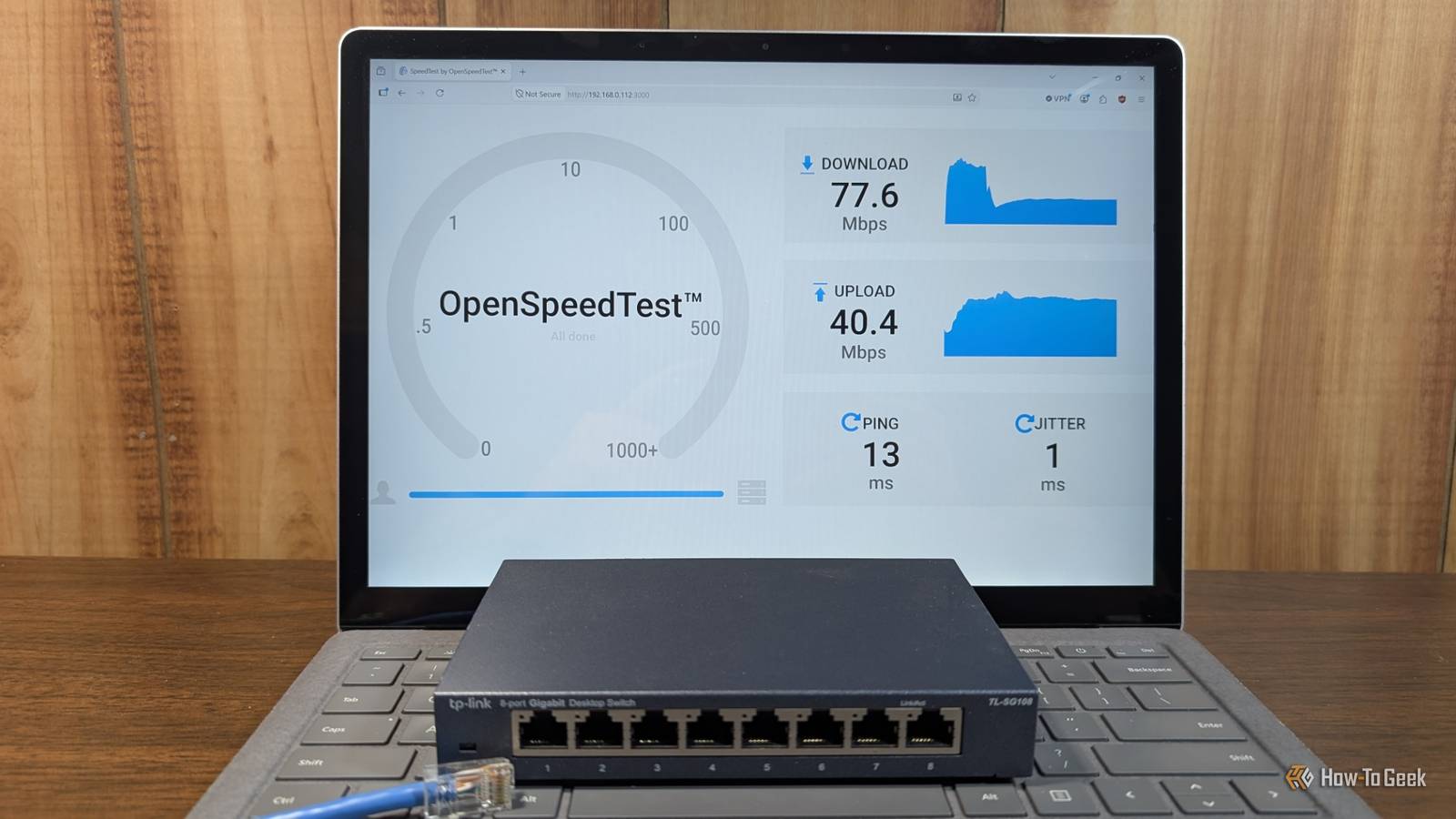
My internet speeds on my wireless devices and wired devices were fine, so it definitely wasn't the modem, router, or the connection between the two devices.To narrow things down, I launched an OpenSpeedTest server on my Windows PC and started checking the connection speed between different devices on my LAN.It works a bit like an internet speed test but runs on your local network.
Quiz 8 Questions · Test Your KnowledgeHome networking & Wi-FiThink you know your routers from your repeaters — put your home networking know-how to the ultimate test.Wi-FiRoutersSecurityHardwareProtocolsBegin 01 / 8Wi-FiWhat does the '5 GHz' band in Wi-Fi offer compared to the '2.4 GHz' band?ALonger range but slower speedsBFaster speeds but shorter rangeCBetter wall penetration and faster speedsDLower interference but identical speedsThat's right! The 5 GHz band delivers faster data rates but loses signal strength more quickly over distance and through walls.It's ideal for devices close to the router that need maximum throughput, like streaming 4K video.Not quite — the 5 GHz band actually offers faster speeds at the cost of range.The 2.4 GHz band travels farther and penetrates obstacles better, which is why smart home devices and older gadgets often prefer it.Continue 02 / 8ProtocolsWhich Wi-Fi standard, introduced in 2021, is also known as Wi-Fi 6E and extends into a new frequency band?A802.11acB802.11axC802.11beD802.11nCorrect! 802.11ax is the technical name for Wi-Fi 6 and Wi-Fi 6E.
The 'E' variant extends the standard into the 6 GHz band, offering a massive swath of new, less-congested spectrum for faster and more reliable connections.The answer is 802.11ax — that's Wi-Fi 6 and Wi-Fi 6E.Wi-Fi 6E adds support for the 6 GHz band, giving it far less congestion than the crowded 2.4 GHz and 5 GHz bands.802.11be is actually the upcoming Wi-Fi 7 standard.Continue 03 / 8RoutersWhat is the default IP address most commonly used to access a home router's admin interface?A192.168.0.1 or 192.168.1.1B10.0.0.1 or 172.16.0.1C255.255.255.0 or 255.0.0.0D127.0.0.1 or localhostSpot on! The vast majority of consumer routers use either 192.168.0.1 or 192.168.1.1 as the default gateway address.
Typing either into your browser's address bar will bring up the router's login page — just make sure you've changed the default password!The correct answer is 192.168.0.1 or 192.168.1.1.These are the most common default gateway addresses for home routers.The 255.x.x.x addresses are subnet masks, and 127.0.0.1 is your own machine's loopback address, not a router.Continue 04 / 8SecurityWhich Wi-Fi security protocol is considered most secure for home networks as of 2024?AWEP (Wired Equivalent Privacy)BWPA (Wi-Fi Protected Access)CWPA2 with TKIPDWPA3 (Wi-Fi Protected Access 3)Excellent! WPA3 is the latest and most robust Wi-Fi security protocol, introduced in 2018.
It uses Simultaneous Authentication of Equals (SAE) to replace the older Pre-Shared Key handshake, making it far more resistant to brute-force attacks.The answer is WPA3.WEP is completely broken and should never be used, WPA is outdated, and WPA2 with TKIP has known vulnerabilities.WPA3 offers the strongest protection, and if your router supports it, you should enable it right away.Continue 05 / 8HardwareWhat is the primary difference between a mesh Wi-Fi system and a traditional Wi-Fi range extender?AMesh systems only work with fiber internet connectionsBRange extenders create a seamless single network while mesh systems create separate SSIDsCMesh nodes communicate with each other to form one seamless network, while extenders create a separate networkDMesh systems are always wired, while extenders are always wirelessExactly right! Mesh systems use multiple nodes that talk to each other intelligently, handing off your device seamlessly as you move around your home under one SSID.
Traditional range extenders typically broadcast a separate network and can cut bandwidth in half as they relay the signal.The correct answer is that mesh nodes form one intelligent, seamless network.Range extenders are actually the ones that often create separate SSIDs (like 'MyNetwork_EXT') and can significantly reduce speeds.Mesh systems are far superior for large homes with many devices.Continue 06 / 8ProtocolsWhat does DHCP stand for, and what is its main function on a home network?ADynamic Host Configuration Protocol — it automatically assigns IP addresses to devicesBDirect Hardware Control Protocol — it manages router firmware updatesCDistributed Hosting and Caching Protocol — it speeds up web browsingDDynamic Hypertext Communication Protocol — it secures data transmissionsPerfect! DHCP (Dynamic Host Configuration Protocol) is the unsung hero of home networking.
Every time a device joins your network, your router's DHCP server automatically hands it a unique IP address, subnet mask, and gateway info so it can communicate without manual configuration.DHCP stands for Dynamic Host Configuration Protocol, and its job is to automatically assign IP addresses to devices on your network.Without it, you'd have to manually configure a unique IP address on every single phone, laptop, and smart device — a tedious nightmare!Continue 07 / 8RoutersWhat is 'QoS' (Quality of Service) used for in a home router?AEncrypting all traffic leaving the routerBPrioritizing certain types of network traffic over othersCAutomatically switching between 2.4 GHz and 5 GHz bandsDBlocking malicious websites using a DNS filterThat's correct! QoS lets you tell your router which traffic gets priority.For example, you can prioritize video calls or gaming over a family member's file download, ensuring your Zoom meeting doesn't freeze just because someone is downloading a large update.QoS — Quality of Service — is actually about traffic prioritization.
By tagging certain data types (like VoIP calls or gaming packets) as high priority, your router ensures latency-sensitive applications get bandwidth first, even when the network is congested.Continue 08 / 8HardwareWhat does the 'WAN' port on a home router connect to?AOther computers in your home network via EthernetBA wireless access point for extending Wi-Fi coverageCYour modem or ISP-provided gateway to the internetDA network-attached storage (NAS) deviceCorrect! WAN stands for Wide Area Network, and the WAN port is where your router connects to the outside world — typically to your cable modem, DSL modem, or ISP gateway.The LAN ports on the other side connect to devices inside your home network.The WAN (Wide Area Network) port connects your router to your ISP's modem or gateway — essentially your entry point to the internet.The LAN (Local Area Network) ports are for connecting devices inside your home.
Mixing them up can cause your network to not function at all!See My Score Challenge CompleteYour Score/ 8Thanks for playing!Try Again Once I started testing things, an interesting pattern showed up.All of my mobile devices saw about 100Mbps, and my Raspberry Pi (which is attached directly to the router) also only got 100Mbps.Weirdly, the two other devices attached to the same switch all saw speeds around one gigabit when I tested the connection to my PC.
I that meant that the cable connecting the switch to the router was the problem, but when I retested the setup with my PC connected directly to that Ethernet cable, I got full gigabit.That left one possible culprit: the gigabit switch.However, the three devices connected to that switch all performed well, and actually saw speeds above one gigabit.
I was extremely surprised by that result, but it still pointed me in a useful direction.I suspect the speed test is slightly inflated because of some kind of measurement error on the software end.It doesn't really matter for troubleshooting though.
On a gigabit connection, a variance of 60 to 70Mbps is a normal—and usually unnoticed—fluctuation.After a game of Ethernet port musical chairs, a pattern emerged.The rightmost Ethernet port, which is the one I had connected to the router previously, would only support speeds up to 100Mbps.
Somehow, it'd been damaged.Cable Matters 10Gbps Snagless Shielded Cat6A Ethernet Cable Brand Cable Matters Length 2 Meters Cable Type Stranded Connector Type RJ-45 Category Ethernet Speed 10GBps The Cable Matters Cat6A 10Gbps Shielded Ethernet Cable enhances gaming performance by providing a stable and high-speed connection while minimizing interference and latency. $9 at Amazon Expand Collapse Your network is only as fast as the slowest device Don't cheap out on switches or Ethernet The fact that weak link in my network chain reduced the maximum speed of three devices on my network by 90% reinforces an important point: don't cheap out on your network gear.
Today, the price difference between a good Cat6a and a cheap Cat5e is pretty small unless you're buying hundreds of feet.The difference in price between an alphabet-soup branded "gigabit" switch and one from a reputable brand isn't usually more than $10 to $15.However, the difference in your network reliability and consistency can be noticeable.
Cheap Ethernet cables often use undersized conductors and shoddy construction that results in poor signal integrity, which will reduce the maximum bandwidth of every device connected to them.Similarly, budget switches are often poorly made, and will be way more prone to failure if they experience any bumps or yanks.If you're paying good money for a speedy internet connection, don't bottleneck your network by buying the least expensive components you can find.
High-quality components usually age well too.A Cat6a cable will still be useful 10 years from now, and unless you physically damage your switch like I did, a solid switch will outlive every electronic device in your network.How can a cable or switch break and still provide 100Mbps? There are several plausible reasons why a switch or cable could "go bad" while still providing some connectivity.
The big clue in my case was the speed, which was actually extremely informative.The fact that my internet speeds dropped to 100Mbps instantly pointed towards one of two potential problems.If something had erroneously set my PC's Ethernet adapter speed to 100Mbps, the maximum speed it would be able to achieve would be exactly that limit.
Alternatively, a bad connection cause the speed to auto negotiate down to drop to 100Mbps.Ethernet cables have four of wires for a total of eight conductors.Gigabit (or faster) Ethernet requires all four wire pairs in a cable to function normally.
On the other hand, 100Mbps (100BASE-TX) only needs two pairs, which is why you can sometimes get away with repurposing old telephone wire for the job in short residential runs, though I wouldn't recommend it.Related Stop drilling giant holes in your walls: Why every homelabber still needs to learn how to crimp RJ45 Is it still worth it to make your own Ethernet cables? Posts 28 By Sydney Butler If you have one problematic pair or a finicky port in a chain of devices otherwise capable of gigabit internet, auto-negotiation will fall back to the lower speed—100Mbps—to maintain the connection.Neither Windows nor your router will notify you that is happening by default either, you're left to notice the discrepancy on your own.
Not every broken Ethernet connection will downshift to 100Mbps.If you sever a green or orange wire, or the corresponding pin, it won't work at all.Switches are fairly simple devices, so the actual problem is probably just mechanical damage.
Maybe I pulled on an Ethernet cable too hard, and it bent a pin in the port, or perhaps the port's connection to the switch's board was damaged by a drop.Whatever the case, it wasn't worth fixing, so it was thrown in the recycling pile.How to find your own bottleneck One link at a time If you suspect a bottleneck, map the chain.
Every device and cable between your router and the slow machine is a suspect until proven otherwise.Deals Save on networking deals: switches, Cat6a cables Discover discounts on switches, Cat6a cables, adapters, and other networking gear.Browse offers to lock in savings on reliable hardware and accessories that prevent slowdowns and improve home LAN performance.
Deals Explore Storage & Networking Deals You should check negotiated link speeds first because it's free, instant, and catches this kind of failure immediately.On Windows, you can find that by checking the Adapter Status; on Linux, you can use ethtool.Those numbers tell you what the hardware it can do.
From there, run OpenSpeedTest or iPerf3 (a command-line tool) to check your speeds between different devices.If you find a slow link, swap cables one at a time.Finally, bypass the suspect hardware with a direct connection if you can—it is the fastest way to isolate a problem device.
Don't let poor network performance slide, you can usually fix it In any network, the slowest device in the chain sets the ceiling for everything behind it."Gigabit" on a spec sheet is a claim of capability, not a report on the current health or capabilities of the hardware.If you do any kind of homelabbing, I'd recommend setting up an iPerf3 or OpenspeedTest server on at least one device in your network so you can regularly keep an eye on your internal network speeds to ensure you're not losing performance anywhere.
Similarly, you should use something like Internet Pi to keep an eye on the speed you're getting from your ISP.I've encountered multiple situations where someone was for speeds they weren't getting from their ISP, and notifying them of the issue was enough to get it resolved.
Read More