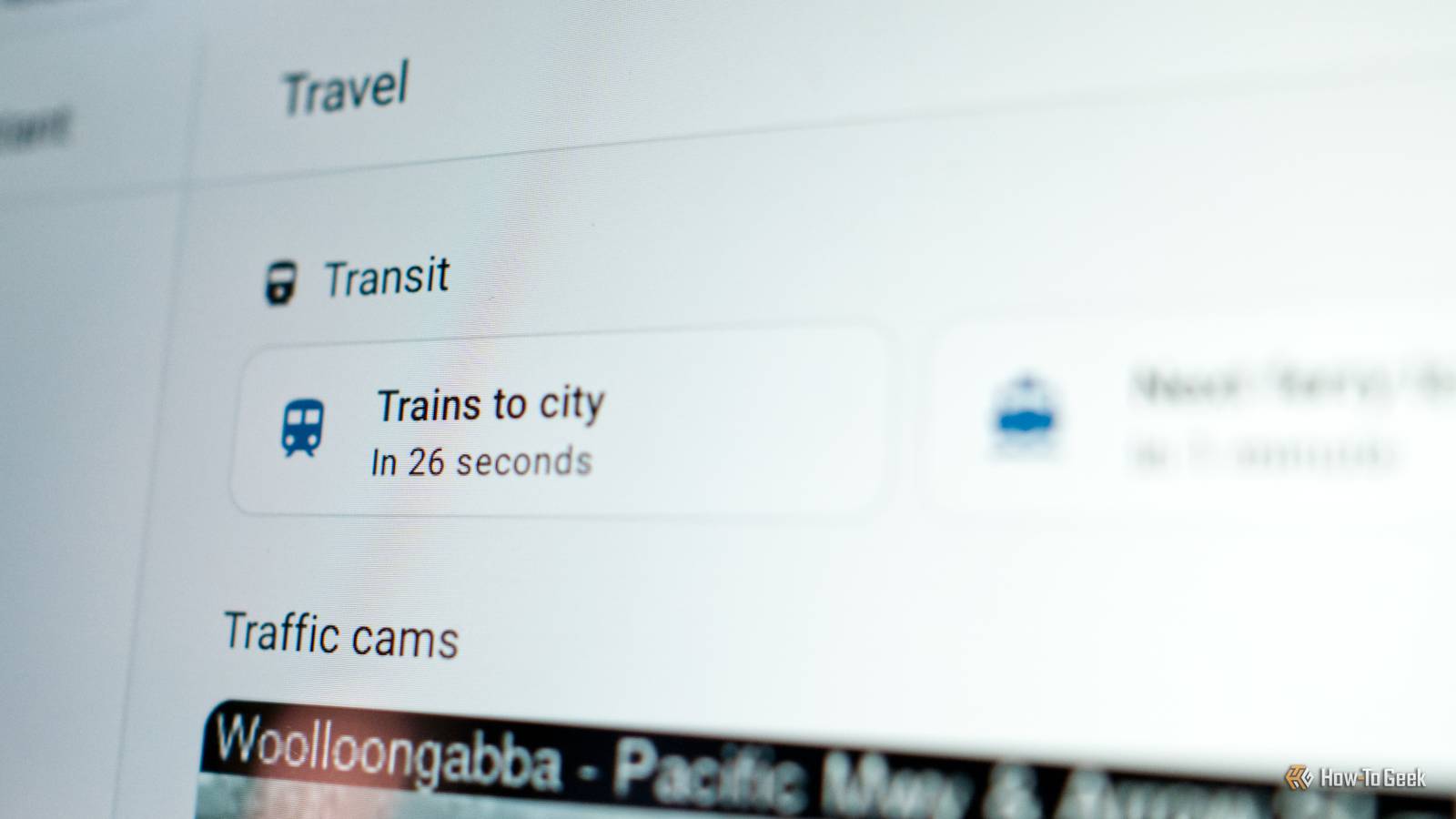
After trying several public transport integrations and messing around with YAML configurations, I finally added reliable transit information to my Home Assistant dashboard.Thanks to a custom integration and about five minutes of setup, the whole thing was surprisingly easy.Why I added public transport data to Home Assistant It’s not (just) because I’m a nerd I’m lucky enough to have good transit links where I live, with two train lines, a ferry service, and plenty of buses within a few minutes’ walk from my house.
Because I take the train whenever I can, I wanted a reliable way to quickly visualize the next departures when leaving the house.Adding this data to Home Assistant as a sensor that sits alongside your other data sources gives you an at-a-glance view of the nearest buses, trains, and trams based on wherever you are.With optional real-time updates, you can build out a more comprehensive dashboard that displays the location of vehicles and alerts.
Adding this data to Home Assistant essentially turns your smart home server into a transit tracker.With Home Assistant checking for upcoming departures, you can ask your voice assistant when the next train to the city leaves.With the data available in Home Assistant, you can pull it into other devices like those powered by ESPHome.
If you’re particularly clever, you may even be able to find a way to integrate specific services with notifications, alerts, and other automations.Me? I just wanted to add yet another useful service to Home Assistant.Adding transit information with GTFS2 Custom integrations come to the rescue The General Transit Feed Specification is, as the name suggests, a standard for delivering information about transit feeds.
It’s an industry-standard, so there’s a good chance that your local public transport authority is using it.It’s what journey planners and mapping services like Google Maps use.GTFS relies on a static timetable, with optional real-time elements.
To pull a timetable into Home Assistant, I’m using the GTFS2 integration.To use this, you’ll need to install the Home Assistant Community Store.From here, search for “GTFS2” then click on it, hit Download, and reboot Home Assistant.
You’ll now find GTFS2 in your Home Assistant integrations list.When you first add the integration, you’ll need to add a static GTFS source.You can do this by either providing the link to the ZIP file from your local transit authority, or by downloading the file and uploading it to the integration’s gtfs2-folder directory.
With this done, head back to Integrations and click Add Integration again.You can now add a schedule or list departures in your vicinity.The first option lets you specify the next services between two points, while the latter uses either the location of your server or a person (added under Settings > People) to list the nearby departures.
I’m using this to get the next trains heading towards the city from my local train station.The integration does a lot of the heavy lifting, and I only had to list stop names and give the route a name for it to work the first time.Once you’ve set up a route, you can click on the integration to see the list of entries, then use the “cog” button to enable the Setup Realtime integration? toggle.
This will give fields in which you can add feeds for updates, vehicle positions, and alerts.You should also update the Data refresh interval to something that makes more sense for your stop.The default value is 15 minutes, but if you have more frequent services, then you’re going to want to adjust this accordingly.
GTFS2 has a list of transit services that work with it, but the list is far from exhaustive.My local service isn’t listed; I just tried it out once I found the necessary URLs for GTFS services.Try it out; you might be pleasantly surprised.
The next steps Create your own departures board For me, having the next departures to the city on my Home Assistant dashboard as a sensor is what it’s all about.As a bit of a transit nerd, I’ve wanted to add data about the next departures to a small dedicated display, and this seems like a good way to accomplish this.You could feasibly use an ESP32 running ESPHome with an E-Ink display to create a dashboard extension that sits on your desk or on a hallway table.
If you already have a wall-mounted Home Assistant tablet, add the GTFS2 card to your dashboard, and you’re done.The GTFS2 documentation goes into detail about visualizing the data, with some examples for extended timetables and maps with real-time vehicle positions.You could probably even get an LLM like ChatGPT to help you design your own custom card.
Deals Smart Home & Gadgets Deals to Build Your Transit Dashboard Score discounts and offers on smart sensors, microcontroller boards, E-ink displays, wall tablets, and voice-assistant accessories — ideal for building transit displays, notifications, and automations in your smart home.Explore deals to save on gear and accessories.Deals Explore Smart Home & Gadgets Deals Finally, I exposed my city-bound trains entity to Home Assistant’s voice assistants, and then added an alias called “trains to the city.” This means I can ask Home Assistant’s voice assistant “when’s the next train to the city” to get an accurate response.
Home Assistant Green Dimensions (exterior) 4.41"L x 4.41"W x 1.26"H Weight 12 Ounces Home Assistant Green is a pre-built hub directly from the Home Assistant team.It's a plug-and-play solution that comes with everything you need to set up Home Assistant in your home without needing to install the software yourself. $219 at Amazon Expand Collapse Home Assistant isn’t just about controlling lights and other local devices; it can connect to all sorts of useful services to make life that little bit easier.It starts as an operating system for your home, but eventually can grow to encompass your whole digital life.
Don’t believe me? Check out what’s possible with the underused calendar feature and why adding your 3D printer to Home Assistant is totally worth it.
Read More