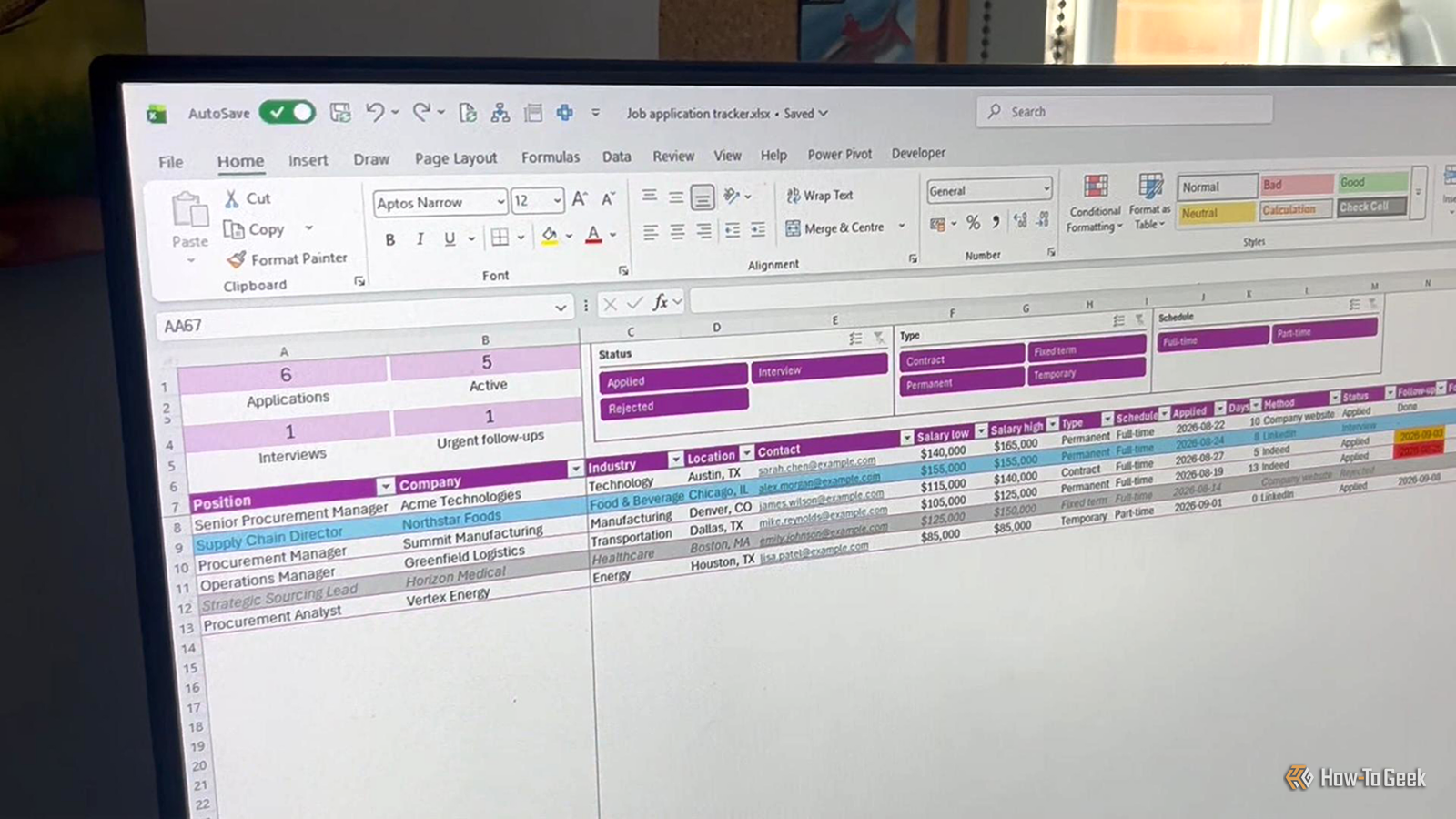
Once you've applied for more than a handful of jobs, keeping track of them can become a job in itself.You need to remember where you applied, when you applied, how you applied, who you spoke to, what the salary was, and whether you ever heard back.I built an Excel spreadsheet to keep all of that information in one place.
Then I added a few features that make it more useful than a simple list of applications.You can download a free, editable copy of my job-search tracker at the bottom of this article.I wanted one place to keep track of every application Everything I need in a single worksheet Close I started with the information you'd expect in a job-search tracker: the position, company, industry, location, type (permanent, fixed term, temporary, contract), schedule (full-time, part-time, freelance), date applied, status, and notes.
These are the basic details I want to capture for every application.I also included a few less-obvious fields: contact, salary range, application method, follow-up date, and a checkbox to indicate whether I've followed up.The result is a fairly wide spreadsheet, but that's intentional.
A job application can involve a surprising amount of information, and I don't want to rely on my memory to keep track of it.I also turned the range into an Excel table, so adding a new application automatically extends the formatting and formulas.Above the table, four cards show the total number of applications, active applications, interviews, and urgent follow-ups.
I can see exactly where every application stands A quick glance tells me what's happening Close The Status column is one of the most important parts of the tracker.It uses a data validation drop-down list containing "Applied," "Interview," "Offer," "Rejected," and "Withdrawn." Conditional formatting changes the appearance of each row according to the option I choose.Interview rows turn blue, successful applications turn green and bold, while rejected and withdrawn applications become gray and italicized.
That means I can scan the spreadsheet and get a quick idea of what's happening without having to read the Status column for every application.I don't have to remember when I should follow up Excel keeps an eye on the calendar Close This is where the spreadsheet starts doing some of the work for me.The Follow-up column automatically calculates a date seven days after I apply.
The formula is: =IF([@Status]="Applied", IF([@[Followed up]], "Done", [@Applied]+7), "-") If the application is still marked "Applied," Excel adds seven days to the application date.If I check the checkbox in the adjacent Followed up column, the corresponding Follow-up cell changes to "Done." If the application has moved to another status, it displays a dash.Finally, I used conditional formatting to make follow-ups due today or within the next three days orange, while overdue follow-ups turn red.
That gives me a clear visual reminder of what needs my attention.I can see which applications are going stale Waiting is part of the process, too The Days column automatically counts how long an application has been sitting without progressing.Here's the formula: =IF([@Status]="Applied", TODAY()-[@Applied], "") An application submitted yesterday and one submitted three weeks ago are very different situations, even though both might still have an "Applied" status.
This column makes that difference obvious.I can narrow down my job search in a couple of clicks I don't have to sift through every row Close The tracker has three slicers: one for Status, one for Type, and another for Schedule.I positioned them above the table, alongside the summary cards, so the main controls are always easy to reach.
Because the slicers work together, I can combine them to create a much more specific view.For example, I could show only permanent, full-time positions that have reached the interview stage.I grouped the three slicers together so they stay aligned when I use them, then froze the top seven rows and the first two columns.
This keeps the slicers, summary cards, column headings, and Position and Company columns visible as I scroll through the tracker.I can keep track of the details I'd otherwise forget The small details can matter later The less obvious columns are just as useful.I record the contact person's email address when I have one, and because Excel automatically turns email addresses into hyperlinks (unless you manually disable automatic hyperlinks in Excel Options), a single click opens up my email app with the recipient's email address already in the "To" line.
The salary range makes it easier for me to sort the jobs by pay or compare like-for-like if I get two offers.The application method gives me a quick reminder of where to go to check the application status.It also gives me useful context if I contact a recruiter directly.
I can tell them which position I applied for and where I submitted my application.I did consider adding a link to each job advert, but there's a problem: job listings disappear.Companies close applications, recruiters remove listings, and platforms eventually stop showing the original advert.
The Notes column is there for everything that doesn't fit neatly elsewhere: someone recommending me for the role, something a recruiter mentioned, or a detail I want to remember if I eventually get an interview.I made a few changes to make it feel like an app The finishing touches matter Close Once the functionality was there, I made a few visual changes to make the tracker feel more like a dedicated job-search tool: I turned off Excel's gridlines.The table already provides the visual structure, so the gridlines were just adding clutter.
I turned off the table's banded rows.I wanted the status colors to do the visual work, and the alternating row colors were competing with the conditional formatting.I formatted the slicers to match the table.
This makes them feel like part of the interface rather than objects I've simply dropped onto the worksheet.I autofit the columns.I wanted enough room for the information to be readable without leaving unnecessary gaps between columns.
With those changes, plus the frozen headers and grouped slicers, the finished spreadsheet looks surprisingly close to a dedicated job-application app.It's more useful than a list What started as a simple list of applications is now a tracker that tells me where I've applied, what stage I'm at, how long I've been waiting, and what needs my attention.A few formulas, checkboxes, drop-down lists, slicers, summary cards, and conditional formatting have turned a basic Excel table into something I can actually use to manage my job search.
Download a free, editable copy of my tracker.When you click the link, you'll find the download button in the top-right corner.Open the file in Excel, replace "Start here" with your first application, and you're ready to go.
Read More