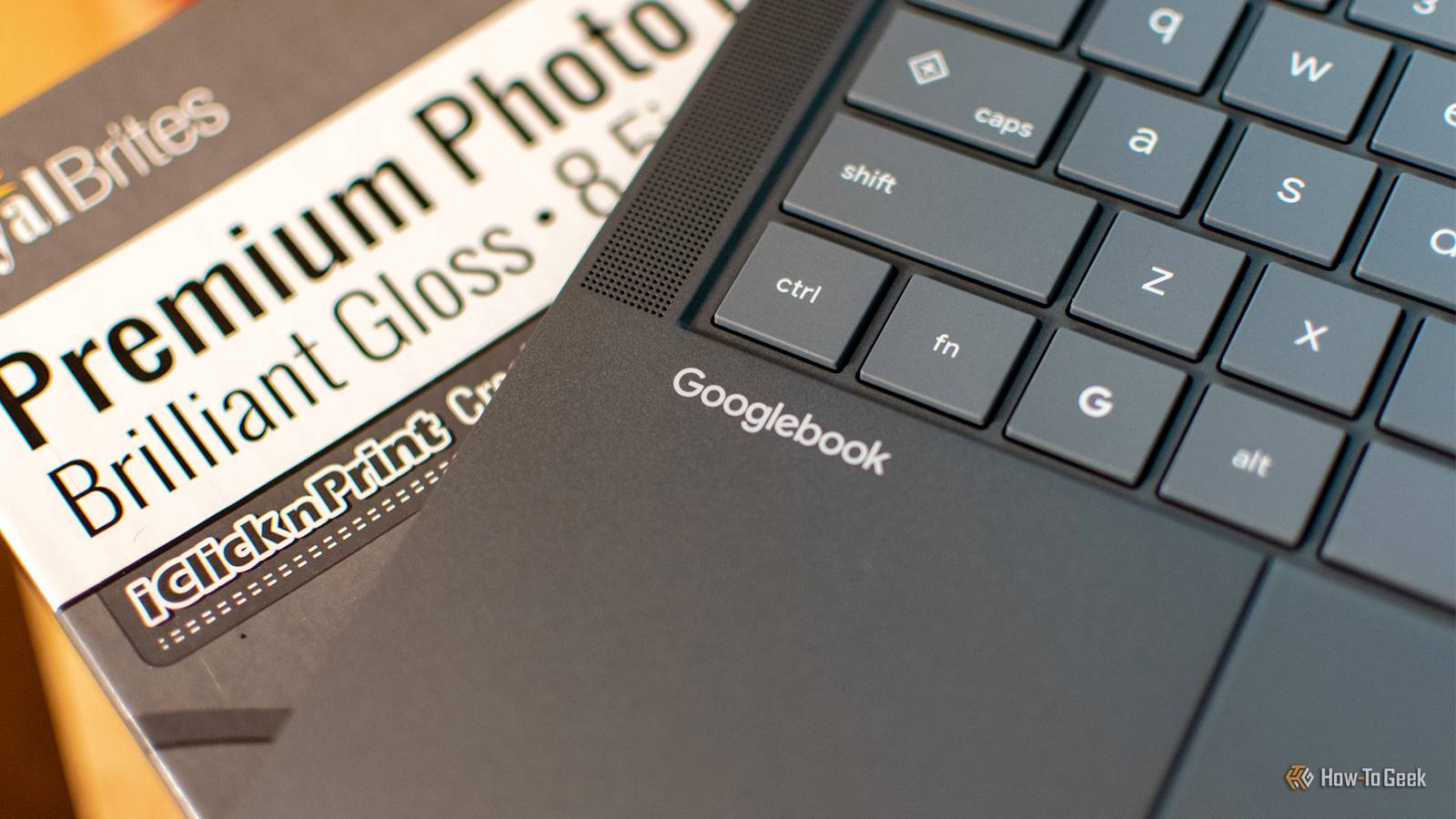
Need to print a document from your Googlebook? Thankfully, the process of connecting to a printer takes less than a minute, and although most Googlebook apps lack any printing functionality, Chrome and other standard Google tools will let you print a page or document with a simple keyboard shortcut.Use the Ctrl + P shortcut or print from the three-dot menu This process works over both Wi-Fi and USB Close Printer discovery on the Googlebook is fairly seamless.Connect your printer to the Googlebook over USB, or connect both devices to the same Wi-Fi network, and your printer will appear as an option in the print menu.
To access the print menu, open a web page or document and press the Ctrl + P keys on your Googlebook.Alternatively, go into the three-dot menu at the top-right corner of your browser and select the "Print" option.Now, navigate to the top-left corner of the print menu and press the "Select a printer" button.
Select your printer, determine your paper size, color settings, paper orientation, and other options, then hit the large "Print" button in the bottom-right corner of the window.Most Google-made apps, including Google Photos, follow this schema—you can print using Ctrl + P or by selecting "Print" from the three-dot menu.Third-party apps may offer printing functionality through their "Share" menu (the icon that looks like three dots connected together with lines).
That said, the vast majority of apps on Googlebook are simply Android mobile apps and do not provide any built-in printing functionality at this time.Using Bluetooth? Try the printer's Android app This may also help when Wi-Fi or USB printing fails Bluetooth printers typically require a manufacturer app, just as they do on Android.Thankfully, Googlebook has a built-in process for installing these apps.
Open your Settings, click the "Connected Devices" tab in the sidebar, select the "Connection preferences" button that pops up, and click "Printing." Then, tap "Add service," and a Google Play window will appear onscreen.Select and install the app that matches your Bluetooth printer's branding.You can also get to your printer settings by typing "Printer" in the Settings app's search bar.
Some options on the Play Store are designed for universal printer connectivity—you should select one of these if your printer's manufacturer app isn't available.Alternatively, you can check the manufacturer's website for an APK file.If an APK file is available, download it to your Googlebook and double-click it to kick off the installation process.
How to diagnose printing errors on a Googlebook Check your notifications or go to Printer Settings It's almost impossible to use a printer without running into errors.And, like Windows or macOS, GooglebookOS doesn't always make printing errors easy to find.There are two ways to read printing errors on your Googlebook.
The fastest option is to simply pull down your notification menu, which you can access by clicking the bell icon in the top-right corner of your screen (or by swiping down from the top-right corner of the touchscreen).But the notification tray can be a bit messy.If you need a cleaner, more detailed view, you'll need to go into your Printer Settings.
Open your Googlebook's Settings app, select "Connected Devices," and tap the "Connection preferences" button.Then, select "Printing," and you'll see all of your most recent printing errors.(Alternatively, type "Printer" into the Settings app's search bar and select the first option that comes up.) Related A small key icon just appeared in your Android status bar.
Here's what it's trying to tell you That key icon isn't random.It's there for a reason.Posts 8 By Tyler Dupont Don't forget that you can print screenshots, too If you to print from an app that doesn't offer native printing support, such as Messages, screenshots are effectively your best option.
Hit Ctrl + Show Display (the function key that looks like a tiny square) to capture your entire screen, or use Ctrl + Shift + Show Display to select the portion of the display you'd like to capture.Once you've got your screenshot, a preview will appear in the corner of your screen alongside a "Share" button.Hit this button to print the screenshot, or go into your files, open the screenshot, and use Ctrl + P to print it any time you want.
Read More